
In the vast landscape of modern computing and data science, NumPy stands as an indispensable foundational library for Python. Its name, a portmanteau of “Numerical Python,” perfectly encapsulates its core purpose: providing powerful, high-performance tools for numerical operations, especially with multi-dimensional arrays and matrices. Whether you’re delving into machine learning, scientific computing, data analysis, or any field requiring efficient numerical processing, NumPy is almost certainly at the heart of your toolkit.
While the Python ecosystem is constantly evolving with newer versions of libraries, there are often compelling reasons to install a specific, older version of a package. In this guide, we’ll focus on the precise steps required to install NumPy version 1.14. This might be crucial for maintaining compatibility with legacy projects, ensuring consistency across development environments, or adhering to specific project dependencies that mandate this particular iteration. Understanding how to manage and install specific library versions is a fundamental skill for any developer or data scientist, ensuring project stability and reproducibility. This article will walk you through the prerequisites, installation methods, verification steps, and common troubleshooting tips to get NumPy 1.14 up and running on your system with confidence.

The Indispensable Role of NumPy in Modern Computing
NumPy’s significance in the Python scientific computing stack cannot be overstated. It provides the core array object that other fundamental libraries like SciPy, Pandas, and Matplotlib are built upon. Without NumPy, the efficiency and performance of numerical computations in Python would be severely hampered, making it impractical for many data-intensive tasks.
What is NumPy? Unpacking its Core Value
At its heart, NumPy introduces the ndarray object, a powerful N-dimensional array capable of storing homogeneous data (i.e., all elements of the same type). This ndarray is far more efficient than Python’s built-in list for numerical operations for several reasons:
- Memory Efficiency: NumPy arrays consume less memory than Python lists, especially for large datasets, because they store elements contiguously in memory and don’t need to store type information for each individual element.
- Performance: NumPy operations are implemented in C or Fortran, allowing them to execute much faster than pure Python equivalents. This “vectorization” of operations means that loops are often performed at the C level rather than in slower Python.
- Rich Functionality: NumPy provides a vast collection of high-level mathematical functions to operate on these arrays, including linear algebra routines, Fourier transforms, random number generation, and sophisticated array manipulation tools. These functions are optimized for performance and ease of use.
For anyone working with numerical data, from simple calculations to complex simulations, NumPy dramatically simplifies and accelerates the workflow. It’s the bedrock upon which the entire data science ecosystem in Python thrives.
Why Version 1.14? Navigating Specific Project Requirements
In the fast-paced world of software development, new versions of libraries are released frequently, bringing bug fixes, performance enhancements, and new features. However, sticking to a specific older version like NumPy 1.14 is often a deliberate choice driven by practical considerations. Here are some common scenarios where this might be necessary:
- Legacy Project Maintenance: You might be working on an existing project or codebase that was developed with NumPy 1.14 as a dependency. Upgrading NumPy could potentially introduce breaking changes or subtle behavioral differences that would require extensive refactoring and testing, which might not be feasible or within the project’s scope.
- Dependency Compatibility: Other libraries within your project might explicitly require or perform optimally with NumPy 1.14. A newer NumPy version might cause conflicts or unexpected behavior with these interconnected packages. This is particularly common in complex scientific or machine learning environments where multiple libraries are tightly coupled.
- Reproducibility: For scientific research or production systems, ensuring exact reproducibility of results is paramount. Pinning dependencies to specific versions, including NumPy 1.14, guarantees that the code runs in an identical environment every time, preventing discrepancies caused by library updates.
- Specific Bug Fixes or Features: Although less common for older versions, it’s possible that a particular project relies on a specific behavior or a subtle bug that was fixed in a later version of NumPy, making 1.14 the preferred or only functional choice for that specific implementation.
Understanding why you need a specific version helps in appreciating the importance of precise installation steps, which we will now explore.
Prerequisites and System Setup for NumPy 1.14
Before diving into the installation process, it’s crucial to ensure your system meets the necessary prerequisites. Proper setup prevents many common installation errors and streamlines the entire experience.
Ensuring a Compatible Python Installation
NumPy is a Python library, so having a suitable Python installation is the first and most critical step. For NumPy 1.14, you’ll generally need Python 2.7 or Python versions from 3.4 up to 3.7. It’s important to note that Python 2.7 is now officially deprecated, so for any new development or if you have flexibility, Python 3.x is highly recommended.
How to Check Your Python Version:
Open your terminal or command prompt and type:
python --version
# or
python3 --version
If you don’t have Python installed, or if your version is outside the compatible range, you’ll need to install it. We highly recommend downloading it from the official Python website (python.org) or using a distribution like Anaconda/Miniconda, especially if you’re involved in data science, as they come pre-packaged with many essential libraries and robust environment management tools.
Pip: Python’s Essential Package Installer
pip is the standard package manager for Python and is the easiest way to install and manage Python libraries, including NumPy. Modern Python installations (Python 3.4 and later) typically include pip by default.
Verifying and Upgrading Pip:
To check if pip is installed and to see its version, open your terminal and run:
pip --version
# or for Python 3 specific pip
pip3 --version
It’s a good practice to ensure your pip is up to date, as older versions can sometimes cause dependency resolution issues. To upgrade pip to its latest version, use:
python -m pip install --upgrade pip
# or
python3 -m pip install --upgrade pip
This command ensures that you’re using the most stable and feature-rich version of pip, which can prevent many common installation woes.
Virtual Environments: A Best Practice
While not strictly a prerequisite for installing NumPy, using virtual environments is a highly recommended best practice for Python development. A virtual environment creates an isolated space for your Python projects, allowing you to install specific versions of libraries for each project without interfering with your system’s global Python installation or other projects. This is particularly useful when you need an older version like NumPy 1.14 for one project, while another project might require a newer version.
Creating and Activating a Virtual Environment:
- Navigate to your project directory:
bash

cd /path/to/your/project
- Create a virtual environment (e.g., named ‘venv’):
bash

python -m venv venv
- Activate the virtual environment:
- On macOS/Linux:
bash

source venv/bin/activate
- On Windows (Command Prompt):
bash

venvScriptsactivate.bat
- On Windows (PowerShell):
bash

venvScriptsActivate.ps1
Once activated, your terminal prompt will typically show the name of the virtual environment (e.g.,(venv)), indicating that anypipcommands will now install packages into this isolated environment. Deactivating is as simple as typingdeactivate. For the remainder of this guide, assume you are operating within an activated virtual environment.
- On macOS/Linux:
Step-by-Step Installation of NumPy 1.14
With your prerequisites checked and a virtual environment (highly recommended) set up, you’re ready to install NumPy 1.14. We’ll primarily focus on using pip, the most common and straightforward method, but will also briefly touch upon other approaches.
Method 1: Installing NumPy 1.14 Using Pip
The pip command allows you to specify the exact version of a package you wish to install. This is crucial for our goal of installing NumPy 1.14.
-
Open your terminal or command prompt.
-
Activate your virtual environment (if you’re using one, which you should be!).
-
Execute the installation command:
pip install numpy==1.14.0Or, if you prefer a slightly older patch release within the 1.14 series (e.g., 1.14.6 was the final release of this series), you might specify that:
pip install numpy==1.14.6The
==operator explicitly tellspipto install that particular version. Without it,pipwould install the latest stable version available, which is not what we want in this scenario. -
Observe the output:
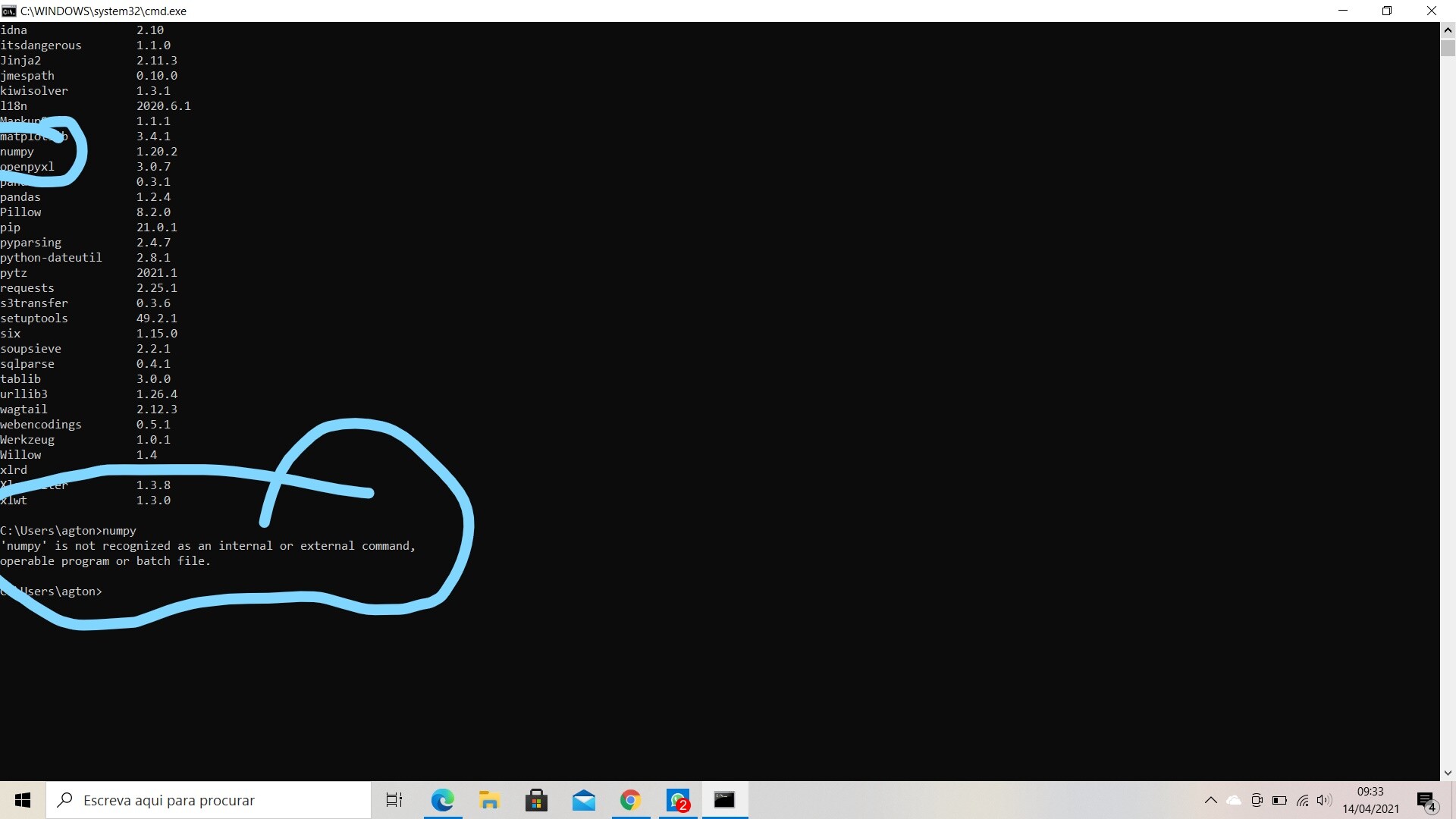
pipwill download the necessary wheel file (a pre-compiled package) for NumPy 1.14, along with any dependencies (though for NumPy, core dependencies are usually minimal and often handled by the wheel itself). You should see messages indicating the download progress and successful installation.
Collecting numpy==1.14.0

  Downloading numpy-1.14.0-cp36-cp36m-win_amd64.whl (10.0 MB)

Installing collected packages: numpy

Successfully installed numpy-1.14.0
(Note: Thecp36-cp36m-win_amd64part refers to Python 3.6, Windows, 64-bit architecture. This will vary based on your system and Python version.)
Method 2: Using Conda (for Anaconda/Miniconda Users)
If you manage your Python environments using Anaconda or Miniconda, conda is your preferred package manager. It handles environment creation and package installation in an integrated manner.
- Open your Anaconda Prompt (Windows) or terminal (macOS/Linux).
- Create a new environment (optional but recommended):
bash

conda create --name my_numpy_114_env python=3.6 # Choose a compatible Python version
- Activate the new environment:
bash

conda activate my_numpy_114_env
- Install NumPy 1.14:
bash

conda install numpy=1.14
Conda is usually quite good at resolving dependencies, and specifyingnumpy=1.14will generally lead to the installation of the latest patch release within the 1.14 series (e.g., 1.14.6) that is compatible with your chosen Python version.
Method 3: Installing from Source (Advanced Users)
Installing from source is typically reserved for advanced scenarios, such as when a pre-compiled wheel isn’t available for your specific architecture or operating system, or when you need to make custom modifications to the library. This method requires a C compiler (like GCC on Linux/macOS or Visual Studio Build Tools on Windows).
- Download the source code: You would typically find the source distribution (
.tar.gzfile) for NumPy 1.14.0 on PyPI (pypi.org/project/numpy/1.14.0/#files). - Extract the archive.
- Navigate to the extracted directory in your terminal.
- Ensure you have a C compiler installed and configured.
- Run the installation command:
bash

python setup.py install
This process can be more complex due to compiler setup and potential dependency issues, so it’s generally avoided unless absolutely necessary. For most users,pip install numpy==1.14.xwill suffice.
Verifying Your NumPy 1.14 Installation
After running the installation command, it’s essential to verify that NumPy 1.14 was indeed installed correctly and is accessible to your Python environment. This step confirms that you can import the library and that its version matches your requirement.
Simple Python Script for Verification
- Open your Python interpreter or create a new Python script (
check_numpy.py). - Make sure your virtual environment is active (if applicable).
- Execute the following commands:
python

import numpy as np

print(np.__version__)
- Expected Output:
If the installation was successful, the output in your terminal should be:
1.14.0
or1.14.xdepending on the exact patch version thatpiporcondadecided was the most suitable1.14release. If you see1.14.0or1.14.6, then congratulations, your installation is correct!
If you encounter an ImportError or a different version number, it indicates an issue that needs troubleshooting.
Troubleshooting Common Installation Issues
Even with careful preparation, installation issues can arise. Here’s a breakdown of common problems and their solutions:
-
ModuleNotFoundError: No module named 'numpy'orImportError:- Reason: NumPy wasn’t installed, or it was installed in a different Python environment than the one you’re currently using.
- Solution:
- Double-check that you activated your virtual environment before running
pip install. - Verify that
pip install numpy==1.14.0completed without errors. - Ensure you are running your Python script/interpreter within the correct environment.
- If multiple Python versions are on your system, try
python3 -m pip install numpy==1.14.0andpython3 your_script.py.
- Double-check that you activated your virtual environment before running
-
Permission Errors (e.g.,
Permission denied):- Reason: You’re trying to install packages into a system-wide Python directory without the necessary administrative privileges. This is a common issue when not using a virtual environment.
- Solution:
- Always use a virtual environment. This completely bypasses the need for system-level write permissions.
- If you must install globally (generally discouraged), use
sudo pip install numpy==1.14.0on macOS/Linux (use with caution) or run your command prompt/terminal as an administrator on Windows.
-
Network Issues (e.g.,
Could not connect to PyPI):- Reason: Problems with your internet connection, firewall, or proxy settings preventing
pipfrom downloading packages. - Solution:
- Check your internet connection.
- If you’re behind a corporate firewall or proxy, you might need to configure
pipto use proxy settings. - Try
pip install --trusted-host pypi.org --trusted-host files.pythonhosted.org numpy==1.14.0(use with caution if your network is untrusted).
- Reason: Problems with your internet connection, firewall, or proxy settings preventing
-
“Failed building wheel for numpy” or similar compilation errors:
- Reason: This often occurs when
pipcannot find a pre-compiled wheel for your specific Python version and operating system, and it attempts to compile NumPy from source but lacks the necessary build tools (like a C compiler). - Solution:
- Ensure you have the appropriate build tools installed for your OS:
- Windows: Install “Build Tools for Visual Studio” (specifically the C++ build tools workload).
- macOS: Install Xcode Command Line Tools (
xcode-select --install). - Linux (Debian/Ubuntu):
sudo apt-get install build-essential python3-dev
- Verify that your Python version is compatible with NumPy 1.14. Sometimes, very new Python versions might not have pre-built wheels for older NumPy releases. In such cases, installing from source is the only option, or reconsidering the Python version.
- Ensure you have the appropriate build tools installed for your OS:
- Reason: This often occurs when
-
Incompatible Python Versions:
- Reason: You might be trying to install NumPy 1.14 with a Python version that it doesn’t officially support (e.g., Python 3.8+ might have limited pre-built wheels for 1.14.x).
- Solution: Create a new virtual environment with a compatible Python version (e.g.,
python=3.6orpython=3.7) and then try installing NumPy 1.14 within that environment.
By systematically addressing these common issues, you should be able to successfully install and verify NumPy 1.14, paving the way for your data science and numerical computing tasks.
Leveraging NumPy 1.14: Beyond Installation
Once NumPy 1.14 is successfully installed and verified, you can immediately begin to harness its power. While this guide focuses on installation, it’s worth briefly touching upon what you can do with it and some considerations.
Basic NumPy Operations: Getting Started
The fundamental use of NumPy revolves around its ndarray. Here are a few quick examples to illustrate its capabilities:
import numpy as np

# Create a simple 1D array
arr1d = np.array([1, 2, 3, 4, 5])
print("1D Array:", arr1d)
print("Type of arr1d:", type(arr1d))
print("Shape of arr1d:", arr1d.shape) # (5,)

# Create a 2D array (matrix)
arr2d = np.array([[1, 2, 3], [4, 5, 6]])
print("n2D Array:n", arr2d)
print("Shape of arr2d:", arr2d.shape) # (2, 3)

# Perform element-wise operations (much faster than Python lists)
arr_add = arr1d + 10
print("nArray + 10:", arr_add)

# Perform matrix multiplication
matrix_a = np.array([[1, 2], [3, 4]])
matrix_b = np.array([[5, 6], [7, 8]])
dot_product = np.dot(matrix_a, matrix_b)
print("nMatrix A:n", matrix_a)
print("Matrix B:n", matrix_b)
print("Dot Product (A @ B):n", dot_product)

# Generate an array of zeros, ones, or a range
zeros_array = np.zeros((2, 3))
print("nZeros Array:n", zeros_array)

ones_array = np.ones((1, 4))
print("Ones Array:n", ones_array)

range_array = np.arange(0, 10, 2) # Start, Stop (exclusive), Step
print("Range Array:", range_array)
These basic examples highlight the intuitive syntax and powerful capabilities that NumPy brings to numerical computing in Python. Version 1.14, while not the latest, still provides all these core functionalities, which remain largely consistent across different major versions.
Potential Compatibility Considerations with Other Libraries
While NumPy 1.14 is robust, it’s essential to be aware of its compatibility with other libraries in your data science stack. Many libraries like Pandas, Scikit-learn, and Matplotlib often specify minimum and sometimes maximum compatible NumPy versions.
- Newer Libraries: If you’re using very recent versions of other data science libraries, they might expect a newer version of NumPy than 1.14. This could lead to warnings, unexpected behavior, or even errors. Always check the dependency requirements of all libraries in your project.
- Upgrading Later: If your project eventually moves away from the need for NumPy 1.14, upgrading to a more recent version (e.g.,
pip install --upgrade numpy) will bring performance improvements and access to the latest features. However, remember to test your codebase thoroughly after any major dependency upgrade.
The key to successful project management in data science is a clear understanding of your dependencies and diligent environment management using tools like virtual environments.

Conclusion: Empowering Your Data Journey with NumPy
Successfully installing a specific version of a foundational library like NumPy is a critical step in setting up a stable and reproducible development environment. By meticulously following the steps outlined in this guide – from checking Python and pip prerequisites to executing precise installation commands and verifying the outcome – you can confidently deploy NumPy 1.14 for your projects.
NumPy’s power to handle large datasets and complex numerical operations with remarkable efficiency is what makes it a cornerstone of data science and scientific computing in Python. Whether you’re maintaining a legacy system, adhering to strict project dependencies, or ensuring the reproducibility of your research, mastering version-specific installations empowers you with greater control over your development workflow. With NumPy 1.14 now integrated into your environment, you’re well-equipped to tackle a wide array of computational challenges and push the boundaries of data-driven innovation.
aViewFromTheCave is a participant in the Amazon Services LLC Associates Program, an affiliate advertising program designed to provide a means for sites to earn advertising fees by advertising and linking to Amazon.com. Amazon, the Amazon logo, AmazonSupply, and the AmazonSupply logo are trademarks of Amazon.com, Inc. or its affiliates. As an Amazon Associate we earn affiliate commissions from qualifying purchases.