
Terraria, Re-Logic’s beloved 2D sandbox adventure, has captivated millions with its pixelated charm, boundless exploration, and challenging boss battles. Yet, for many seasoned adventurers, the vanilla experience, rich as it is, eventually gives way to a hunger for more. This is where the vibrant world of Terraria modding steps in, transforming the familiar landscape into an entirely new experience. From quality-of-life improvements that streamline gameplay to colossal content packs that introduce new biomes, classes, and hundreds of hours of fresh challenges, mods breathe new life into an already fantastic game.
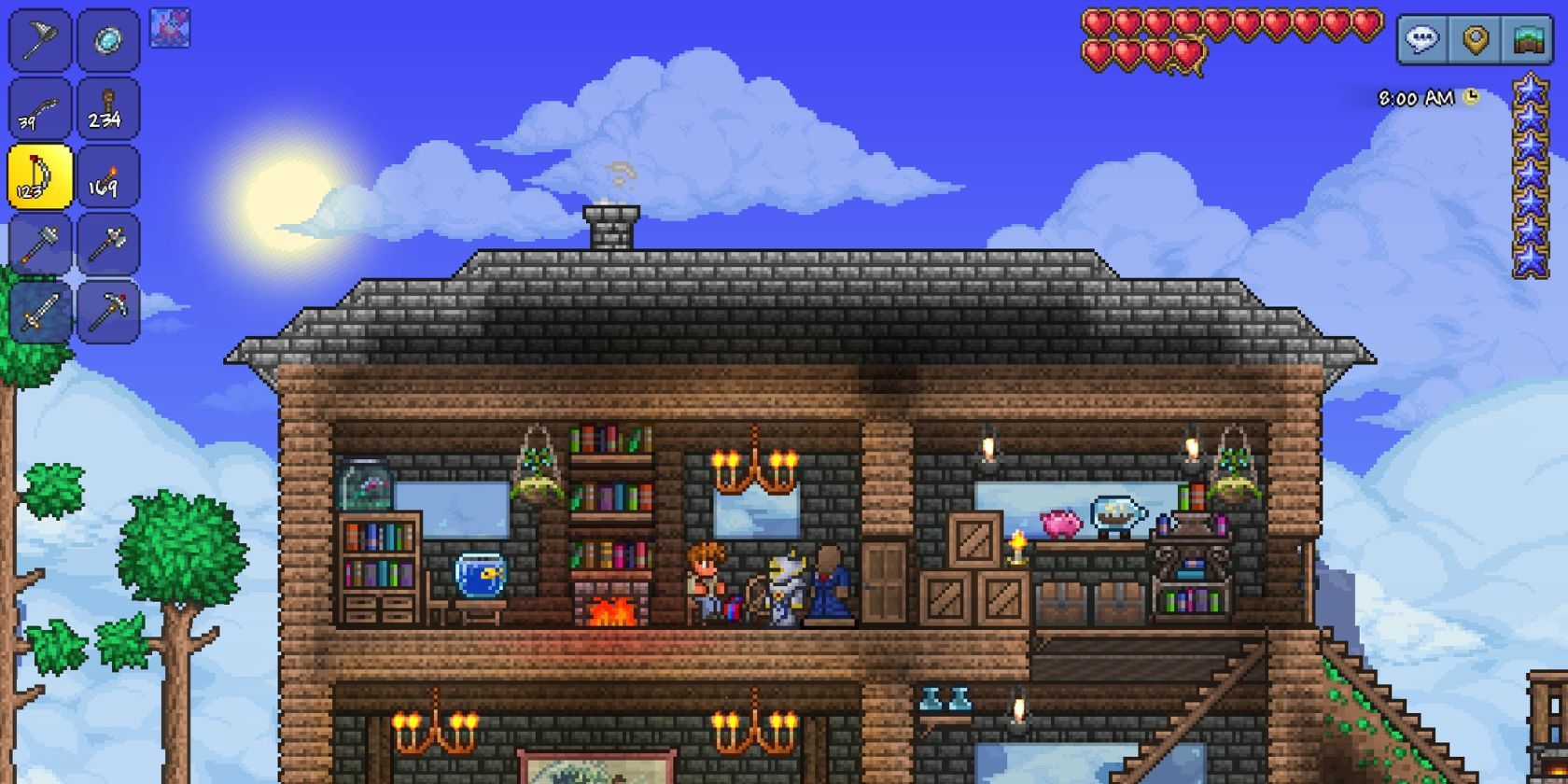
This guide will walk you through everything you need to know about installing mods in Terraria, ensuring you can unlock the full potential of this enduring classic. We’ll delve into the official modding client, tModLoader, cover essential prerequisites, provide step-by-step installation instructions, and offer troubleshooting tips to get you started on your enhanced journey. As a technology-focused resource, we understand the importance of clear, actionable advice, ensuring even those new to modding can confidently navigate this exciting aspect of gaming. Beyond the technical ‘how-to,’ we’ll also touch upon how modding contributes to the game’s longevity, fosters community, and even presents opportunities for creators, tying into broader themes of digital innovation and economic value within the gaming ecosystem.
Understanding the World of Terraria Modding
Before diving into the technical steps, it’s crucial to understand what mods are, why they’re so popular, and the essential tool that facilitates their integration into Terraria. This foundational knowledge will empower you to make informed choices and fully appreciate the ingenuity behind the modding community.
What are Mods and Why Use Them?
At its core, a “mod” (short for modification) is a user-created alteration to a video game’s original code or assets. In the context of Terraria, these modifications can range dramatically in scope and impact. Some mods are minor tweaks, like displaying damage numbers more clearly, enhancing inventory management, or adding new aesthetic block types. These are often referred to as “Quality of Life” (QoL) mods because they aim to make the existing game more enjoyable and less tedious without fundamentally changing its core mechanics.
On the other end of the spectrum are “content mods.” These are often massive undertakings that introduce entirely new game elements: new weapons, armor sets, accessories, enemies, bosses, biomes, classes, and even entirely new game progression systems. Mods like Calamity, Thorium, or Fargo’s Soul Mod are prime examples, each adding hundreds of hours of new gameplay, challenging even the most experienced Terraria veterans with fresh lore and mechanics. The reasons players seek out mods are manifold: to extend the game’s lifespan after completing all vanilla content, to experience new challenges, to customize their gameplay experience, or simply to enjoy the creative output of the community. For a game that has seen multiple official updates over a decade, mods ensure that the adventure truly never ends, constantly providing fresh content without the need to purchase new titles—a subtle financial benefit for players seeking endless entertainment from a single investment.
Introducing tModLoader: The Official Modding Client
For many years, Terraria modding was a somewhat convoluted process, often requiring manual file replacements and a degree of technical savvy. However, in a commendable move by Re-Logic, tModLoader was officially adopted as the dedicated, open-source modding API and client for Terraria. This was a game-changer. tModLoader effectively acts as a separate, mod-enabled version of Terraria, making the installation and management of mods incredibly user-friendly and safe.
What makes tModLoader so indispensable?
- Simplified Installation: It handles all the complex underlying code injections, presenting a clean interface for users.
- Integrated Mod Browser: Users can browse, download, and update mods directly within the game client, eliminating the need to search external websites and manually move files.
- Mod Isolation: tModLoader runs mods in a separate environment from your vanilla Terraria installation, ensuring that your original game files remain untouched and stable. This is crucial for digital security and data integrity, preventing corrupted saves or accidental overwrites of your unmodded worlds and characters.
- Community Hub: It connects directly to the official tModLoader mod browser, a curated repository where mod creators can upload their work, ensuring a degree of quality control and accessibility.
The official embrace of tModLoader by Re-Logic not only legitimized Terraria modding but also streamlined the entire process, making it accessible to a much broader audience. This strategic move by the brand solidified community engagement and extended the perceived value and longevity of their product, turning user-generated content into a powerful engine for sustained interest.
Preparing for Mod Installation: Essential Prerequisites
Before you can embark on your modded Terraria adventure, a few preparatory steps are necessary. These ensure a smooth installation process and help prevent common issues that might arise during modding. Thinking proactively about these points aligns with best practices in software management and digital security.
Essential Prerequisites
- Own a Legal Copy of Terraria: This might seem obvious, but tModLoader requires an existing, legitimate installation of Terraria. The easiest way to get started is through Steam, as tModLoader is available directly as a free DLC. If you own Terraria on GOG or other platforms, tModLoader also offers a standalone installation method, though the Steam route is generally recommended for simplicity.
- Sufficient System Resources: While Terraria itself isn’t a graphically intensive game, adding numerous content mods can significantly increase its demand on your system’s RAM and CPU. Before diving into huge mod packs, ensure your computer meets or ideally exceeds the minimum system requirements for vanilla Terraria. If you plan on running multiple large mods (like Calamity, Thorium, and Fargo’s Soul Mod simultaneously), consider having at least 8GB of RAM, and preferably 16GB, for a smooth experience, especially on larger worlds. Lag and crashes are common symptoms of insufficient resources in heavily modded playthroughs.
- Backup Your Terraria Saves (Optional but Recommended): Although tModLoader isolates your modded playthroughs from your vanilla saves, it’s always good practice to back up your important Terraria worlds and characters before making any significant changes to your game files. This habit extends to any software modification. You can usually find your save files in
DocumentsMy GamesTerraria. Simply copy the ‘Players’ and ‘Worlds’ folders to a safe location, like another folder on your desktop or a cloud storage service. This ensures that even in the unlikely event of a catastrophic mod conflict or error, your original progress remains safe. - Internet Connection: You’ll need an active internet connection to download tModLoader and, subsequently, to browse and download mods from the in-game mod browser.
Acquiring and Installing tModLoader
The process of getting tModLoader differs slightly depending on where you own Terraria. The Steam method is by far the simplest and most recommended for its seamless integration.
Method 1: Steam (Recommended)
- Open Steam: Launch your Steam client and navigate to your Library.
- Locate Terraria: Find Terraria in your game list.
- Install tModLoader: On the Terraria store page or from your library, you will see tModLoader listed as a free DLC. Simply click “Install” or “Add to Account” and Steam will download and install it just like any other game. It will appear as a separate entry in your Steam library, distinct from vanilla Terraria.
- Launch tModLoader: Once installed, you can launch tModLoader directly from your Steam library. It will have its own icon and name (usually “tModLoader”).
Method 2: Standalone Installation (for GOG, DRM-Free, or other versions)
If you own Terraria through GOG or another platform, you’ll need to install tModLoader manually.
- Download tModLoader: Visit the official tModLoader GitHub page or their dedicated website (a quick search for “tModLoader download” will lead you there). Look for the latest stable release for your operating system (Windows, Mac, Linux).
- Locate Terraria Installation Directory: Find where your vanilla Terraria is installed. For GOG, this might be something like
C:Program Files (x86)GOG GalaxyGamesTerraria. - Extract tModLoader Files: Unzip the downloaded tModLoader archive. You will see a folder containing several files and subfolders.
- Copy Files: Copy all the contents from the unzipped tModLoader folder directly into your Terraria installation directory. When prompted, choose to merge folders and overwrite existing files. This process effectively transforms your vanilla Terraria executable into a tModLoader-enabled version.
- Launch Terraria: Now, when you launch your Terraria game (e.g., via the executable
Terraria.exein its installation folder), it should now launch as tModLoader.
Always ensure you are downloading tModLoader from official or reputable sources to avoid malware or corrupted files. This vigilance is a core component of digital security, protecting your system and personal data.
Step-by-Step Mod Installation: Your First Modded Adventure
With tModLoader successfully installed, the exciting part begins: finding and integrating mods into your game. The process is remarkably straightforward, thanks to tModLoader’s intuitive design.
Launching tModLoader and Accessing the Mod Browser
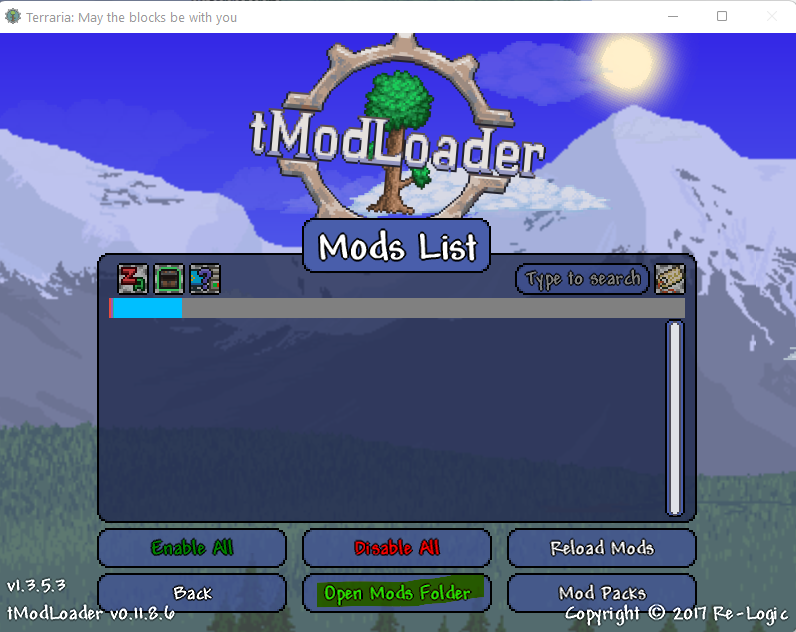
- Launch tModLoader: Start tModLoader from your Steam library or by running the modified Terraria executable if you used the standalone installation. You’ll notice the splash screen and main menu might look slightly different, confirming you’re in the modded client.
- Navigate to the Mods Menu: From the main menu, click on the “Mods” option. This will take you to the tModLoader’s mod management interface.
- Open Mod Browser: Within the Mods menu, you’ll see several options. Click on “Mod Browser.” This is your gateway to the vast library of Terraria mods.
Discovering and Downloading Mods
The Mod Browser functions much like a digital storefront, allowing you to search, filter, and discover mods.
- Browse and Search: You can scroll through popular or recently updated mods, or use the “Search” bar at the top to look for specific mods by name or keywords (e.g., “Calamity,” “QoL,” “magic,” “building”). You can also filter by categories, popularity, or update date.
- Review Mod Information: Clicking on a mod in the browser will display detailed information about it, including its description, features, author, version compatibility, and sometimes user reviews or screenshots. Always read the description to ensure the mod meets your expectations and is compatible with your tModLoader version. Pay attention to any special instructions or known conflicts mentioned by the mod author. This research is crucial for productivity, saving you from troubleshooting later.
- Download and Install: Once you’ve found a mod you want, simply click the “Download” button next to its name. tModLoader will automatically download the mod and place it in the correct directory. You’ll see a progress bar during the download.
Enabling and Managing Your Mods
Downloading a mod doesn’t automatically activate it. You need to enable it from the Mods menu.
- Return to the Mods Menu: After downloading, close the Mod Browser to return to the main “Mods” screen. Here, you’ll see a list of all your downloaded mods.
- Enable Mods: Each mod will have a checkbox next to its name. To activate a mod, simply click the checkbox to enable it. You can enable multiple mods simultaneously.
- Reload Mods: After enabling or disabling any mods, you must click the “Reload Mods” button (usually at the bottom of the screen). This action prompts tModLoader to reload all active mods, integrating them into the game’s code. This process might take a few moments, especially if you have many large mods, and the game will likely restart or reload.
- Adjust Load Order (Advanced): For some complex mods or if you encounter conflicts, the order in which mods load can matter. In the “Mods” menu, you can usually drag and drop mods to change their load order. Generally, smaller utility mods should load before larger content mods, but specific instructions will often be provided by mod authors if a particular load order is required.
- Updating Mods: Periodically, mod authors release updates. You’ll often see an “Update” button appear next to mods in the Mod Browser or your “Mods” list if a new version is available. Simply click it to download the update, and then “Reload Mods.”
- Disabling/Deleting Mods: To disable a mod, uncheck its box and “Reload Mods.” To permanently remove a mod, uncheck it, then click the “Delete” button (if available) or navigate to the tModLoader mods folder (
DocumentsMy GamesTerrariaModLoaderMods) and delete the.tmodfile manually. Remember to “Reload Mods” after deletion.
Advanced Tips and Troubleshooting for Modded Terraria
While tModLoader simplifies the modding experience, sometimes issues can arise. Knowing how to troubleshoot and optimize your setup will ensure a more stable and enjoyable modded Terraria journey. This section touches on important aspects of digital security, productivity, and software maintenance.
Common Issues and Solutions
- Game Crashes (Out of Memory): This is perhaps the most frequent issue, especially with large content mods.
- Solution: Close other applications to free up RAM. If persistent, consider upgrading your RAM. On Windows, you can enable the “Large Address Aware” flag for tModLoader (though newer versions often handle this automatically) or reduce the number of active large mods. Lowering texture quality in the game’s settings can also help.
- Mod Conflicts: Two or more mods trying to alter the same game aspect can lead to unexpected behavior, bugs, or crashes.
- Solution: Read mod descriptions carefully for known conflicts. Disable mods one by one to identify the culprit. If identified, you may need to choose between conflicting mods or search for compatibility patches created by the community. Sometimes, adjusting the load order can resolve minor conflicts.
- Mods Not Appearing/Working: You downloaded a mod, but it’s not showing up in the “Mods” list or not functioning in-game.
- Solution: Ensure you’ve clicked “Reload Mods” after enabling. Double-check that the mod is enabled (checkbox ticked). Verify that the mod is compatible with your tModLoader version. If downloaded manually, ensure the
.tmodfile is placed directly in theDocumentsMy GamesTerrariaModLoaderModsfolder.
- Solution: Ensure you’ve clicked “Reload Mods” after enabling. Double-check that the mod is enabled (checkbox ticked). Verify that the mod is compatible with your tModLoader version. If downloaded manually, ensure the
- Low Frame Rate (Lag): Similar to crashes, too many active mods can strain your system.
- Solution: Reduce visual settings in Terraria (lighting quality, backgrounds). Disable less essential mods. For some large mods, they may have in-game configuration options to reduce their graphical impact or disable certain demanding features. Ensure your graphics drivers are up to date.
- Corrupted Worlds/Characters: While rare with tModLoader, using very unstable mods or forcefully closing the game during saves can sometimes lead to corruption.
- Solution: This is why backups are crucial! Restore from your backup. Avoid playing critical characters/worlds with experimental or highly unstable mods. Start new characters and worlds specifically for modded playthroughs.
Optimizing Your Modded Terraria Experience
Beyond troubleshooting, there are strategies to enhance your long-term modding enjoyment.
- Start Small: If you’re new to modding, don’t immediately download 20 massive content mods. Begin with a few quality-of-life mods, then gradually introduce larger content packs one or two at a time. This makes it easier to identify conflicts and understand how each mod impacts your game.
- Dedicated Modded Saves: Always create new characters and worlds specifically for your modded playthroughs. Mixing modded and vanilla characters/worlds can sometimes lead to issues, especially if you remove a mod that added items or blocks to an existing world.
- Stay Updated: Regularly check for updates for tModLoader and your installed mods. Updates often include bug fixes, performance improvements, and new content.
- Read Mod Documentation: Many complex mods have dedicated wikis, GitHub pages, or forum threads with extensive documentation. Reading these can provide valuable insights into mechanics, crafting recipes, and troubleshooting specific to that mod. This proactive learning is a key productivity hack for gamers.
- Utilize Mod Configuration: Many mods offer in-game configuration options (often accessible via a gear icon next to the mod in the “Mods” menu). These allow you to fine-tune settings, disable certain features, or adjust difficulty, tailoring the mod to your preferences and system capabilities.
The Terraria Modding Community: Support and Creation
The strength of Terraria modding lies not just in the tools but in the passionate community that fuels it. Engaging with this community can significantly enhance your experience.
- Official Forums and Discord Servers: Most major mods and tModLoader itself have official Discord servers or forum sections where you can ask questions, report bugs, and get support directly from mod creators and experienced players. These are invaluable resources for troubleshooting or discovering new mods.
- Content Creation and Monetization: For those with a creative bent, modding isn’t just about playing; it’s about creating. Learning to make mods, even simple ones, can be a rewarding personal project, teaching valuable coding and design skills. Furthermore, the popularity of modded Terraria has created opportunities for content creators. Streamers and YouTubers who showcase modded playthroughs, create tutorials, or review new mods can build a significant audience, potentially leading to online income through ad revenue, sponsorships, or platform donations. This highlights how open-source platforms and user-generated content can foster a dynamic ecosystem of both play and professional endeavor. The ability to extend the life of a game and generate new narratives also contributes to the game’s overall brand strength and reputation within the wider gaming community.
The Broader Impact of Game Modding: Beyond the Pixels
The ability to install mods in Terraria, and indeed in many other games, represents more than just a technical feature. It reflects broader trends in technology, brand strategy, and even personal finance.
Extending Game Longevity and Value
From a consumer perspective, modding offers incredible value. By extending the playability of a game like Terraria for hundreds or even thousands of hours beyond its vanilla content, players get significantly more entertainment for their initial purchase. In an era where new games are constantly released, modding allows players to save money by refreshing an existing investment rather than constantly buying new titles. For game developers, supporting modding (as Re-Logic has done with tModLoader) fosters extreme player loyalty and keeps their brand relevant for far longer than the typical lifespan of a single-player game. It turns a product into a platform, continually enriched by its community.
Fostering Creativity and Skill Development
Modding is a powerful incubator for digital skills. Whether you’re simply learning to install and manage mods or venturing into creating them, you’re engaging with software in a hands-on way. Mod creators often develop proficiency in programming languages (like C# for Terraria), game design principles, asset creation, and problem-solving. These are highly transferable skills that can lead to careers in software development, game design, or digital art. For players, understanding how mods work cultivates a deeper appreciation for software architecture and the creative process, subtly enhancing digital literacy.
Content Creation and Monetization Potential
The rise of platforms like YouTube and Twitch has transformed gaming into a viable form of media and, for some, a significant source of income. Modded Terraria playthroughs are incredibly popular, offering endless new content for streamers and video creators. From “Let’s Play” series exploring massive mod packs to detailed tutorials on boss strategies or mod reviews, there’s a constant demand for engaging mod-related content. This opens avenues for individuals to turn their passion for gaming and modding into a side hustle or even a full-time career, showcasing a direct link between community-driven technology and personal financial opportunity. The brand image of a game is also significantly boosted by this continuous stream of community-generated content, acting as free marketing and a testament to its enduring appeal.

Conclusion
Installing mods in Terraria is an incredibly rewarding process that unlocks a universe of new possibilities, transforming an already fantastic game into an endlessly customizable adventure. With the official support of tModLoader, the technical barriers to entry have been significantly lowered, making it accessible to virtually anyone who owns the game. By following the steps outlined in this comprehensive guide—from understanding the basics and preparing your system to downloading, enabling, and troubleshooting your mods—you’re well-equipped to embark on your own modded journey.
Beyond the immediate thrill of new content, Terraria modding highlights the powerful synergy between technology, community, and economic value. It demonstrates how embracing user-generated content can extend a product’s life, foster creativity, and even create new avenues for personal income. So, venture forth, explore the vast mod browser, and redefine your Terraria experience. The journey through blocks, bosses, and boundless creativity has only just begun.
aViewFromTheCave is a participant in the Amazon Services LLC Associates Program, an affiliate advertising program designed to provide a means for sites to earn advertising fees by advertising and linking to Amazon.com. Amazon, the Amazon logo, AmazonSupply, and the AmazonSupply logo are trademarks of Amazon.com, Inc. or its affiliates. As an Amazon Associate we earn affiliate commissions from qualifying purchases.