
In an era where our daily lives are inextricably linked to the stability of our internet connections, the frustration of a lagging video call or a stuttering online gaming session is a modern universal grievance. As we stack our home and office networks with smart TVs, smartphones, laptops, and IoT devices, the demand for bandwidth has never been higher. However, simply paying for a faster internet plan isn’t always the solution to a “laggy” experience. The secret to a truly smooth digital experience often lies within a hidden feature of your router: Quality of Service (QoS).
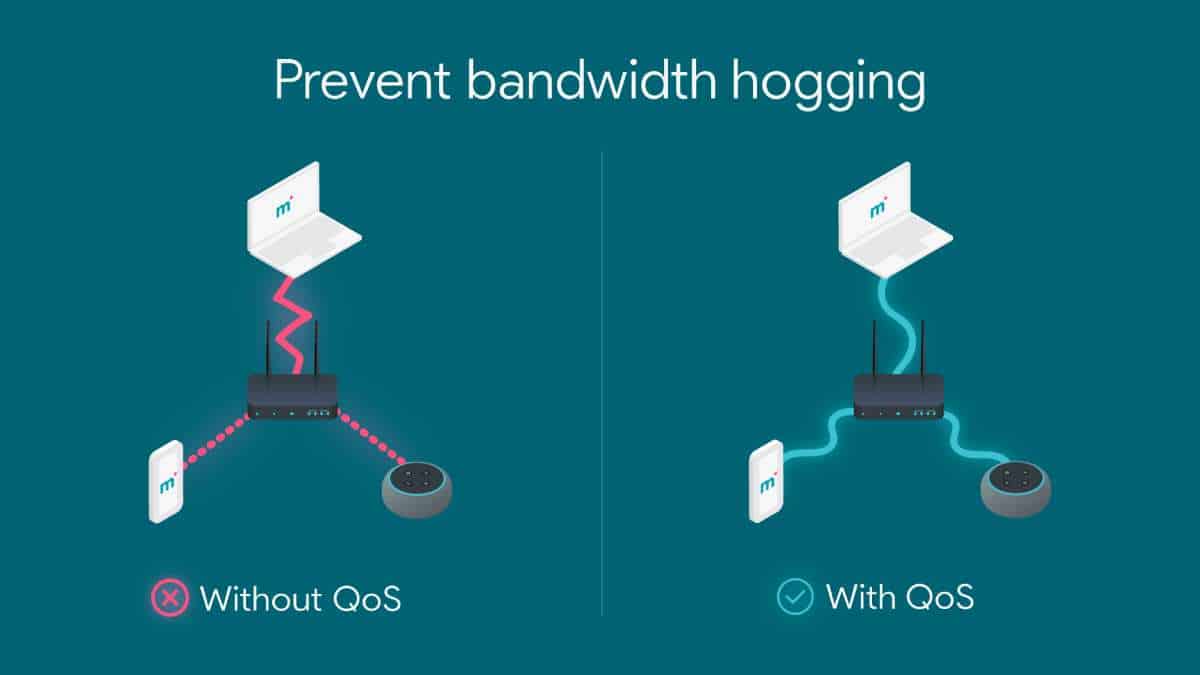
Quality of Service is a suite of technologies that manages network resources by prioritizing specific types of data traffic. Think of it as a sophisticated traffic controller for your digital highway, ensuring that emergency vehicles (like a high-stakes work presentation) get through the congestion while non-essential commuters (like a background software update) wait their turn. Understanding and implementing QoS can transform a congested, chaotic network into a streamlined, efficient environment.
Decoding Quality of Service (QoS): The Traffic Controller of Your Network
At its core, QoS is about managing scarcity. Even with high-speed fiber connections, network congestion occurs when the demand for data exceeds the router’s ability to process it instantaneously. Without QoS, routers typically operate on a “First-In, First-Out” (FIFO) basis. This means the router treats a packet of data from a 4K Netflix stream exactly the same as a packet from a critical VoIP call or a simple email sync. When the “pipe” gets full, packets are queued, leading to delays.
How QoS Works: Prioritizing Data Packets
To manage this, QoS uses “packet marking” and “queuing.” When data enters your router, the QoS engine identifies what kind of data it is. It looks at the header of the data packet to see if it belongs to a streaming service, a gaming server, or a web browser. Once identified, the router places these packets into different virtual queues. High-priority queues are emptied first, ensuring that time-sensitive data is transmitted with minimal delay. For example, if you are on a Microsoft Teams call while your console is downloading a 50GB game update, QoS will ensure the voice data packets move to the front of the line, preventing your audio from cutting out.
Latency, Jitter, and Packet Loss: The Enemies of Smooth Connections
To appreciate QoS, one must understand the three technical hurdles it aims to overcome:
- Latency: This is the time it takes for data to travel from its source to its destination. High latency results in “lag.” QoS reduces latency for specific applications by moving their data faster through the router’s processor.
- Jitter: This refers to the variation in the time between data packets arriving. In video streaming, high jitter causes buffering; in gaming, it causes “teleporting” players. QoS smooths out this delivery by reserving consistent bandwidth for these streams.
- Packet Loss: When a network is overwhelmed, the router may simply drop packets. QoS prevents critical packets (like those needed to maintain a secure VPN connection) from being dropped during peak congestion.
Why You Need QoS: Managing Bandwidth in a Multi-Device Household
The modern home is no longer just a place to browse the web; it is a broadcast studio, a high-tech office, and a gaming arena simultaneously. The challenge is that different online activities have vastly different requirements. Downloading a large file is “bandwidth-heavy” but not “latency-sensitive.” Conversely, online gaming uses very little bandwidth but is extremely sensitive to latency.
Prioritizing Gaming and Video Conferencing
For gamers and remote workers, QoS is a game-changer. In a standard setup, if someone in the other room starts uploading a large batch of photos to the cloud, it can spike the “ping” of a gamer, making the game unplayable. By enabling QoS and setting “Gaming” or “Voice Over IP (VoIP)” as a priority, the router will throttle the upload speed of the photo transfer just enough to ensure the gaming packets have a clear, fast path. This ensures that your inputs in a fast-paced game or your voice in a meeting remain synchronized and fluid.
Handling Smart Home Devices and Background Downloads
We often forget how many devices are constantly “talking” in the background. Smart thermostats, security cameras, and smart fridges all compete for a slice of the pie. While an individual smart bulb uses negligible data, thirty of them combined with a constant 24/7 stream from a 4K security camera can create a “noisy” network. QoS allows you to relegate these IoT devices to a lower priority, ensuring that they don’t interfere with your primary workstations or entertainment systems. It essentially creates a hierarchy of importance that matches your lifestyle.
The Different Types of QoS Implementations
Not all QoS settings are created equal. Depending on the sophistication of your router—whether it’s a budget model or a high-end gaming mesh system—you will encounter different ways to manage your traffic.
Application-Based Prioritization
This is perhaps the most common and user-friendly form of QoS. The router maintains a database of common applications (Zoom, Netflix, Steam, BitTorrent). The user simply toggles a switch to tell the router: “Always give Zoom the most bandwidth.” The router then uses Deep Packet Inspection (DPI) to identify the signature of those applications and prioritize them regardless of which device is using them.
Device-Based (MAC Address) Prioritization
If you have a dedicated “work laptop” or a “gaming PC,” device-based prioritization is often more effective. By using the unique MAC address of a device, you can tell the router to prioritize all traffic coming to and from that specific machine. This is particularly useful in a home office scenario, ensuring that your work computer always has the lion’s share of the resources, even if you are running multiple applications on it.
Intelligent QoS and AI-Driven Traffic Management
Modern high-performance routers now feature “Smart” or “Dynamic” QoS. These systems use machine learning algorithms to monitor network traffic in real-time. Instead of the user manually setting rules, the router observes which devices are performing latency-sensitive tasks and automatically adjusts the bandwidth allocation. This “set-it-and-forget-it” approach is ideal for households where the network usage patterns change frequently throughout the day.
A Step-By-Step Guide to Configuring QoS on Your Router
While the interface varies between brands like Asus, TP-Link, Netgear, and Ubiquiti, the logic of setting up QoS remains consistent. Before you dive into the settings, it is crucial to perform a baseline assessment of your network.
Determining Your Actual Bandwidth (The Speed Test)
The most common mistake people make when setting up QoS is entering the wrong speeds. QoS works by “shaping” traffic, and to do this effectively, it needs to know your maximum upload and download speeds. You should run a speed test (like Speedtest.net) while connected via an Ethernet cable. Take the results—say 400 Mbps down and 20 Mbps up—and enter 80–90% of those values into your QoS settings. By setting the limit slightly below your maximum capacity, you give the router “headroom” to manage the traffic before the ISP’s modem starts dropping packets uncontrollably.
Accessing the Router Admin Panel and Enabling Settings
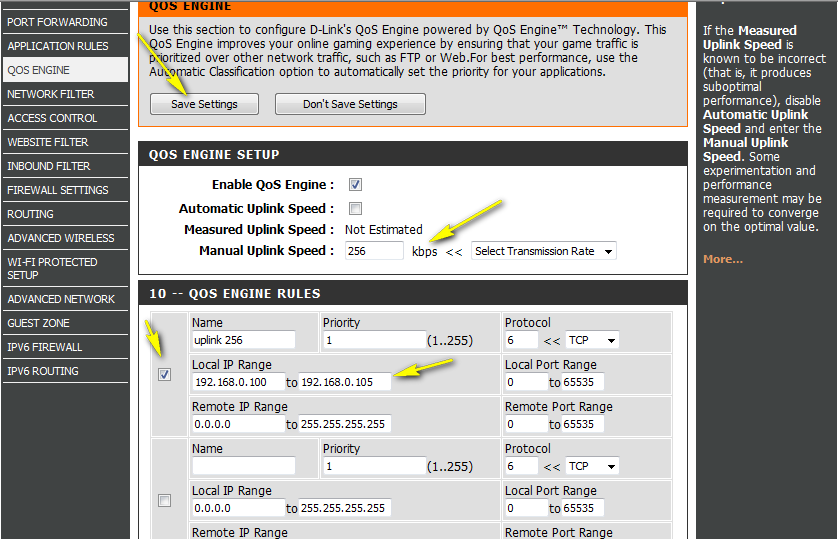
To enable QoS, you typically need to log into your router’s web interface (usually by typing 192.168.1.1 or 192.168.0.1 into a browser). Navigate to the “Advanced” or “Network” tab to find the QoS settings.
- Enable QoS: Toggle the main switch to ‘On.’
- Enter Speeds: Input the 80-90% values of your tested speed.
- Select Priority Mode: Choose between ‘Application’ or ‘Device’ priority.
- Drag and Drop: Most modern routers use a drag-and-drop interface where you place “Highest,” “High,” “Medium,” and “Low” labels onto your various devices or categories.
- Save and Reboot: Always save your settings and, if prompted, reboot the router to ensure the new queuing rules take effect.
The Limitations and Future of QoS in the Wi-Fi 6/7 Era
While QoS is a powerful tool, it is not a magic wand that can fix a fundamentally broken connection. It is a management tool, not a bandwidth generator.
When QoS Isn’t the Answer (Hardware Bottlenecks)
If you are trying to stream 4K video over a 5Mbps DSL connection, no amount of QoS will make that experience smooth. Similarly, if your router is a decade old, its processor (CPU) might not be powerful enough to handle the overhead of inspecting every packet for QoS. In some cases, enabling QoS on very cheap or old routers can actually slow down your overall speed because the router’s “brain” gets overwhelmed by the task of sorting the traffic. If you have an internet plan faster than 500 Mbps, you often don’t need QoS at all, as the sheer volume of available bandwidth prevents congestion from occurring in the first place.

OFDMA and Modern Network Efficiency
As we move into the era of Wi-Fi 6 (802.11ax) and Wi-Fi 7, the way routers handle multiple devices is changing. A technology called OFDMA (Orthogonal Frequency Division Multiple Access) allows a router to communicate with multiple devices simultaneously within a single transmission window. This reduces the inherent need for aggressive QoS because the hardware itself is much more efficient at “multi-tasking.” However, even with these advancements, QoS remains a vital tool for those in bandwidth-constrained environments or for professionals who cannot afford a single millisecond of jitter during a critical task.
By taking the time to understand and configure QoS on your router, you stop being a passive consumer of your internet connection and start becoming an active manager of your digital environment. Whether you’re aiming for a competitive edge in gaming or a professional edge in the virtual boardroom, QoS provides the technical foundation for a seamless, prioritized, and frustration-free network experience.
aViewFromTheCave is a participant in the Amazon Services LLC Associates Program, an affiliate advertising program designed to provide a means for sites to earn advertising fees by advertising and linking to Amazon.com. Amazon, the Amazon logo, AmazonSupply, and the AmazonSupply logo are trademarks of Amazon.com, Inc. or its affiliates. As an Amazon Associate we earn affiliate commissions from qualifying purchases.