
In the world of Linux distributions, Ubuntu stands as a titan, favored by software developers, data scientists, and system administrators alike. One of the primary reasons for its enduring popularity is its seamless integration with Python, a language that has become the lingua franca of modern computing. However, to harness the full power of Python on an Ubuntu system, one must understand a critical tool: pip.
Pip, a recursive acronym for “Pip Installs Packages,” is the standard package management system used to install and manage software packages written in Python. While Ubuntu comes pre-loaded with Python, the language’s true strength lies in its vast ecosystem of external libraries—over 400,000 of them—hosted on the Python Package Index (PyPI). Pip is the bridge that connects your local Ubuntu environment to this massive repository of innovation.

Understanding Pip: The Core of the Python Ecosystem
To understand pip, one must first understand the modular nature of modern software. Very few developers write every line of code from scratch. Instead, they leverage “packages” or “libraries”—pre-written modules that handle specific tasks, such as data visualization, web scraping, or machine learning.
What is PyPI?
At the heart of pip’s functionality is the Python Package Index (PyPI). Think of PyPI as an “App Store” for Python code. When you run a pip command on your Ubuntu terminal, the tool reaches out to PyPI, finds the requested version of a library, downloads it, and configures it to work with your Python interpreter.
Pip vs. APT: What’s the Difference?
Ubuntu users are likely familiar with apt (Advanced Package Tool). While both apt and pip are package managers, they serve different masters.
- APT is used to manage the entire Ubuntu operating system, including the kernel, system utilities, and some Python libraries that the OS itself depends on.
- Pip is specialized. It manages Python libraries exclusively.
Using pip allows developers to access the most recent versions of libraries, which are often updated much faster than the official Ubuntu repositories managed by apt.
Why You Need Pip on Ubuntu
Without pip, adding functionality to your Python projects would involve manual downloads, complex path configurations, and the nightmare of “dependency hell”—where one library requires another specific version of a different library to function. Pip automates this entire process, resolving dependencies and ensuring that your development environment remains stable and functional.
How to Install and Configure Pip on Ubuntu
While Ubuntu usually comes with Python pre-installed, pip is often not included by default in the minimal or standard installations to keep the system footprint small. Fortunately, setting it up is a straightforward process.
Checking Your Python Version
Before installing pip, you need to verify which version of Python your Ubuntu system is running. Open your terminal and type:
python3 --version
Most modern versions of Ubuntu (20.04 LTS and newer) focus exclusively on Python 3. If you see a version number like 3.8, 3.10, or 3.12, you are ready to proceed.
Installing Pip for Python 3
To install pip, you should use the Ubuntu software repositories to ensure the tool is compatible with your OS. Run the following commands:
- Update the package list:
sudo apt update - Install pip:
sudo apt install python3-pip
Once the installation is complete, you can verify it by checking the pip version:
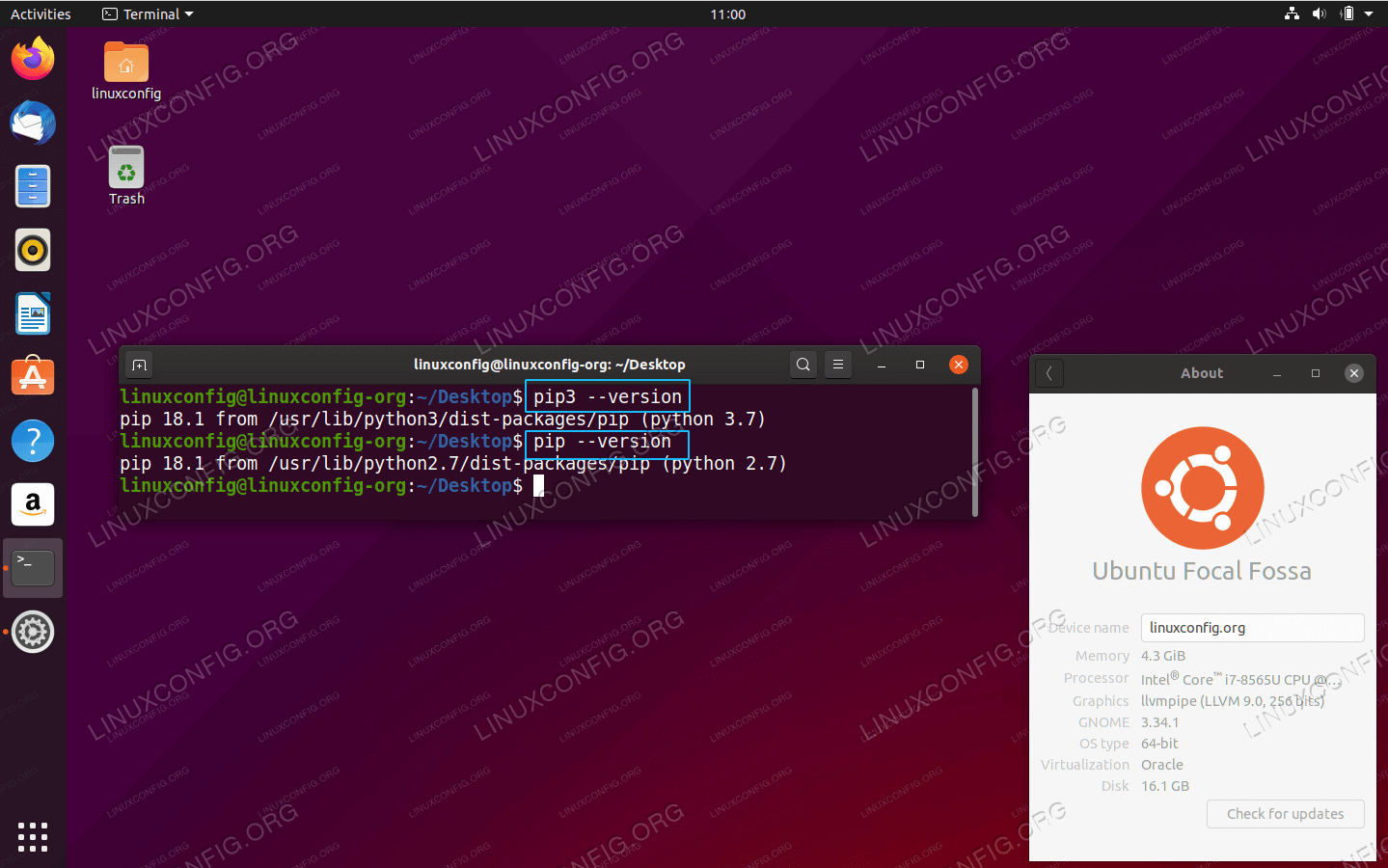
pip3 --version
The output will show the version number and the location of the Python interpreter it is linked to.
Transitioning from Pip to Pip3
In the past, developers had to distinguish between pip (for Python 2) and pip3 (for Python 3). Since Python 2 has reached its end-of-life, the industry has shifted. On many modern Ubuntu systems, pip is simply an alias for pip3, but it is still a “best practice” to use the pip3 command explicitly to avoid any ambiguity within the Linux shell.
Mastering Essential Pip Commands
Once pip is installed, it becomes a powerful ally in your development workflow. Understanding the basic syntax of pip commands is essential for maintaining a clean and efficient environment.
Installing New Packages
The most common use of pip is, unsurprisingly, installation. To install a popular library like requests (used for making HTTP requests), you would type:
pip3 install requests
Pip will automatically download the library and any other libraries requests needs to function.
Managing and Inspecting Packages
As your projects grow, you will need to keep track of what you have installed.
- Listing Packages:
pip3 listprovides a comprehensive table of every Python package currently installed in your environment. - Showing Metadata: If you need specific details about a package, such as its license, author, or location on your hard drive, use
pip3 show [package_name].
Updating and Removing
The tech world moves fast, and libraries are updated frequently to fix bugs or patch security vulnerabilities. To upgrade an existing package, use the --upgrade flag:
pip3 install --upgrade requests
If you no longer need a package, removing it is as simple as:
pip3 uninstall requests
The Importance of requirements.txt
When collaborating with other developers or deploying code to a server, you need a way to replicate your environment. Pip handles this through a requirements.txt file. You can generate a list of all your dependencies using:
pip3 freeze > requirements.txt
Another user can then install every necessary package for your project with a single command:
pip3 install -r requirements.txt
The Gold Standard: Using Pip with Virtual Environments
One of the most common mistakes beginners make on Ubuntu is installing every Python package “globally” (using sudo pip). This can lead to system instability, as Ubuntu itself relies on certain versions of Python libraries to run its desktop interface or system tools.
Why Global Installations are Risky
If a system utility requires Version 1.0 of a library, but your personal project upgrades it to Version 2.0 via a global pip command, the system utility might break. To prevent this, the Python community utilizes Virtual Environments.
Creating an Isolated Environment
A virtual environment is a self-contained directory that contains its own Python binary and its own independent set of pip packages. In Ubuntu, you can create one using the venv module:
- Install the venv tool:
sudo apt install python3-venv - Create the environment:
python3 -m venv my_project_env - Activate it:
source my_project_env/bin/activate
The Shift in Modern Ubuntu (PEP 668)
In the latest versions of Ubuntu (such as 23.04 and 24.04), you may encounter an error message saying “externally-managed-environment” when trying to use pip globally. This is an intentional security feature implemented by Ubuntu developers to force the use of virtual environments. It ensures that the user’s pip installations do not interfere with the OS’s stability. For tech professionals, this makes understanding venv or pipx (a tool for installing Python applications in isolated environments) more important than ever.
Security and Maintenance Best Practices
In an era of increasing cyber threats, package management is a front line for digital security. Pip is a powerful tool, but it must be used with caution.
The “Sudo” Warning
A general rule in the Linux community is to avoid running sudo pip install. Using sudo grants pip root-level access to your file system. If a package on PyPI is malicious or contains a bug, it could potentially overwrite critical system files. Always prefer virtual environments or the --user flag (pip3 install --user [package]) to limit the scope of the installation.
Verifying Package Integrity
While PyPI is generally safe, “typosquatting” is a known risk. This is where attackers upload malicious packages with names very similar to popular ones (e.g., requesst instead of requests). Always double-check the spelling of the package you are installing and look for high download counts or official documentation links.
Keeping Pip Updated
Just like the packages it manages, pip itself receives updates that improve its security and performance. You can upgrade pip using pip:
python3 -m pip install --upgrade pip
Conclusion
Pip is more than just a command-line utility; it is the engine that drives Python development on Ubuntu. By mastering pip, you gain the ability to transform a standard Linux installation into a cutting-edge workstation for artificial intelligence, web development, or automated systems. Whether you are a hobbyist or a professional engineer, understanding the nuances of installation, dependency management, and virtual environments ensures that your Ubuntu system remains robust, secure, and ready for any challenge the tech world throws your way.
aViewFromTheCave is a participant in the Amazon Services LLC Associates Program, an affiliate advertising program designed to provide a means for sites to earn advertising fees by advertising and linking to Amazon.com. Amazon, the Amazon logo, AmazonSupply, and the AmazonSupply logo are trademarks of Amazon.com, Inc. or its affiliates. As an Amazon Associate we earn affiliate commissions from qualifying purchases.