
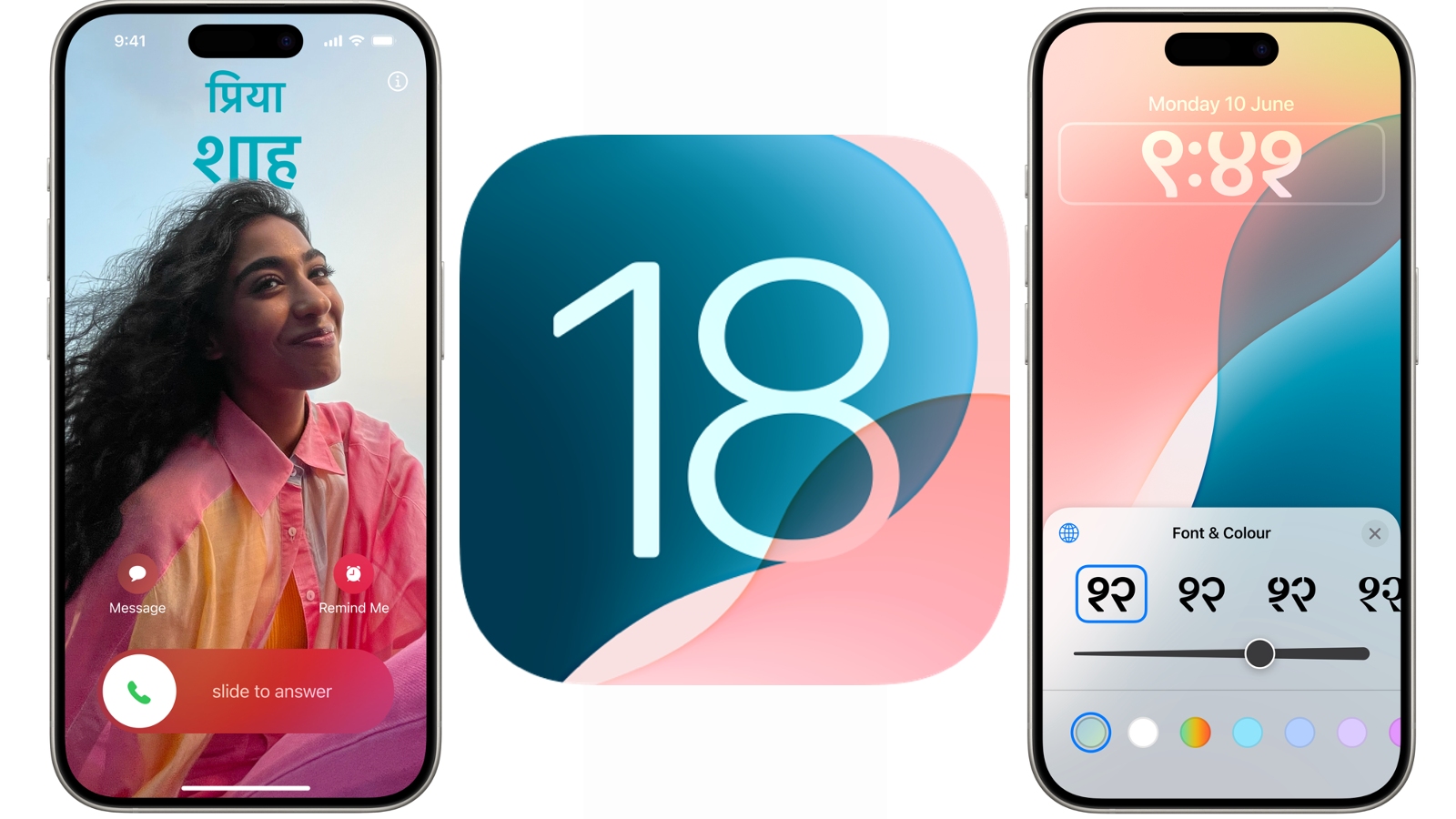
The annual unveiling of a new iOS version is always met with a mix of excitement and anticipation within the Apple ecosystem. iOS 18, with its promise of enhanced customization, intelligent features, and refined user experience, is no exception. For many eager users, the wait for the official stable release can feel interminable. Fortunately, Apple offers an opportunity to get a hands-on preview through its Public Beta program. This program allows everyday users to test upcoming software updates, providing valuable feedback to Apple while granting them early access to new features.
This guide is meticulously crafted to walk you through the entire process of installing the iOS 18 Public Beta on your compatible iPhone. We’ll cover everything from understanding what a beta is and its implications, to ensuring your device is ready, enrolling in the program, and the actual installation steps. Whether you’re a tech enthusiast eager to explore the bleeding edge of mobile software or a curious user wanting to be among the first to experience iOS 18, this tutorial will equip you with the knowledge and confidence to proceed.

Understanding the iOS Beta Program: What You Need to Know
Before diving into the installation process, it’s crucial to understand the nature of beta software. A beta release is essentially a pre-release version of software that is still under development and testing. While Apple aims for stability, beta software, by its very definition, can be unpredictable.
The Nature of Beta Software: Benefits and Risks
The primary benefit of participating in the iOS Public Beta program is gaining early access to new features and functionalities. This allows you to explore the upcoming changes, get a feel for the updated user interface, and test out new app capabilities before they are widely available. For developers, it’s an essential step to ensure their apps are compatible with the new operating system. For power users, it’s an opportunity to contribute to the refinement of iOS by reporting bugs and providing feedback directly to Apple.
However, this early access comes with inherent risks. Beta software is inherently less stable than a final release. This means you might encounter bugs, glitches, crashes, or unexpected behavior. Some apps might not function correctly, and in rare cases, data loss could occur. It’s important to approach the beta with a clear understanding that your primary device might experience temporary issues. For this reason, it is strongly recommended not to install the beta on your primary, daily-driver iPhone if you rely on it for critical tasks or cannot afford any downtime. If your iPhone is your lifeline for work, communication, or essential services, it’s advisable to wait for the stable release.
Compatibility: Is Your iPhone Ready for iOS 18?
Not all iPhone models are guaranteed to support the latest iOS versions. Apple typically discontinues support for older devices with each major software update to ensure optimal performance and leverage newer hardware capabilities. To install the iOS 18 Public Beta, your iPhone must be compatible with iOS 18.
Apple has confirmed that iOS 18 will be compatible with the following iPhone models:
- iPhone XS and later
- iPhone XR
- iPhone 11, 11 Pro, 11 Pro Max
- iPhone 12, 12 mini, 12 Pro, 12 Pro Max
- iPhone 13, 13 mini, 13 Pro, 13 Pro Max
- iPhone 14, 14 Plus, 14 Pro, 14 Pro Max
- iPhone 15, 15 Plus, 15 Pro, 15 Pro Max
- iPhone SE (2nd generation and later)
If your iPhone model is not on this list, unfortunately, it will not be able to run iOS 18. You can typically find your iPhone model by navigating to Settings > General > About.
Essential Preparations: Back Up Your Data!
This is arguably the most critical step before embarking on any beta software installation. Due to the inherent instability of beta software, a robust backup of your iPhone is absolutely essential. If something goes wrong during the installation or if you encounter critical issues, a recent backup will be your lifeline to restoring your device and all your data to a working state.
Creating a Full iPhone Backup
There are two primary methods to back up your iPhone:
-
iCloud Backup: This is Apple’s cloud-based backup solution.
- Connect your iPhone to a Wi-Fi network.
- Go to Settings > [Your Name] > iCloud.
- Tap on iCloud Backup.
- Ensure the toggle is switched On.
- Tap Back Up Now. This process can take some time depending on the size of your backup and your internet speed. It’s wise to do this before bed or when you have ample time.
-
Computer Backup (Mac or PC): This method provides a more comprehensive backup and can be faster.
- On a Mac (macOS Catalina or later): Connect your iPhone to your Mac using a USB cable. Open Finder. Select your iPhone from the sidebar. Under the “General” tab, choose “Back up all of the data on your iPhone to this Mac.” Click Back Up Now. You can also choose to encrypt your local backup, which is highly recommended as it backs up sensitive data like passwords and Wi-Fi settings.
- On a Mac (macOS Mojave or earlier) or a PC: Connect your iPhone to your computer. Open iTunes. Click on the iPhone icon near the top-left corner of the iTunes window. Under “Backups,” select “This Computer.” Click Back Up Now. Again, encrypting your backup is advisable.
Verify your backup: After the backup completes, double-check that it was successful. For iCloud, you can see the “Last successful backup” date and time in the iCloud Backup settings. For computer backups, ensure the backup date reflects the recent operation.
Enrolling in the Apple Beta Software Program
Once you’ve confirmed your device’s compatibility and backed up your data, the next step is to enroll your Apple ID in the Apple Beta Software Program. This program allows you to download and install beta versions of iOS, iPadOS, macOS, tvOS, and watchOS.
Creating or Signing In to Your Apple ID
The Apple Beta Software Program requires you to use your Apple ID. If you already use an Apple ID for iCloud, the App Store, or other Apple services, you can use that same ID.
- Navigate to the official Apple Beta Software Program website: https://beta.apple.com/
- Click on Sign in.
- Enter your Apple ID and password. If you have two-factor authentication enabled, you will be prompted to enter the code sent to your trusted devices.
- If you do not have an Apple ID, you will need to create one before proceeding.
Registering Your Device for the iOS Beta
After signing in, you’ll be presented with information about the program and the available betas. You need to specifically register your device for the iOS beta.
- On the Apple Beta Software Program website, navigate to the iOS tab.
- You’ll find information on how to enroll. Look for a section that guides you to Sign up or Enroll your device.
- Follow the on-screen prompts. You will likely be asked to agree to the beta software terms and conditions.
- Once your Apple ID is registered for the program, you will see options to download the beta profile.
Downloading and Installing the Beta Profile
To receive beta updates over-the-air (OTA), you need to install a configuration profile on your iPhone. This profile tells your device to check for beta releases from Apple.
- On your iPhone, while logged into the Apple Beta Software Program website on your device (or after following the direct link provided on the site for downloading the profile), you will be prompted to download a profile.
- Tap Allow when prompted to download a configuration profile.
- After the download, you will receive a notification that the profile is ready to be installed.
- Go to Settings on your iPhone. You will see a new option at the top, Profile Downloaded.
- Tap on Profile Downloaded.
- Tap Install in the top-right corner.
- You may be asked to enter your iPhone passcode.
- Tap Install again to confirm.
- If prompted, tap Install on the warning message about trusting the profile.
- Finally, tap Done.
Installing the iOS 18 Public Beta Update
With your device enrolled and the beta profile installed, your iPhone is now configured to receive the iOS 18 Public Beta update directly through its usual software update mechanism.
Checking for the iOS 18 Public Beta Update
The installation process itself is straightforward and mirrors a standard iOS update.
- Ensure your iPhone is connected to a stable Wi-Fi network.
- Connect your iPhone to a power source or ensure it has at least 50% battery charge. Beta updates, like regular updates, can be battery-intensive.
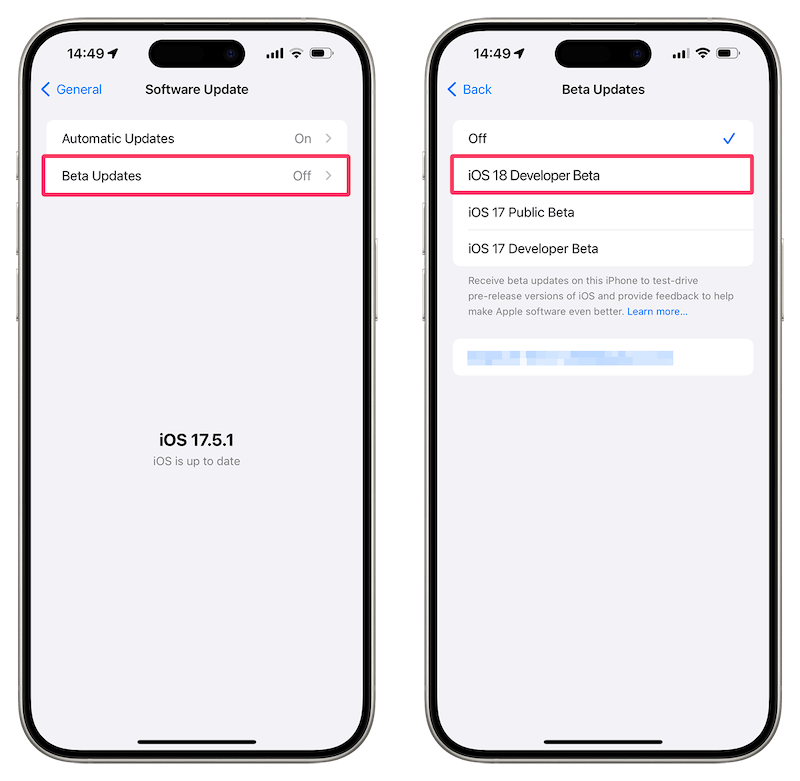
- Go to Settings > General > Software Update.
- Your iPhone will check for available updates. If you have successfully enrolled and installed the beta profile, you should see an option for the iOS 18 Public Beta download. It might be listed as “iOS 18 Public Beta [version number].”
- Tap Download and Install.
- You will be asked to enter your iPhone passcode.
- The download will begin. The time this takes will vary depending on the size of the update and your internet connection speed.
The Installation Process
Once the download is complete, your iPhone will prepare to install the update.
- After the download, you will see an option to Install Now. Tap this.
- Your iPhone will restart to begin the installation process.
- You will see the Apple logo with a progress bar indicating the installation progress. Do not interrupt this process. It can take anywhere from 15 minutes to over an hour, depending on your iPhone model and the complexity of the update.
- Once the installation is complete, your iPhone will restart again.
Setting Up iOS 18 Public Beta
Upon the first boot after installation, you may be guided through a brief setup process, similar to when you first set up a new iPhone or after a major OS upgrade.
- You might be prompted to enter your Apple ID and password again.
- You may also be asked to agree to updated Terms and Conditions for the beta software.
- Follow any on-screen prompts to configure new features or restore from your backup if prompted. If you restored from a backup, ensure it’s the one you made just before installing the beta.
Ongoing Management and Reporting Bugs
Congratulations! You’ve successfully installed the iOS 18 Public Beta. However, your journey with beta software doesn’t end with the installation. Ongoing management and feedback are crucial parts of the program.
Using the Feedback App
Apple uses the Feedback Assistant app to collect bug reports and suggestions from beta testers. This is your primary tool for communicating with Apple’s development team.
-
Open the Feedback Assistant app on your iPhone. It’s a pre-installed app that usually appears after you install a beta profile. If you can’t find it, you might be able to search for it in Spotlight.
-
You will see options to report a new issue or submit a bug.
-
When reporting an issue:
- Choose the correct category: This helps Apple direct your report to the right team.
- Provide a clear and concise description: Explain exactly what happened, including the steps to reproduce the issue.
- Attach screenshots or screen recordings: Visual aids are incredibly helpful for developers to understand the problem.
- Include diagnostic information: The Feedback Assistant can often collect system logs automatically, which is vital for diagnosing complex bugs.
-
Be patient. Apple receives a massive volume of feedback. While not every report will receive a direct response, your submitted information is valuable for improving the software.
Managing Beta Updates
As the beta program progresses, Apple will release incremental updates to address bugs and introduce further refinements.
- You will receive these updates through the same Settings > General > Software Update path.
- Keep your iPhone updated to the latest beta version to benefit from bug fixes and ensure you are testing the most stable builds available.
- Periodically, you might need to re-enroll or update your beta profile if Apple changes the enrollment process for new beta cycles.
When to Revert to a Stable Version
There might come a point where the beta software becomes too unstable for your needs, or you encounter persistent issues that hinder your daily use. In such cases, you can choose to revert your iPhone back to the latest stable version of iOS.
- Reverting requires a computer: You cannot uninstall a beta profile directly to go back to a stable version. You will need to connect your iPhone to a Mac or PC.
- Restore from Backup (if necessary): Before proceeding with restoring your iPhone to a previous stable version, it’s highly recommended to back up your current beta data, just in case. However, note that a backup made on a newer iOS version is generally not compatible with an older iOS version.
- Enter Recovery Mode: You will need to put your iPhone into recovery mode and then restore it using Finder (macOS Catalina and later) or iTunes (macOS Mojave and earlier or Windows). This process will erase all data on your iPhone and install the latest public release of iOS. You will then be able to restore your data from a compatible backup made before you installed the beta.
- Deregister from the Beta Program: After reverting, you may want to deregister your Apple ID from the Apple Beta Software Program if you do not wish to receive future beta updates. This can typically be done from the Apple Beta Software Program website.
By following these steps, you can confidently install and enjoy the iOS 18 Public Beta, contribute to its development, and be at the forefront of Apple’s latest mobile innovation. Remember to approach beta testing with a sense of adventure and a healthy dose of caution, and you’ll have a rewarding experience.
aViewFromTheCave is a participant in the Amazon Services LLC Associates Program, an affiliate advertising program designed to provide a means for sites to earn advertising fees by advertising and linking to Amazon.com. Amazon, the Amazon logo, AmazonSupply, and the AmazonSupply logo are trademarks of Amazon.com, Inc. or its affiliates. As an Amazon Associate we earn affiliate commissions from qualifying purchases.