
In the dynamic world of technology, where innovation drives progress and collaboration is key, tools that streamline development workflows are not just beneficial — they are essential. Among these indispensable tools, Git stands out as the de facto standard for version control. Whether you’re a seasoned developer, an aspiring coder, a DevOps engineer, or simply someone managing configurations on a server, understanding and utilizing Git is a fundamental skill. It empowers individuals and teams to track changes, coordinate work, and deploy software with unprecedented efficiency and reliability.
Linux, the open-source operating system revered for its flexibility, power, and security, is often the platform of choice for developers and server administrators. Installing Git on a Linux distribution is a straightforward process, yet one that lays the groundwork for countless development endeavors. This comprehensive guide will walk you through the various methods of installing Git on different Linux distributions, ensuring you have this powerful tool ready to manage your projects, collaborate with peers, and contribute to the vast open-source ecosystem. From understanding its core value to configuring it for optimal use, we’ll cover everything you need to get Git up and running on your Linux machine.
Understanding Git: The Backbone of Modern Development
Before diving into the installation process, it’s crucial to grasp what Git is and why it has become such a cornerstone in the software development landscape. Git is a distributed version control system (DVCS) designed to handle everything from small to very large projects with speed and efficiency. Unlike older centralized systems, every developer’s working copy of the code is also a full-fledged repository with complete history and full version-tracking capabilities, independent of network access or a central server. This architecture offers significant advantages in terms of redundancy, speed, and the ability to work offline.
Why Git is Indispensable for Developers and Teams
The reasons for Git’s widespread adoption are numerous, touching upon aspects of productivity, quality control, and even the personal branding of a proficient developer. For individuals, Git provides a safety net, allowing them to experiment with new features without fear of irrevocably breaking their codebase. Every change is tracked, allowing for easy rollbacks to previous versions, comparisons between different states, and the ability to branch off for new ideas without affecting the main project. This meticulous tracking significantly reduces the potential for costly errors and rework.
For teams, Git transforms collaboration. Multiple developers can work on the same project simultaneously, merging their contributions seamlessly. Features like branching and merging enable parallel development, allowing different team members to work on separate features or bug fixes without stepping on each other’s toes. This parallelization accelerates development cycles, leading to faster time-to-market for products and features – a direct impact on business finance through increased efficiency and reduced operational costs. Moreover, Git fosters a culture of transparency and accountability, as every change is attributed to its author, making code reviews and debugging much more straightforward. In essence, mastering Git not only enhances a developer’s personal brand by demonstrating a vital skill but also contributes directly to the brand reputation of an organization through robust, reliable software delivery.
Git’s Role in the Open Source Ecosystem
Git’s impact extends far beyond commercial software development into the heart of the open-source movement. The vast majority of open-source projects, from the Linux kernel itself to popular web frameworks and AI tools, rely on Git and platforms like GitHub, GitLab, and Bitbucket. These platforms, built on Git, provide the infrastructure for millions of developers worldwide to contribute, share, and collaborate on projects. This distributed nature aligns perfectly with the open-source ethos, enabling global participation and rapid iteration. By installing Git, you’re not just setting up a tool; you’re gaining access to a global community, empowering you to contribute to existing projects or initiate your own, leveraging collective intelligence and innovation.
Prerequisites and System Preparation
Before you embark on the Git installation journey, it’s wise to ensure your Linux system is prepared. While Git is relatively lightweight and has minimal dependencies, a few preliminary steps can make the process smoother and prevent common hiccups.
Basic Linux Command Line Familiarity
This guide assumes you have a basic understanding of how to navigate and execute commands within the Linux terminal. Git itself is primarily a command-line tool, so comfort with the shell is a prerequisite for both installation and daily usage. Familiarity with commands like sudo, apt, yum, dnf, pacman, cd, ls, and pwd will be beneficial. If you’re new to the Linux command line, a quick primer on these basics can significantly enhance your experience. Numerous free tutorials and guides are available online to get you up to speed.
Updating Your System’s Package Index
A crucial first step before installing any new software on Linux is to update your system’s package index. This ensures that your system has the latest information about available packages and their versions from the configured repositories. Running an update command refreshes this index, allowing you to install the most recent stable version of Git available for your distribution, as well as any necessary dependencies. This practice minimizes potential conflicts and ensures a secure and up-to-date system. The command varies slightly depending on your Linux distribution:
-
For Debian/Ubuntu-based systems (using APT):
sudo apt update
sudo apt upgrade
The
updatecommand fetches new package lists, andupgradeactually installs newer versions of the packages you have. -
For Fedora/RHEL/CentOS-based systems (using DNF/YUM):
sudo dnf update # For Fedora 22+
# or
sudo yum update # For CentOS/RHEL 7-8
DNF (Dandified YUM) is the next-generation package manager for RPM-based distributions, while YUM is still prevalent in older versions.
-
For Arch Linux (using Pacman):
bash

sudo pacman -Syu
This command synchronizes package databases and upgrades all out-of-date installed packages.
After running the appropriate update command, your system is ready for Git installation.
Step-by-Step Installation Methods on Linux
Git can be installed on Linux in several ways, with the most common method being through your distribution’s package manager. This approach is generally recommended as it ensures that Git is installed correctly, with all its dependencies, and can be easily updated in the future. For users who require the absolute latest version or have specific compilation needs, installing from source is also an option.
Installing Git on Debian/Ubuntu (APT)
Debian and Ubuntu, along with their numerous derivatives (like Linux Mint, Pop!_OS, Zorin OS), use the Advanced Package Tool (APT) for package management. This is arguably the most common installation scenario.
-
Open your terminal.
-
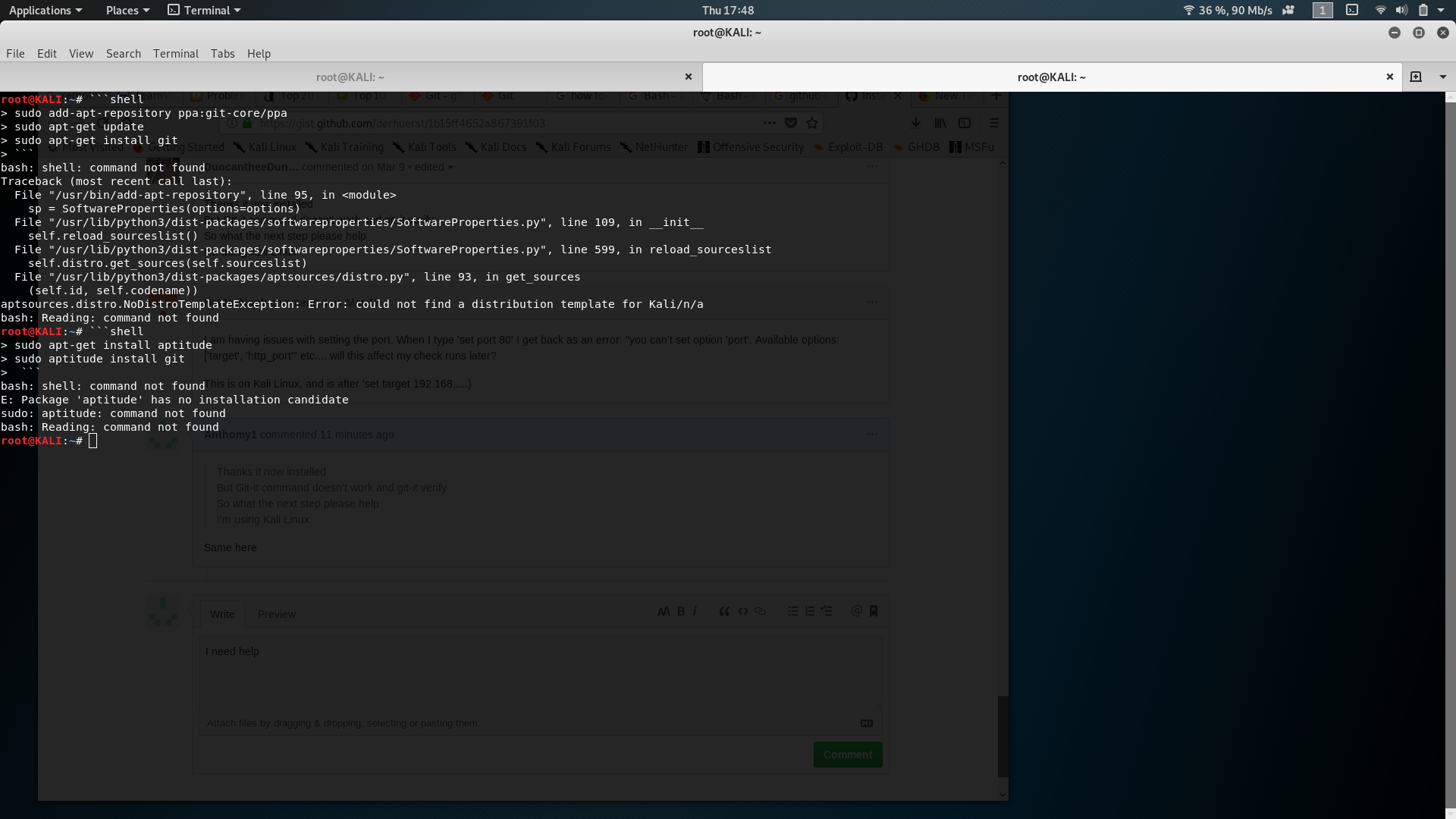
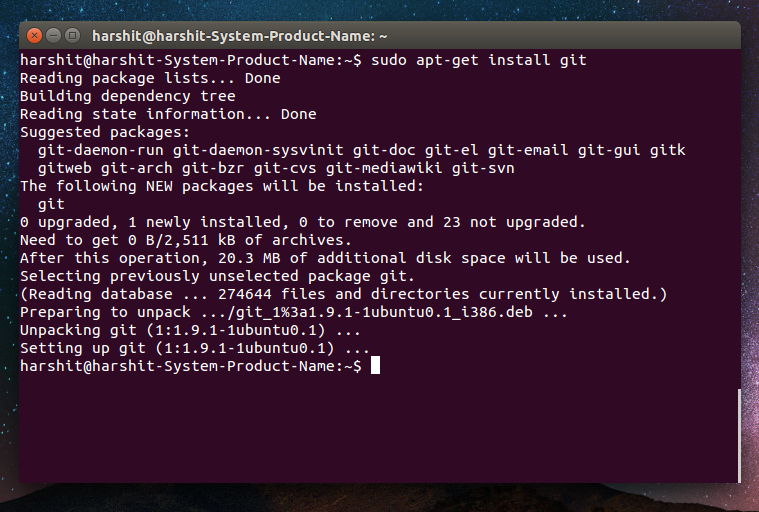
Install Git: Execute the following command:
sudo apt install gitThe system will prompt you for your password. After entering it, it will display the packages to be installed and ask for confirmation. Type
Yand press Enter. -
Verify the installation: Once completed, check the installed version:
bash

git --version
This should output the Git version number, confirming a successful installation.
Installing Git on Fedora/RHEL/CentOS (DNF/YUM)
For Red Hat Enterprise Linux (RHEL), CentOS, and Fedora distributions, DNF (or YUM for older versions) is the package manager of choice.
-
Open your terminal.
-
Install Git:
- For Fedora (22 and later), CentOS Stream 9+, RHEL 9+:
bash

sudo dnf install git
- For CentOS 7/8, RHEL 7/8, older Fedora:
bash

sudo yum install git
Again, you’ll be prompted for confirmation. TypeYand press Enter.
- For Fedora (22 and later), CentOS Stream 9+, RHEL 9+:
-
Verify the installation:
bash

git --version
Confirm that the Git version is displayed.

Installing Git on Arch Linux (Pacman)
Arch Linux users, known for their preference for minimal and up-to-date systems, use Pacman as their package manager.
-
Open your terminal.
-
Install Git:
sudo pacman -S gitPacman will list the packages to install and ask for confirmation. Press
Yand Enter. -
Verify the installation:
bash

git --version
You should see the installed Git version.
Compiling Git from Source (Advanced Method)
Installing Git from source is an excellent option if you need the absolute latest version, specific compilation flags, or if Git is not available via your distribution’s package manager (which is rare). This method requires more steps and some development tools.
-
Install dependencies: Before compiling, you’ll need several build tools and libraries.
- On Debian/Ubuntu:
bash

sudo apt install libcurl4-gnutls-dev libexpat1-dev gettext libz-dev libssl-dev build-essential
- On Fedora/RHEL/CentOS:
bash

sudo dnf install curl-devel expat-devel gettext-devel openssl-devel zlib-devel gcc perl-ExtUtils-MakeMaker
- On Arch Linux:
bash

sudo pacman -S base-devel curl expat gettext perl zlib openssl
- On Debian/Ubuntu:
-
Download the Git source code: Visit the official Git website (git-scm.com/downloads) to find the latest tarball. Use
wgetorcurlto download it.wget https://www.kernel.org/pub/software/scm/git/git-x.y.z.tar.gz # Replace x.y.z with the latest versionAlternatively, you can clone the Git repository from GitHub:
git clone https://github.com/git/git.git cd git # Optional: checkout a specific stable tag if you don't want the absolute latest dev version # git checkout v2.39.2 # example -
Extract and compile:
tar -xf git-x.y.z.tar.gz # If downloaded tarball
cd git-x.y.z # Navigate into the extracted directory
make prefix=/usr/local all
sudo make prefix=/usr/local install
The
make prefix=/usr/local allcommand compiles Git, andsudo make prefix=/usr/local installinstalls it to/usr/local/bin, making it available system-wide. -
Verify the installation:
bash

git --version
This should show the version you just compiled.
Verifying Your Git Installation and Initial Configuration
Successfully installing Git is the first step; the next is to ensure it’s ready for use and configured to your preferences. Proper initial configuration makes your contributions easily identifiable and streamlines your workflow.
Checking the Git Version
After installation by any method, always run the version check to confirm everything is in place.
git --version
This command should output a version number like git version 2.39.2. If you see an error like “command not found,” it indicates an issue with the installation or your system’s PATH variable. In such cases, double-check the installation steps or consult troubleshooting resources.
Configuring Your User Name and Email
One of the most crucial initial steps is to tell Git who you are. Every commit you make in Git is associated with a user name and an email address. This information is embedded in the commit history, making it invaluable for tracking contributions, especially in team environments.
Set your global user name:
git config --global user.name "Your Name"
Set your global email address:
git config --global user.email "your.email@example.com"
You can verify these settings by listing your global Git configuration:
git config --list --global
These settings apply to all your Git repositories on the system. If you need different credentials for a specific project, you can set them locally within that repository (without the --global flag).
Setting Up Default Branch Name (Optional but Recommended)
Traditionally, the default branch in Git repositories was named master. However, there’s a growing trend to use more inclusive terms like main. Git allows you to configure a default branch name for newly initialized repositories. This is a small but impactful step towards modern development practices.
To set main as the default branch for new repositories:
git config --global init.defaultBranch main
This setting ensures that whenever you run git init to create a new repository, its initial branch will be named main instead of master. This contributes to a consistent and modern development environment, aligning with many popular platforms like GitHub.
Troubleshooting Common Issues and Next Steps
Even with clear instructions, you might encounter minor issues during or after installation. Knowing how to troubleshoot and what to do next with Git is vital for a smooth development journey.
Common Installation Errors and Solutions
git: command not found: This error usually means Git wasn’t installed correctly, or its executable path isn’t in your system’sPATHenvironment variable.- Solution: Re-verify the installation steps for your distribution. If you compiled from source, ensure
sudo make installcompleted without errors and that/usr/local/bin(or wherever you installed it) is in yourPATH. You can check your PATH withecho $PATH. If it’s missing, you might need to add it to your shell configuration file (e.g.,~/.bashrc,~/.zshrc).
- Solution: Re-verify the installation steps for your distribution. If you compiled from source, ensure
- Permissions errors: When using
sudo, you should generally not encounter permission issues for installation. If you’re trying to install withoutsudoand run into permission denied messages, remember that system-wide installations require root privileges.- Solution: Always use
sudofor package manager commands ormake installif installing to system directories.
- Solution: Always use
- Dependency errors: Sometimes, a package manager might report missing dependencies during source compilation or even with
apt/dnf/pacman.- Solution: Ensure your system’s package index is updated (
sudo apt update,sudo dnf update,sudo pacman -Syu) and that you’ve installed all necessary build tools and libraries as described in the “Compiling Git from Source” section, even if you’re not compiling. Your package manager should ideally handle these for you.
- Solution: Ensure your system’s package index is updated (
Learning Basic Git Commands
Once Git is installed and configured, the real power lies in using its commands. Start with the basics:
git init: Initializes a new Git repository.git add <file>: Stages changes for the next commit.git commit -m "Your commit message": Records staged changes to the repository history.git status: Shows the status of changes as untracked, modified, or staged.git log: Displays the commit history.git branch: Lists, creates, or deletes branches.git checkout <branch-name>: Switches to a different branch.git merge <branch-name>: Integrates changes from one branch into another.git clone <repository-url>: Downloads an existing repository.git pull: Fetches and integrates changes from a remote repository.git push: Uploads local branch commits to a remote repository.
There are many excellent interactive tutorials and cheat sheets available online (like those provided by Git-SCM.com) to help you get comfortable with these commands.
Integrating Git with IDEs and Remote Repositories
Beyond the command line, Git integrates seamlessly with most modern Integrated Development Environments (IDEs) like VS Code, IntelliJ IDEA, PyCharm, and Eclipse. These IDEs provide graphical interfaces for common Git operations, making version control accessible even if you prefer not to live in the terminal.
Furthermore, Git’s power truly shines when working with remote repositories on platforms such as GitHub, GitLab, or Bitbucket. These platforms host your repositories in the cloud, facilitating team collaboration, continuous integration/continuous deployment (CI/CD) pipelines, and robust backup solutions. Learning to push your local changes to a remote repository and pull changes from others is a cornerstone of collaborative software development. This interaction with remote platforms not only secures your code but also exposes your projects to a wider audience, potentially enhancing your “Brand” as a developer or your “Money” through open-source contributions or job opportunities.
In conclusion, installing Git on Linux is a foundational step for anyone involved in modern software development. By following the steps outlined in this guide, you’ve equipped yourself with a robust tool that will enhance your productivity, streamline your collaborative efforts, and open doors to a vast ecosystem of innovation. Embrace Git, and unlock a new level of control and efficiency in your technical endeavors.
aViewFromTheCave is a participant in the Amazon Services LLC Associates Program, an affiliate advertising program designed to provide a means for sites to earn advertising fees by advertising and linking to Amazon.com. Amazon, the Amazon logo, AmazonSupply, and the AmazonSupply logo are trademarks of Amazon.com, Inc. or its affiliates. As an Amazon Associate we earn affiliate commissions from qualifying purchases.