
For many Spectrum Internet subscribers, the standard equipment provided by the Internet Service Provider (ISP) is often the first point of contact with the digital world. However, as household bandwidth demands escalate—driven by 4K streaming, low-latency gaming, and an ever-growing ecosystem of IoT devices—the limitations of “ISP-grade” hardware become apparent. While Spectrum provides a modem (usually free of charge with most plans), they often charge a monthly fee for their “Advanced WiFi” router.
Fortunately, Spectrum’s infrastructure is built on standard DOCSIS (Data Over Cable Service Interface Specification) technology, which allows for incredible flexibility. You are not locked into their proprietary hardware. By selecting a high-performance third-party router, you can gain better coverage, advanced security features, and significantly faster internal network speeds. This guide explores the technical landscape of Spectrum-compatible routers and identifies the best hardware to optimize your home network.
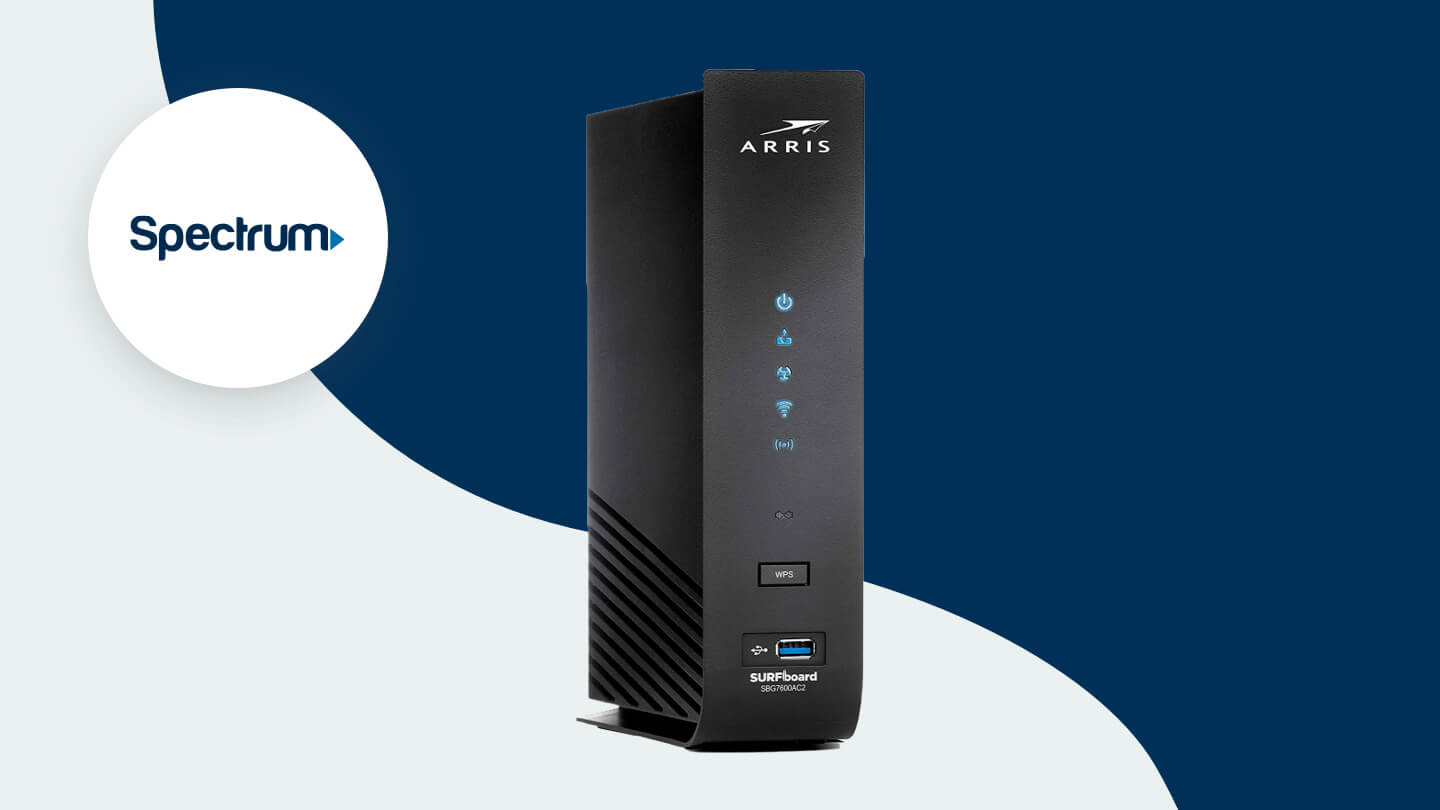
Understanding the Technical Requirements for Spectrum Compatibility
Before diving into specific models, it is essential to understand the technical architecture of a Spectrum connection. Unlike the modem—which must be specifically authorized on Spectrum’s network via its MAC address—the router is a much more flexible component.
The Distinction Between Modems and Routers
A common point of confusion for consumers is the difference between a modem and a router. The modem is the bridge between the coaxial cable coming from the street and your home; it translates the ISP’s signal into digital data. The router takes that data and “routes” it to your various devices via Wi-Fi or Ethernet. Because Spectrum uses a standard RJ45 Ethernet handoff from their modems, virtually any modern standalone router is technically “compatible” with Spectrum. The real question is which routers can actually handle the speeds of Spectrum’s tiers (300 Mbps, 500 Mbps, and 1 Gbps).
DOCSIS 3.1 and Gigabit Synergy
While this guide focuses on routers, your router is only as fast as the modem feeding it. If you are on Spectrum’s “Internet Gig” plan, you must ensure your setup supports DOCSIS 3.1. When choosing a router to pair with a DOCSIS 3.1 modem, look for hardware with a WAN port capable of at least 1 Gbps (or 2.5 Gbps for future-proofing) to ensure there is no bottleneck between the incoming signal and your wireless broadcast.
Dual-Band vs. Tri-Band Architecture
For Spectrum users in crowded urban environments or large suburban homes, the frequency bands of a router are critical.
- Dual-Band: Operates on 2.4GHz (range) and 5GHz (speed). This is sufficient for the 300 Mbps plan.
- Tri-Band: Adds a second 5GHz band or a 6GHz band (in Wi-Fi 6E/7). This is highly recommended for Spectrum’s 500 Mbps and 1 Gbps plans to reduce congestion when multiple high-bandwidth devices are active simultaneously.
Top Hardware Reviews: Leading Routers for Every Spectrum Tier
Selecting a router requires balancing your specific Spectrum speed tier with your home’s square footage. The following devices represent the pinnacle of current networking technology, vetted for their stability and performance on cable internet infrastructures.
Best Overall for Power Users: ASUS RT-AX86U (Wi-Fi 6)
The ASUS RT-AX86U is widely regarded as one of the best performing routers for high-speed cable internet. With Spectrum’s 1 Gbps plan, this router shines due to its 2.5G gaming port and robust NVIDIA GeForce NOW optimization. It utilizes Wi-Fi 6 technology, offering significantly higher capacity than older Wi-Fi 5 models. For tech enthusiasts, the ASUSWRT firmware provides granular control over traffic prioritization (QoS), allowing you to ensure your work-from-home video calls never drop while others are streaming Netflix.
Best Mesh System for Large Homes: TP-Link Deco X55
If your Spectrum connection enters the house in a corner basement, a single router may not be enough to cover the upper floors. The TP-Link Deco X55 is a Wi-Fi 6 mesh system that creates a seamless “fabric” of connectivity. Unlike traditional range extenders that create separate network names and halve your bandwidth, the Deco units work in tandem to keep your device connected to the strongest node as you move. It is particularly effective for Spectrum users who want to maintain high speeds (300-500 Mbps) across 3,000+ square feet.
Best Budget-Friendly Performance: TP-Link Archer AX21
For subscribers on the Spectrum 300 Mbps plan who want to escape the monthly rental fee without spending a fortune, the Archer AX21 is the gold standard. It offers Wi-Fi 6 support, meaning it can handle up to 40+ devices simultaneously. While it lacks the high-end gaming features of the ASUS models, its throughput is more than enough to saturate a 300 Mbps line throughout a standard-sized apartment or small home.
Essential Features to Optimize Your Spectrum Connection

Hardware is only half the battle. To truly leverage a high-speed Spectrum connection, your router needs the right software features and protocols to manage the digital traffic of a modern home.
Wi-Fi 6 and the Efficiency of OFDMA
When shopping for a router, look for the “AX” designation (Wi-Fi 6) rather than “AC” (Wi-Fi 5). Wi-Fi 6 introduces OFDMA (Orthogonal Frequency Division Multiple Access), which allows the router to communicate with multiple devices in a single transmission. On a Spectrum 500 Mbps plan, this means that even if you have 20 smart home bulbs, three phones, and a smart TV, the router doesn’t “stutter” as it cycles through requests.
Quality of Service (QoS) Settings
One of the greatest advantages of using your own router over Spectrum’s provided hardware is the ability to use Quality of Service (QoS). QoS allows you to tell the router which types of traffic are the most important. For example, you can set the router to prioritize “Gaming” or “Work from Home” packets. This ensures that even if a large file is downloading in the background, your latency (ping) stays low and your Zoom calls remain crisp.
WPA3 and Digital Security
Security is a major differentiator in third-party hardware. Most modern routers compatible with Spectrum now include WPA3, the latest security protocol that provides better protection against “brute-force” password attempts. Additionally, brands like ASUS (AiProtection) and TP-Link (HomeShield) offer built-in, real-time network scanning to block malicious websites and prevent IoT devices from being recruited into botnets—features rarely found in standard ISP equipment.
Installation and Configuration Tutorial
Once you have selected your router, the setup process is straightforward, but there are a few technical hurdles unique to Spectrum’s infrastructure that you must navigate to ensure a successful handshake between devices.
Power Cycling for MAC Binding
Spectrum’s modems are notorious for “remembering” the first device they were plugged into. If you simply unplug the Spectrum router and plug in your new one, the modem might refuse to provide an IP address. To fix this:
- Power off the Spectrum modem and remove its battery (if applicable).
- Unplug your new router.
- Wait 60 seconds.
- Power on the modem and wait for the “Online” light to stay solid.
- Plug in your new router and begin the configuration via the manufacturer’s app.
Bridging and Configuration
If you are using a Spectrum-provided “Gateway” (a combined modem/router unit), you must put that device into “Bridge Mode” before connecting your new router. This disables the gateway’s internal Wi-Fi and routing functions, preventing a “Double NAT” (Network Address Translation) error. A Double NAT can cause significant issues with online gaming, VPNs, and port forwarding. By using a standalone Spectrum modem and your own router, you bypass this complication entirely.
Optimizing Radio Channels
In many residential areas, the default Wi-Fi channels (like Channel 1, 6, or 11 on the 2.4GHz band) are extremely congested. High-quality routers allow you to perform a site survey or use “Auto-Optimization” to find the least congested frequency. This can significantly increase the actual speeds you see on your devices, bringing your wireless performance closer to the wired speeds Spectrum promises.
Future-Proofing Your Home Network
The technology landscape is shifting toward even higher speeds and lower latency. As Spectrum continues to roll out its “High-Split” upgrades—which will eventually offer symmetrical upload and download speeds—having the right hardware becomes even more critical.
The Rise of Wi-Fi 6E and Wi-Fi 7
While Wi-Fi 6 is currently the “sweet spot” for most Spectrum users, those on the 1 Gbps plan might consider Wi-Fi 6E. Wi-Fi 6E opens up the 6GHz band, which is essentially a “HOV lane” for your newest devices (like the latest iPhone, Samsung Galaxy, or high-end laptops). It eliminates interference from legacy devices and neighbor networks, ensuring that you get every megabit of the speed you pay for.
Wired Backhaul for Mesh Systems
For those using mesh systems with Spectrum, the “Tech-Pro” tip is to use a wired backhaul. If your home has Ethernet wiring in the walls, you can connect the mesh nodes via cable. This frees up the wireless bands entirely for your client devices, resulting in much lower latency and more stable speeds at the edges of your home.

Conclusion
Investing in a dedicated router for your Spectrum internet service is one of the most effective ways to upgrade your digital life. By moving away from generic ISP hardware, you gain access to the latest Wi-Fi standards, robust security protocols, and the management tools necessary to handle a modern, connected household. Whether you choose a high-speed gaming router from ASUS or a comprehensive mesh system from TP-Link, the result is the same: a faster, more secure, and more reliable connection that finally lives up to the potential of your Spectrum service.
aViewFromTheCave is a participant in the Amazon Services LLC Associates Program, an affiliate advertising program designed to provide a means for sites to earn advertising fees by advertising and linking to Amazon.com. Amazon, the Amazon logo, AmazonSupply, and the AmazonSupply logo are trademarks of Amazon.com, Inc. or its affiliates. As an Amazon Associate we earn affiliate commissions from qualifying purchases.