
In an era where connectivity is as essential as electricity, the term “Wi-Fi” has become a permanent fixture in our daily vocabulary. We scan for signals in coffee shops, airports, and our own living rooms. Yet, behind the seamless transition from “Connecting…” to “Connected” lies a critical security component that many users take for granted until it stops working: the network key.
The Wi-Fi network key is the digital gatekeeper of your home and office environment. It is more than just a password; it is a sophisticated cryptographic tool designed to protect your data from eavesdropping and unauthorized access. Understanding what a network key is, how it functions, and how to manage it is fundamental to maintaining digital security in the modern age.
What is a Network Key? Decoding the Basics
At its most fundamental level, a network key is a string of alphanumeric characters used to authenticate a device on a wireless network. It acts as a handshake between your device (smartphone, laptop, or IoT gadget) and the wireless access point (the router).
Definition and Functionality
The network key serves two primary purposes: authentication and encryption. Authentication ensures that only authorized users can join the network. Encryption, on the other hand, ensures that any data transmitted between your device and the router is scrambled into an unreadable format. This prevents third parties from intercepting sensitive information—such as bank passwords or private emails—as it travels through the airwaves.
In technical terms, the network key is used to generate a unique encryption key for each session. This means that even if someone were to capture the radio waves emitted by your Wi-Fi, they would see nothing but digital noise without the correct key to decrypt the data.
Network Key vs. SSID
It is common for casual users to confuse the SSID with the network key. The SSID (Service Set Identifier) is simply the “name” of the network—what you see when you open the Wi-Fi list on your phone. The network key is the “password” required to join that specific SSID. While the SSID announces the network’s presence, the key secures its borders.
Evolution of Wi-Fi Security Protocols
The network key has evolved significantly since the inception of wireless networking. As hackers became more sophisticated, the tech industry responded with more robust protocols to ensure that network keys remained uncrackable.
From WEP to WPA2
The journey began with WEP (Wired Equivalent Privacy). Introduced in the late 90s, WEP was eventually found to be deeply flawed; a modern computer can crack a WEP key in seconds. This led to the development of WPA (Wi-Fi Protected Access) and eventually WPA2.
WPA2 has been the industry standard for over a decade. It utilizes AES (Advanced Encryption Standard), a high-level encryption method used by governments worldwide. For most home users, WPA2-AES provides a formidable barrier against intrusion. However, even WPA2 has vulnerabilities, such as KRACK (Key Reinstallation Attacks), which necessitated the next step in the evolutionary chain.
Why WPA3 is the Current Gold Standard
Introduced in 2018, WPA3 is the latest leap in Wi-Fi security. It addresses many of the shortcomings of WPA2. One of its most significant features is the use of Simultaneous Authentication of Equals (SAE). This protocol makes “offline dictionary attacks”—where a hacker tries millions of password combinations away from the network—much harder to execute.
WPA3 also offers individualized data encryption. In public Wi-Fi scenarios, even if you are on an open network, WPA3 can encrypt the traffic between your device and the router individually, protecting your data from other users on the same network. For tech-savvy users and security-conscious businesses, moving to WPA3-compatible hardware is a top priority.
How to Find and Manage Your Network Key
Losing or forgetting a network key is a common occurrence. Fortunately, there are several technical methods to retrieve it depending on your hardware and operating system.
Locating the Key on Physical Hardware
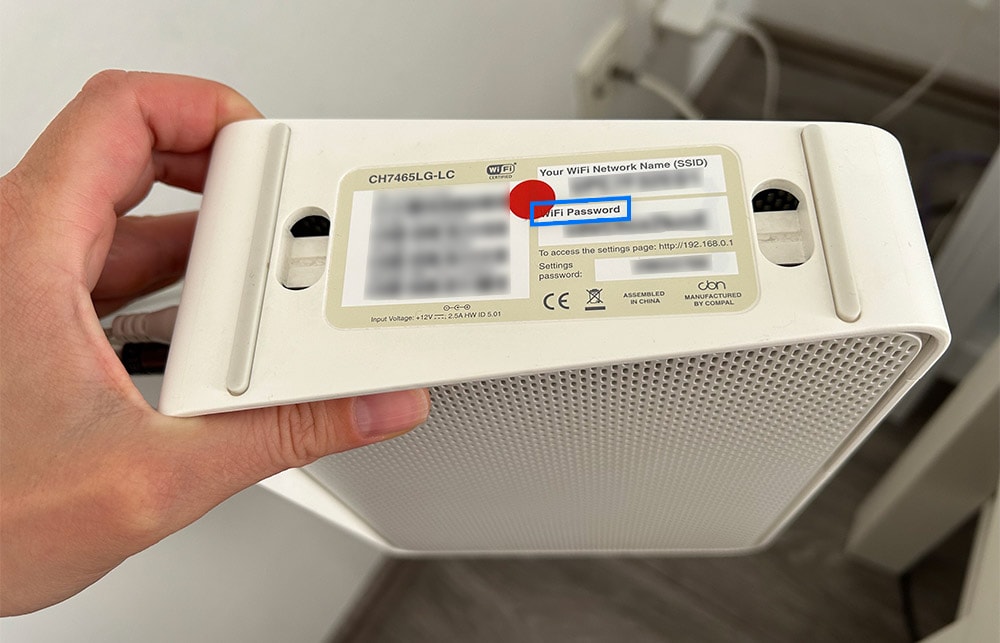
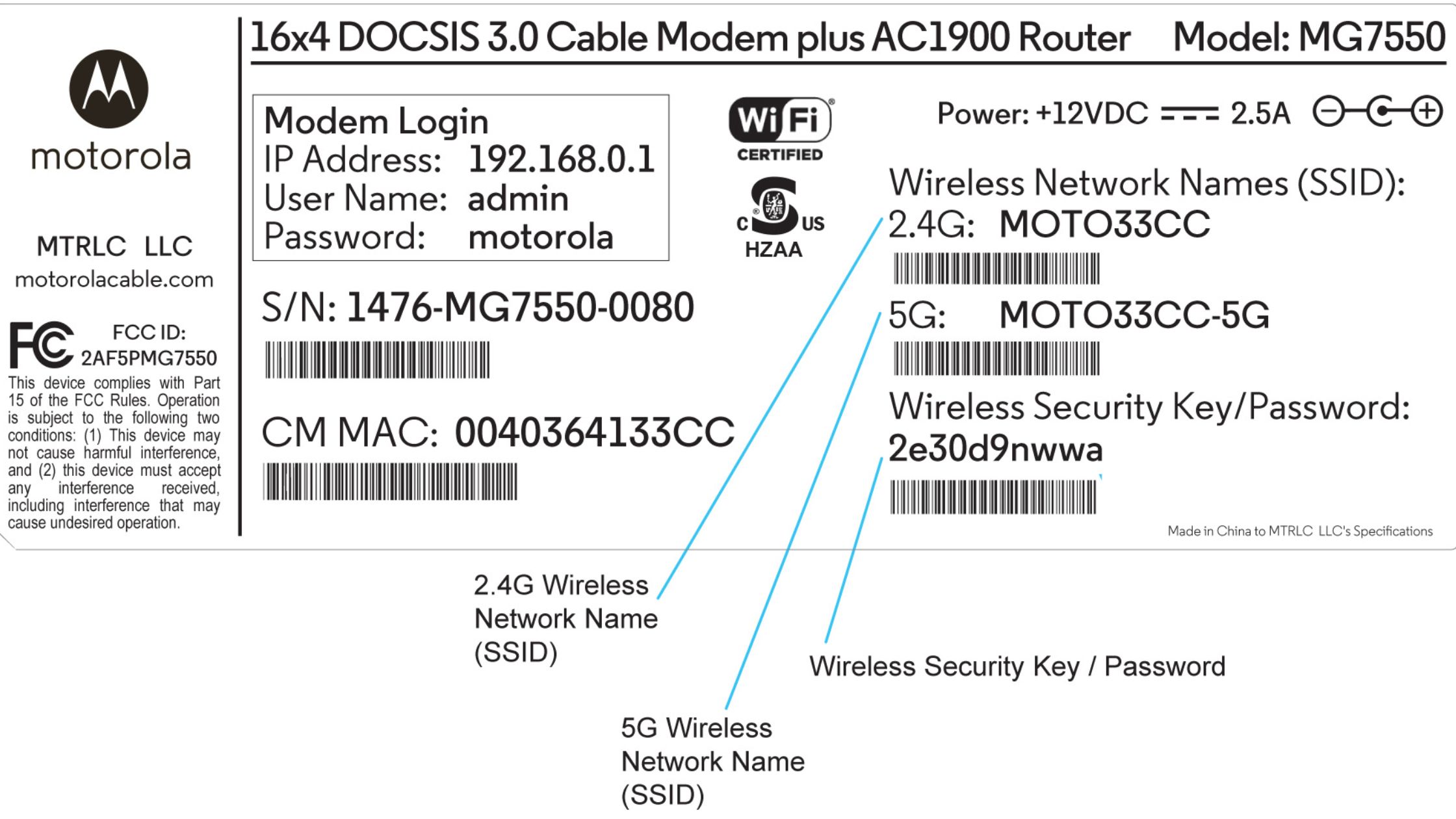
For most consumer routers, the default network key is printed on a sticker located on the bottom or back of the device. It is usually labeled as “Security Key,” “WPA Key,” or “Password.” While this is convenient for initial setup, tech experts recommend changing this default key immediately. Default keys are often generated via algorithms that can be predicted or found in leaked databases.
Retrieving the Key via Windows and macOS
If your computer is already connected to the Wi-Fi but you need the key for a new device, you can find it within your OS settings:
- On Windows: Navigate to the “Network and Sharing Center,” click on your Wi-Fi connection, select “Wireless Properties,” and go to the “Security” tab. Checking the “Show characters” box will reveal the key.
- On macOS: The “Keychain Access” utility stores all saved passwords. By searching for your SSID in Keychain Access and selecting “Show Password,” you can retrieve the key (provided you have administrator privileges).
Accessing the Router Admin Dashboard
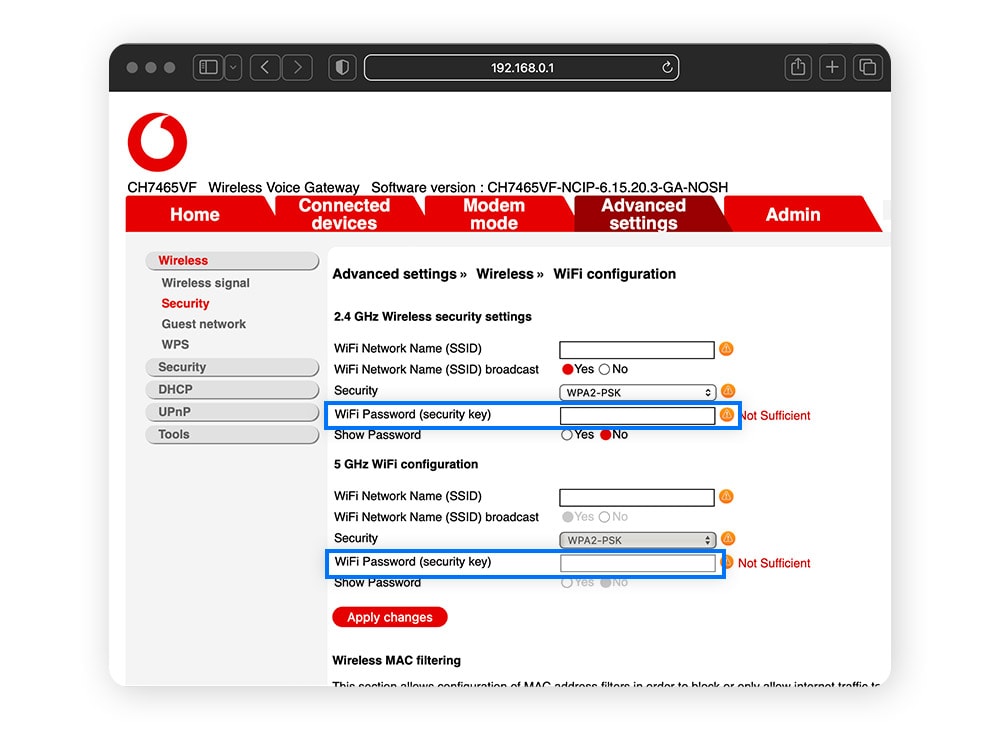
The most professional way to manage a network key is through the router’s web interface. By entering the router’s IP address (typically 192.168.1.1 or 192.168.0.1) into a web browser, you can access the administrative settings. Here, you can change the network key, update the security protocol (e.g., switching from WPA2 to WPA3), and monitor which devices are currently connected to your network.
Strengthening Your Digital Perimeter: Security Best Practices
In the realm of digital security, a network key is only as strong as its complexity. A weak key renders the most advanced WPA3 protocol useless.
The Anatomy of a Secure Passphrase
Modern security philosophy has shifted from “passwords” to “passphrases.” A short, complex password like J%4k!L is often harder for a human to remember but easier for a computer to brute-force than a long passphrase like Blue-Elephant-Running-2024!. Length is generally more important than complexity. A network key should ideally be at least 12–16 characters long and include a mix of uppercase, lowercase, numbers, and symbols.
The Risks of Default Network Keys
Using the “out of the box” key provided by your ISP (Internet Service Provider) is a significant security risk. These keys are often part of a known pattern. If a vulnerability is found in the way an ISP generates these keys, every router they have distributed becomes an easy target. Always personalize your network key during the initial setup process.
Implementing Guest Networks
A sophisticated tech setup often involves the use of a “Guest Network.” Most modern routers allow you to broadcast a secondary SSID with its own unique network key. This is a vital security practice. By giving guests access to a secondary network, you ensure they cannot access your primary devices, such as your home server, NAS (Network Attached Storage), or smart home controllers. It also means you don’t have to give out your “main” network key to every visitor.
Troubleshooting Connectivity and Key Issues
Even with the correct key, connection issues can arise. Understanding the technical nuances of these errors can save hours of frustration.
Common Error Messages Explained
The most frequent error is “Authentication Failed.” While this often means the key was typed incorrectly, it can also signal a mismatch in security protocols. For example, if a legacy device (like an old printer) tries to connect to a network set exclusively to WPA3, it may fail to authenticate because it doesn’t understand the “handshake” language.
Another common issue is the “IP Configuration Failure.” This usually happens after the network key has been accepted, but the router fails to assign an IP address to the device. This is often a software glitch that can be resolved by “forgetting” the network on your device and re-entering the key.
When to Reset Your Router
If you have forgotten your network key and cannot access the admin dashboard or a previously connected device, the last resort is a physical factory reset. Almost every router has a pinhole “Reset” button. Holding this for 10–30 seconds will revert the router to its factory settings, including the original default network key printed on the sticker. From there, you can begin the process of securing the network anew.
Conclusion: The Foundation of Network Integrity
The network key is far more than a hurdle between you and the internet. It is the foundation of your local network’s integrity. By choosing robust security protocols like WPA3, crafting long and unique passphrases, and managing access through guest networks, you effectively insulate your digital life from the vast majority of wireless threats. In the ever-evolving landscape of technology, staying informed about these fundamental components is the best defense against the vulnerabilities of an interconnected world.
aViewFromTheCave is a participant in the Amazon Services LLC Associates Program, an affiliate advertising program designed to provide a means for sites to earn advertising fees by advertising and linking to Amazon.com. Amazon, the Amazon logo, AmazonSupply, and the AmazonSupply logo are trademarks of Amazon.com, Inc. or its affiliates. As an Amazon Associate we earn affiliate commissions from qualifying purchases.