
In the modern digital landscape, the smartphone is more than just a communication device; it is a central hub for professional and personal productivity. Among the myriad of features tucked away within the iOS ecosystem, “Call Forwarding” remains one of the most practical yet underutilized tools. Whether you are a business professional managing multiple lines, a traveler navigating international roaming, or someone looking to optimize their digital reach, understanding how call forwarding works on an iPhone is essential.
Call forwarding is a telecommunications feature that allows an incoming call to be redirected to another destination—this could be a mobile number, a landline, or even an international secondary device. On an iPhone, this feature is integrated directly into the software, bridging the gap between hardware capability and carrier services.
What is Call Forwarding and How Does It Work on iOS?
At its core, call forwarding is a redirection service provided by your cellular carrier but managed through your iPhone’s user interface. When the feature is active, the cellular network intercepts incoming signals intended for your device and reroutes them to a pre-designated number.
The Core Concept of Call Redirection
The mechanics of call forwarding are relatively straightforward but involve a sophisticated “handshake” between the iOS software and the carrier’s switching center. When you toggle the call forwarding switch on your iPhone, the device sends a request to the network provider to update your status. From that moment, the network takes over the heavy lifting. The call never actually “hits” your iPhone; instead, it is diverted at the network level, which saves battery life and ensures the call reaches its destination even if your phone is turned off or out of range.
Network-Side vs. Device-Side Processing
It is important to distinguish that while you control the settings through your iPhone’s “Settings” app, the actual execution happens on the carrier’s side. This is why you will often see a loading spinner when you first access the call forwarding menu—the iPhone is querying the carrier to see what the current status is. This architecture ensures that if your iPhone runs out of battery or loses signal, the forwarding remains in effect until you manually disable it or the carrier’s preset conditions are met.
The Evolution of the Feature in iOS
Historically, call forwarding required complex “star codes” (like *72). Apple revolutionized this by placing a clean graphical user interface (GUI) over these protocols. In the latest versions of iOS, the process is streamlined, allowing users to toggle the feature on or off with a single tap, though the underlying technology remains rooted in global telecommunications standards like GSM and CDMA.
Step-by-Step Guide: Setting Up Call Forwarding on Your iPhone
Setting up call forwarding on an iPhone is designed to be intuitive, but there are nuances depending on your specific carrier and the type of redirection you require.
Enabling Basic Call Forwarding via Settings
For most users, the standard “Unconditional Call Forwarding”—where all calls are redirected—is the most common requirement.
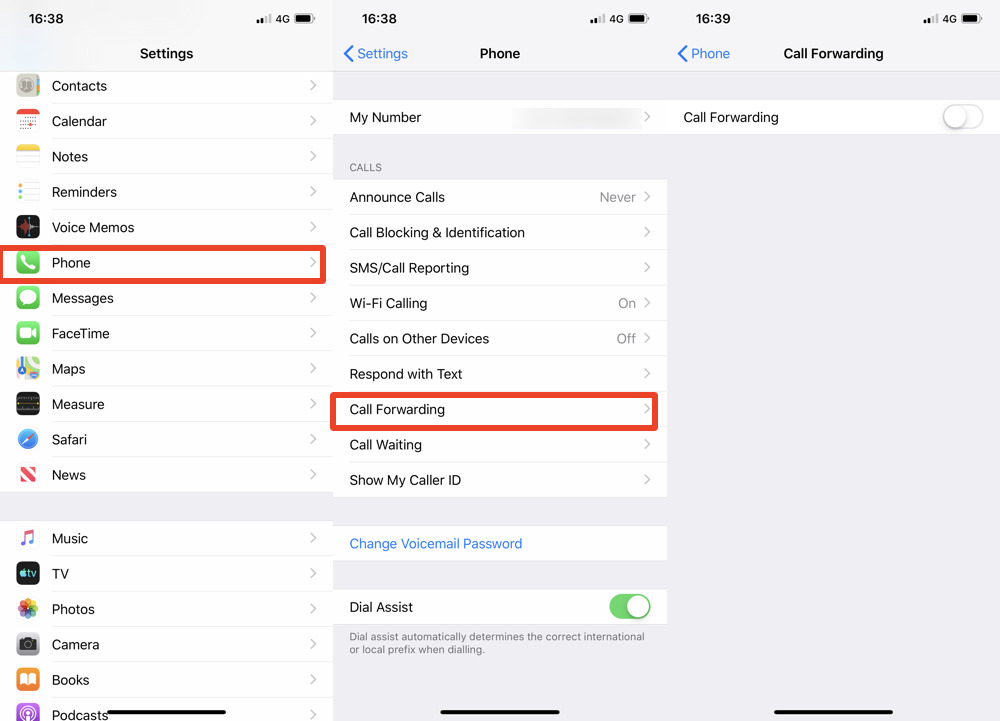
- Open the Settings app on your iPhone.
- Scroll down and tap on Phone.
- Tap on Call Forwarding.
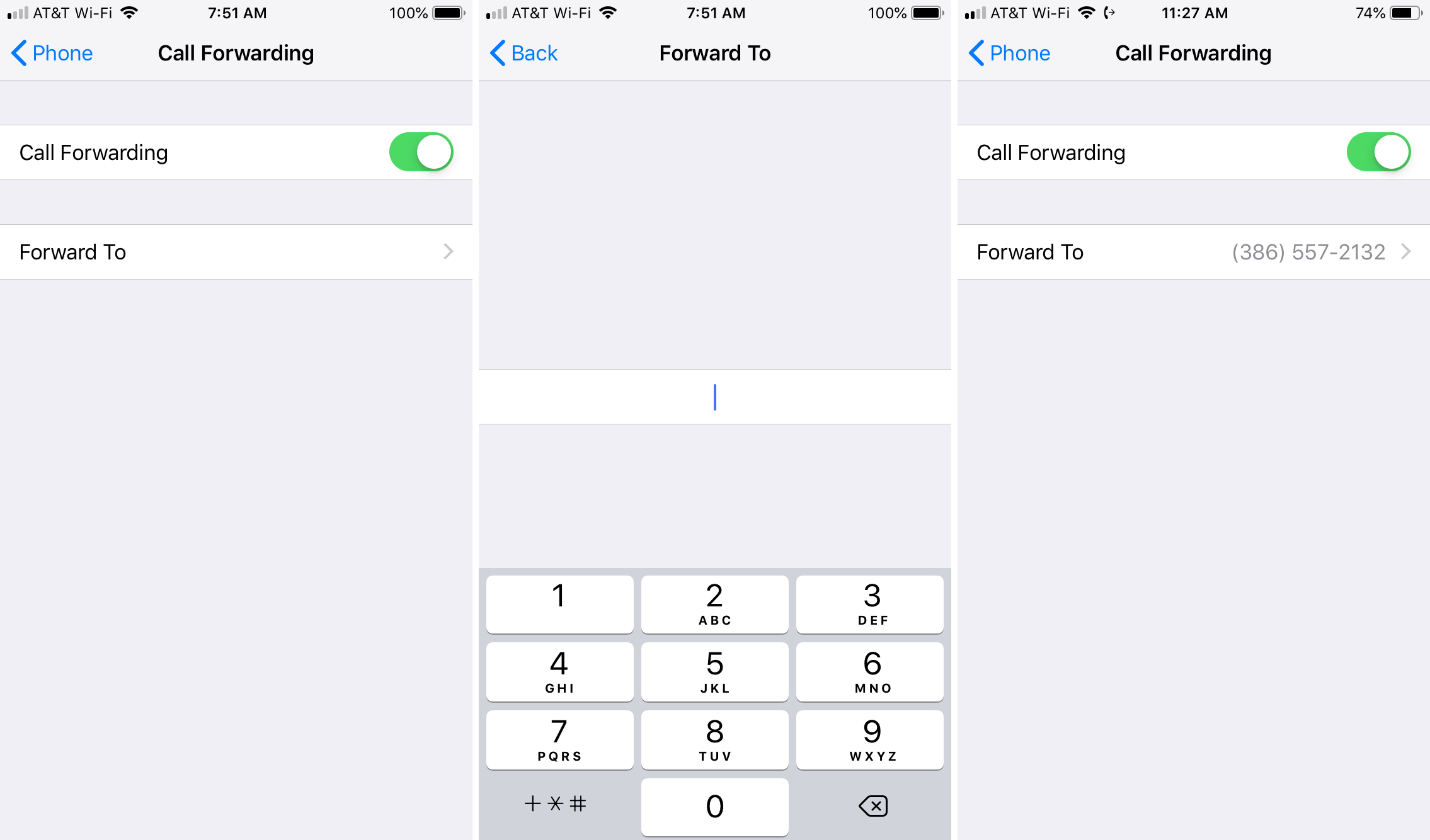
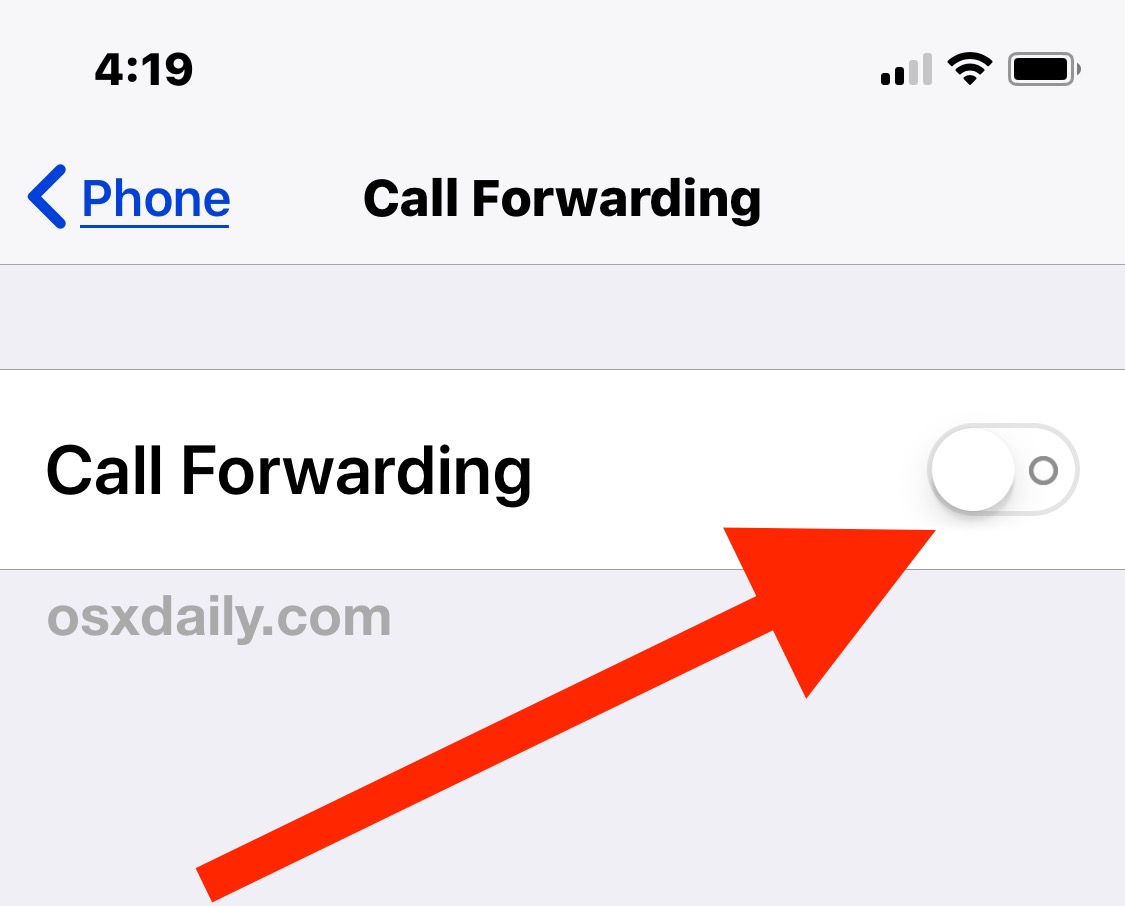
- Toggle the switch to On.
- Tap Forward To and enter the phone number, including the area code, where you want your calls to be sent.
Once this is active, a small icon (a phone with an arrow) will typically appear in your Control Center or Status Bar, signaling that your calls are currently being redirected.
Using MMI Codes for Conditional Forwarding
While the iOS settings menu offers a simple “on/off” switch for all calls, some users require “Conditional Call Forwarding.” This allows you to forward calls only when your line is busy, you don’t answer, or you are out of reach. These settings are often accessed using Man-Machine Interface (MMI) codes via the Keypad:
- Forward if Busy: Dial
*67* [number] #and press Call. - Forward if No Answer: Dial
*61* [number] #and press Call. - Forward if Unreachable: Dial
*62* [number] #and press Call.
These technical shortcuts provide a layer of granular control that the standard settings menu occasionally lacks, especially for power users who want to send missed calls to a specific secondary service rather than standard voicemail.
Verifying the Configuration
After setting up forwarding, it is a best practice to verify the connection. The most effective way is to call your number from a different device. If the destination rings as expected, the configuration is successful. If you receive an error message, it may indicate that your carrier plan does not support the feature or that the destination number was entered in an incorrect format.
Practical Use Cases for Modern Users
Why would a tech-savvy user need call forwarding in an era of VoIP and instant messaging? The answer lies in the reliability and ubiquity of the cellular network.
Managing Professional and Personal Boundaries
For entrepreneurs and freelancers who use their personal iPhone for work, call forwarding is a vital tool for maintaining a “Tech-Life Balance.” By forwarding work-related calls to a secondary device or a digital answering service during off-hours, users can prevent burnout without missing important client communications. This creates a digital barrier that protects personal time while maintaining professional responsiveness.
International Travel and Avoiding Roaming Fees
One of the most effective tech hacks for international travelers involves call forwarding. Before leaving your home country, you can forward your primary number to a VoIP service (like Skype or Google Voice). Once you arrive at your destination and install a local SIM card with cheap data, you can receive those calls over the internet. This bypasses the exorbitant roaming fees often charged by carriers for receiving international cellular calls on your home SIM.
Handling Poor Reception and Dead Zones
In certain geographic locations or modern “green” buildings with heavy shielding, cellular reception can be spotty. If you know you will be in a “dead zone” but have access to a landline or a Wi-Fi-enabled device, forwarding your calls ensures you remain reachable. This is particularly useful for remote workers who may have strong Wi-Fi but weak cellular penetration in their home offices.
Troubleshooting and Security Considerations
As with any technology, call forwarding can occasionally run into hurdles. Understanding the technical limitations and security implications is key to a smooth experience.
Why Your Call Forwarding Might Not Be Working
If the call forwarding toggle refuses to stay on, or if you see a “Loading” icon indefinitely, the issue is likely carrier-side.
- Carrier Restrictions: Some prepaid plans or specific enterprise contracts disable call forwarding by default.
- CDMA vs. GSM: While the world has largely moved toward LTE and 5G, some older CDMA networks (like legacy Verizon or Sprint towers) do not allow the iPhone to change these settings via the menu; they require the dialer codes mentioned earlier.
- Network Congestion: Occasionally, a simple restart of the iPhone or a “Reset Network Settings” is required to re-establish the handshake between the iOS software and the carrier’s server.
Digital Security: Protecting Against Unauthorized Redirection
From a security perspective, call forwarding is a double-edged sword. While useful, it can be exploited by malicious actors in “SIM Swapping” or “Call Interception” attacks. If a hacker gains access to your carrier account, they can set up call forwarding to redirect your calls—including those containing two-factor authentication (2FA) codes—to their own device.
To stay secure:
- Periodically check your call forwarding settings to ensure no unknown numbers are listed.
- Protect your carrier account with a strong, unique password and a PIN code.
- Be wary of “social engineering” scams where someone asks you to dial a code starting with
*or#on your keypad; this is often a trick to force your phone to forward calls to the attacker.
Carrier Compatibility and Hidden Costs
While the feature is “free” to enable on your iPhone, the carrier may charge for the forwarded portion of the call. For example, if your plan does not have unlimited minutes, the time spent on a forwarded call may count against your monthly allowance. Furthermore, if you forward your calls to an international number, you will likely be billed for an international outgoing call from your home number. Always check your service provider’s terms to avoid “bill shock” at the end of the month.
Conclusion
Call forwarding on the iPhone is a testament to how legacy telecommunications features have been elegantly integrated into modern smartphone technology. By mastering this tool, users can take control of their connectivity, ensuring they are always reachable when necessary and undisturbed when they need to be. Whether you are leveraging it for international travel, business management, or simply as a backup for poor reception, call forwarding remains a cornerstone of the iPhone’s utility in a connected world. Through proper setup, strategic use, and a focus on security, you can turn your iPhone into an even more powerful communication gateway.
aViewFromTheCave is a participant in the Amazon Services LLC Associates Program, an affiliate advertising program designed to provide a means for sites to earn advertising fees by advertising and linking to Amazon.com. Amazon, the Amazon logo, AmazonSupply, and the AmazonSupply logo are trademarks of Amazon.com, Inc. or its affiliates. As an Amazon Associate we earn affiliate commissions from qualifying purchases.