
In our increasingly digital world, cloud storage has become an indispensable utility, and for Apple users, iCloud stands at the forefront. More than just a simple backup service, iCloud acts as the central nervous system for your Apple ecosystem, seamlessly synchronizing everything from photos and documents to app data and device backups across your iPhone, iPad, Mac, Apple Watch, and even Windows PC. However, with so much data flowing into the cloud, it’s easy for storage to fill up, often without us realizing it. Understanding how to view and manage what’s stored in your iCloud is not just about freeing up space; it’s about optimizing your digital life, safeguarding your data, enhancing productivity, and making informed financial decisions about your cloud subscription.

This comprehensive guide will walk you through the practical steps to inspect your iCloud storage across all your devices, decipher the storage breakdown, and equip you with strategies for efficient management. Beyond the technical ‘how-to,’ we’ll delve into the broader implications of smart cloud management, touching upon digital security, personal branding, and the financial prudence of maximizing your digital assets. Whether you’re a casual user or a power professional, mastering your iCloud storage is a foundational step towards a more organized, secure, and productive digital existence.
Understanding iCloud and Its Importance
Before diving into the mechanics of checking your storage, it’s crucial to grasp what iCloud truly is and why its management is more vital than ever. Apple provides 5GB of free iCloud storage to every user, a generous offer that quickly proves insufficient for anyone deeply embedded in the Apple ecosystem. This initial allowance is rapidly consumed by device backups, high-resolution photos, and numerous app data.
What is iCloud and How Does It Work?
At its core, iCloud is Apple’s suite of cloud services, designed to store your digital content and make it accessible across all your devices, anytime, anywhere. It’s not just a virtual hard drive; it’s an intelligent synchronization engine. When you enable iCloud Photos, for instance, every picture you take on your iPhone is automatically uploaded to iCloud and then appears on your iPad, Mac, and iCloud.com. The same applies to contacts, calendars, notes, reminders, Messages in iCloud, and even the passwords stored in iCloud Keychain.
This seamless integration offers immense convenience, ensuring your most important information is always up-to-date and accessible. It’s also a critical component of Apple’s Find My service, allowing you to locate lost devices. From a technical standpoint, iCloud uses a distributed server architecture, encrypting your data both in transit and at rest, thus providing a robust layer of digital security for your personal information. However, this convenience comes with the responsibility of managing the storage space effectively, especially as the volume and quality of our digital creations continue to grow.
Why Monitor Your iCloud Storage?
The reasons for proactively monitoring and managing your iCloud storage extend far beyond simply avoiding a “storage full” notification.
- Data Backup and Accessibility: iCloud is a primary backup solution for many Apple users. If your storage is full, your device backups might fail, leaving your critical data vulnerable in case of device loss or damage. Regular monitoring ensures continuous, successful backups, providing peace of mind.
- Performance and Synchronization: While iCloud itself doesn’t directly impact device performance (unless local optimized storage is involved), full iCloud storage can hinder the synchronization of files, leading to delays in accessing updated documents or photos across devices. This directly impacts productivity, especially for professionals who rely on real-time data access.
- Digital Security: Knowing what’s stored in your iCloud allows you to ensure that no sensitive or unnecessary data is lingering in the cloud, potentially exposed or forgotten. This is a crucial aspect of digital security, giving you control over your digital footprint.
- Cost Implications (Money): The 5GB free tier is a starting point. Many users find themselves needing to upgrade to paid iCloud+ plans (50GB, 200GB, 2TB, etc.). While these plans are generally affordable, unnecessary upgrades or paying for space filled with redundant data is a waste of money. Proactive management can prevent premature upgrades or help you downsize to a cheaper plan if you’ve purged old content. This ties directly into personal finance and smart budgeting for digital services.
- Productivity and Efficiency: A cluttered cloud storage is akin to a disorganized physical workspace. Finding specific files becomes harder, and the mental load of digital clutter can be distracting. By keeping your iCloud organized, you enhance your digital productivity, making files easier to locate and manage, which in turn saves valuable time.
Practical Steps to View Your iCloud Storage Across Devices
Fortunately, Apple provides multiple straightforward methods to check your iCloud storage, whether you’re on an iOS device, a Mac, a Windows PC, or simply using a web browser.
On Your iPhone or iPad
This is arguably the most common way users interact with their iCloud storage. The process is intuitive and provides a clear breakdown.
- Open Settings: Tap the “Settings” app icon on your home screen.
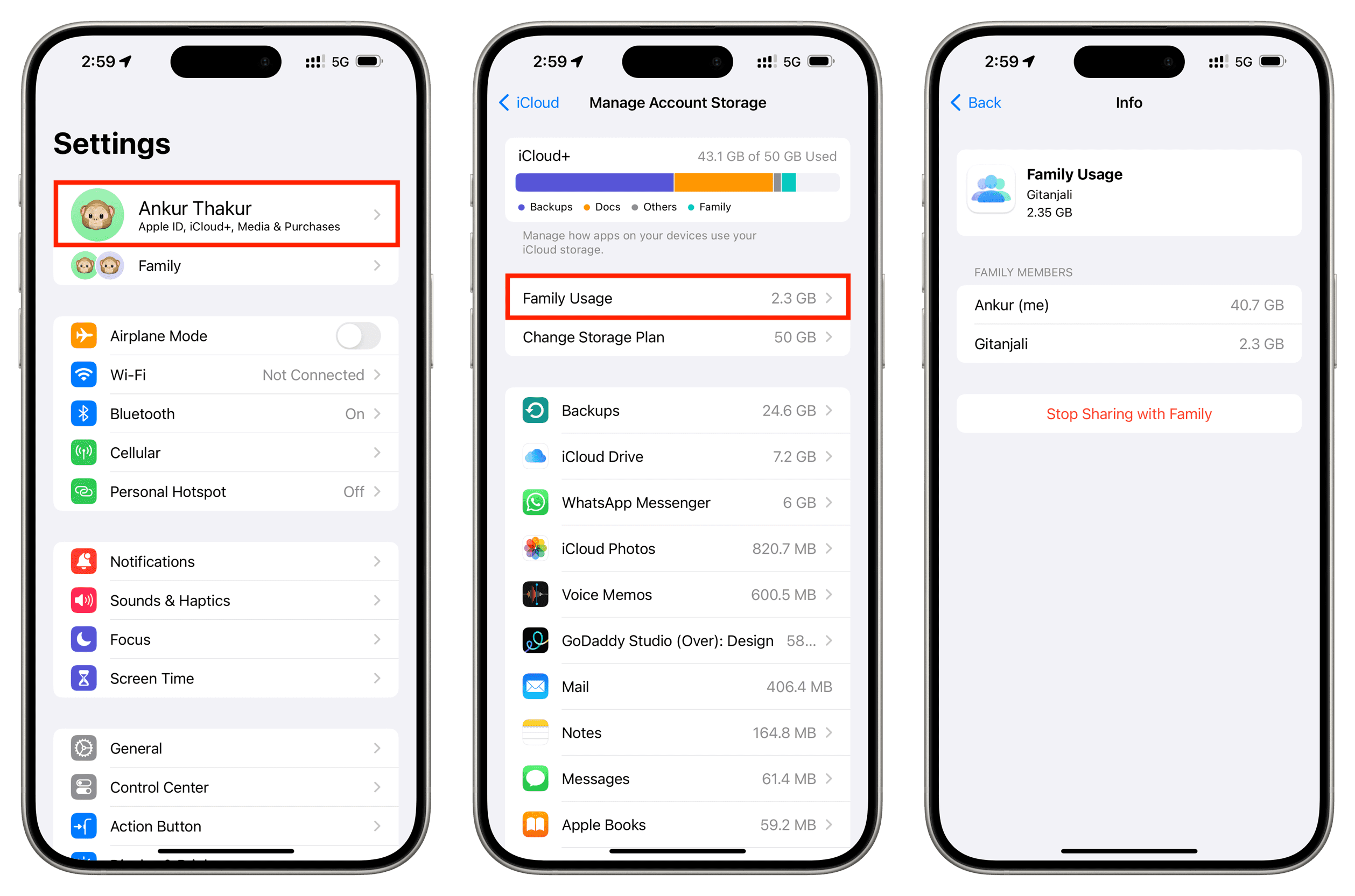
- Tap Your Name/Apple ID: At the very top of the Settings menu, you’ll see your name and Apple ID profile picture. Tap this banner.
- Select iCloud: From your Apple ID menu, tap on “iCloud.”
- View Storage Breakdown: At the top of the iCloud screen, you’ll see a bar graph indicating your total iCloud storage and how much of it is used. Below this, tap “Manage Account Storage” (or “Manage Storage” on older iOS versions). This will present a detailed list of apps and categories consuming your storage, ranked from largest to smallest.
From this “Manage Account Storage” screen, you can tap on individual apps or categories (like Photos, Backups, Messages, Mail) to view their specific data and often, to delete items. For example, tapping “Backups” allows you to see all your device backups and delete old ones, while “Photos” gives you options to disable iCloud Photos or optimize storage.
On Your Mac
Managing iCloud storage on a macOS device is equally straightforward, integrating seamlessly with the system settings.
- Open System Settings (macOS Ventura or later) / System Preferences (older macOS):
- Ventura+: Click the Apple menu () in the top-left corner of your screen and select “System Settings.”
- Monterey or older: Click the Apple menu () and select “System Preferences.”
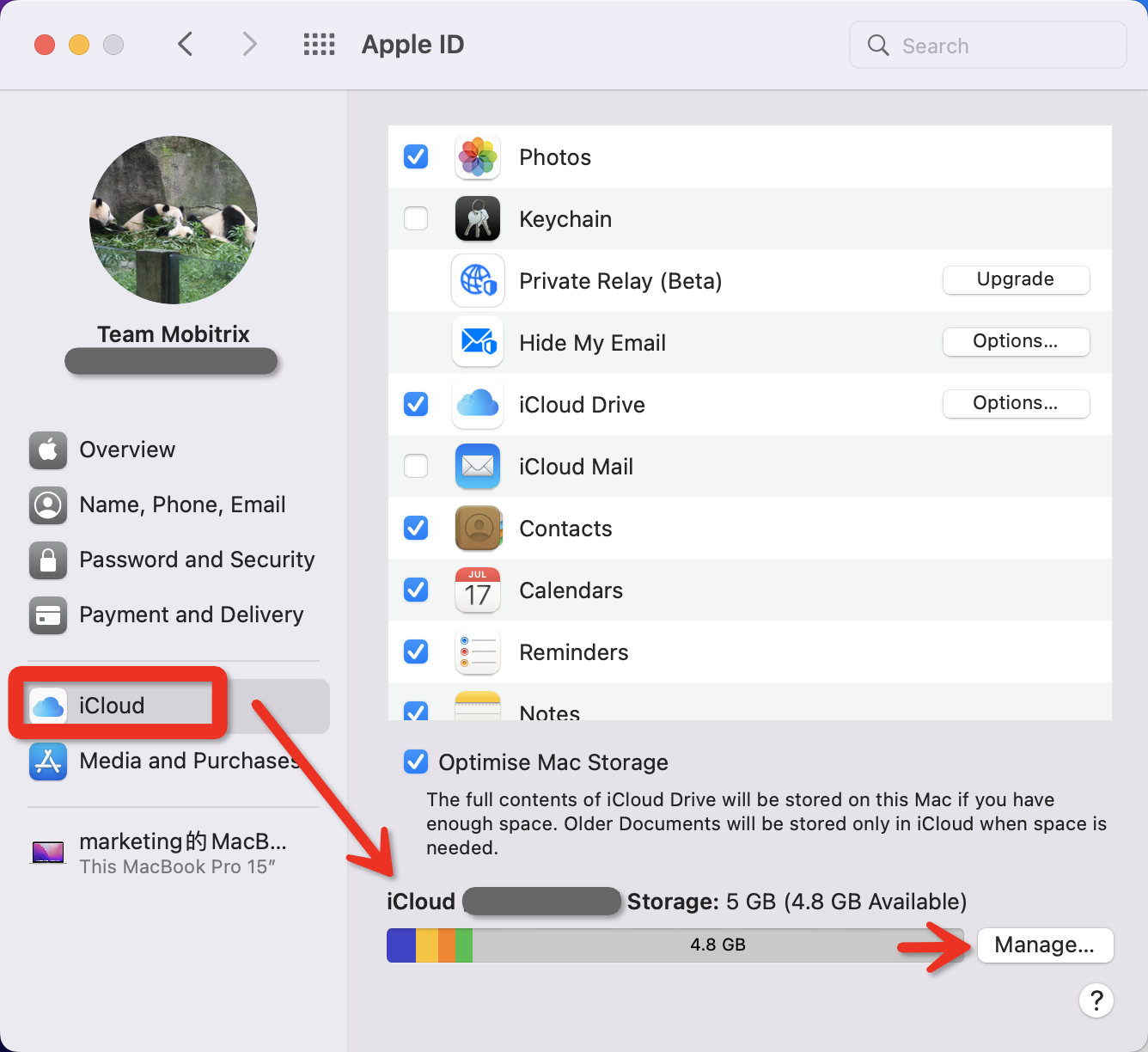
- Click Your Name/Apple ID: In System Settings, click your name in the sidebar. In System Preferences, click “Apple ID.”
- Select iCloud: In the Apple ID section, click “iCloud” in the sidebar.
- View Storage Details: You’ll see a storage bar at the top, similar to iOS, indicating your used space. Click the “Manage” button to the right of this bar.
This “Manage Storage” window on macOS provides a comprehensive breakdown, allowing you to see which applications and data types are consuming the most space. You can easily delete old backups, manage iCloud Drive files, or adjust settings for Photos, Mail, and other iCloud-synced apps directly from this interface. The Mac interface is particularly useful for managing large files within iCloud Drive.
On a Windows PC
Apple understands that not all its users are exclusively within the Apple ecosystem. iCloud for Windows bridges this gap, allowing PC users to access and manage some aspects of their iCloud storage.
- Download and Install iCloud for Windows: If you haven’t already, download iCloud for Windows from the Microsoft Store or Apple’s website and sign in with your Apple ID.
- Open iCloud for Windows: Once installed, open the iCloud for Windows application.
- View Storage: In the iCloud for Windows app window, you’ll see a summary of your iCloud storage at the bottom, indicating how much space is used and what’s available. Click “Storage” to get a detailed breakdown of how your space is being utilized across different categories like Photos, Mail, and backups.
While iCloud for Windows offers a convenient way to synchronize photos, videos, and iCloud Drive files with your PC, its storage management capabilities are somewhat less granular than on iOS or macOS. However, it still provides the essential overview needed to identify major storage consumers.
Via iCloud.com
For universal access from any web browser, iCloud.com provides a robust interface to view and manage specific types of data stored in your iCloud. This is particularly useful if you’re on a non-Apple device or simply prefer a web-based interface.
- Go to iCloud.com: Open your web browser and navigate to iCloud.com.
- Sign In: Enter your Apple ID and password. You might need to authenticate with two-factor authentication.
- View Storage Summary: Once logged in, you’ll often see a quick overview of your storage usage at the bottom of the page or in the settings.
- Access Specific Apps: From the main dashboard, you can click on various app icons (Photos, iCloud Drive, Mail, Notes, etc.) to access their respective data. For instance:
- Photos: View, download, or delete individual photos and videos.
- iCloud Drive: Browse, upload, download, and delete files and folders.
- Mail: Manage your iCloud Mail inbox.
- Notes: Access and edit your iCloud Notes.
While iCloud.com doesn’t offer a consolidated “Manage Storage” screen quite like iOS or macOS, it allows for direct interaction and purging of specific content types, making it a powerful tool for cleaning house.
Decoding Your iCloud Storage Breakdown
Once you’ve navigated to the storage management screen on your preferred device, you’ll be presented with a breakdown, often represented by a colored bar graph and a list of categories. Understanding what each category represents is key to effective management.
Identifying Storage Hogs
Typically, a few categories consistently consume the lion’s share of iCloud storage:
- Photos: For many users, this is the biggest culprit. If “iCloud Photos” is enabled, every photo and video you take or add to your device is uploaded to iCloud. High-resolution images and 4K videos quickly add up. Tapping on “Photos” in the storage breakdown often gives you options to manage this, including disabling iCloud Photos or enabling “Optimize iPhone Storage” which keeps smaller, device-sized versions on your device while full-resolution originals are stored in iCloud.
- Backups: iCloud automatically backs up your iOS/iPadOS devices. Each backup includes app data, device settings, photos (if iCloud Photos is off), messages, and more. Old backups, especially from devices you no longer own or use, can take up significant space. It’s wise to regularly review and delete outdated backups.
- Messages: With “Messages in iCloud” enabled, all your iMessages and SMS/MMS messages, including attachments (photos, videos, audio clips), are stored in iCloud. Over years, these attachments can accumulate into gigabytes. Tapping “Messages” in storage management often allows you to review and delete large attachments.
- Mail: If you use an iCloud Mail account (@icloud.com, @me.com, @mac.com), emails and their attachments contribute to your iCloud storage. Large attachments in old emails can be significant.
- iCloud Drive: This is where files you manually save to iCloud or files from apps (like Pages, Numbers, Keynote, or third-party apps that use iCloud Drive for document storage) reside. This can become a digital dumping ground if not regularly organized.
- Other Apps: Many third-party apps store their data in iCloud for synchronization and backup purposes. While individual app data might be small, collectively they can become noticeable. Tapping on an app in the storage breakdown usually offers an option to “Delete Data” or “Turn Off & Delete.”
Understanding “Other” or “System Data”
Sometimes, you might see a category labeled “Other” or “System Data” taking up surprisingly large amounts of space. While more prevalent for local device storage, iCloud also has its version. This category can encompass:
- Corrupted or Incomplete Backups: Sometimes, a failed backup attempt can leave behind residual files that aren’t fully recognized.
- Temporary Files: Cached data or temporary files from various iCloud services might get stuck.
- Data from Apps No Longer Installed: If you’ve deleted an app but its iCloud data wasn’t purged, it might still exist in this nebulous category.
Addressing “Other” in iCloud is usually less about specific actions and more about general cleanup: ensuring all apps are up-to-date, checking for old backups, and managing existing app data. A complete iCloud backup deletion and subsequent new backup (if needed) might also help, but this is a more drastic step.
The Role of Optimized Storage
Apple introduced “Optimize iPhone/iPad/Mac Storage” as a clever solution to balance local device storage with iCloud capacity, particularly for Photos. When this option is enabled, your device stores smaller, device-sized versions of your photos and videos, while the full-resolution originals are kept safely in iCloud. This frees up significant local space. When you need a full-resolution image, your device automatically downloads it from iCloud.
While beneficial for local device storage, it’s important to understand that “Optimize Storage” does not reduce your overall iCloud storage usage. The full-resolution originals still count towards your iCloud quota. It’s a strategy for device management, not iCloud space reduction. Knowing this distinction is crucial for making informed decisions about where your data truly resides and how much cloud space you need.
Strategies for Effective iCloud Storage Management
Now that you know how to view and interpret your iCloud storage, it’s time to put that knowledge into action with effective management strategies. These strategies will not only free up space but also contribute to a more organized digital life, potentially saving you money and enhancing your productivity.
Deleting Unnecessary Data
This is the most direct way to reclaim iCloud space. Focus on the biggest storage hogs first.
- Photos and Videos:
- Review and Delete: Go through your iCloud Photos (via Photos app on any device or iCloud.com) and delete blurry, duplicate, or unwanted photos and videos. Remember, deleted items go to “Recently Deleted” for 30 days before permanent removal; you can manually purge them sooner from that album to immediately reclaim space.
- Export and Store Locally: For cherished memories you don’t need in the cloud (or want an extra copy of), download them to an external hard drive or another local storage solution.
- Consider Alternatives: For vast photo libraries, explore alternative cloud services like Google Photos (which offers generous free storage for certain quality settings) or dedicated photo storage solutions if they better suit your needs and privacy preferences.
- Old Backups:
- Identify and Purge: As shown in the “Manage Account Storage” section, navigate to “Backups.” Delete backups from old devices you no longer own or use. Ensure your current device has a recent, successful backup before deleting older ones.
- Customize Backups: For your current device, you can choose not to back up certain large apps (e.g., games with huge data files) that you don’t mind reinstalling from scratch. This is done by going to
Settings > Your Name > iCloud > Manage Account Storage > Backups > [Your Device Name]and toggling off apps you don’t need backed up.
- Messages:
- Review Large Attachments: Within the “Messages” section of your iCloud storage breakdown, you can often see and delete large attachments. On iOS, you can also go to
Settings > General > iPhone Storage > Messagesand tap “Review Large Attachments” to view and delete them. - Auto-Delete Old Messages: Consider setting Messages to auto-delete old conversations after a certain period (
Settings > Messages > Message History > Keep Messages).
- Review Large Attachments: Within the “Messages” section of your iCloud storage breakdown, you can often see and delete large attachments. On iOS, you can also go to
- iCloud Drive and App Data:
- Clean Up iCloud Drive: Regularly browse your iCloud Drive (via the Files app on iOS/iPadOS or Finder on Mac, or iCloud.com) and delete unnecessary documents, downloads, and app-specific folders.
- Manage App Data: In the iCloud storage breakdown, identify apps with significant data. If you no longer use an app or don’t need its data synced, you can “Delete Data” or “Turn Off & Delete” for that app.
Offloading Large Files
For very large files (e.g., video projects, large media libraries, archival documents) that you don’t need constant, cloud-synced access to, consider offloading them entirely from iCloud.
- External Hard Drives: A reliable external SSD or HDD offers a cost-effective way to store vast amounts of data without counting towards your cloud quota.
- Alternative Cloud Services: Services like Dropbox, Google Drive, Microsoft OneDrive, or specialized archiving services might offer different pricing structures or features that are more suitable for specific types of large files, diversifying your cloud strategy.
- Network Attached Storage (NAS): For power users or small businesses, a personal NAS system can provide a private, on-premises cloud solution for vast amounts of data, offering more control and avoiding recurring cloud subscription fees for bulk storage.
Adjusting iCloud Backup Settings
Beyond deleting old backups, optimizing what actually gets backed up can significantly reduce your iCloud footprint.
- Selective App Backup: As mentioned, you can individually toggle off apps from being included in your iCloud backup. Go to
Settings > Your Name > iCloud > Manage Account Storage > Backups > [Your Device Name]. Review the list of apps and deselect any that you don’t need to be part of the backup (e.g., streaming apps, large games, or apps whose data is already synced via another cloud service). - Disabling iCloud Photos (with caution): If you primarily use another photo backup service or prefer local storage, you can disable iCloud Photos (
Settings > Your Name > iCloud > Photos). However, ensure you have a robust alternative backup strategy in place for your photos before doing so, as this is a critical data type.
Upgrading Your iCloud Plan: When and Why
Sometimes, despite your best efforts, 5GB (or even 50GB) simply isn’t enough. When you find yourself constantly battling full storage, it might be time to consider an upgrade.
- Cost-Benefit Analysis (Money): iCloud+ plans are quite affordable:
- 50GB: Often around $0.99/month
- 200GB: Around $2.99/month
- 2TB: Around $9.99/month
For many, the convenience, peace of mind, and added features (like iCloud Private Relay and Hide My Email, which enhance digital security and privacy) justify the minimal cost. Compare the monthly fee against the time and effort spent constantly managing space. If your time is valuable (a key “Money” and “Productivity” consideration), a small investment in storage can yield significant returns.
- Family Sharing: The 200GB and 2TB plans can be shared with up to five other family members, making them incredibly cost-effective for families. This allows each family member to have their own private storage within the shared pool.
- Bundling with Apple One: If you use other Apple services like Apple Music, Apple TV+, Apple Arcade, or Apple Fitness+, an Apple One subscription might offer better value. It bundles multiple services, including iCloud+ storage, at a discounted monthly rate, providing a holistic solution for your digital needs. This is a prime example of smart financial planning for digital subscriptions.
Beyond Storage: The Broader Implications of iCloud Management
Managing your iCloud storage isn’t just a technical chore; it’s a critical component of your overall digital hygiene, impacting everything from your personal security to your professional image. Integrating elements of “Brand” and “Money” into your approach yields a more holistic benefit.
Digital Security and Privacy Considerations
Your iCloud stores some of your most sensitive personal data. Proactive management is a cornerstone of digital security.
- Knowing What’s There: Regularly reviewing your iCloud content ensures you’re aware of what data Apple holds for you. This control is fundamental to privacy. Are there old, sensitive documents you forgot about? Financial records, medical information, or personal correspondence? Knowing is the first step to securing it.
- Preventing Data Leaks: Deleting unnecessary sensitive data reduces the surface area for potential data breaches. While iCloud is highly secure, no system is impenetrable. Minimizing what you store reduces risk.
- Strong Passwords and Two-Factor Authentication: While not directly about what you store, ensuring your Apple ID is protected with a strong, unique password and two-factor authentication (2FA) is paramount. This secures the gateway to all your iCloud data. This is a basic but often overlooked aspect of comprehensive digital security.
- iCloud Private Relay and Hide My Email: As part of iCloud+, these features enhance your privacy online by masking your IP address and generating unique email addresses for sign-ups. Understanding and utilizing these features contributes to a stronger digital security posture, protecting your “Brand” from unwanted tracking.
Productivity Gains from Organized Data
A well-managed iCloud isn’t just clutter-free; it’s a powerful tool for productivity.
- Quick Access: When your iCloud Drive is organized with logical folders and current files, you can quickly locate and access the documents, presentations, or media you need across all your devices. This minimizes wasted time searching for files, a significant productivity drain.
- Reduced Mental Clutter: Just like a tidy desk helps you focus, a clean digital workspace reduces mental overhead. You know where everything is, and you don’t have to worry about running out of space at a critical moment. This streamlined environment fosters better focus and efficiency.
- Seamless Workflow: For professionals, especially those engaged in “Online Income” or “Side Hustles,” a well-managed iCloud ensures that project files, client documents, and creative assets are always synchronized and accessible. This eliminates friction in multi-device workflows, allowing for uninterrupted work regardless of location.
- Collaborative Efficiency: iCloud Drive’s collaboration features allow multiple users to work on documents simultaneously. Keeping shared folders clean and purposeful ensures that collaborative efforts remain productive and free from confusion.
Personal Branding and Digital Footprint
While iCloud is primarily a private storage space, how you manage its contents can subtly influence your “Personal Branding” and digital footprint.
- Professional Document Management: For entrepreneurs or those building a “Personal Branding” online, iCloud might house professional portfolios, client proposals, or creative works. Keeping these files organized, accessible, and up-to-date reflects professionalism and efficiency. A chaotic cloud storage could, theoretically, lead to delays or missteps that impact your professional image.
- Image Management: While your photos are largely private, the habits of managing them (e.g., deleting unflattering or unprofessional images, organizing professional shots) contribute to your overall digital aesthetic. If you ever need to quickly pull a professional headshot or portfolio piece from your cloud, an organized system ensures you can do so without hassle.
- Consistency Across Devices: A consistent and organized file structure across all your Apple devices, facilitated by iCloud, reinforces a sense of order and competence. This consistency is a subtle but powerful element of personal brand management in the digital age.
Future-Proofing Your Digital Life
Good iCloud management is also about looking ahead, ensuring your digital life is resilient and adaptable.
- Data Migration: If you ever decide to switch platforms or move to a different cloud provider, a well-organized iCloud makes data migration significantly easier. You know exactly what you have and where it is, simplifying the export process.
- Long-Term Storage Strategy: Consider iCloud as part of a broader, multi-tiered storage strategy. Critical, immutable data might go to an archival service, while frequently accessed working files reside in iCloud, and backups are spread across local and cloud solutions. This diversified approach protects your digital assets, which are increasingly tied to your “Money” and “Brand.”
- Asset Protection for “Online Income” and “Side Hustles”: For those generating income online, digital assets (website files, marketing materials, product designs, financial records) are invaluable. Ensuring these are redundantly backed up and easily recoverable through diligent iCloud management (and other backup solutions) protects your revenue streams and investments.
In conclusion, knowing “How Do I See What Is In My iCloud Storage?” is merely the first step. The true value lies in the proactive management that follows. By regularly auditing, cleaning, and optimizing your iCloud, you’re not just freeing up space; you’re investing in your digital security, boosting your productivity, making sound financial decisions, and subtly reinforcing a professional and organized personal brand in an increasingly digital world. Embrace the habit of digital hygiene, and your iCloud will serve as a powerful, efficient, and secure hub for your entire digital life.
aViewFromTheCave is a participant in the Amazon Services LLC Associates Program, an affiliate advertising program designed to provide a means for sites to earn advertising fees by advertising and linking to Amazon.com. Amazon, the Amazon logo, AmazonSupply, and the AmazonSupply logo are trademarks of Amazon.com, Inc. or its affiliates. As an Amazon Associate we earn affiliate commissions from qualifying purchases.