
In the ever-evolving landscape of technology, understanding the components that make your devices function seamlessly is paramount. One of the most crucial, yet often overlooked, aspects of this is your device’s drivers. Drivers are essentially the translators between your hardware and your operating system, allowing them to communicate effectively. Without the correct drivers, your graphics card might not render images properly, your printer could refuse to print, or your Wi-Fi adapter might fail to connect you to the internet. Knowing how to check what drivers you have installed is a fundamental skill for any tech-savvy individual, a vital step in troubleshooting, and an important aspect of maintaining optimal device performance. This guide will walk you through the process of identifying your installed drivers across different operating systems and explain why this knowledge is so beneficial.

The Importance of Knowing Your Drivers
Before we dive into the “how,” let’s briefly touch upon the “why.” Understanding your drivers is not just an academic exercise; it has tangible benefits across several domains:
Optimizing Performance and Stability
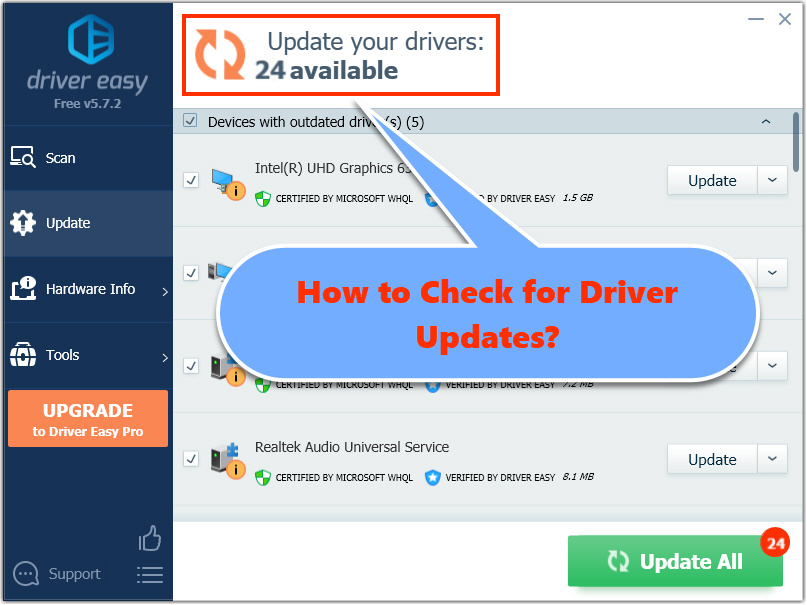
Tech plays a massive role in our daily lives, and for our computers and gadgets to perform at their peak, they need to be running on the latest, most compatible drivers. Outdated or corrupted drivers can lead to a host of issues, from sluggish performance and frequent crashes to outright hardware malfunctions. For example, a gaming enthusiast will want to ensure their graphics card drivers are up-to-date to unlock the latest performance enhancements and graphical fidelity. Similarly, a video editor will rely on optimized audio and video drivers for smooth playback and rendering. Regularly checking and updating your drivers can prevent these performance bottlenecks and ensure a stable computing experience, allowing you to focus on your tasks, whether it’s developing a new AI tool, creating stunning digital art, or managing complex projects.
Troubleshooting Hardware Issues
When a piece of hardware isn’t working as expected – perhaps your webcam isn’t recognized, or your sound card is producing static – the first place to look is often the drivers. Identifying which driver is responsible for the faulty hardware is the first step in diagnosing the problem. This might involve checking for driver updates, rolling back to a previous version if a recent update caused the issue, or even uninstalling and reinstalling the driver entirely. This systematic approach to troubleshooting, armed with knowledge of your drivers, can save you significant time and frustration, especially when dealing with the intricacies of modern Tech ecosystems.
Enhancing Digital Security
While not as direct as antivirus software, keeping your drivers updated can also contribute to your overall Digital Security. Manufacturers often release driver updates that include security patches, addressing vulnerabilities that could be exploited by malicious actors. By ensuring your drivers are current, you’re closing potential security loopholes that could compromise your system. This is especially relevant in today’s interconnected world, where threats are constantly evolving. For businesses, maintaining a secure IT infrastructure, which includes up-to-date drivers on all company devices, is a cornerstone of protecting sensitive data and maintaining a strong Corporate Identity.
Facilitating Software Compatibility
Many software applications, particularly those that interact directly with hardware (like design software, audio workstations, or virtual reality applications), have specific driver requirements. Ensuring you have the correct and compatible drivers installed is crucial for these programs to function correctly, or even to run at all. When encountering compatibility issues with new software, checking your driver versions is often a key troubleshooting step. This ensures that your Tech stack is working in harmony, allowing you to leverage the latest Apps and Gadgets without impediment.
Checking Drivers on Windows
Windows, being the most prevalent desktop operating system, offers several straightforward methods to check your installed drivers. The primary tool for this is the Device Manager.
Using Device Manager: The Central Hub
The Device Manager is a built-in utility that displays all the hardware components connected to your computer and their associated drivers. It’s your go-to resource for driver-related information.
Accessing Device Manager
- Search: The quickest way to open Device Manager is by typing “Device Manager” into the Windows search bar (usually located at the bottom left of your screen) and clicking on the result.
- Run Command: Alternatively, you can press the
Windows key + Rto open the Run dialog box, typedevmgmt.msc, and press Enter. - Control Panel: You can also navigate through the Control Panel. Go to “System and Security” > “System” > “Device Manager.”
Interpreting Device Manager
Once Device Manager is open, you’ll see a categorized list of your hardware. Each category (e.g., “Audio inputs and outputs,” “Display adapters,” “Network adapters”) contains the specific devices of that type.
-
Identifying Devices: Expand a category to see the hardware listed. For example, under “Display adapters,” you’ll find your graphics card (e.g., NVIDIA GeForce RTX 3070, Intel UHD Graphics).
-
Checking Driver Details: To see details about a specific device’s driver, right-click on the device and select “Properties.” In the Properties window, navigate to the “Driver” tab. Here you’ll find:
- Driver Provider: The company that developed the driver (e.g., NVIDIA, Intel, Realtek).
- Driver Date: The date the driver was created or last modified.
- Driver Version: The specific version number of the driver.
- Digital Signer: Indicates if the driver is digitally signed, a sign of authenticity and integrity.
-
Identifying Problematic Drivers: Device Manager uses icons to highlight potential issues. A yellow exclamation mark next to a device indicates a problem with the driver (e.g., the driver is disabled, corrupted, or not loaded correctly). A red ‘X’ usually means the device is disabled.
Using System Information: A Comprehensive Overview
The System Information tool provides a more extensive overview of your hardware and software, including driver details.
Accessing System Information
- Search: Type “System Information” into the Windows search bar and click the result.
- Run Command: Press
Windows key + R, typemsinfo32, and press Enter.
Navigating System Information for Drivers
Within the System Information window, expand the “Software Environment” section in the left-hand pane. Here you’ll find a dedicated “System Drivers” category. Clicking on this will display a comprehensive list of all drivers installed on your system, along with their status, manufacturer, and file path. This view is particularly useful for getting a broad understanding of your driver landscape.
Using Command Prompt: For the Advanced User
For those who prefer command-line interfaces, the Command Prompt offers a way to retrieve driver information.
Using WMIC
- Open Command Prompt by searching for “cmd” in the Windows search bar.
- To list all drivers, you can use the following command:
wmic driver get DeviceName, DriverProviderName, DriverVersion, DriverDate - This command will output a table with the requested driver information for each device. You can further refine this by specifying a particular device name if you know it.
Checking Drivers on macOS
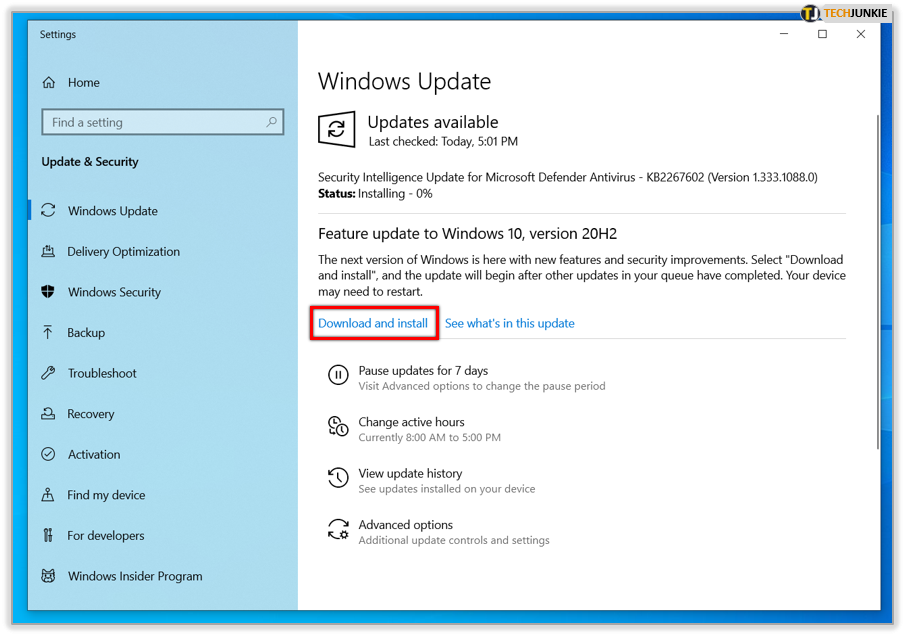
macOS has a different approach to driver management, often relying on built-in system extensions and updates managed through System Preferences. Direct driver inspection is less granular than in Windows.
System Information: The Primary Tool
Similar to Windows, macOS’s System Information utility is the central place to find hardware and software details, including information related to drivers.
Accessing System Information
- Click the Apple menu () in the top-left corner of your screen.
- Hold down the Option (⌥) key, and then click “System Information…” (instead of “About This Mac”).
Locating Driver-Related Information
Within the System Information window:
- Hardware Overview: This section provides a broad summary of your Mac’s components.
- Software Section: Look for categories like “Extensions” or specific hardware categories (e.g., “Graphics/Displays,” “Network,” “USB”).
- Extensions: Under “Software,” select “Extensions.” This list shows many of the kernel extensions (which act as drivers for macOS) installed on your system. You can see the name, version, and source of these extensions.
- Specific Hardware Categories: Clicking on a specific hardware category will often show details about the components, and sometimes, the underlying software or firmware versions that are akin to driver information.
Unlike Windows, macOS generally doesn’t expose individual driver files and versions in the same explicit manner for user management. Apple’s philosophy is to abstract much of this away, with updates often bundled within macOS system updates.
Checking Drivers on Linux
Linux offers a highly flexible and powerful command-line environment for checking drivers, though graphical tools are also available depending on your distribution.
Using lspci and lsusb
These are foundational command-line tools for listing PCI (Peripheral Component Interconnect) and USB (Universal Serial Bus) devices, respectively. They provide hardware information that helps identify what drivers are in use.
Identifying PCI Devices and Their Drivers
- Open your terminal.
- To list all PCI devices and the kernel modules (drivers) associated with them, use:
lspci -k- The
-koption is crucial here as it shows the kernel drivers in use for each device.
- The
Identifying USB Devices and Their Drivers
- Open your terminal.
- To list all USB devices and their associated drivers, use:
lsusb -v(for verbose output, which can be very detailed) or simplylsusbfor a more concise list.- While
lsusbdirectly lists devices, correlating them with specific drivers often requires looking at system logs or using other commands.
- While
Checking Loaded Kernel Modules
The lsmod command lists all the kernel modules that are currently loaded into the Linux kernel. These modules are the drivers for your hardware.
- Open your terminal.
- Type:
lsmod- This will display a list of modules, their size, and the number of processes using them. You can often infer the hardware component based on the module name.
Using dmesg for Kernel Messages
The dmesg command displays the kernel ring buffer messages. When your system boots up, it logs information about hardware detection and driver loading.
- Open your terminal.
- Type:
dmesg- You can pipe this output to
grepto filter for specific hardware or driver names, e.g.,dmesg | grep -i nvidiato look for NVIDIA-related driver messages.
- You can pipe this output to
Graphical Tools (Distribution Dependent)
Many Linux distributions offer graphical utilities that provide a more user-friendly way to view hardware and driver information. For example, GNOME’s “Settings” app often has a “About” or “Hardware” section, and tools like hardinfo can be installed to provide detailed system reports.
Why This Knowledge Matters for Your Brand and Finances
While the technical aspects of checking drivers are clear, the implications extend beyond just keeping your computer running. Understanding your hardware and its drivers can indirectly impact your Brand and Money.
For Your Personal Brand
In today’s digital-first world, your Personal Branding is heavily influenced by your online presence and the professionalism of your digital output. If you’re a content creator, graphic designer, or even a remote professional, your ability to deliver high-quality work relies on your tools functioning correctly. A system prone to crashes due to driver issues, or one that can’t run the latest creative Apps due to outdated drivers, can hinder your productivity and affect the quality of your output. This, in turn, can impact how clients or collaborators perceive your professionalism and reliability. Maintaining your systems, including drivers, is a form of self-care for your Personal Brand, ensuring you can consistently present your best work. For small businesses or freelancers, a stable and efficient workflow is directly linked to their Reputation.
For Your Business and Financial Health
For businesses of all sizes, IT infrastructure is a critical asset. Inefficient or failing hardware, often due to driver problems, translates directly to lost productivity and potential revenue. For instance, if a company’s point-of-sale system experiences frequent downtime because of a faulty driver in the card reader, it directly impacts sales and customer satisfaction. Keeping hardware optimized through driver management can prevent costly repairs or premature hardware replacement. Furthermore, when exploring Online Income opportunities or managing Business Finance, having reliable technology is fundamental. A stable computer ensures that financial transactions are processed smoothly, that Financial Tools can be accessed without interruption, and that your overall Productivity is maximized. This efficiency contributes positively to your bottom line and can be seen as a form of proactive cost management within your Business Finance strategy.
Conclusion
Mastering the art of checking your drivers is a cornerstone of effective technology management. Whether you’re a casual user looking to resolve a minor annoyance, a professional striving for peak performance, or a business owner focused on efficiency and Reputation, understanding your hardware’s drivers is an invaluable skill. By regularly utilizing the tools available in Windows, macOS, and Linux, you empower yourself to troubleshoot effectively, optimize performance, enhance security, and ensure your digital tools work in harmony, ultimately supporting your Tech endeavors, bolstering your Brand, and contributing to your financial well-being.
aViewFromTheCave is a participant in the Amazon Services LLC Associates Program, an affiliate advertising program designed to provide a means for sites to earn advertising fees by advertising and linking to Amazon.com. Amazon, the Amazon logo, AmazonSupply, and the AmazonSupply logo are trademarks of Amazon.com, Inc. or its affiliates. As an Amazon Associate we earn affiliate commissions from qualifying purchases.