
In the ever-evolving landscape of technology, understanding the core software powering your devices is more than just a trivial detail – it’s a critical piece of information that impacts everything from security to functionality. For iPhone and iPad users, this core software is iOS (or iPadOS for iPads), Apple’s proprietary mobile operating system. Knowing which version of iOS you have is fundamental for a myriad of reasons: ensuring app compatibility, leveraging the latest features, maintaining robust digital security, and even making informed decisions about device upgrades. This guide will walk you through the simple steps to identify your iOS version and delve into why this knowledge is indispensable in our tech-driven world, touching upon aspects relevant to technology trends, digital security, app management, and even personal finance considerations for your gadgets.
The Essential First Step: Checking Your iOS Version Directly on Your Device
The quickest and most common method to ascertain your iOS version involves navigating through your device’s settings. This process is designed to be intuitive and accessible, reflecting Apple’s commitment to user-friendly design. Whether you’re a seasoned tech enthusiast or a casual user, these steps will guide you to the information you need.
A Step-by-Step Tutorial for iPhone and iPad
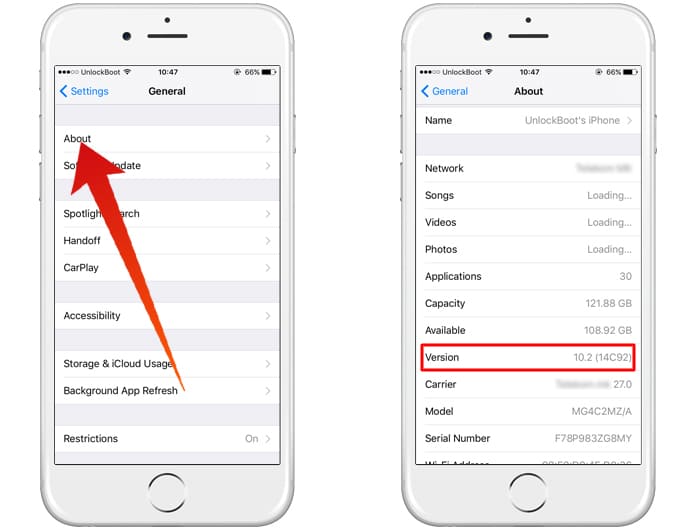
Follow these simple instructions to pinpoint your device’s current operating system:
- Unlock Your Device: Begin by unlocking your iPhone or iPad and navigating to your Home screen.
- Open the Settings App: Locate and tap the “Settings” app icon. It typically looks like a set of grey gears.
- Navigate to General: Within the Settings menu, scroll down until you see “General” and tap on it. This section contains various system-level options for your device.
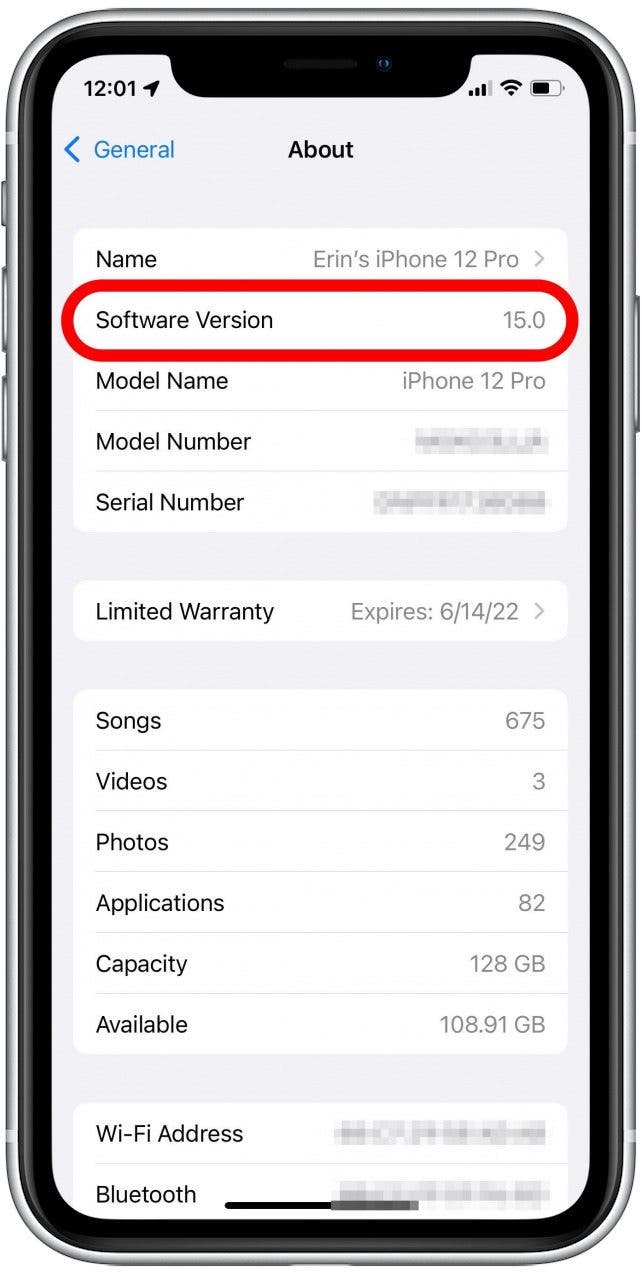
- Select About: Inside the General settings, you’ll find an option labeled “About.” Tap on this. This section provides a summary of your device’s essential information, including its model name, serial number, available storage, and, crucially, its software version.
- Identify “iOS Version” or “Software Version”: Once you’re in the “About” screen, look for an entry titled “iOS Version” or “Software Version.” The number displayed next to it is your device’s current operating system version (e.g., “iOS 17.5.1”).
And just like that, you have your iOS version. This information is a snapshot of your device’s software status at that precise moment. It’s a fundamental piece of data that empowers you to make better decisions regarding your digital life.
Deciphering the iOS Version Number and Build Information
Understanding the version number goes beyond simply identifying “iOS 17.” Apple’s numbering scheme provides valuable context about the update.
- Major Versions (e.g., iOS 17, iOS 16): The first number (e.g., ’17’ in iOS 17) indicates a major update. These are typically released annually in the fall and bring significant new features, user interface overhauls, and substantial performance improvements. These major updates often define new technology trends and capabilities for iPhones and iPads.
- Minor Versions (e.g., 17.5, 17.5.1): The numbers following the major version (e.g., ‘.5’ in iOS 17.5) denote minor updates. These usually introduce smaller features, bug fixes, and, most importantly, critical security patches. The third number (e.g., ‘.1’ in 17.5.1) often signifies an even smaller patch addressing specific issues or exploits.
- Build Number: Below the “Software Version,” you might also see a “Build Number” (e.g., 21F90). This is a more granular identifier used internally by Apple and developers. While less relevant for the average user, it can be useful for troubleshooting specific issues or for developers ensuring app compatibility with precise software builds.
Knowing this distinction helps you understand the scope of changes an update might bring and how critical it is to install them, especially those addressing security vulnerabilities.
Why Knowing Your iOS Version is Crucial: Security, Performance, and Features
Beyond mere curiosity, understanding your device’s iOS version plays a pivotal role in optimizing your user experience, safeguarding your digital presence, and maximizing your technological investment. It directly connects to core concerns within the “Tech” and “Digital Security” pillars of our website.
Fortifying Your Digital Security and Privacy
In an age where cyber threats are constantly evolving, keeping your software updated is the frontline defense for your digital security. Each iOS update, particularly the minor point releases, often includes vital security patches that address vulnerabilities discovered since the previous version. Running an outdated iOS version is akin to leaving your front door unlocked – it exposes your personal data, financial information, and digital identity to potential breaches.
From phishing attempts to sophisticated malware, bad actors constantly exploit known software weaknesses. Apple’s commitment to privacy and security is a core part of its brand identity, and consistent software updates are a testament to this. By knowing your iOS version, you can quickly determine if you’re running software that includes the latest security enhancements, protecting you from emerging threats. This proactive approach to digital security is indispensable for both personal and business use, ensuring your productivity and peace of mind.
Ensuring App Compatibility and Optimal Performance
The vast ecosystem of apps available on the App Store is a primary reason many users choose Apple devices. However, applications are continuously developed and optimized for the latest operating systems. If your iOS version is too old, you might encounter several issues:
- App Incompatibility: Many new apps or updates to existing apps will require a minimum iOS version to function. If you’re on an older version, you might be unable to download or update essential apps, limiting your device’s utility and your access to cutting-edge tools or productivity enhancers.
- Performance Degradation: Even if an app runs on an older iOS version, it might not perform optimally. You could experience slower loading times, crashes, or missing features. Developers often leverage new APIs and system optimizations present only in newer iOS versions, leading to a smoother, faster, and more efficient experience on updated devices.
- Missing Features: Apps often integrate with new iOS features (e.g., new camera modes, augmented reality capabilities, enhanced privacy controls). Without the corresponding iOS version, you’ll miss out on these integrated experiences, reducing the overall value proposition of your apps and device.
For businesses leveraging specific apps for brand strategy or operations, ensuring all devices run compatible iOS versions is critical for maintaining workflow and efficiency.
Accessing the Latest Features and Innovations
Each major iOS release is packed with exciting new features designed to enhance user experience, boost productivity, and introduce cutting-edge technology trends. From significant UI redesigns to innovative communication tools, advanced camera capabilities, and enhanced AI features (like Siri improvements or on-device intelligence), these updates redefine what your device can do.
By knowing your iOS version, you can ascertain whether you have access to these new functionalities. For example, if a specific AI tool or productivity feature was introduced in iOS 17, knowing you’re on iOS 16 means you’re missing out. Staying updated ensures you can take full advantage of Apple’s latest innovations, whether it’s improved multitasking for work, more sophisticated photo editing, or better ways to manage your digital life. This continuous evolution through software updates is a core aspect of Apple’s brand and a key reason why its gadgets remain relevant and powerful for years.
Informing Your Device Upgrade and Investment Decisions
The iOS version can also be a significant factor when considering whether to upgrade your device or if you’re engaging in personal finance decisions involving your Apple gadgets.
- Longevity of Your Device: Older devices eventually stop receiving major iOS updates. While they might still get critical security patches for a time, they will eventually reach end-of-life for new software features. Knowing this helps you gauge the remaining functional lifespan of your current device.
- Resale Value: When selling an old iPhone or iPad, the iOS version it can run, or is currently running, significantly impacts its resale value. Devices capable of running the latest iOS versions command higher prices in the secondary market because they offer better security, app compatibility, and features. This is a direct “Money” consideration – investing in a newer device often means better returns if you eventually sell or trade it in.
- Buying Pre-Owned Devices: Conversely, if you’re looking to save money by purchasing a used device, checking its maximum supported iOS version is paramount. Buying an inexpensive iPhone that can only run iOS 12 might seem like a bargain, but it will quickly become obsolete for modern apps and security standards, turning into a poor investment.
Understanding your iOS version helps you make smarter decisions about when to invest in a new gadget, ensuring you get the most value for your money.
Advanced Methods and Considerations for iOS Identification
While checking directly on your device is the most common approach, there are scenarios where you might need alternative methods, or additional information can be valuable. These situations often involve troubleshooting or making informed purchasing decisions.
Utilizing a Computer: iTunes/Finder for Connected Devices
If your iPhone or iPad is operational but for some reason, you prefer to check its software version via a computer, or if you manage your device through a desktop, iTunes (for older macOS versions and Windows) or Finder (for macOS Catalina and later) provides this information.
- Connect Your Device: Use a USB cable to connect your iPhone or iPad to your computer.
- Open iTunes/Finder:
- On a Mac (macOS Catalina or later): Open Finder. Your device should appear in the sidebar under “Locations.” Click on it.
- On a Mac (older macOS) or Windows PC: Open iTunes. Your device should appear as an icon near the top left of the iTunes window. Click on the device icon.
- View Device Summary:
- In Finder: The summary tab for your device will display various details, including the “Software Version” prominently.
- In iTunes: On the “Summary” tab for your device, you’ll see the “Software Version” listed.
This method is particularly useful if you’re regularly syncing your device with a computer, as it’s part of a broader device management workflow. It’s also a good backup if your device’s “About” screen isn’t accessible for some reason.
What to Do When Your Device Won’t Boot: Recovery Mode Implications
In rare but critical situations, your device might not boot up normally, preventing you from accessing the Settings app. Even in such scenarios, there’s a way to determine (or at least infer) your iOS version, particularly if you’re attempting a recovery.
When you put an iPhone or iPad into Recovery Mode and connect it to a computer running iTunes or Finder, the software will detect the device in recovery. While it won’t explicitly display the exact iOS version currently installed, it will often indicate whether a newer version is available for restoration or update. This indirectly tells you if your device is severely outdated. For instance, if Finder offers to restore your device to “the latest iOS,” it implies your current installation is not the most recent.
This scenario often moves beyond mere identification into troubleshooting and recovery, requiring tutorials on how to restore or update your device from this state. It highlights the importance of regular backups (a key productivity and digital security practice) so that even if a recovery is needed, your data remains safe.
Identifying iOS for Buying or Selling Pre-Owned Devices
When dealing with second-hand Apple gadgets, checking the iOS version is a non-negotiable step. As discussed under financial considerations, the software version profoundly impacts a device’s value and utility.
- Before Buying: Always ask the seller for the iOS version. If possible, verify it yourself using the on-device method outlined earlier. Be wary of devices running very old iOS versions, as they may soon lose support for essential apps and security updates, making them a poor investment even at a low price. Understanding the maximum iOS version an older model can support is equally important; for instance, an iPhone 6 can only go up to iOS 12, regardless of its current installation.
- Before Selling: Knowing your device’s iOS version helps you accurately list its specifications, which can attract more buyers and justify your asking price. An updated device running the latest iOS is more appealing and will fetch a better return, tying into aspects of online income and managing assets. Ensure your device is updated to the latest compatible iOS version before selling to maximize its appeal and value.
This careful attention to detail for pre-owned tech aligns with smart personal finance practices and helps consumers make informed choices in the gadget market.
Mastering iOS Updates: Best Practices for a Seamless Experience
Once you know your iOS version, the next logical step is to understand how to manage updates. Staying current is not just about features; it’s a vital aspect of digital security, performance, and overall user satisfaction, reflecting continuous technology trends and Apple’s brand strategy.
Automatic vs. Manual Updates: Finding Your Balance
Apple offers options for managing iOS updates, allowing users to choose what best fits their productivity and security needs.
- Automatic Updates: You can configure your device to download and install updates automatically. Navigate to
Settings > General > Software Update > Automatic Updates. Here, you can toggle on “Download iOS Updates” and “Install iOS Updates.”- Pros: Ensures you always have the latest security patches and features without manual intervention. Great for users who prioritize digital security and convenience.
- Cons: Updates might install at inconvenient times or introduce minor bugs that you’d prefer to wait for patches for.
- Manual Updates: For those who prefer more control, keeping automatic updates off means you decide when to initiate the update process.
- Pros: Allows you to wait for initial bug reports to surface, ensure critical apps are compatible with the new version, or schedule updates during off-peak hours to minimize disruption to your workflow.
- Cons: Requires you to remember to check for and install updates, potentially leaving your device vulnerable to known exploits if you delay too long.
Finding your balance depends on your risk tolerance, reliance on specific apps, and overall tech savviness. For most users, especially those concerned with digital security, enabling automatic downloads but manually initiating installs strikes a good balance.
Preparing Your Device for a Smooth Transition
Before performing any significant iOS update, especially a major version change, it’s wise to take a few preparatory steps to ensure a smooth and secure transition:
- Backup Your Device: This is the most critical step. Use iCloud or your computer (Finder/iTunes) to create a full backup of your device. This digital security measure ensures that if anything goes wrong during the update, you can restore all your data.
- Ensure Sufficient Storage: iOS updates can be large, requiring several gigabytes of free space. Check your available storage (
Settings > General > iPhone/iPad Storage) and free up space if necessary by deleting unused apps, old photos, or videos. - Charge Your Device: Make sure your device is connected to a power source or has at least 50% battery life to prevent it from shutting down mid-update, which could lead to data corruption or a bricked device.
- Connect to Wi-Fi: Download updates over a stable Wi-Fi connection to avoid cellular data charges and ensure a faster, more reliable download.
These simple steps minimize risks and contribute to a more productive update experience, saving you potential headaches and wasted time.
The Apple Advantage: Brand, Innovation, and Longevity Through Updates
Apple’s approach to iOS updates is a cornerstone of its brand identity and a significant factor in the perceived value of its products. Unlike some competitors, Apple supports its devices with major iOS updates for many years, often five to seven years after release. This commitment to long-term software support translates into:
- Extended Device Lifespan: Users can confidently use their Apple gadgets for longer, knowing they will continue to receive new features, performance enhancements, and critical security updates. This directly impacts personal finance by extending the investment value of each device.
- Consistent User Experience: Across its ecosystem, Apple strives for a cohesive and intuitive user experience. Regular iOS updates, even those with minor tweaks, maintain this consistency and refine the interface based on user feedback and evolving technology trends.
- Innovation at Your Fingertips: Apple continuously pushes the boundaries of software innovation. By providing consistent updates, the company ensures that its user base can immediately benefit from these advancements, whether it’s groundbreaking AI tools, enhanced privacy controls, or new ways to interact with augmented reality.
This robust update strategy is a powerful testament to Apple’s brand strength and a key reason why its devices remain at the forefront of the technology market.

Conclusion
Knowing how to check your iOS version is a fundamental skill for any Apple device owner. It’s not just about curiosity; it’s about empowering yourself with critical information that impacts your digital security, app compatibility, access to cutting-edge features, and the overall longevity and value of your tech investments. Whether you’re a casual user or a tech-savvy professional managing a fleet of devices, understanding your operating system version is the first step towards a secure, efficient, and up-to-date digital experience. By staying informed and proactive about your iOS version and embracing regular updates, you ensure that your iPhone or iPad remains a powerful, secure, and future-ready tool in your personal and professional life.
aViewFromTheCave is a participant in the Amazon Services LLC Associates Program, an affiliate advertising program designed to provide a means for sites to earn advertising fees by advertising and linking to Amazon.com. Amazon, the Amazon logo, AmazonSupply, and the AmazonSupply logo are trademarks of Amazon.com, Inc. or its affiliates. As an Amazon Associate we earn affiliate commissions from qualifying purchases.