
The Apple TV has long evolved beyond being just a simple streaming device; it’s a powerful entertainment hub, a gaming console, and a portal to a vast ecosystem of applications. At the heart of this transformation lies the App Store, offering an ever-expanding library of content that caters to virtually every interest – from the latest streaming services and immersive games to fitness routines, educational tools, and productivity enhancers. Understanding how to navigate this ecosystem and efficiently install apps is fundamental to unlocking the full potential of your Apple TV, turning it into a truly personalized experience that goes far beyond passive viewing.
This comprehensive guide will walk you through everything you need to know about installing applications on your Apple TV. We’ll cover the straightforward methods for new users, delve into managing your existing app library, touch upon re-downloading previously acquired apps, and even briefly explore more advanced (though less common for the average user) installation concepts. Whether you’re setting up a new device or looking to optimize your current setup, this article will equip you with the knowledge to customize your Apple TV experience to perfection.
The Apple TV App Ecosystem: A Gateway to Entertainment and More
Apple TV, powered by tvOS, offers a rich and diverse application ecosystem that significantly expands its utility beyond just watching movies and TV shows. This platform allows users to interact with a wide array of digital content, transforming their television into a dynamic, interactive display. Understanding the scope and functionality of the App Store on Apple TV is the first step in harnessing its power.
Understanding the App Store on Apple TV: A Curated Experience
The App Store on Apple TV is Apple’s curated marketplace for applications designed specifically for the big screen. Unlike the App Stores on iPhone or iPad, the Apple TV version focuses on optimizing content for a living room environment, often emphasizing visual fidelity, ease of navigation with the Siri Remote, and multi-user experiences. Developers specifically tailor their apps to leverage the Apple TV’s hardware capabilities, including its powerful processors for gaming and its seamless integration with other Apple services and devices.
Navigation within the Apple TV App Store is intuitive, designed for quick discovery and efficient browsing. You’ll find apps categorized by genre (e.g., Entertainment, Games, Sports, Lifestyle), curated collections, featured apps, and top charts. This organized structure helps users find new and relevant content without feeling overwhelmed. Furthermore, app descriptions, screenshots, and user reviews provide valuable insights, helping you make informed decisions before downloading. Apple’s strict review process also ensures that apps meet certain quality and security standards, offering a reliable and safe downloading experience for users.
Why Apps Matter on Your Apple TV: Beyond Streaming
While streaming services like Netflix, Disney+, Hulu, and Apple TV+ are undoubtedly primary draws for an Apple TV, the device’s true versatility shines through its broader app offerings. Apps transform your Apple TV into a multi-faceted device capable of:
- Immersive Gaming: From casual puzzle games to graphically intensive adventures, the Apple TV supports a growing library of games, many of which can be played with game controllers for a more console-like experience.
- Fitness and Wellness: Access workout videos, yoga classes, meditation guides, and health trackers directly on your big screen, turning your living room into a personal gym or relaxation space.
- Educational Content: Explore apps that offer learning experiences for all ages, from interactive science lessons to language learning tools.
- Productivity and Utility: While less common than on mobile devices, some apps provide utility features like weather updates, news aggregators, smart home controls, and even presentation tools, making your TV a more interactive display for daily information.
- Music and Audio: Beyond standard streaming, apps like Apple Music, Spotify, and Pandora turn your Apple TV into a powerful music system, often integrating with soundbars and home theater setups for high-fidelity audio.
- Interactive Experiences: Photo sharing apps, digital art galleries, and virtual travel experiences offer unique ways to interact with your media and explore the world from your couch.
The ability to personalize your Apple TV with these diverse applications is what truly differentiates it, allowing you to tailor your entertainment and utility hub precisely to your lifestyle and interests.
Step-by-Step: Installing Apps from the App Store
Installing apps on your Apple TV is a straightforward process, designed to be as user-friendly as possible. Whether you know exactly what you’re looking for or want to explore new options, the App Store makes it easy.
Navigating the App Store Interface: Discovering New Content
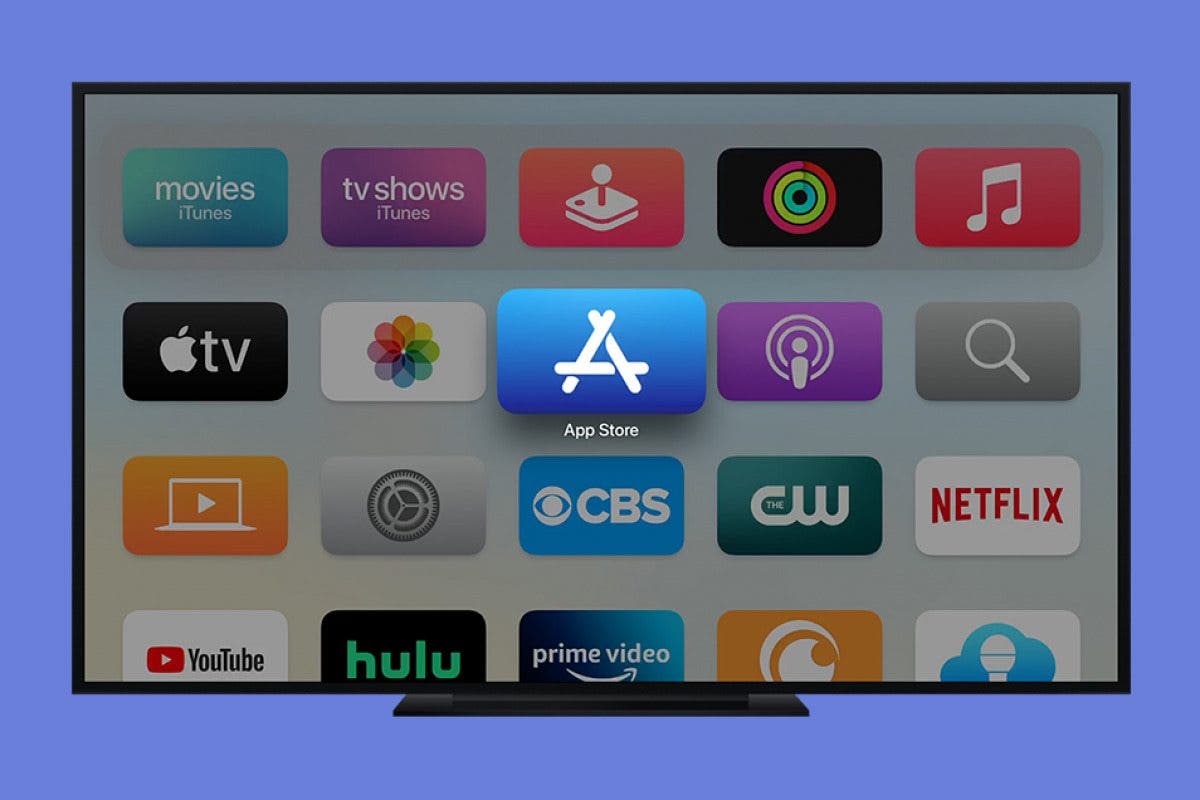
- Launch the App Store: From the Apple TV Home screen, locate and select the “App Store” icon. It typically looks like a blue square with a white A in the middle.
- Explore Categories and Collections: Once in the App Store, you’ll see various sections:
- Discover: This is often the default view, showcasing featured apps, new releases, and curated collections by Apple’s editorial team.
- Categories: Browse apps by specific genres like Entertainment, Games, Sports, Lifestyle, Utilities, and more. This is useful if you have a general idea of the type of app you want.
- Top Charts: See what’s popular, including top free, top paid, and top-grossing apps.
- Use the Siri Remote: Navigate through these sections using the touch surface of your Siri Remote (or the directional pad on older remotes). Swipe or press to move between apps and sections. Click the touch surface or a button to select an item.
Searching for Specific Applications: Pinpointing Your Favorites
If you know the name of the app you want, searching is the most efficient method:
- Access the Search Function: Within the App Store, navigate to the “Search” tab, usually found at the top or bottom of the screen.
- Enter Your Search Query: A keyboard will appear on your screen. You have a few options for input:
- Siri Voice Search: The fastest method is to press and hold the Siri button (microphone icon) on your remote and speak the name of the app (e.g., “Netflix,” “Spotify,” “Plex”). Siri is remarkably good at understanding app names.
- Touch Surface/Directional Pad: Swipe or use the directional buttons to highlight letters on the on-screen keyboard. Click to select each letter. This can be slower but works reliably.
- Paired iOS Device/Apple Remote App: If you have the Apple TV Remote app installed on your iPhone or iPad, you can use its keyboard feature for much faster text entry.
- Review Search Results: As you type (or after Siri processes your request), relevant apps will appear. Select the correct app from the list.
Downloading and Installing Apps: From Selection to Screen
Once you’ve found the app you want, the installation process is quick and simple:
- Select the App: Click on the app’s icon or name from the search results or discovery page to view its dedicated page.
- Get or Buy:
- For free apps, you’ll see a “Get” button.
- For paid apps, you’ll see the price (e.g., “$4.99”).
- Confirm Installation: Click the “Get” or price button.
- If it’s a free app or one you’ve previously downloaded, it might begin downloading immediately.
- For new purchases or sometimes for free apps, you may be prompted to enter your Apple ID password or use Touch ID/Face ID if enabled on a paired iOS device. This is a security measure to prevent unauthorized downloads.
- Monitor Download Progress: The app’s icon will appear on your Apple TV Home screen with a progress circle indicating the download status. Once the circle is complete, the app is ready to launch.
- Launch the App: Click on the app icon on your Home screen to open it. The first launch might involve an initial setup, terms and conditions, or login prompts.
Automatic Downloads: Keeping Your Library Synced
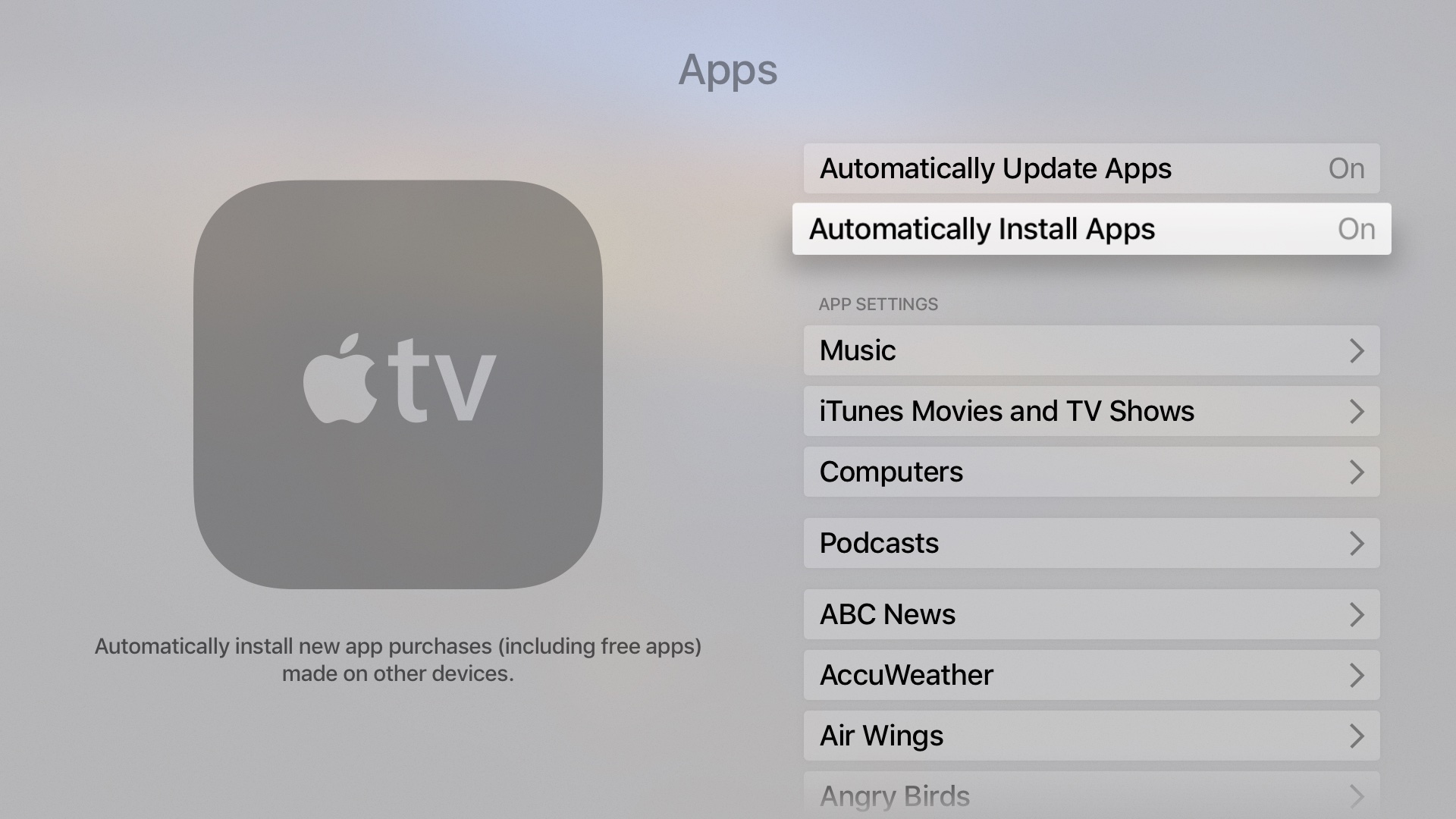
To ensure a seamless experience across your Apple devices, Apple TV offers an “Automatic Downloads” feature. When enabled, any app you download on another Apple device (like an iPhone or iPad) that also has a tvOS version will automatically download to your Apple TV, provided it’s signed in with the same Apple ID.
To enable or disable this feature:
- Go to Settings on your Apple TV.
- Navigate to Apps.
- Toggle the Automatically Install Apps option to On or Off.
This feature is incredibly convenient for users who frequently download new apps and want them readily available across all their Apple devices without manual intervention.
Re-downloading and Managing Your App Library
Over time, your Apple TV’s Home screen can become cluttered, or you might need to reinstall an app you previously deleted. Apple TV provides intuitive tools for managing your app library efficiently.
Accessing Previously Purchased Apps: Restoring Your Collection
If you’ve previously downloaded or purchased an app and then deleted it, you don’t need to buy it again. You can easily re-download it:

- Go to the App Store: Navigate to the App Store icon on your Apple TV Home screen and open it.
- Access Your Purchases: Go to the “Purchased” tab. This section lists all apps you have ever downloaded or bought under your current Apple ID, regardless of whether they are currently installed on your Apple TV.
- Find the App: Scroll through the list or use the search function within the “Purchased” section to find the app you wish to re-download.
- Re-download: Next to the app’s name, you’ll see a cloud icon with a down arrow. Select this icon to re-download the app. It will then appear on your Home screen and install automatically.
This feature is invaluable when switching to a new Apple TV, performing a factory reset, or simply reclaiming apps you temporarily removed.
Organizing Your Apps: Creating a Personalized Layout
As your app collection grows, organizing them can make your Apple TV much more user-friendly.
- Rearrange Apps: To move an app, highlight its icon on the Home screen using your Siri Remote. Then, press and hold the touch surface (or the select button on older remotes) until the app icon begins to jiggle. You can now drag the app to a new position on the screen by swiping on the remote.
- Create Folders: To create a folder, simply drag one jiggling app icon on top of another. A new folder will be created containing both apps. You can then drag other apps into this folder.
- To rename a folder, highlight the folder, press and hold the touch surface until it jiggles, then click to open it. Highlight the folder’s name at the top, and a keyboard will appear, allowing you to edit the name.
- Moving Apps Between Pages: To move an app to a different Home screen page, drag the jiggling app icon to the edge of the screen, and it will jump to the next page.
Effective organization ensures that your most frequently used apps are easily accessible, and related apps are grouped together for convenience.
Deleting Unwanted Apps: Freeing Up Space and Decluttering
Removing apps you no longer use is essential for decluttering your Home screen and freeing up storage space on your Apple TV.
- Highlight the App: On the Home screen, highlight the icon of the app you wish to delete.
- Enter Jiggle Mode: Press and hold the touch surface (or select button) on your remote until the app icon begins to jiggle.
- Delete the App: A trash can icon will appear, along with an “X” on the top left corner of the jiggling app icon. Click the “Play/Pause” button on your remote. A prompt will appear asking if you want to “Delete App.” Confirm by selecting “Delete.”
- Confirm Deletion: You’ll be asked if you want to delete the app and its data. Confirm again. The app will then be removed from your Home screen.
Remember that deleting an app removes it from your Apple TV but does not uninstall it from your “Purchased” history, meaning you can always re-download it later if needed.
Keeping Apps Updated: Ensuring Optimal Performance and Security
App developers frequently release updates to introduce new features, improve performance, and patch security vulnerabilities. Keeping your apps updated is crucial for a smooth and secure experience.
- Automatic Updates: Apple TV can automatically update your apps in the background. To ensure this is enabled:
- Go to Settings > Apps.
- Toggle Automatically Update Apps to On. This is highly recommended.
- Manual Updates: If you prefer to update apps manually or want to check for updates immediately:
- Go to the App Store.
- Navigate to the Purchased tab.
- Scroll down, and you might see a section for “Updates Available.” Select this to view and update individual apps or choose “Update All” if available.
Regular updates not only provide access to the latest features but also enhance the stability and security of your Apple TV, protecting you from potential exploits.
Troubleshooting Common App Installation Issues
While installing apps on Apple TV is generally reliable, you might occasionally encounter issues. Here’s how to troubleshoot some common problems.
Network Connectivity Problems: The First Check
Most app installation issues stem from network problems, as the Apple TV needs an active internet connection to download content from the App Store.
- Check Wi-Fi/Ethernet Connection: Go to Settings > Network. Ensure your Apple TV is connected to a Wi-Fi network or has a stable Ethernet connection.
- Restart Your Router/Modem: A simple restart of your home network equipment can often resolve connectivity glitches.
- Test Internet Speed: Ensure your internet speed is sufficient for downloads. You can use third-party speed test apps available on the App Store (if you can download one) or test from another device on the same network.
Apple ID and Payment Information: Verification Matters
Incorrect or unverified Apple ID and payment information can prevent app downloads, especially for paid apps or if there’s an outstanding balance.
- Verify Apple ID: Go to Settings > Users and Accounts > [Your Name]. Ensure you are signed in with the correct Apple ID and that it’s authenticated. You might be prompted to verify your password.
- Check Payment Method: Ensure your payment method associated with your Apple ID is valid and up-to-date, even for free apps, as Apple sometimes requires a valid payment method on file for security reasons. You can manage this via an iPhone/iPad or computer logged into your Apple ID.
Storage Limitations: Making Room for New Experiences
Like any device, your Apple TV has a finite amount of storage. While tvOS manages storage efficiently, large games or numerous apps can eventually fill it up.
- Check Storage Usage: Go to Settings > General > Manage Storage. This will show you which apps are taking up the most space.
- Delete Unused Apps: If you’re running low on space, consider deleting large games or apps you no longer use (refer to the “Deleting Unwanted Apps” section above). tvOS often offloads data from rarely used apps automatically, but manual intervention might be necessary.
Restarting Your Apple TV: The Universal Fix
Often, the simplest solution is the most effective. A restart can clear temporary glitches and refresh the system.
- Restart from Settings: Go to Settings > System > Restart.
- Force Restart: If the Apple TV is unresponsive, you can force a restart by holding down the Menu and TV/Control Center buttons on your Siri Remote simultaneously until the Apple TV’s indicator light flashes rapidly.
- Unplug and Replug: As a last resort, unplug your Apple TV from its power source for about 30 seconds, then plug it back in.
By systematically addressing these common issues, you can quickly resolve most app installation and usage problems on your Apple TV.
Conclusion
The Apple TV, with its robust tvOS and extensive App Store, is far more than just a media player; it’s a dynamic platform designed to be the central hub of your home entertainment. Mastering the art of installing, managing, and troubleshooting apps is key to fully leveraging its capabilities, allowing you to personalize your viewing, gaming, and interactive experiences precisely to your preferences.
From the simplicity of browsing and downloading your favorite streaming services and games to the convenience of automatic updates and the power to organize your digital life, the Apple TV’s app ecosystem offers unparalleled flexibility. By following the steps outlined in this guide, you can confidently navigate the App Store, build a curated collection of applications, and ensure your device runs smoothly and efficiently. Embrace the vast potential of apps on your Apple TV and transform your passive viewing into an active, engaging, and utterly personalized digital journey.
aViewFromTheCave is a participant in the Amazon Services LLC Associates Program, an affiliate advertising program designed to provide a means for sites to earn advertising fees by advertising and linking to Amazon.com. Amazon, the Amazon logo, AmazonSupply, and the AmazonSupply logo are trademarks of Amazon.com, Inc. or its affiliates. As an Amazon Associate we earn affiliate commissions from qualifying purchases.