
The Amazon Fire TV Stick has established itself as one of the most versatile streaming devices on the market, largely due to its foundation on the Android operating system. While the official Amazon Appstore offers a vast library of mainstream applications, power users and tech enthusiasts often find themselves limited by the “walled garden” ecosystem. This is where the concept of “sideloading”—the process of installing applications via an APK (Android Package Kit) file—becomes essential.
Understanding how to install an APK on a Firestick unlocks the full potential of the hardware, allowing for the installation of third-party browsers, specialized media players like Kodi, and utility tools not available in the official store. This guide provides a deep dive into the technical methodology, security considerations, and procedural steps required to master sideloading on Fire OS.
Understanding the Fire OS Ecosystem and Sideloading
Before diving into the “how-to,” it is vital to understand the “what” and the “why” from a software perspective. Fire OS is a “forked” version of Android. This means that while it shares the core architecture of the Android Open Source Project (AOSP), Amazon has modified the user interface and services to prioritize its own content delivery.
What is an APK File?
An APK (Android Package Kit) is the package file format used by the Android operating system for the distribution and installation of mobile apps and middleware. Think of it like a .exe file for Windows or a .dmg for macOS. An APK contains all the necessary code, resources, assets, and certificates required for an application to run. When you download an app from the Amazon Appstore, the device is essentially downloading and installing an APK behind the scenes. Sideloading is simply the act of performing this process manually from a third-party source.
Why Firestick Users Sideload Apps
The primary motivation for sideloading is software freedom. Many high-quality open-source projects or niche utility apps do not meet Amazon’s strict commercial guidelines or are direct competitors to Amazon’s proprietary services. By learning to install APKs, users can access:
- Media Centers: Advanced tools like Kodi or Stremio for local network streaming.
- Custom Browsers: More robust web browsing experiences than the default Silk browser.
- System Utilities: File managers and storage cleaners that provide deeper access to the device’s file system.
- Early Access: Beta versions of apps that haven’t hit the official store yet.
Essential Prerequisites: Preparing Your Firestick
By default, Fire OS restricts the installation of applications from “unknown sources” as a security measure to prevent malware. To install an APK, you must first navigate the technical settings to authorize these installations.
Enabling Developer Options
In recent updates to Fire OS, Amazon has hidden the “Developer Options” menu, similar to how Google hides it on Android smartphones. To reveal it:
- Navigate to Settings (the gear icon) on your Firestick home screen.
- Select My Fire TV.
- Click on About.
- Highlight the name of your device (e.g., Fire TV Stick 4K) and click the select button on your remote seven times.
- A notification will appear saying, “No need, you are already a developer.”
- Back out one level to the My Fire TV menu, and you will now see Developer Options listed.
Adjusting Privacy and Security Settings
Once the Developer Options are visible, you must toggle the specific permissions:
- Enter Developer Options.
- Find Install unknown apps. (Note: In older versions of Fire OS, this may be a simple toggle for “Apps from Unknown Sources”).
- You will need to grant this permission to the specific application you use to download the APK (usually the “Downloader” app).
- Additionally, it is recommended to go to Settings > Preferences > Privacy Settings and disable “Device Usage Data” and “Collect App Usage Data” to maintain a higher level of digital privacy while using third-party software.
Primary Methods for Installing APKs on Firestick
There are several technical paths to sideloading. The choice depends on whether the APK is hosted on a website, stored in your cloud drive, or sitting on your local computer.
Method 1: Using the Downloader App (The Industry Standard)
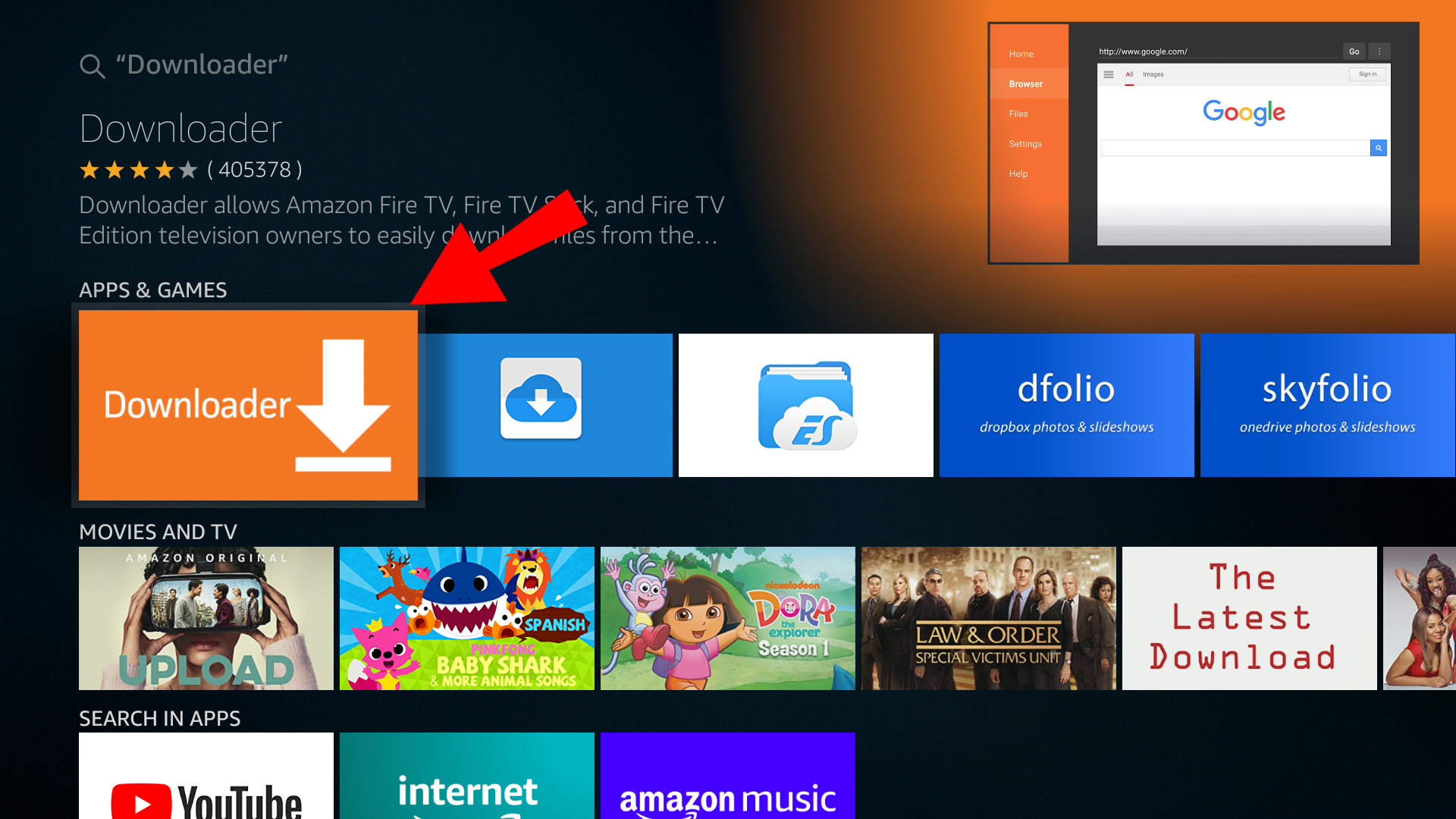
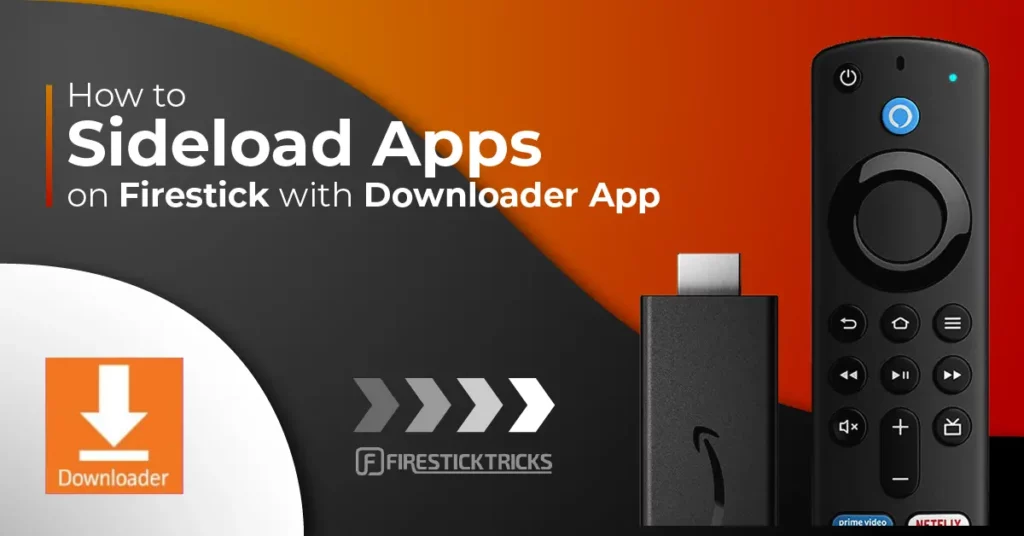
The “Downloader” app by AFTVnews is the most efficient tool for sideloading. It combines a basic web browser with a file download manager specifically optimized for the Fire TV remote.
- Search and Install: Use the “Find” function on the Firestick home screen to search for “Downloader.” Install the app (it has an orange icon).
- Permit Access: Upon opening, the app will request access to your files. This is technically necessary for it to save the APK to the internal storage.
- URL Entry: In the main “Home” tab of Downloader, you will see an input box. You can enter a direct URL to an APK file.
- Execution: Once the file is downloaded, Downloader will automatically trigger the Android package installer. Select “Install,” then “Done.”
- Cleanup: One of the best features of Downloader is that it prompts you to delete the APK file after installation. Since Firesticks have limited storage (usually 8GB), deleting the installer file is a crucial maintenance step.
Method 2: Sideloading via Cloud Storage
If you have an APK file on your PC and want to move it to your Firestick, using a cloud service like Google Drive or Dropbox is a sophisticated approach. To do this, you generally need a file manager such as ES File Explorer or X-plore File Manager.
- Upload the APK from your computer to your cloud drive.
- Install a file manager on the Firestick from the Amazon Appstore.
- Link your cloud account within the file manager’s interface.
- Locate the APK in your cloud folder, click it, and the file manager will download and initiate the installation.
Method 3: Using “Send Files to TV” (Cross-Platform Transfer)
For a direct peer-to-peer transfer from an Android smartphone to a Firestick, the “Send Files to TV” (SFTV) app is unparalleled.
- Install “Send Files to TV” on both your smartphone and your Firestick.
- Ensure both devices are on the same Wi-Fi network.
- Select “Send” on your phone and “Receive” on the Firestick.
- Select the APK on your phone; it will transfer instantly. Use a file manager on the Firestick to open the transferred file and install it.
Safety, Security, and Best Practices
Sideloading introduces an inherent risk. Because these apps are not vetted by Amazon’s security team, the responsibility of digital security shifts entirely to the user.
Verifying APK Sources
The integrity of the APK is paramount. Always source files from reputable repositories. Websites like APKMirror and APKPure are widely respected in the tech community because they verify the cryptographic signatures of the APKs to ensure they haven’t been tampered with. Avoid “cracked” or “modded” versions of paid apps, as these are the primary vectors for malware and data exfiltration.
The Role of a VPN in Sideloading
When utilizing third-party applications, especially those that stream content from various sources, your IP address and traffic patterns are often visible to ISPs and third-party trackers. Implementing a Virtual Private Network (VPN) at the device level is a standard tech protocol. A VPN encrypts your data tunnel, masking your activity and protecting your network from potential vulnerabilities exposed by unverified applications.
Managing App Permissions and Storage
Firesticks operate on limited hardware resources. Every APK you install consumes RAM and “Internal Storage.” If the storage exceeds 90% capacity, the device will experience significant UI lag and potential “boot loops.”
- Permission Monitoring: Go to Settings > Applications > Manage Installed Applications to review what permissions your sideloaded apps have requested.
- Cache Management: Regularly clear the cache of sideloaded apps to free up space.
Troubleshooting Common Installation Errors
Even with a perfect technical setup, errors can occur during the APK installation process.
“App Not Installed” Errors
This is a generic error that usually points to one of three technical conflicts:
- Version Conflict: An older or different version of the app is already installed. You must uninstall the existing version before sideloading a new one.
- Insufficient Storage: The Firestick requires roughly double the size of the APK in free space to complete the installation (one for the APK itself and one for the unpacked files).
- Incompatible Architecture: Firesticks use ARM-based processors. If you attempt to install an x86 APK (designed for Intel/AMD chips) or a 64-bit APK on a 32-bit Firestick model, the installation will fail.

Parsing the Package Issues
If you receive a “Parse Error,” it generally means the APK file is corrupted or was designed for a newer version of Android than your Fire OS supports. For example, if an APK requires Android 11 (API level 30) but your Firestick is running Fire OS 6 (based on Android 7.1), the package will fail to parse. Always check the “Minimum Android Version” on the download page before attempting an installation.
By following this technical framework, you can transform your Firestick from a simple streaming dongle into a powerful, customized media hub. The key lies in maintaining a balance between the expanded functionality of sideloading and the rigorous security practices required to protect your digital environment.
aViewFromTheCave is a participant in the Amazon Services LLC Associates Program, an affiliate advertising program designed to provide a means for sites to earn advertising fees by advertising and linking to Amazon.com. Amazon, the Amazon logo, AmazonSupply, and the AmazonSupply logo are trademarks of Amazon.com, Inc. or its affiliates. As an Amazon Associate we earn affiliate commissions from qualifying purchases.