
The modern smartphone, particularly an Android device, is much more than just a communication tool; it’s a versatile personal assistant, an entertainment hub, a powerful productivity engine, and a window to a vast digital world. At the heart of this functionality are applications – or “apps” – which transform a general-purpose device into a tailor-made tool for your specific needs. From navigating unfamiliar cities to managing your finances, from connecting with friends globally to editing professional-grade videos, apps are the software components that empower your Android experience. Understanding how to install these apps effectively and securely is a fundamental skill for any Android user, paving the way for a richer, more productive, and more enjoyable digital life.

In an era defined by rapid technological advancements and ever-evolving digital landscapes, the ability to seamlessly integrate new software into our daily routines is paramount. This comprehensive guide will demystify the process of installing applications on your Android device, covering everything from the standard, secure methods to more advanced techniques, while emphasizing best practices for digital security and optimal performance. Whether you’re a first-time Android user or an experienced enthusiast looking to deepen your understanding, this article will equip you with the knowledge to confidently navigate the Android app ecosystem.
The Android App Ecosystem: A Gateway to Digital Life
The Android platform, developed by Google, boasts the largest app ecosystem in the world, home to millions of applications catering to virtually every conceivable purpose. This expansive library is a testament to the open nature of Android and its vibrant developer community. The sheer volume and diversity of apps available mean that users have an unprecedented level of control over customizing their devices to suit their individual preferences and requirements.
Why are these apps so central to the Android experience? Simply put, they extend the core capabilities of your phone or tablet far beyond its factory settings. Need to track your fitness goals? There’s an app for that. Want to learn a new language? Numerous apps can help. Looking for a convenient way to manage your work projects or collaborate with colleagues? Productivity apps abound. Apps are the conduits through which we interact with new technologies, explore AI tools, consume media, and enhance our daily efficiency. They are the software that turns a piece of hardware into a truly personal device, reflecting our interests, habits, and aspirations. Furthermore, the constant innovation within the app space means there are always new solutions emerging, from groundbreaking AI-powered tools that automate tasks to innovative communication platforms that redefine social interaction.
The Evolution of App Installation
Before smartphones became ubiquitous, installing new “software” on mobile phones was often a complex, limited affair, typically involving carrier-specific portals or cumbersome PC transfers. The advent of app stores, spearheaded by Apple’s App Store and quickly followed by Google’s Play Store for Android, revolutionized this process. These digital marketplaces transformed software acquisition from a chore into an intuitive, user-friendly experience. Users could browse, discover, and install applications with just a few taps, directly from their devices. This simplification fueled the explosive growth of the app industry, empowering developers to reach a global audience and users to personalize their devices like never before. The Play Store became not just a repository but a curated platform, offering reviews, ratings, and recommendations, helping users make informed choices amidst the ever-growing selection.
Installing Apps Safely and Seamlessly from the Google Play Store
For the vast majority of Android users, the Google Play Store is the primary, most secure, and most convenient avenue for discovering and installing applications. It’s Google’s official marketplace, offering a massive catalog of apps, games, movies, books, and more, all subject to certain security checks and content guidelines. When we talk about “how to install an app android,” the Play Store is almost always the first and best answer.
Navigating the Play Store Interface
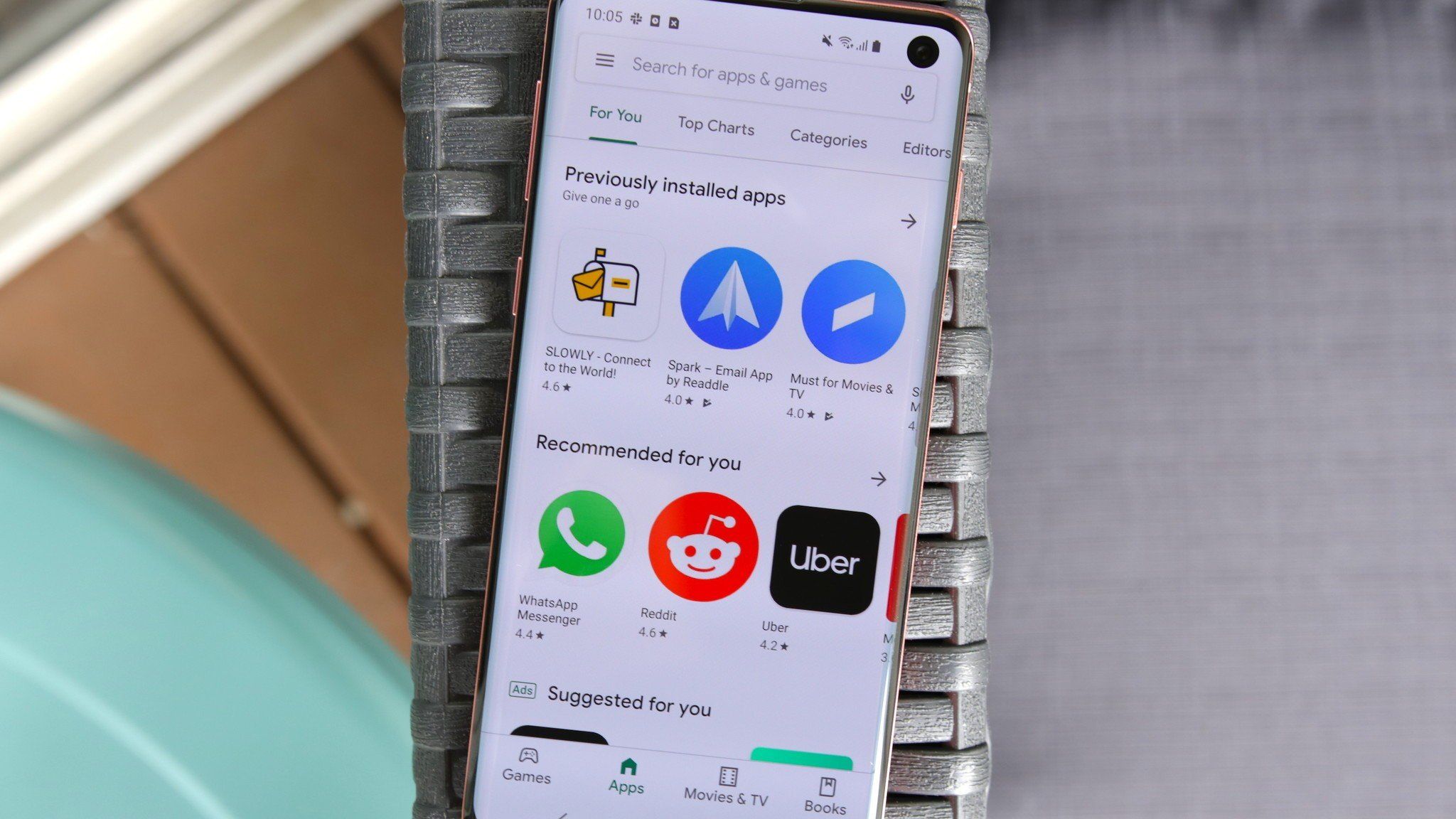
The Play Store app, usually found on your home screen or in your app drawer, is designed for intuitive exploration.
- Searching and Discovery: Upon opening, you’ll see a prominent search bar at the top, allowing you to search for specific app titles, developers, or keywords (e.g., “photo editor,” “meditation,” “AI chatbot”). Below the search bar, the interface is typically organized into tabs like “Games,” “Apps,” “Movies & TV,” and “Books,” allowing for category-based browsing. You’ll also find curated lists such as “Editors’ Choice,” “Top Charts” (free and paid apps), and personalized recommendations based on your past downloads and interests.
- Understanding App Listings: Once you tap on an app from a search result or list, you’re taken to its dedicated listing page. This page is crucial for making informed decisions. It typically includes:
- App Icon and Title: Immediately identifies the app.
- Developer Name: Provides insight into the publisher; reputable brands often have higher trust.
- Ratings and Reviews: User feedback is invaluable. Pay attention to the star rating (out of 5) and read a few recent reviews to gauge user satisfaction and identify potential issues.
- Screenshots and Videos: Give you a visual preview of the app’s interface and functionality.
- Description: A detailed overview of what the app does, its features, and benefits.
- “About this app” / “Read more”: Tap this for expanded details, including version history, privacy policy, and developer contact information.
- Download Size: Important for managing your device’s storage.
- In-app Purchases / Ads: Indicates if the app contains additional purchases or advertisements, a common monetization strategy even for “free” apps (tying into the “Money” aspect).
- Permissions: Crucially, this section details what aspects of your phone the app requests access to (e.g., camera, microphone, contacts, location). Understanding permissions is vital for digital security.
The Step-by-Step Installation Process
Installing an app from the Play Store is remarkably straightforward:
- Open the Google Play Store: Tap the Play Store icon on your device.
- Find Your App: Use the search bar or browse categories to locate the app you wish to install.
- Review the App Listing: On the app’s detail page, carefully read the description, check screenshots, read reviews, and note the requested permissions. For paid apps, confirm the price.
- Initiate Installation:
- For free apps, tap the green “Install” button.
- For paid apps, tap the button displaying the price. You’ll then be prompted to confirm your purchase using your linked payment method (e.g., Google Pay, credit card, Play Store credit).
- Permission Acceptance (if prompted): While modern Android versions typically handle permissions at runtime (asking when an app first tries to use a feature), some older apps or specific permissions might still require a pre-installation confirmation. Always review these carefully.
- Download and Automatic Installation: The app will begin downloading. The progress will be shown as a percentage. Once downloaded, the system will automatically install it. You’ll see “Installing…” followed by “Open” and “Uninstall” buttons.
- Post-Installation:
- Open the App: Tap “Open” on the Play Store page or find the app icon on your home screen or in the app drawer.
- Initial Setup: Many apps require a first-time setup, which might include creating an account, granting runtime permissions (like access to your camera or location when you first use that feature), or going through an introductory tutorial.
Managing Your Apps: Updates, Uninstalls, and Settings
The lifecycle of an app doesn’t end after installation. Effective management ensures optimal performance, security, and storage utilization.

- Keeping Apps Updated for Performance and Security: Developers regularly release updates to fix bugs, introduce new features, improve performance, and, critically, patch security vulnerabilities. Keeping your apps updated is a cornerstone of digital security.
- Manual Update: Open the Play Store, tap your profile icon (top right), then select “Manage apps & device.” Go to the “Updates available” tab and tap “Update all” or select specific apps to update.
- Automatic Updates: In the Play Store, tap your profile icon, go to “Settings” > “Network preferences” > “Auto-update apps.” You can choose “Over Wi-Fi only” (recommended to save mobile data) or “Over any network.”
- Freeing Up Space: Uninstalling Apps: If an app is no longer needed, uninstalling it frees up storage space and resources.
- From Home Screen/App Drawer: Long-press the app icon. A menu will usually appear with an “Uninstall” option. Drag the app to the “Uninstall” icon that appears.
- From Play Store: Go to the app’s listing page and tap “Uninstall.”
- From Device Settings: Go to “Settings” > “Apps” or “Apps & notifications.” Find the app, tap it, then select “Uninstall.”
- Clearing Cache and Data for Troubleshooting: Sometimes, apps misbehave due to corrupted cached data. Clearing this data can resolve issues without uninstalling the app.
- Go to “Settings” > “Apps” or “Apps & notifications.”
- Select the problematic app.
- Tap “Storage” or “Storage & cache.”
- You’ll see options for “Clear cache” and “Clear data” (or “Clear storage”). “Clear cache” is usually safe and won’t delete your app data. “Clear data” will delete all user data associated with the app, effectively resetting it to its fresh-installed state. Use “Clear data” only if “Clear cache” doesn’t work and you’re prepared to lose settings or login information for that app.
Exploring Alternative App Stores and Sideloading: When and Why
While the Google Play Store is the primary hub, the open nature of Android allows for other avenues of app installation. These alternatives can offer unique benefits but also introduce different security considerations.
Beyond the Play Store: Other Reputable Marketplaces
Several other app stores operate within the Android ecosystem, each with its own focus and advantages.
- OEM-Specific Stores: Many Android device manufacturers (Original Equipment Manufacturers) maintain their own app stores. For example, Samsung devices have the Galaxy Store, offering apps specifically optimized for Samsung hardware, exclusive deals, and proprietary apps like Good Lock. Huawei, due to geopolitical restrictions, relies heavily on its AppGallery. These stores are generally safe as they are backed by reputable brands and often offer updates for system apps or exclusive content.
- Specialized Stores:
- Amazon Appstore: Pre-installed on Amazon’s Fire tablets and available as a download for other Android devices, the Amazon Appstore provides a different selection of apps, often with a focus on games and sometimes offering “Free App of the Day” promotions. It’s a legitimate alternative, especially for users invested in the Amazon ecosystem.
- F-Droid: This store caters specifically to free and open-source software (FOSS) apps. It’s a fantastic resource for privacy-conscious users who want to avoid proprietary software and ensure transparency in their apps. All apps on F-Droid are open-source, meaning their code can be inspected by anyone, fostering a high degree of trust.
- Benefits and Considerations: These alternative stores can offer a broader range of apps, exclusive content, different pricing models, or a focus on specific philosophies (like open-source). However, they might not offer the same breadth of selection as the Play Store, and their security vetting processes, while generally good for official stores, might not be as rigorous as Google’s for less-known alternatives. Always verify the reputation of any alternative app store before installing from it.
Sideloading APKs: Advanced Installation with Caution
“Sideloading” refers to installing apps from sources other than official app stores, typically by directly downloading and installing an Android Package Kit (APK) file. This method offers ultimate flexibility but comes with significant security risks that must be understood and managed responsibly.
- What is an APK? An APK (Android Package Kit) is the package file format used by the Android operating system for distribution and installation of mobile apps and middleware. In simpler terms, it’s the executable file for an Android app, similar to an .exe file on Windows. When you download an app from the Play Store, you’re essentially downloading an APK, but the Play Store handles the download, verification, and installation behind the scenes.
- Enabling “Install unknown apps” or “Unknown Sources”: Android, by default, blocks installations from unknown sources to protect users from malicious software. To sideload an APK, you must temporarily override this security setting.
- Older Android Versions (pre-Android 8.0 Oreo): You’d typically find a single “Unknown Sources” toggle in “Settings” > “Security.” Enabling this would allow any app to install APKs.
- Modern Android Versions (8.0 Oreo and later): Google improved this security by requiring you to grant “Install unknown apps” permission on a per-app basis. For example, if you download an APK using Chrome, you’ll need to grant Chrome permission to install unknown apps. This is a much safer approach as it limits the risk. You’ll find this setting under “Settings” > “Apps & notifications” > “Special app access” > “Install unknown apps.”
- The Sideloading Process:
- Find a Reliable Source: This is the most critical step. Only download APKs from highly reputable websites or developers you trust implicitly. Unofficial sites can host modified or malware-infected APKs.
- Download the APK: Use your device’s web browser to download the APK file. It will typically go into your “Downloads” folder.
- Enable “Install unknown apps”: Before or after downloading, go to “Settings” > “Apps & notifications” > “Special app access” > “Install unknown apps.” Find the app you used to download the APK (e.g., Chrome, your file manager) and toggle on its permission to “Allow from this source.”
- Install the APK: Open your file manager app, navigate to your “Downloads” folder, and tap on the downloaded APK file.
- Confirm Installation: You’ll see a prompt asking if you want to install the application. Review the permissions carefully (though for sideloaded apps, some risks might not be immediately apparent here). Tap “Install.”
- Disable “Install unknown apps”: After the installation is complete, immediately disable the “Install unknown apps” permission for the app you used (e.g., Chrome). This restores your device’s default security posture and prevents accidental or malicious installations from unknown sources in the future.
- Crucial Security Advice and Best Practices for Sideloading: Sideloading carries inherent risks.
- Malware: The biggest danger is installing malicious software disguised as a legitimate app. This could lead to data theft, privacy breaches, or device damage.
- Outdated Apps: Sideloaded apps don’t typically receive automatic updates, leaving you vulnerable to security flaws that have been patched in newer versions.
- Incompatibility: Apps not designed for your specific device or Android version might crash or not function correctly.
- Verify Source: Always cross-reference the APK with official developer channels if possible. Look for checksums or digital signatures for verification.
- Antivirus Scan: Consider running a reliable mobile antivirus scan on any downloaded APK before installation.
- Permissions Review: Be exceptionally vigilant about the permissions requested by sideloaded apps. If an app requests permissions that seem unrelated to its core function, it’s a major red flag.
- Use a VPN: When downloading from less-known sources, using a VPN can add a layer of privacy.
Troubleshooting Common App Installation Issues
Even with the most straightforward installation methods, you might occasionally encounter hiccups. Here are some common problems and their solutions:
- Insufficient Storage Space: This is perhaps the most frequent issue.
- Solution: Check your device’s storage (Settings > Storage). Uninstall unused apps, delete old photos/videos, or clear cached data from frequently used apps (as described above). Consider moving media to cloud storage or an SD card if your device supports it.
- Network Connection Problems: A weak or unstable internet connection can interrupt downloads.
- Solution: Ensure you have a strong Wi-Fi signal or a stable mobile data connection. Try switching between Wi-Fi and mobile data. Restart your router if using Wi-Fi.
- App Not Compatible with Your Device: Sometimes an app requires a newer Android version or specific hardware features your device lacks.
- Solution: Check the app’s requirements on the Play Store page. If your device is old, it might not be upgradeable. There’s no workaround for genuine incompatibility.
- Google Play Store Cache Issues: The Play Store itself can sometimes accumulate corrupted data.
- Solution: Go to “Settings” > “Apps” > “Google Play Store” > “Storage” and tap “Clear cache” and then “Clear data.” This will reset the Play Store app. You might need to sign in again. Also, try clearing cache for “Google Play Services” (found in the same Apps list).
- Download Pending or Stuck: The app download might get stuck in “pending” status.
- Solution: Ensure no other app updates are in progress. You can cancel pending downloads/updates in the “Manage apps & device” section of the Play Store. Restart your device.
- Dealing with Malicious or Problematic Apps: If you suspect an app you’ve installed is malicious or is causing severe problems (e.g., excessive battery drain, unwanted ads, system instability).
- Solution: Immediately uninstall the app. Run a reputable antivirus scan (e.g., Google Play Protect, Avast, Malwarebytes) on your device. If the app won’t uninstall, you might need to revoke its device administrator privileges first (Settings > Security > Device admin apps). In extreme cases, a factory reset might be necessary, but this should be a last resort after backing up your data.
Best Practices for a Secure and Optimized App Experience
Beyond the technical steps of installation, cultivating smart habits ensures a secure, efficient, and enjoyable Android app experience. This ties directly into the “Digital Security” aspect of technology.
- Prioritize Official Sources: Whenever possible, install apps from the Google Play Store. It offers the highest level of security vetting, automatic updates, and dispute resolution. If using alternative stores, stick to well-known, reputable ones like the Amazon Appstore or OEM-specific stores.
- Read Reviews and Check Developer Reputation: Before installing any app, especially less-known ones, take time to read user reviews. Look for consistent negative feedback or complaints about performance, privacy, or security. Check the developer’s other apps and their overall reputation. A strong “Brand” presence and positive user sentiment are good indicators of trustworthiness.
- Understand App Permissions: Always review the permissions an app requests. Does a flashlight app really need access to your contacts or location? If permissions seem excessive or unrelated to the app’s core function, reconsider installing it. You can manage permissions at any time via “Settings” > “Apps” > [App Name] > “Permissions.”
- Regularly Update Your Apps and OS: Keep all your installed apps and your Android operating system up to date. Updates often include critical security patches and performance improvements, protecting your device from known vulnerabilities.
- Monitor Battery and Data Usage: Keep an eye on which apps are consuming the most battery life and mobile data. High usage could indicate a poorly optimized app or, in rare cases, malicious background activity. You can check this in “Settings” > “Battery” and “Settings” > “Network & internet” > “Mobile network” (or “Data usage”).
- Digital Security Tips for App Users:
- Use a Strong Screen Lock: PIN, pattern, or fingerprint/face unlock.
- Install a Reputable Antivirus App: Provides an extra layer of protection against malware.
- Be Wary of Phishing: Don’t click on suspicious links in emails or messages that claim to be from app developers or Google.
- Use Two-Factor Authentication (2FA): Enable 2FA for your Google account and any other accounts linked to important apps.
- Back Up Your Data: Regularly back up your photos, contacts, and other important data to Google Drive or another cloud service.
Conclusion: Embracing the Android App World Responsibly
The ability to install apps is a superpower for any Android user, unlocking immense potential for productivity, entertainment, learning, and connectivity. By understanding the different methods of installation, particularly the secure pathways offered by the Google Play Store, and by exercising caution with alternative sources like sideloading, you can confidently navigate the vast Android app ecosystem.
Remember, every app you install contributes to your device’s overall functionality and security posture. Adopting best practices – prioritizing official sources, diligently checking app permissions and developer reputation, and maintaining regular updates – is not just about convenience; it’s about safeguarding your digital life. As technology continues to advance, bringing new AI tools and sophisticated software to our fingertips, the principles of smart and secure app installation will remain fundamental to harnessing the full power of your Android device responsibly. Equip yourself with this knowledge, and unlock a world of possibilities, all while keeping your digital environment secure and optimized.
aViewFromTheCave is a participant in the Amazon Services LLC Associates Program, an affiliate advertising program designed to provide a means for sites to earn advertising fees by advertising and linking to Amazon.com. Amazon, the Amazon logo, AmazonSupply, and the AmazonSupply logo are trademarks of Amazon.com, Inc. or its affiliates. As an Amazon Associate we earn affiliate commissions from qualifying purchases.