
The term “DevTools” often conjures images of browser developer consoles, performance profilers, and debugging interfaces. While these are certainly core components of modern development workflows, the underlying mechanisms that power these tools, especially concerning file system access and monitoring, extend beyond just the immediate browser environment. Understanding which directories DevTools monitor, or more accurately, have the potential to interact with, is crucial for developers to grasp security implications, optimize performance, and ensure proper project setup. This exploration delves into the various directories and file system locations that are relevant to the operation and interaction of development tools, providing a comprehensive overview for developers across different platforms and toolchains.
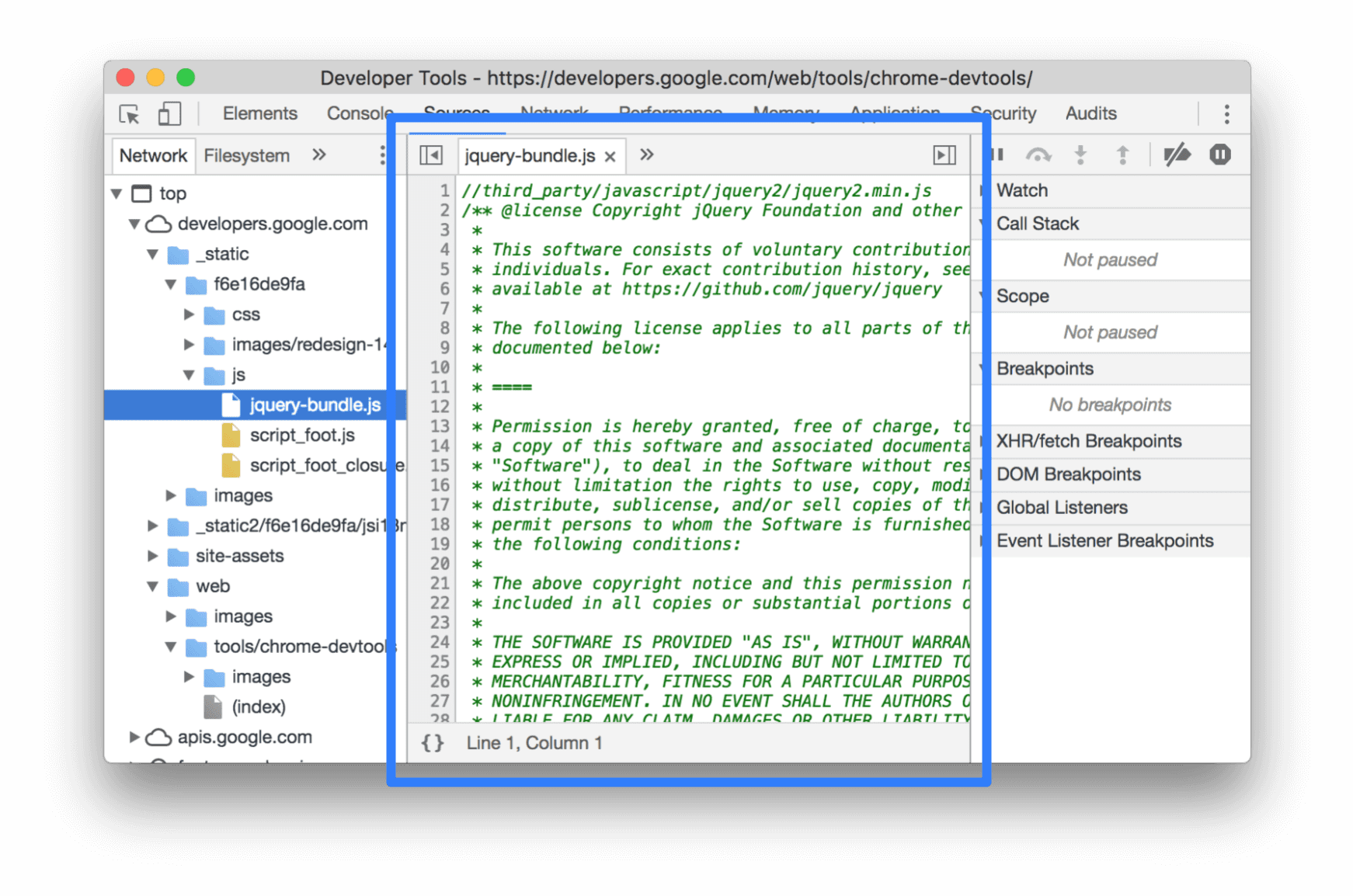
Understanding the Scope of DevTools Interaction
It’s important to establish that “DevTools” is a broad term. It can refer to:
- Browser Developer Tools: Built-in browser features like Chrome DevTools, Firefox Developer Tools, etc.
- Integrated Development Environments (IDEs): Applications like VS Code, IntelliJ IDEA, Eclipse, etc., which integrate a wide array of development tools.
- Command-Line Interface (CLI) Tools: Tools like Webpack, Gulp, Grunt, npm scripts, Vite, etc., that automate build processes and development tasks.
- Version Control Systems (VCS): Git, which monitors specific directories for changes.
- Runtime Environments: Node.js, which has its own file system interactions.
Each of these has a different scope of interaction with the file system. The core principle is that DevTools need to read, write, and monitor files to facilitate development. This interaction is typically localized to the project directory and its immediate subdirectories, but understanding the boundaries is key.
The Project Root and Its Immediate Subdirectories
The most fundamental directory monitored by virtually all DevTools is the root of the project you are actively working on. This is the directory that contains your main source code, configuration files, and often, your package.json or equivalent dependency manifest.
Source Code Directories
This is where your actual application logic resides. DevTools constantly monitor these directories for changes to enable features such as:
- Live Reloading/Hot Module Replacement (HMR): When you save a file in your source code, DevTools can automatically refresh the browser or inject the updated code without a full page reload. This is a cornerstone of efficient frontend development. Common examples include directories named
src,app,lib, or custom names defined by project structure conventions. - Syntax Highlighting and Linting: IDEs and code editors scan these files to provide real-time feedback on code quality, style, and potential errors.
- Debugging: DevTools attach to your running application and need to access source files to set breakpoints, inspect variables, and trace execution flow.
Configuration and Build Tool Directories
Beyond just source code, DevTools also need to monitor directories containing configuration files and build artifacts.
- Configuration Files: This includes files like
webpack.config.js,vite.config.js,.babelrc,.eslintrc.js,tsconfig.json,nginx.conf, and various framework-specific configuration files. Changes to these files dictate how your project is built, transpiled, linted, and served, so DevTools must be aware of them. - Dependency Management Directories: While not strictly monitored for code changes in the same way as source files, directories like
node_modules(or similar equivalents in other ecosystems) are heavily interacted with. Build tools and IDEs scan these directories to understand available packages and their dependencies. However, direct modification of files withinnode_modulesis generally discouraged and often ignored by monitoring processes to prevent conflicts and maintain project integrity. Thepackage.jsonandyarn.lock/npm-shrinkwrap.jsonfiles are the primary interface for managing these dependencies. - Build Output Directories: Directories like
dist,build, oroutare where your compiled or bundled application code is placed. While DevTools might not monitor these for changes in the same way as source files (as they are generated), they often need to read from them for tasks like deployment or serving the production-ready application.
Browser-Specific Directory Interactions
Browser Developer Tools, while powerful, operate within a more sandboxed environment compared to IDEs or CLI tools. Their primary interaction is with the resources loaded by the web page they are inspecting.
Network Tab and Resource Loading
The Network tab in browser DevTools monitors all HTTP/HTTPS requests and responses made by the web page. This means it “sees” all files that the browser downloads to render the page, including:
- HTML files
- CSS files
- JavaScript files
- Image files (JPG, PNG, GIF, SVG, etc.)
- Font files
- API responses (JSON, XML, etc.)
- WebAssembly modules
While the DevTools themselves don’t directly “monitor” directories on your local file system for these resources in the same way an IDE monitors src, they interact with the browser’s internal caching mechanisms and the file system as perceived by the browser during the loading process. If you are developing locally using a local web server, these files are served from your local machine, and DevTools observe their transfer.
Application Tab and Local Storage
The “Application” tab in browser DevTools provides insights into various storage mechanisms used by the web page. This includes:
- Local Storage: Key-value pairs stored directly in the browser.
- Session Storage: Similar to Local Storage but cleared when the browser session ends.
- Cookies: Small pieces of data sent with HTTP requests.
- IndexedDB: A more sophisticated client-side database.
- Cache Storage: For caching network requests.
These are not directories in the traditional file system sense, but rather browser-managed data stores. DevTools provide an interface to inspect, add, edit, and delete data within these stores.
Service Workers and IndexedDB
For Progressive Web Apps (PWAs) and other advanced web technologies, DevTools also interact with specific storage areas related to Service Workers and IndexedDB.
- Service Worker Registrations: DevTools can show you which service workers are registered for a given origin, their status (e.g., running, installed, redundant), and allow you to unregister them. This is crucial for debugging PWA functionality.
- IndexedDB Databases: DevTools offer a dedicated interface to browse the structure of IndexedDB databases, view tables (object stores), and inspect the data within them.
While these are not “directories” in the file system sense, they represent persistent data storage that DevTools provide visibility into.
IDEs and Their Enhanced File System Awareness
Integrated Development Environments (IDEs) possess a much deeper and more pervasive interaction with the file system compared to browser DevTools. Their primary function is to provide a comprehensive environment for writing, managing, and building code, necessitating extensive file system access.
Workspace and Project Indexing
When you open a folder or project in an IDE like VS Code, IntelliJ IDEA, or Sublime Text, the IDE typically performs an initial scan of the entire directory structure. This process, often referred to as indexing, allows the IDE to:
- Provide IntelliSense and Code Completion: By understanding the files, their contents, and their relationships, the IDE can offer intelligent suggestions for code completion, function calls, and variable names.
- Perform Code Navigation: Features like “Go to Definition” or “Find Usages” rely on the IDE’s indexed knowledge of your codebase.
- Enable Refactoring Tools: Renaming variables, extracting methods, or moving files effectively requires the IDE to understand all references across your project.
This indexing process can extend to a significant portion of your project’s directories, not just the explicitly defined source code folders.
Global Search and File Finders

Most IDEs include powerful global search capabilities that allow you to search for text within all files in your project, or even across multiple projects. This implies that the IDE has the ability to traverse and read from almost any file within the opened workspace. Similarly, file finder features (like Ctrl+P in VS Code) allow quick access to any file by name, demonstrating the IDE’s comprehensive awareness of the project’s directory structure.
Exclusion Patterns and gitignore
Recognizing that not all directories are relevant for active development or indexing, IDEs and build tools often respect exclusion patterns. This is commonly configured through:
- IDE-Specific Settings: Most IDEs allow you to configure directories to be excluded from indexing, search, and monitoring. For example, in VS Code, this can be set in
settings.jsonusing thefiles.excludeandsearch.excludeproperties. .gitignoreFiles: Many development tools, particularly those related to Git and JavaScript ecosystems, will automatically respect.gitignorefiles. Files and directories listed in.gitignoreare typically ignored by version control, and often, IDEs and build tools will also choose to ignore them for indexing, linting, and search purposes. This is a critical mechanism for preventing clutter and focusing on relevant project files, especially for directories likenode_modules, build output, or log files.
Extension and Plugin Directories
The extensibility of modern IDEs means that they also interact with directories related to their own extensions and plugins. While these are typically managed by the IDE’s package manager and not directly part of your project, their presence and functionality influence the overall development environment. Some extensions might also introduce their own file monitoring or interaction mechanisms within your project, so understanding their scope is important.
Command-Line Interface (CLI) Tools and Build Processes
CLI tools play a pivotal role in modern development, automating tasks from compiling code to deploying applications. Their interaction with directories is often driven by configuration files and predefined conventions.
Entry Points and Dependency Resolution
Tools like Webpack, Vite, Parcel, or Rollup require an entry point to start the bundling process. This is usually a JavaScript or TypeScript file specified in their configuration (e.g., entry in Webpack). From this entry point, the build tool recursively analyzes imported modules, traversing directories to resolve dependencies.
node_modules: As mentioned, this directory is heavily consulted for dependency resolution. Build tools need to locate and process code from installed packages.- Source Directories: The build tool will traverse the specified source directories (e.g.,
src) to identify all the files that need to be processed, transformed, and bundled.
Output Directories and Asset Management
Build tools are responsible for generating output files, which are typically placed in a designated output directory (e.g., dist, build).
- Output Directory Monitoring: While not always actively monitored for changes in the sense of triggering re-builds (though some tools can do this), the output directory is a critical destination. DevTools that serve the application might monitor this directory for changes to serve the latest built artifacts.
- Asset Handling: Build tools often manage static assets like images, fonts, and CSS. They might copy these files from source directories to the output directory, or process them (e.g., optimize images, minify CSS).
Watch Mode and File System Events
Many CLI build tools offer a “watch” mode (e.g., webpack --watch). In this mode, the tool actively monitors the file system for changes to specified files or directories. When a change is detected, the tool automatically recompiles, rebundles, or performs other necessary tasks. This is a direct form of directory monitoring, where the tool registers file system events to trigger updates.
Version Control Systems (VCS) and Their Specific Monitoring
Version control systems, most notably Git, have a very specific, yet crucial, way of interacting with directories. Their primary function is to track changes to files within a repository.
The .git Directory
The .git directory itself is a hidden directory that stores all the metadata for your Git repository, including the commit history, branches, and configuration. Git actively monitors and manages this directory. It is crucial that this directory is not tampered with directly.
Staging and Tracking Files
When you initialize Git in a project, it starts tracking files and directories.
- Tracked Files: Git monitors all files that have been explicitly added to the repository (via
git add). It watches these files for any modifications. - Untracked Files: Git is aware of files and directories that are not yet part of the repository, but it doesn’t actively “monitor” them for changes until they are staged.
- Ignored Files (
.gitignore): Similar to IDEs and build tools, Git uses.gitignorefiles to specify patterns of files and directories that should be ignored by the VCS. This prevents temporary files, build outputs, or sensitive configuration from being committed to the repository. Git does not monitor files within ignored directories.
The primary purpose of Git’s monitoring is to create snapshots (commits) of your project’s state and to facilitate collaboration and history management.
Security and Performance Implications of Directory Monitoring
The extensive interaction of DevTools with file systems brings both significant productivity benefits and potential security and performance considerations.
Security Risks
- Malicious Code Injection: If a developer is not careful with the source of their projects or dependencies, malicious code could reside in monitored directories. DevTools that automatically execute or process code from these directories (e.g., build tools, IDE linters) could inadvertently run this malicious code, posing a significant security risk.
- Exposure of Sensitive Information: Unintentionally committing sensitive information (API keys, passwords, configuration details) to version control is a common mistake. While
.gitignorehelps prevent this for Git, if such information resides in directories that IDEs or other tools monitor and index broadly, it could be exposed through search functions or during code analysis, even if not directly committed. - Privilege Escalation: In rare cases, vulnerabilities in DevTools or the operating system’s file system access mechanisms could potentially be exploited. If a tool has excessive permissions and monitors directories it shouldn’t, it could be a vector for unauthorized access.
Performance Considerations
- Excessive Indexing: IDEs that index very large projects or directories that don’t require deep inspection (like
node_modulesif not properly configured) can consume significant CPU and memory resources, leading to a sluggish development experience. - Overly Broad Watchers: Build tools or live-reloading scripts that monitor too many files or directories unnecessarily can lead to performance degradation. Every file system event triggers a check, and an excessive number of events can overwhelm the system.
- Disk I/O: Frequent reading and writing to disk by multiple tools simultaneously can create I/O bottlenecks, slowing down operations.
Best Practices for Managing Monitored Directories
- Leverage
.gitignore: This is the first line of defense. Rigorously use.gitignoreto exclude build artifacts, dependency directories, logs, and any other files that shouldn’t be part of version control or processed by most development tools. - Configure IDE Exclusions: Explicitly configure your IDE to exclude directories that are not relevant to your immediate development tasks (e.g.,
node_modules, old build outputs). This significantly improves IDE performance and reduces the risk of unexpected behavior. - Understand Tool Configurations: Familiarize yourself with the configuration options of your build tools, linters, and other development utilities regarding file inclusion and exclusion.
- Be Mindful of Third-Party Code: Exercise caution when incorporating third-party libraries or downloading code from untrusted sources. Always review the code and its dependencies, especially in directories that your DevTools will actively monitor and process.
- Regularly Audit Permissions: Ensure that your development tools are running with the minimum necessary permissions. Avoid granting broad system-wide access unless absolutely required.

Conclusion: A Layered Approach to File System Interaction
The directories monitored by “DevTools” are not a single, monolithic list but rather a dynamic and context-dependent set of locations. Browser DevTools primarily interact with resources loaded by a web page, while IDEs engage in deep, project-wide indexing and analysis. CLI tools, driven by configurations, automate builds and tasks, often traversing dependency trees and outputting to specific directories. Version control systems, with their unique .git directory and tracking mechanisms, manage project history.
Ultimately, the effective use of DevTools hinges on a developer’s understanding of how these tools interact with the file system. By wisely configuring exclusions, leveraging .gitignore, and being mindful of security and performance implications, developers can harness the power of DevTools to build, debug, and deploy software efficiently and securely. The goal is to strike a balance between providing DevTools with the information they need to be intelligent and responsive, while ensuring that their file system access remains focused, controlled, and secure.