
In an increasingly digital world, your web browser is often the primary gateway to work, entertainment, and connection. For millions, Google Chrome stands as the browser of choice, renowned for its speed, user-friendly interface, and vast ecosystem. Yet, many users only scratch the surface of Chrome’s true potential. Beyond its core functionalities lies a universe of customization and enhanced productivity: Chrome extensions.
These small, powerful software programs are designed to extend the functionality of your browser, tailoring it to your specific needs and preferences. Whether you’re looking to boost your productivity, enhance your digital security, streamline your online shopping, or even manage your social media presence, there’s likely an extension designed to help. For anyone navigating the complexities of modern technology, managing a brand, or optimizing their personal finances, understanding how to effectively use and manage Chrome extensions is not just a convenience—it’s a digital imperative.
This comprehensive guide will walk you through everything you need to know about installing, managing, and leveraging Chrome extensions. We’ll cover the simple steps to get started, delve into best practices for security and performance, and explore how these tools can dramatically improve your browsing experience across various facets of your digital life, from technology trends and AI tools to brand strategy and personal finance.
The Simple Steps to Installing a Chrome Extension
Installing a Chrome extension is a straightforward process, but understanding each step ensures you’re not only adding valuable tools but also doing so securely and efficiently. The entire process revolves around the official Chrome Web Store, which acts as the central hub for all legitimate extensions.
Navigating the Chrome Web Store
The Chrome Web Store is Google’s curated marketplace for extensions and themes. Think of it as an app store specifically for your browser. It’s crucial to exclusively use this official store to download extensions, as external sources can pose significant security risks.
To access the Chrome Web Store:
- Directly via URL: The quickest way is to type
chrome.google.com/webstoreinto your Chrome address bar and press Enter. - Through the Chrome Menu:
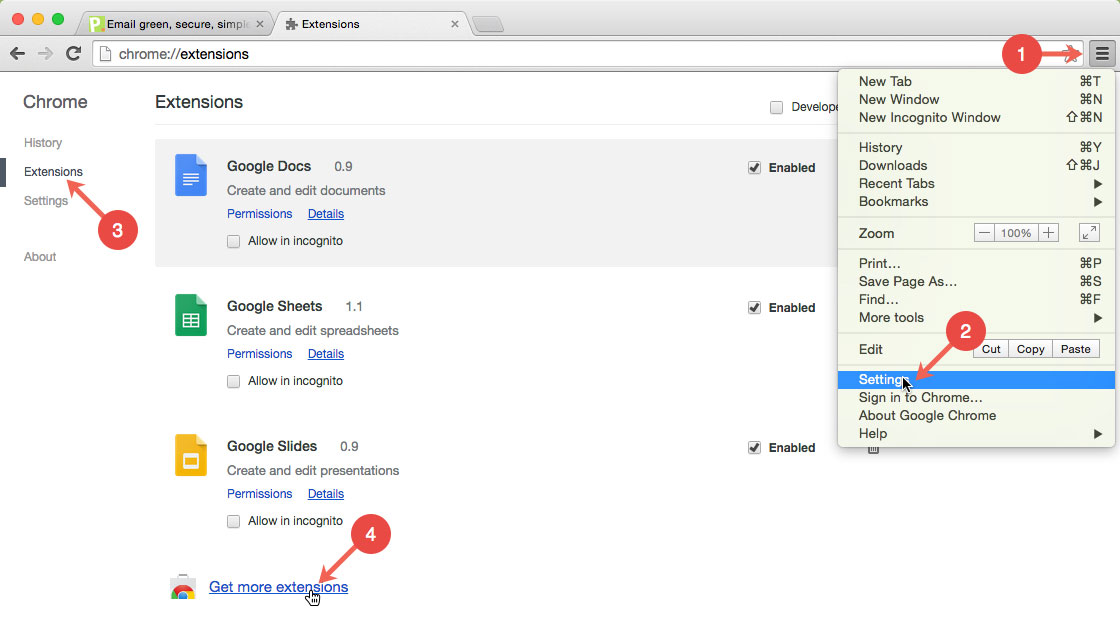
- Click the three vertical dots (kebab menu) in the top-right corner of your Chrome browser.
- Hover over “More tools.”
- Select “Extensions.”
- On the Extensions page, click the three horizontal lines (hamburger menu) in the top-left corner, and then select “Open Chrome Web Store.”
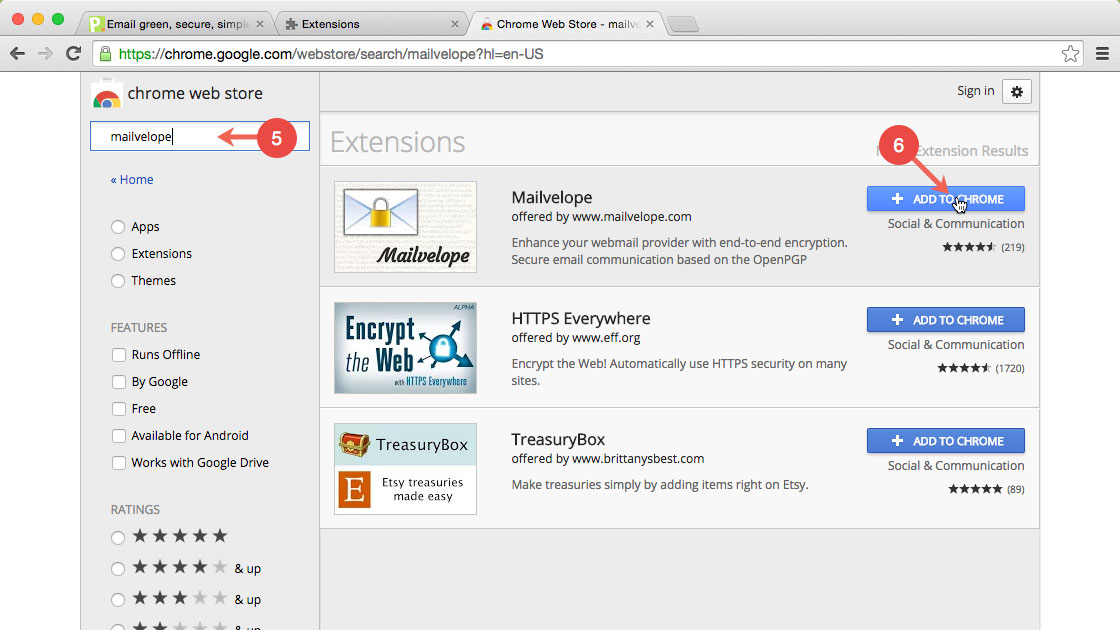
Once you’re in the store, you’ll be greeted by a clean interface featuring various categories, editor’s picks, and popular extensions. The search bar at the top-left is your primary tool for finding specific extensions. You can search by name, function (e.g., “ad blocker,” “password manager,” “SEO tool”), or even by developer.
As you browse or search, pay attention to several key indicators that signify a reliable extension:
- Ratings and Reviews: High ratings and numerous positive reviews from a large user base are good signs of quality and reliability.
- User Count: A high number of users (often displayed as “X+ users”) indicates widespread adoption and general trustworthiness.
- Developer Information: Look for reputable developers, clear privacy policies, and recent updates. Avoid extensions from unknown or suspicious publishers.
- Permissions: Before installing, the store will display the permissions the extension requires (e.g., “Read and change all your data on websites you visit”). Understand these permissions. If an extension for taking screenshots asks to access your microphone or location, that should raise a red flag. This due diligence is a critical aspect of digital security and privacy in the tech landscape.
Adding and Pinning Your Chosen Extension
Once you’ve found an extension that meets your needs and passes your scrutiny, the installation process is straightforward:
- Click on the Extension: Select the extension’s listing to view its detailed page. Here, you’ll find a description, screenshots, reviews, and a “Related” section for alternatives.
- Initiate Installation: On the extension’s detail page, click the prominent blue “Add to Chrome” button.
- Review Permissions: A pop-up window will appear, listing the permissions the extension requires to function. This is a crucial moment. Read these permissions carefully. For example, a “screenshot tool” might need permission to “Read and change all your data on websites you visit” to effectively capture content. However, if a simple “calculator” extension requests access to your browsing history, it’s a legitimate concern. If the permissions seem excessive or unrelated to the extension’s stated purpose, you should reconsider installation. This step is fundamental to digital security and protecting your data, a core concern in the Tech and Money domains.
- Confirm Installation: If you’re comfortable with the permissions, click “Add extension.”
- Confirmation and Toolbar Pinning: Chrome will then download and install the extension. A small notification will usually appear, confirming the installation and showing the extension’s icon. By default, new extension icons often appear in the puzzle piece icon menu (Extensions menu) next to your address bar. To make it easily accessible, you’ll want to pin it to your toolbar.
- Click the puzzle piece icon (Extensions).
- Find your newly installed extension in the list.
- Click the “pin” icon next to it (it looks like a thumbtack) to make its icon permanently visible on your toolbar. This allows for quick access and efficient workflow, contributing to overall productivity.
Mastering Your Extensions: Management and Optimization
Installing extensions is just the beginning. To truly leverage their power and maintain a smooth, secure browsing experience, you need to know how to manage and optimize them effectively. This is where the intersection of Tech, Productivity, and Digital Security becomes most apparent.
Managing Your Installed Extensions
Chrome provides a central hub for all your extensions, allowing you to control them with ease.
- Accessing the Extensions Management Page:
- Click the three vertical dots menu in Chrome.
- Go to “More tools” > “Extensions.”
- Alternatively, type
chrome://extensionsinto your address bar and press Enter.
On this page, each installed extension is displayed as a card, providing several options:
- Enable/Disable: Each extension card has a toggle switch. Disabling an extension turns it off without removing it. This is useful for troubleshooting issues, temporarily pausing an extension’s functionality, or if you only use an extension occasionally.
- Remove/Uninstall: To completely remove an extension, click the “Remove” button on its card. You might be asked to confirm. This is essential for extensions you no longer use, those causing problems, or ones you deem insecure. Regularly pruning unused extensions helps maintain browser speed and security.
- Details: Clicking “Details” on an extension’s card takes you to a page with more information and specific settings. Here, you can:
- Review and Adjust Permissions: You can often modify the sites an extension can access (e.g., allow on specific sites, allow on all sites, allow on click). This is a critical security feature, letting you restrict an extension’s reach. For instance, a coupon finder extension might only need access to e-commerce sites, not your banking portal.
- Allow in Incognito: Decide if the extension should run when you’re browsing in Incognito mode. By default, extensions are disabled in Incognito for privacy reasons, but you can enable them for specific tools (e.g., a password manager).
- Extension Options: Many extensions have their own “Extension options” page where you can customize their behavior, appearance, and settings. This is where you fine-tune the tool to fit your specific workflow for productivity gains.
Best Practices for a Seamless Experience
While extensions offer immense benefits, a thoughtful approach is necessary to avoid performance issues or security vulnerabilities.
- Choose Reputable Extensions: Always prioritize extensions from well-known developers, those with high user ratings, thousands or millions of users, and clear privacy policies. Read recent reviews to catch any new issues. For businesses and personal brands, selecting reliable tools is paramount to maintaining digital integrity.
- Understand Permissions Thoroughly: We cannot stress this enough. Before clicking “Add extension,” take a moment to understand what access you’re granting. If it seems excessive for the extension’s purpose, find an alternative. This is your first line of defense in digital security.
- Balance Functionality with Performance: Every installed extension consumes some of your browser’s resources (CPU, RAM). While a few well-chosen extensions won’t significantly impact performance, a multitude of resource-intensive ones can slow down your Chrome browser, making your computing experience sluggish. Regularly audit your extensions and disable or remove those you don’t frequently use. This contributes to better productivity and efficient use of your tech.
- Regularly Audit Your Extensions: Periodically review your
chrome://extensionspage. Remove any extensions you no longer need or recognize. This helps declutter your browser, enhances security, and improves performance. Think of it as spring cleaning for your digital workspace. - Keep Chrome Updated: Ensure your Chrome browser is always updated to the latest version. Google frequently releases security patches and performance improvements that can benefit your entire browsing experience, including how extensions operate.
Enhancing Your Digital Life: Extensions for Every Need
Chrome extensions are incredibly versatile, offering solutions that span across Technology, Brand, and Money domains. Here are just a few categories demonstrating their diverse utility:
Boosting Productivity and Workflow
For professionals, students, and anyone looking to optimize their daily tasks, productivity extensions are invaluable.
- Ad Blockers (e.g., uBlock Origin, AdBlock Plus): Remove distracting ads from websites, leading to faster loading times and a cleaner browsing experience. This directly improves focus and productivity.
- Note-Taking & Web Clipping (e.g., Evernote Web Clipper, OneNote Web Clipper): Easily save articles, screenshots, or entire web pages to your favorite note-taking app for later reference, ideal for research and content curation.
- Task Managers (e.g., Todoist, Asana): Integrate your task lists directly into your browser, allowing you to add tasks, check off completed items, and stay organized without switching tabs.
- Screenshot Tools (e.g., Lightshot, Awesome Screenshot): Capture, annotate, and share screenshots quickly, essential for tutorials, feedback, or documentation.
Fortifying Security and Privacy
In an era of increasing cyber threats, extensions play a critical role in safeguarding your digital identity and data. This aligns perfectly with the Digital Security aspect of the Tech category.
- Password Managers (e.g., LastPass, Bitwarden, 1Password): Securely store and auto-fill your login credentials for various websites, generating strong, unique passwords for each account. This is a non-negotiable for modern online safety.
- Privacy Tools (e.g., Privacy Badger, Ghostery): Block invisible trackers and protect your browsing habits from third-party data collection, enhancing your online anonymity.
- VPN Extensions (e.g., NordVPN, ExpressVPN browser extensions): While full desktop VPNs offer comprehensive protection, browser extensions can encrypt your browser traffic, helping to secure your data when using public Wi-Fi or bypassing geo-restrictions.
- HTTPS Everywhere: Automatically forces websites to use HTTPS encryption whenever possible, protecting your communication from eavesdropping.
Leveraging Extensions for Brand and Business
For those in branding, marketing, and business development, extensions offer powerful tools to analyze, create, and manage digital assets, directly linking to the Brand and Money website topics.
- SEO Tools (e.g., Keywords Everywhere, MozBar, Ahrefs SEO Toolbar): Provide on-the-fly keyword data, domain authority metrics, and competitive analysis directly in your search results or on any webpage. Indispensable for brand visibility and content strategy.
- Social Media Management (e.g., Buffer, Hootsuite extensions): Schedule posts, share content, and monitor your social media channels directly from your browser, optimizing your brand’s online presence.
- Design & Color Tools (e.g., ColorZilla, WhatFont): Identify colors from any webpage, extract hex codes, and determine fonts used on websites, aiding designers in maintaining brand consistency.
- Analytics & CRO Tools (e.g., Google Analytics Debugger, Hotjar): Help marketers debug analytics implementations and visualize user behavior for conversion rate optimization.
Optimizing Your Finances and Online Income
Extensions can also be powerful allies in managing personal finances, finding deals, and even supporting online income streams, directly addressing the Money category.
- Coupon Finders (e.g., Honey, Rakuten, InvisibleHand): Automatically search and apply the best coupon codes or cashback offers at checkout, saving you money on online purchases.
- Budgeting & Financial Tracking (e.g., Mint browser extension, integrations with YNAB): Some financial management apps offer extensions that provide quick access to your budget overview or allow you to categorize transactions on the go.
- Investment & Stock Trackers (e.g., Google Finance extensions): Keep an eye on stock prices, cryptocurrency values, and market trends directly from your browser toolbar.
- Affiliate Marketing Tools: For those generating online income, certain extensions can simplify the creation of affiliate links or track performance, streamlining business operations.
Troubleshooting Common Extension Issues
Even with careful selection and management, extensions can sometimes misbehave. Understanding how to diagnose and resolve these issues is a valuable skill for any tech-savvy user.
Diagnosing and Resolving Problems
- Browser Slowdowns: If Chrome feels sluggish, an extension might be the culprit.
- Test: Go to
chrome://extensionsand try disabling extensions one by one, refreshing your browser after each disable, to identify the problematic one. - Solution: Remove or replace the identified extension. Look for lighter alternatives or contact the developer for support.
- Test: Go to
- Conflicts Between Extensions: Sometimes two extensions might clash, causing one or both to malfunction.
- Test: Disable all extensions, then re-enable them one by one until the issue reappears. This helps pinpoint the conflicting pair.
- Solution: You might have to choose between the conflicting extensions or find alternatives.
- Extension Not Working: If an extension isn’t performing its intended function:
- Check for Updates: Go to
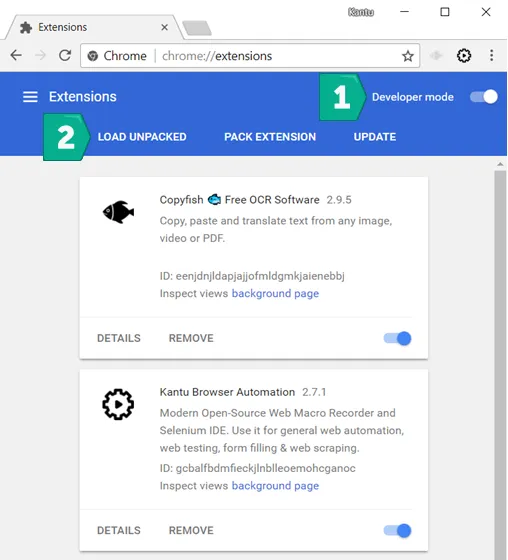
chrome://extensionsand ensure “Developer mode” is enabled (toggle in the top right). Click “Update” to manually check for updates. - Re-enable: Toggle the extension off and then back on.
- Reinstall: Remove the extension completely and then reinstall it from the Chrome Web Store.
- Check Permissions: Ensure the extension has all necessary permissions.
- Developer Console: For more advanced users, press
Ctrl+Shift+I(Windows) orCmd+Option+I(Mac) to open the Developer Console. Check the “Console” tab for error messages related to the extension.
- Check for Updates: Go to
- Incognito Mode Issues: Remember that extensions are typically disabled in Incognito mode by default for privacy reasons. If you need an extension to work in Incognito, you must manually enable it from its “Details” page on
chrome://extensions.
When All Else Fails: Resetting and Reinstalling
If you’ve tried the above steps and are still experiencing persistent issues, more drastic measures might be necessary:
- Temporarily Disable All Extensions: This is a good first step to rule out extensions as the cause of any general browser issues.
- Reset Chrome Settings: This will revert your Chrome settings to their default state, disable all extensions, and clear temporary data, but keep your bookmarks, history, and passwords.
- Go to Chrome Settings (three dots > “Settings”).
- Click “Reset settings” in the left-hand menu.
- Choose “Restore settings to their original defaults.”
- Reinstall Chrome (Last Resort): As a final measure, if Chrome remains problematic, you might consider uninstalling and reinstalling the browser. Ensure you’re signed in to your Google account beforehand so your bookmarks and settings can be synced back after reinstallation.
Your Gateway to a Smarter Browser Experience
Chrome extensions are more than just add-ons; they are transformative tools that empower you to tailor your web browser into a highly personalized and efficient workspace. From enhancing digital security and streamlining productivity to offering bespoke solutions for brand management and financial optimization, the right extensions can significantly elevate your digital experience.
By understanding how to properly install, manage, and troubleshoot these powerful mini-applications, you unlock the full potential of your Chrome browser. Embrace the spirit of exploration, but always with an eye toward security and performance. Choose wisely, manage diligently, and watch as your Chrome browser evolves into an indispensable partner in navigating the ever-expanding digital landscape, serving your needs across Technology, Brand, and Money with unparalleled efficiency.
aViewFromTheCave is a participant in the Amazon Services LLC Associates Program, an affiliate advertising program designed to provide a means for sites to earn advertising fees by advertising and linking to Amazon.com. Amazon, the Amazon logo, AmazonSupply, and the AmazonSupply logo are trademarks of Amazon.com, Inc. or its affiliates. As an Amazon Associate we earn affiliate commissions from qualifying purchases.