
In an increasingly digital world, robust digital security and secure access to sensitive information are paramount. For millions of individuals affiliated with the U.S. government, military, or various federal agencies, a Common Access Card (CAC) is the cornerstone of their digital identity and access control. While Windows users often find CAC reader setup to be a relatively straightforward process, Mac users can sometimes encounter unique challenges due to Apple’s stringent security protocols and different operating system architecture. However, with the right guidance and a systematic approach, installing and configuring a CAC reader on your Mac can be a smooth and successful endeavor. This comprehensive guide will walk you through every step, ensuring you can securely access government websites, sign digital documents, and manage your online identity with confidence and efficiency.
Whether you’re a service member needing to check your Leave and Earnings Statement, a government contractor accessing secure portals, or an employee requiring authenticated access to internal systems, mastering CAC reader installation on your Mac is a critical skill for maintaining productivity and digital security. This article will demystify the process, from selecting the appropriate hardware to installing necessary software and troubleshooting common issues, empowering you to bridge the gap between your macOS environment and the secure requirements of CAC-enabled services.
Understanding CAC Readers and Mac Compatibility
Before diving into the installation process, it’s crucial to understand what a CAC reader is, its purpose, and the specific considerations when integrating it with a macOS system. A Common Access Card (CAC) is a smart card issued by the U.S. Department of Defense (DoD) to active-duty military personnel, reserve personnel, civilian employees, and eligible contractor personnel. It serves as the standard identification for accessing DoD facilities and computer networks, encompassing a range of functionalities including logical access to computers and networks, physical access to buildings, digital signatures, and encryption.
Why a CAC Reader is Essential for Many Mac Users
For Mac users within the DoD ecosystem or related federal agencies, a functioning CAC reader is not merely a convenience but a necessity. It’s the gateway to:
- Secure Web Portals: Accessing websites like MyPay, TRICARE Online, eBenefits, and other government resources that require two-factor authentication via your CAC.
- Digital Signatures: Electronically signing documents, ensuring their authenticity and integrity, a critical feature for official communications and paperwork.
- Encrypted Email Communication: Sending and receiving secure emails, protecting sensitive information from unauthorized access, aligning with stringent digital security protocols.
- Network Login: Logging into government networks and systems, providing a secure method of user verification.
The challenge on a Mac often stems from the differences in driver support and smart card middleware compared to Windows. Apple’s Unix-based operating system requires specific software components to correctly interpret and interact with the data on a CAC card through a connected reader. Without these components, your Mac won’t recognize the card or be able to utilize its cryptographic capabilities, rendering your CAC reader effectively useless.
Selecting the Right CAC Reader Hardware
Choosing the correct CAC reader is the first critical step. While most modern CAC readers are “plug-and-play” with macOS in terms of basic USB recognition, ensuring full functionality requires a reader that is compliant with industry standards and ideally, specifically tested for macOS.
- USB Connection: Almost all CAC readers connect via USB. Ensure your Mac has available USB-A ports, or acquire a reliable USB-C hub or adapter if you have a newer MacBook with only USB-C ports.
- Compliance: Look for readers that are FIPS 201 compliant and meet ISO 7816 standards. These designations assure compatibility with government-issued smart cards.
- Driverless Operation (Mostly): Many modern readers are “CCID compliant,” meaning they often don’t require proprietary drivers from the manufacturer for basic recognition by macOS. The heavy lifting comes from the smart card middleware, not always the reader’s specific driver.
- Reputable Brands: Stick to well-known brands that provide good support. Examples include Identiv, SCM, Gemalto, and Rocketek. Check product reviews, especially those from other Mac users.
- Integrated vs. External: Most CAC readers are external USB devices. Some keyboards have integrated smart card readers; while convenient, ensure they are macOS compatible if you opt for this.
Investing in a reliable CAC reader from the outset will save you potential headaches down the line. Avoid extremely cheap, generic readers that may not adhere to necessary compliance standards or offer consistent performance.
Preparing Your Mac for CAC Reader Installation
Before you connect your shiny new CAC reader, there are several preparatory steps essential for a successful and smooth installation on your Mac. These steps involve ensuring your operating system is up-to-date, downloading critical software components, and understanding the role of various utilities.
Essential Software and Driver Downloads
The core of enabling your Mac to work with a CAC reader lies in installing the necessary software components. These typically include DoD root certificates and smart card middleware.
-
DoD Root Certificates: Your Mac needs to trust the certificates issued by the Department of Defense. Without these, your browser and system will flag government websites and digital signatures as untrustworthy.
- Where to Get Them: The official source for these certificates is usually the MilitaryCAC website or directly from a DoD enterprise portal (e.g., DISA’s IASE website). Search for “InstallRoot” or “DoD Certificates” for macOS.
- Installation Process: Download the certificate package (often a
.pkginstaller). Run the installer, which will automatically add the necessary certificates to your macOS Keychain Access utility. You may need to enter your administrator password. It’s recommended to install both NIPR (Non-Classified Internet Protocol Router Network) and SIPR (Secret Internet Protocol Router Network) certificates, even if you primarily use NIPRNet.
-
Smart Card Middleware: This is the software layer that allows your Mac’s operating system and applications (like web browsers) to communicate with the CAC reader and the cryptographic chip on your CAC card.
- Common Middleware Options:
- OpenSC: A popular, open-source smart card library that provides drivers for many smart cards and readers. It’s frequently recommended for macOS users. You can usually find pre-compiled installers or build it from source.
- CACKey/CoolKey (older): These were prevalent in the past but may be less necessary or supported with newer macOS versions and OpenSC.
- Smart Card Services (Integrated): Newer macOS versions have improved built-in smart card support, reducing the need for extensive third-party middleware, but OpenSC often provides broader compatibility.
- Where to Get Them: MilitaryCAC website is an excellent resource, often providing specific instructions and links for macOS users. Alternatively, you can find OpenSC on its official GitHub page or via package managers like Homebrew.
- Installation Process: Download the appropriate
.pkgfile for your macOS version and run the installer. Follow the on-screen prompts, which may require restarting your system after installation.
- Common Middleware Options:
Verifying Your macOS Version and Security Settings
Compatibility is key. Before downloading software, ensure your macOS is up-to-date and that your security settings won’t inadvertently block the installation.
- Update macOS: Always ensure your Mac is running the latest stable version of macOS. Apple regularly releases security patches and compatibility updates that can impact CAC reader functionality. Go to
System Settings(orSystem Preferenceson older macOS) >General>Software Update. - Security & Privacy Settings:
- Allow Apps Downloaded From: On older macOS versions, you might need to temporarily allow apps from “Anywhere” in
System Preferences>Security & Privacy>Generalif you encounter issues installing software not from the App Store or identified developers. However, on newer macOS versions (Catalina and later), this option is removed. Instead, you might have to right-click (or Control-click) on the installer and select “Open” to bypass gatekeeper warnings for unsigned applications. - Full Disk Access: While less common for initial setup, some smart card utilities or browser extensions might require “Full Disk Access” in
System Settings>Privacy & Security. You’ll typically be prompted if this is needed.
- Allow Apps Downloaded From: On older macOS versions, you might need to temporarily allow apps from “Anywhere” in
- Firewall: Ensure your macOS firewall (
System Settings>Network>Firewall) is configured to allow necessary network access for applications that might interact with CAC-enabled services. Generally, the default settings are sufficient, but it’s worth checking if you encounter connection issues.
Taking these preparatory steps ensures that your Mac is a hospitable environment for the CAC reader software, minimizing potential conflicts and streamlining the subsequent installation process.
A Step-by-Step Guide to CAC Reader Installation
With your Mac prepared and the necessary software downloaded, you’re ready to proceed with the core installation. This section details the sequence of actions to get your CAC reader up and running.
Installing DoD Root Certificates

This is typically the first software component you should install, as it establishes trust for government websites and services.
- Locate the Installer: Find the “InstallRoot” or similar DoD certificate installer file you downloaded. It will likely be a
.pkgfile. - Run the Installer: Double-click the
.pkgfile. - Follow Prompts: Proceed through the installation wizard. You’ll be asked to agree to terms, select an installation location (usually the default), and enter your administrator password to authorize the installation.
- Verification (Optional but Recommended): After installation, open
Keychain Access(search for it in Spotlight or find it inApplications > Utilities). In the left sidebar, select “System Roots” under Keychains and search for “DoD” or “DISA.” You should see numerous certificates listed, indicating successful installation. They should show a blue plus sign or be marked as “This certificate is valid.”
Deploying Smart Card Middleware
Next, install the smart card middleware, which facilitates communication between your CAC reader, the CAC card, and your Mac’s operating system.
- Locate Middleware Installer: Find the OpenSC or other smart card middleware
.pkgfile you downloaded. - Run the Installer: Double-click the
.pkgfile. - Follow Prompts: Similar to the certificate installation, proceed through the wizard. You may be prompted to restart your Mac after the installation is complete. It’s often a good idea to restart to ensure all components load correctly.
- Connect Your CAC Reader: After the middleware is installed and your Mac has potentially restarted, connect your CAC reader to an available USB port.
- Insert Your CAC Card: Insert your CAC card into the reader, ensuring it’s fully seated. You might hear a chime or see a light on the reader indicating it’s recognized.
Configuring Your Web Browser for CAC Access
While some browsers (like Safari) may work with CAC out-of-the-box once the system-wide certificates and middleware are installed, others (especially Firefox) often require additional configuration.
- Safari (Recommended for Easiest Setup): Safari generally uses the certificates and smart card services installed at the system level. If your DoD certificates and middleware are correctly installed, Safari should work without further steps.
- Google Chrome: Chrome also typically leverages the macOS Keychain for certificates and the system’s smart card services. No specific browser configuration is usually needed beyond ensuring system-wide installations are correct.
- Mozilla Firefox (Requires Manual Configuration): Firefox uses its own certificate store and requires manual setup for smart card integration.
- Open Firefox: Go to
Settings(orPreferences). - Search for “Certificates”: Type “certificates” into the search bar.
- View Certificates: Click on “View Certificates.”
- Security Devices: Go to the “Security Devices” tab.
- Load Module: Click “Load.”
- Module Name: Give it a name, e.g., “CAC Reader” or “OpenSC PKCS#11.”
- Module File: Browse to the OpenSC library file. This is typically located at
/Library/OpenSC/lib/opensc-pkcs11.soor/usr/local/lib/opensc-pkcs11.soor similar path. If you used the MilitaryCAC guide, it usually provides the exact path. - Confirm: Click “OK” to load the module. You should now see it listed.
- Open Firefox: Go to
Testing Your CAC Reader Setup
Once all components are installed and configured, it’s time to test your setup.
- Visit a DoD Website: Navigate to a secure government website that requires CAC authentication (e.g., MyPay, AF Portal, milConnect).
- Authentication Prompt: Your browser should prompt you to select a certificate (usually your “Authentication” certificate) and then ask for your CAC PIN.
- Enter PIN: Enter your correct 6-8 digit CAC PIN.
- Successful Login: If you successfully log in or access the secure content, your CAC reader and software are correctly installed and functioning.
- Email Test (Optional): If you use a DoD email client (like Outlook through web access), try accessing it to confirm digital signature and encryption capabilities.
Congratulations! If you’ve reached this point, you have successfully installed your CAC reader on your Mac, empowering you with secure access to critical government and military resources.
Troubleshooting Common CAC Reader Issues on Mac
Even with careful installation, you might encounter issues. Here’s how to address the most common problems.
Reader Not Recognized or Not Functioning
- Check Physical Connection: Ensure the CAC reader is firmly plugged into a working USB port. Try a different USB port or a different reader if you have one. If using a hub, try connecting directly to your Mac.
- Restart Mac: Sometimes a simple restart can resolve recognition issues, especially after installing new drivers or middleware.
- Verify CAC Card: Ensure your CAC card is inserted correctly and fully into the reader. Try removing and reinserting it.
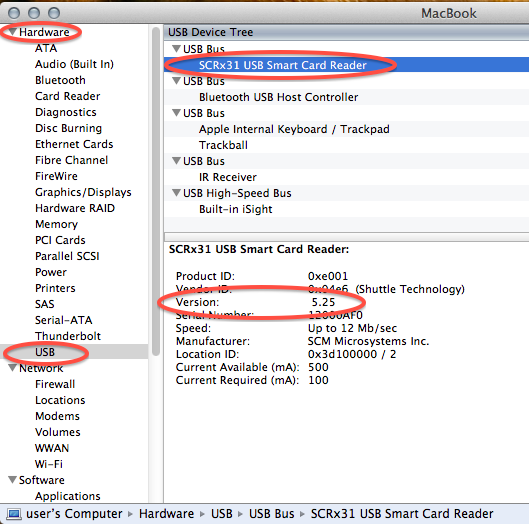
- Check System Information: Go to
About This Mac>System Report(orSystem Information) >USB. Look for your CAC reader listed under the USB device tree. If it’s not listed, it’s a hardware recognition issue. - Middleware Status: Ensure your smart card middleware (e.g., OpenSC) is installed correctly. You might need to reinstall it.
Certificate Errors and Browser Challenges
- “Your Connection Is Not Private” / “Cannot Verify Identity”: This almost always indicates an issue with the DoD root certificates.
- Reinstall Certificates: Download and reinstall the latest DoD certificates (InstallRoot) from a reliable source like MilitaryCAC.
- Check Keychain Access: Open
Keychain Access, search for “DoD,” and verify that the certificates are present and marked as valid (green checkmark or blue plus sign). If they are marked as “revoked” or invalid, try reinstalling.
- Browser-Specific Issues:
- Firefox: Double-check that the security module (OpenSC PKCS#11) is correctly loaded in Firefox’s
Security Devicessettings. Ensure the path to the.sofile is accurate. - All Browsers: Clear your browser’s cache and cookies. Sometimes stale data can interfere with authentication. Try using a different browser to isolate if the issue is browser-specific or system-wide.
- Certificate Selection: Ensure you are selecting the correct certificate (usually your “Authentication” certificate) when prompted by the browser.
- Firefox: Double-check that the security module (OpenSC PKCS#11) is correctly loaded in Firefox’s
Advanced Troubleshooting and Support Resources
- MilitaryCAC Website: This is an invaluable resource. It has extensive FAQs, detailed guides for specific macOS versions, and troubleshooting tips. Many solutions for obscure issues can be found here.
- Check for Software Conflicts: Occasionally, other security software or VPN clients might interfere with smart card services. Try temporarily disabling them if possible to see if the issue resolves.
- Consult IT Support: If you’re still stuck, reach out to your organization’s IT help desk. They may have specific guidance, internal tools, or experience with common issues within your network environment.
- Verify CAC Card Status: Ensure your CAC card itself is active and not expired or locked. If you’ve entered your PIN incorrectly too many times, your card might be locked, requiring a visit to a local RAPIDS ID card office.
Maintaining a Secure and Functional CAC Environment
Successfully installing your CAC reader is just the beginning. Ongoing maintenance and adherence to best practices are crucial for maintaining a secure and efficient CAC environment on your Mac.

Best Practices for Ongoing Security and Updates
- Keep macOS Updated: Regularly install macOS updates. Apple consistently releases security patches and system enhancements that can improve compatibility and protect against vulnerabilities.
- Update CAC Software: Periodically check for updated versions of DoD certificates and smart card middleware (like OpenSC). Newer versions can offer improved performance, better compatibility with the latest macOS, and enhanced security features.
- Protect Your CAC and PIN: Your CAC is your digital identity. Treat it like a credit card. Never write down your PIN, and be vigilant about phishing attempts that try to solicit your PIN or other sensitive information. Use a strong, memorable PIN that you don’t use for other services.
- Secure Your CAC Reader: When not in use, store your CAC reader in a safe place. While the reader itself doesn’t store sensitive data, a compromised device could theoretically be used in sophisticated attacks.
- Use Reputable Sources: Always download certificates and software from official or highly trusted sources (e.g., DISA, MilitaryCAC). Avoid untrusted third-party sites that could distribute malicious software.
- Regular Testing: Occasionally test your CAC reader access, especially after major macOS updates or software installations, to ensure everything is still functioning as expected. This proactive approach can catch issues before they become critical.
- Be Aware of Phishing: Government and military personnel are frequently targets of sophisticated phishing attempts. Always verify the legitimacy of websites before entering your CAC PIN. Look for “https://” and valid security certificates in your browser’s address bar.
- Understand Digital Certificates: Familiarize yourself with the concept of digital certificates and why they are crucial for secure communication. This knowledge enhances your overall digital security awareness.
By adhering to these best practices, you can ensure your Mac remains a reliable and secure platform for all your CAC-enabled activities, providing peace of mind and uninterrupted productivity in your official duties.
In conclusion, while the path to installing a CAC reader on a Mac may seem daunting at first glance due to the multi-layered requirements of hardware, software, and certificates, it is a perfectly manageable task. By following this detailed guide, Mac users can confidently navigate the installation process, troubleshoot common hurdles, and maintain a secure and fully functional CAC environment. This not only enhances your personal productivity but also reinforces the vital digital security protocols essential for government and military operations. With your CAC reader properly installed, your Mac becomes a powerful, secure gateway to the critical resources you need, all while upholding the highest standards of digital integrity.
aViewFromTheCave is a participant in the Amazon Services LLC Associates Program, an affiliate advertising program designed to provide a means for sites to earn advertising fees by advertising and linking to Amazon.com. Amazon, the Amazon logo, AmazonSupply, and the AmazonSupply logo are trademarks of Amazon.com, Inc. or its affiliates. As an Amazon Associate we earn affiliate commissions from qualifying purchases.