
In the landscape of modern computing, Windows 10 remains one of the most versatile and widely used operating systems in the world. Whether you are building a new custom PC, reviving an old laptop, or performing a necessary system reset, the question of “how long it takes” is often the first concern for users. While Microsoft has streamlined the process significantly compared to the days of physical discs and manual driver entries, the duration of an installation is not a fixed number. It is a variable influenced by hardware architecture, network conditions, and the specific method of installation chosen.
Understanding the timeline of a Windows 10 installation is essential for planning your workflow and ensuring that you don’t interrupt critical processes. On average, a modern installation can take anywhere from 20 minutes to 2 hours, but the devil is in the details. This guide provides a deep dive into the technical factors that dictate these speeds and how you can optimize your setup for maximum efficiency.
1. Defining the Variables: What Influences Installation Speed?
To answer how long the process takes, we must first look at the engine under the hood. The installation of an operating system is a resource-intensive task that involves heavy data writing, file decompression, and hardware handshaking.
Hardware Specifications: The SSD vs. HDD Divide
The single most significant factor in installation speed is your storage medium. If you are installing Windows 10 on a traditional Hard Disk Drive (HDD), you are limited by mechanical platters and physical read/write heads. An HDD installation typically takes 60 to 90 minutes.
Conversely, installing on a Solid State Drive (SSD)—specifically an NVMe M.2 drive—drastically reduces this window. Because SSDs handle data via flash memory with no moving parts, they can process the thousands of small files required for an OS setup in a fraction of the time. On a high-end SSD, the core installation phase can be completed in as little as 15 to 25 minutes.
RAM and Processor Throughput
While the hard drive handles the storage, the CPU and RAM handle the “work” of the installation. Windows 10 setup involves decompressing large “install.wim” or “install.esd” files. A multi-core processor (such as an Intel Core i5/i7 or AMD Ryzen 5/7) can handle these computations much faster than an older dual-core chip. Furthermore, having at least 8GB of RAM ensures that the system has enough “workspace” to move files around without relying on slower virtual memory on the disk.
Internet Connectivity and Update Integration
If you choose to allow Windows to “Download updates” during the installation process, your internet speed becomes a bottleneck. A 100 Mbps fiber connection will breeze through the latest security patches in minutes, whereas a congested or slow Wi-Fi connection could add an hour to the total time. For the fastest results, many tech professionals recommend installing offline and updating once the desktop environment is reached.
2. The Step-by-Step Breakdown of the Installation Process
The “installation” isn’t just one long progress bar; it is a series of distinct phases, each with its own time requirements. Breaking these down helps identify where a system might be lagging.
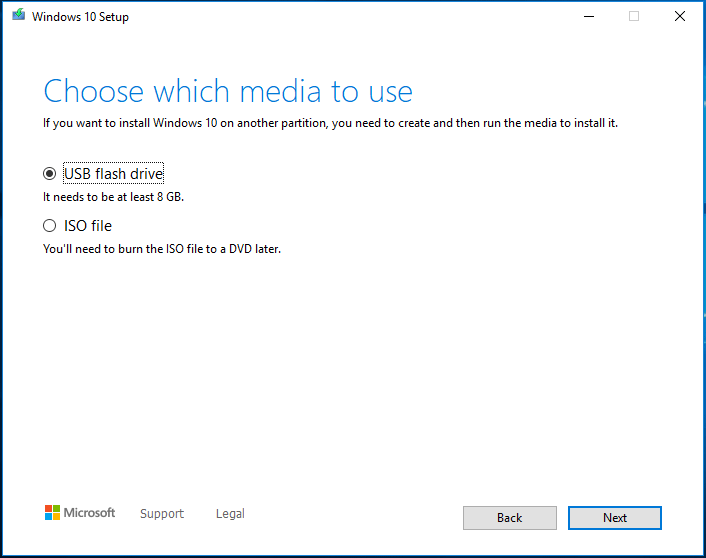
Phase 1: Creating Bootable Media (10–20 Minutes)
Before the installation even begins on the target PC, you must prepare the installation media. Using the Microsoft Media Creation Tool to flash a USB 3.0 drive is the industry standard. Depending on your internet speed (to download the ~5GB ISO file) and the write speed of your USB flash drive, this preparation usually takes about 15 minutes. Using an older USB 2.0 port will significantly slow this down.
Phase 2: The Core Installation Environment (15–45 Minutes)
Once you boot from the USB, you enter the Windows Preinstallation Environment (WinPE). This is the “Blue Screen” phase where you select your partition and Windows begins “Expanding files.”
- 0% to 100% Expanding Files: This is the most time-consuming part. On a fast system, this moves at roughly 1% every few seconds. On an older system, it may appear to hang at certain percentages (like 31% or 85%).
- Installing Features and Updates: A relatively quick phase that checks for basic driver compatibility.
Phase 3: The Out-of-Box Experience (OOBE) (10–30 Minutes)
After the system reboots (usually several times), you are greeted by “Cortana” or the basic setup wizard. This is where you configure your region, keyboard layout, and user account. If you sign in with a Microsoft Account, the system will spend extra time syncing your OneDrive settings, theme preferences, and Store apps. Choosing an “Offline Account” is generally faster for those in a hurry.
3. Choosing Your Method: Clean Install vs. In-Place Upgrade
The path you take to reach Windows 10 significantly alters the clock. Not all installations are created equal in terms of time or system health.
The Clean Install: The “Gold Standard” for Speed
A clean install involves wiping the primary drive and starting from scratch. Because the installer doesn’t have to scan for existing applications, resolve software conflicts, or move old “Windows.old” folders, it is the fastest method. For a modern machine, a clean install from a USB 3.0 drive to an SSD typically concludes within 25 to 30 minutes from start to desktop.
The In-Place Upgrade: The Convenient but Slower Path
Upgrading from Windows 7 or 8, or performing a “Reset this PC” while keeping files, is a much more complex operation. The installer must catalog every existing file, setting, and application, then migrate them into the new OS structure.
- Data Volume: If you have 500GB of photos and applications, the “migrating data” phase will be agonizingly slow.
- Expected Time: An in-place upgrade on an older machine can easily take 2 to 4 hours. It is not uncommon for these upgrades to seem “stuck” at 99% for a significant period as the system performs final registry cleanups.
4. Troubleshooting Delays and Performance Bottlenecks
Sometimes, an installation exceeds the 2-hour mark, signaling that something is wrong. In the tech world, identifying these bottlenecks early can save hours of frustration.
The “Getting Ready” Loop
If your screen says “Getting Ready” for more than 30 minutes, you are likely facing a driver conflict. Windows is attempting to find a generic driver for a specific piece of hardware (often a Wi-Fi card or a dedicated GPU) and failing.
- Solution: Disconnect all non-essential peripherals. Remove external hard drives, printers, and even secondary monitors. Only the keyboard, mouse, and installation media should be plugged in.
Hardware Failures and Thermal Throttling
Installation is a “stress test” for hardware. If your laptop’s fans are screaming and the progress has stopped, the CPU might be thermal throttling—slowing down to prevent damage. Similarly, if the installation fails with a specific error code (like 0x80070057), it often points to a failing hard drive sector. In these cases, no amount of waiting will finish the install; the hardware needs addressing first.
5. Post-Installation: The Final “Hidden” Time Requirements
Reaching the desktop does not mean the installation is finished. To have a fully functional, secure, and high-performing Windows 10 machine, there is a final phase that users often forget to account for.
Driver Updates and Optimization (20–40 Minutes)
Windows 10 is excellent at finding generic drivers, but for peak performance, you need manufacturer-specific drivers. Running “Windows Update” immediately after the first login is crucial. The system will likely download several “Cumulative Updates” and “Internal Driver Updates,” requiring at least one or two more restarts.
Software Reinstallation
If you performed a clean install, the time it takes to download and install your essential suite—Chrome, Office, Adobe Creative Cloud, or Steam—must be considered. Using tools like “Ninite” can help automate this process, but for a professional workstation, this post-install setup can often take longer than the OS installation itself.

Conclusion: Setting Realistic Expectations
So, how long does it take to install Windows 10?
- On a modern PC with an SSD: Expect to spend about 30 to 45 minutes from the moment you plug in the USB to the moment you are browsing the web.
- On an older PC with an HDD: Budget at least 2 hours to account for slower data transfer and potential update lags.
By understanding the technical nuances of storage speeds, CPU cycles, and installation methods, you can approach your next OS setup with confidence. The key to a fast installation isn’t just a fast computer—it’s preparation. Use a fast USB 3.0 drive, ensure a stable internet connection, and when in doubt, opt for a clean install to ensure your system starts its new life with maximum speed and stability.
aViewFromTheCave is a participant in the Amazon Services LLC Associates Program, an affiliate advertising program designed to provide a means for sites to earn advertising fees by advertising and linking to Amazon.com. Amazon, the Amazon logo, AmazonSupply, and the AmazonSupply logo are trademarks of Amazon.com, Inc. or its affiliates. As an Amazon Associate we earn affiliate commissions from qualifying purchases.