
In today’s visually driven digital world, the quality of your display is paramount. Whether you’re a graphic designer meticulously crafting masterpieces, a gamer immersing yourself in vibrant virtual realms, a programmer coding complex algorithms, or simply a professional navigating spreadsheets and documents, your monitor is your window to productivity and entertainment. While the physical connection of your monitor is straightforward, ensuring it performs at its peak often hinges on a less visible, yet crucial component: the monitor driver.
But what exactly are monitor drivers, and why do they matter? This article will demystify the concept of monitor drivers and provide a comprehensive guide on how to install and update them, ensuring your display is always delivering the best possible visual experience. We’ll delve into the technical nuances, explore common troubleshooting steps, and even touch upon how keeping your drivers up-to-date can indirectly impact your overall system performance and digital security.
Understanding the Crucial Role of Monitor Drivers
Before we dive into the “how,” it’s essential to understand the “why.” Monitor drivers, also known as graphics drivers or display drivers, are small but mighty pieces of software that act as intermediaries between your operating system (like Windows or macOS) and your graphics card (which is responsible for sending the visual signal to your monitor).
What Drivers Actually Do
Think of the driver as a translator. Your operating system speaks a general language, while your graphics card, and by extension your monitor, understands specific commands and capabilities. The driver bridges this communication gap. It tells the operating system how to properly communicate with the graphics hardware, enabling it to:
- Render images and video correctly: This includes displaying the right resolution, refresh rate, color depth, and supporting specific graphical features.
- Optimize performance: Drivers are frequently updated to improve how efficiently your graphics card handles demanding tasks, such as gaming, video editing, and 3D rendering.
- Enable advanced features: Many monitors offer advanced settings like HDR (High Dynamic Range) support, adaptive sync technologies (like NVIDIA G-Sync or AMD FreeSync), and specific color profiles. These features often require the correct driver to be installed and enabled.
- Ensure compatibility: Drivers help your operating system recognize your specific monitor model and its capabilities, preventing compatibility issues that could lead to distorted images, incorrect resolutions, or even a blank screen.
Without the correct driver, your monitor might operate in a basic, low-resolution mode, limiting its potential and leading to a suboptimal visual experience. In some cases, it might not be recognized at all.
Identifying Your Monitor and Graphics Card
To install or update your monitor drivers, you first need to know what hardware you’re working with. This involves identifying both your graphics card and, to a lesser extent, your monitor model.
How to Find Your Graphics Card Information
Your graphics card is the primary component that drivers interact with. Here’s how to find its details on Windows:
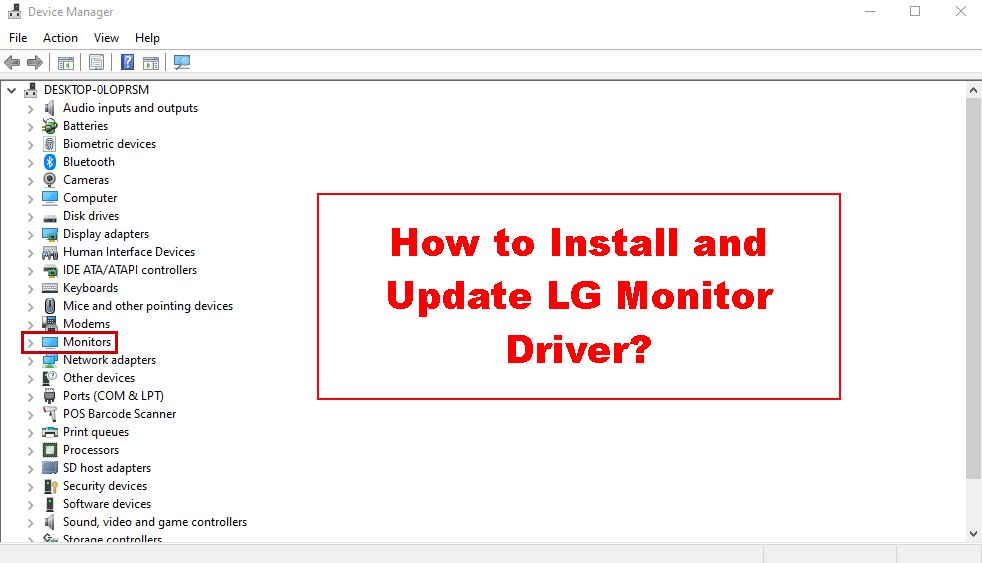
Accessing Device Manager
- Right-click on the Start button (the Windows logo in the bottom-left corner of your screen).
- Select “Device Manager” from the context menu.
- In the Device Manager window, expand the “Display adapters” category.
- Under “Display adapters,” you’ll see the name of your graphics card. It might be something like “NVIDIA GeForce RTX 3080,” “AMD Radeon RX 6800 XT,” or “Intel UHD Graphics.” Note down this name precisely.
Using System Information
- Press Windows Key + R to open the Run dialog box.
- Type
msinfo32and press Enter. - In the System Information window, navigate to “Components” > “Display.”
- Here, you’ll find more detailed information about your display adapter, including the Name, Adapter Description, and Adapter RAM.
Identifying Your Monitor Model
While drivers are primarily for the graphics card, some advanced monitor features and resolutions might be specifically enabled by drivers that recognize your monitor model.
Checking Monitor Information in Windows Settings
- Go to Settings (Windows Key + I).
- Click on “System.”
- Select “Display.”
- Scroll down and click on “Advanced display settings.”
- Under “Choose display,” select your primary monitor if you have multiple. The “Display information” section will often show your monitor’s name.
Physical Inspection and Documentation
- Check the monitor itself: Most monitors have a label on the back or underside with the manufacturer and model number.
- Original packaging and manuals: If you still have them, your monitor’s box or user manual will clearly state the model.
- Purchase history: If you bought it online, check your order history on the retailer’s website.
Installing and Updating Monitor Drivers: Step-by-Step Guides
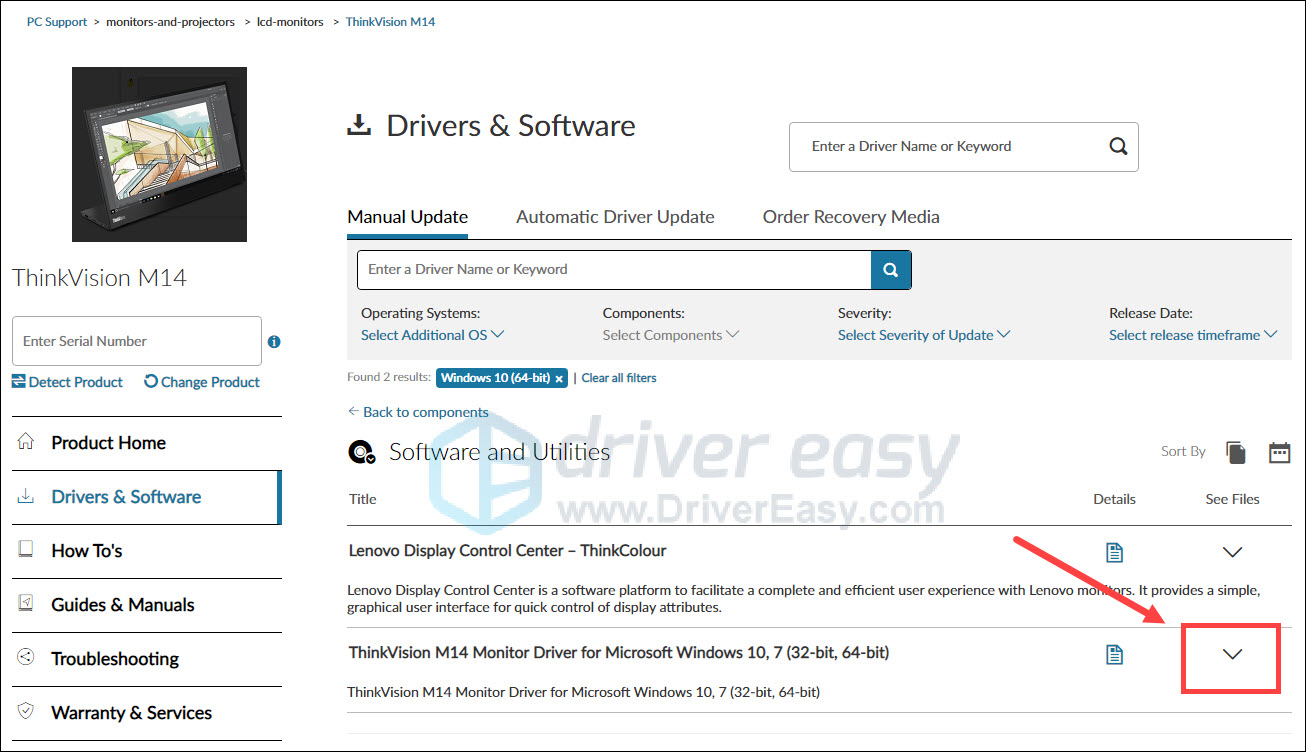
Now that you know what you’re looking for, let’s get to the core of the matter: installing and updating your monitor drivers. The process typically involves downloading the latest drivers from the manufacturer’s website.
The Official Driver Download Route: Recommended for Optimal Performance
This is the most reliable and recommended method for obtaining the latest and most stable drivers.
For NVIDIA Graphics Cards
- Visit the NVIDIA Driver Download page: Go to https://www.nvidia.com/Download/index.aspx.
- Select your product type: Choose “GeForce” (for most consumer cards), “Workstation,” or “NVS” depending on your card.
- Select your product series: For example, if you have a GeForce RTX 3080, select “GeForce RTX 30 Series.”
- Select your product: Choose your specific graphics card model (e.g., “GeForce RTX 3080”).
- Select your operating system: Choose your version of Windows (e.g., Windows 10 64-bit).
- Select your download type: For most users, “Game Ready Driver (GRD)” is recommended for gaming and general use, while “Studio Driver (SD)” is optimized for creative applications. If unsure, GRD is a safe bet.
- Click “Search.”
- Download the latest driver: The page will present you with the latest driver version. Click “Download.”
- Run the installer: Once the download is complete, double-click the downloaded
.exefile. - Follow the on-screen prompts: The installer will guide you through the process. You’ll typically have an option for “Express installation” (recommended for most users) or “Custom installation” (which allows you to select specific components, like GeForce Experience). A clean installation option within the Custom install can be beneficial if you’re experiencing issues.
- Restart your computer: After the installation is finished, a restart is usually required for the changes to take full effect.

For AMD Graphics Cards
- Visit the AMD Drivers and Support page: Go to https://www.amd.com/en/support.
- Automatic Driver Install: AMD offers an “Auto-Detect and Install” tool that can simplify the process. Download and run this utility, and it should identify your graphics card and download the appropriate drivers.
- Manual Driver Selection: If you prefer to select drivers manually:
- Select your product: Navigate through the product categories (e.g., “Graphics” > “Radeon RX Series” > “Radeon RX 6000 Series” > “Radeon RX 6800”).
- Select your operating system: Choose your Windows version.
- Click “Submit.”
- Download the latest driver: You’ll see a list of available drivers. Download the recommended version.
- Run the installer: Execute the downloaded file.
- Follow the on-screen prompts: Similar to NVIDIA, choose between “Express Install” or “Custom Install.” A “Factory Reset” option within Custom install is similar to NVIDIA’s clean install.
- Restart your computer: A reboot is generally necessary.
For Intel Integrated Graphics
If your computer uses Intel’s integrated graphics (common in many laptops and non-gaming desktops), the process is slightly different.
- Visit the Intel® Driver & Support Assistant page: Go to https://www.intel.com/content/www/us/en/support/detect.html.
- Download and run the Assistant: This utility will scan your system and identify any Intel drivers that need updating, including graphics drivers.
- Follow the prompts: The assistant will guide you through downloading and installing the recommended drivers.
- Restart your computer: A restart is usually required.
Using Windows Update for Driver Updates
Windows Update can sometimes provide driver updates, though they are often not the very latest versions directly from the manufacturer.
- Go to Settings (Windows Key + I).
- Click on “Update & Security.”
- Click on “Windows Update” in the left-hand menu.
- Click “Check for updates.”
- If driver updates are available, they might appear under “Optional updates.” You can choose to download and install them from there.
Note: While convenient, relying solely on Windows Update for graphics drivers might mean missing out on performance optimizations and new feature support.
When and Why to Reinstall or Update Drivers
It’s not always about setting up a new monitor. Driver updates are released regularly for several important reasons:
- Bug Fixes: Manufacturers constantly release updates to fix bugs that can cause visual glitches, crashes, or performance issues.
- Performance Improvements: New drivers often include optimizations that can boost frame rates in games or improve the responsiveness of graphical applications.
- New Feature Support: Drivers enable support for new technologies and features in both your operating system and your hardware. For example, a new game might require a specific driver version to run optimally with certain graphical settings.
- Security Patches: Like any software, drivers can have security vulnerabilities. Updates often include patches to address these.
- Troubleshooting: If you’re experiencing display problems, outdated or corrupted drivers are often the first culprit. Reinstalling the latest drivers can resolve many issues.
How often should you update? For gamers and professionals who push their hardware, checking for new driver releases every few months or when a major new game or application is released is a good practice. For general users, updating when prompted by Windows Update or when you encounter specific display issues is usually sufficient.
Troubleshooting Common Monitor Driver Issues
Despite best efforts, you might encounter problems. Here are some common issues and how to address them:
Blank Screen or No Display
- Check Physical Connections: Ensure your monitor cable is securely plugged into both the monitor and the graphics card. Try a different cable or port if possible.
- Boot into Safe Mode: If Windows won’t boot with a display, try booting into Safe Mode. This uses basic drivers. If you get a display in Safe Mode, it strongly suggests a driver issue.
- To enter Safe Mode (Windows 10/11): Restart your PC. As it boots, repeatedly press the F8 key or Shift+F8. If that doesn’t work, you might need to access it through Windows Recovery Environment (Settings > Update & Security > Recovery > Advanced startup).
- Uninstall and Reinstall: Once in Safe Mode or if you can get a display, uninstall the graphics driver through Device Manager (select Display adapters, right-click your graphics card, choose “Uninstall device,” and check “Delete the driver software for this device” if prompted). Then, download and install the latest driver from the manufacturer’s website.
Incorrect Resolution or Display Settings
- Check Driver Installation: Ensure the driver was installed correctly. If you used the express installation, try a custom installation and select all components.
- Verify Monitor Capabilities: Double-check your monitor’s specifications to ensure it supports the resolution and refresh rate you’re trying to set.
- Driver Rollback: If the problem started after a driver update, you can try rolling back to a previous version through Device Manager (select Display adapters, right-click your graphics card, go to Properties > Driver tab > Roll Back Driver).
Visual Artifacts, Flickering, or Distorted Images
- Overheating: Ensure your graphics card is not overheating. Clean out dust from your computer’s fans and heatsinks.
- Driver Corruption: A clean installation of the latest drivers is often the solution.
- Hardware Issue: If the problem persists after trying different drivers and ensuring proper cooling, it might indicate a hardware failure with the graphics card or monitor.
Monitor Not Recognized by Windows
- Physical Connection: Reiterate checking all cable connections.
- Driver Compatibility: Ensure you’ve downloaded the correct driver for your specific graphics card and operating system.
- Update Chipset Drivers: Sometimes, outdated motherboard chipset drivers can interfere with hardware recognition. Visit your motherboard manufacturer’s website for these.
Beyond the Basics: Driver Management and System Health
Keeping your monitor drivers up-to-date is not just about visuals; it’s a fundamental part of maintaining a healthy and efficient computer system.
The Impact on Productivity and Digital Security
- Productivity: As mentioned, correct drivers ensure your display functions optimally. This means accurate color reproduction for creative work, sharp text for reading, and smooth visuals for multitasking. Issues with drivers can lead to frustrating interruptions, eye strain, and reduced efficiency.
- Digital Security: While less direct, keeping all your system drivers updated, including graphics drivers, is part of good digital hygiene. Vulnerabilities found in older driver versions can potentially be exploited by malicious actors. Regularly updating your drivers helps close these security gaps.
Keeping Your System in Tune
Think of your drivers as the tuning of a musical instrument. A well-tuned instrument produces beautiful music. Similarly, well-maintained drivers allow your hardware to perform its best, contributing to a smoother, more responsive, and enjoyable computing experience overall. Regularly checking for updates and troubleshooting any issues promptly will pay dividends in the long run.
By understanding the importance of monitor drivers and following these guides, you can ensure your display consistently provides the crisp, clear, and vibrant visuals that modern computing demands.
aViewFromTheCave is a participant in the Amazon Services LLC Associates Program, an affiliate advertising program designed to provide a means for sites to earn advertising fees by advertising and linking to Amazon.com. Amazon, the Amazon logo, AmazonSupply, and the AmazonSupply logo are trademarks of Amazon.com, Inc. or its affiliates. As an Amazon Associate we earn affiliate commissions from qualifying purchases.