
Linux, long hailed as the bastion of open-source philosophy and robust stability, has steadily grown its user base, appealing to everyone from developers and system administrators to casual users seeking privacy and control. Yet, for many contemplating the switch or operating in a dual-boot environment, the lingering question often revolves around software compatibility. Specifically, the ability to run cherished or essential Windows-only applications without resorting to a full Windows installation. This is where Wine steps in – a powerful, indispensable compatibility layer that bridges the gap, allowing Linux users to leverage a vast ecosystem of Windows software directly on their preferred operating system.
In this comprehensive guide, we’ll delve deep into the world of Wine, demystifying its installation process across various popular Linux distributions. Beyond the technical steps, we’ll explore why Wine is not just a utility but a strategic tool that impacts your technology landscape, personal productivity, and even financial outlays. From understanding its underlying technology to troubleshooting common issues, consider this your ultimate resource for integrating Windows applications seamlessly into your Linux workflow, maximizing your digital experience, and making informed choices within the dynamic tech sphere.
Unlocking Windows Software on Linux: What is Wine and Why You Need It
The acronym WINE originally stood for “Wine Is Not an Emulator,” a crucial distinction that underpins its operational philosophy. Unlike virtual machines that emulate an entire operating system, Wine acts as a compatibility layer. It translates Windows API calls into POSIX calls on the fly, effectively allowing Windows applications to “think” they are running on a Windows environment. This innovative approach makes Wine significantly more efficient and less resource-intensive than running a full virtualized Windows instance, offering near-native performance for many applications.
The Technology Behind Wine: Bridging OS Divides
At its core, Wine is an open-source reimplementation of the Windows API for POSIX-compliant operating systems. This means it provides an alternative set of libraries and executables that mirror those found in Windows, enabling Windows programs to run without modification. The project has been under continuous development for decades, supported by a global community of developers who tirelessly work to improve compatibility, fix bugs, and add support for newer Windows features and applications.
The sophisticated engineering behind Wine involves mapping Windows system calls, memory management, and hardware access requests to their Linux equivalents. This includes handling everything from graphical interfaces (like DirectX and OpenGL), sound systems, and device drivers to file system access and registry management. The complexity is immense, given the proprietary nature and constant evolution of Windows itself, yet Wine manages to provide a surprisingly robust and ever-expanding platform for a myriad of applications, from productivity suites and specialized design software to demanding video games. Understanding this foundational technology helps appreciate Wine not just as a piece of software, but as a significant achievement in cross-platform compatibility and open-source collaboration, constantly pushing the boundaries of what’s possible in the tech world.
Practical Benefits: Productivity, Gaming, and Cost Savings
The advantages of installing Wine extend far beyond mere technical curiosity, impacting several key areas for users:
- Enhanced Productivity (Tech Focus): For professionals and students, access to specific Windows-only applications can be a deal-breaker. Whether it’s a niche engineering tool, an industry-standard graphic design suite (where Linux alternatives might not fully meet requirements), or even a legacy business application, Wine ensures that switching to Linux doesn’t mean sacrificing your essential software toolkit. This boosts productivity by providing the flexibility to choose the best OS for your overall workflow while retaining access to critical applications.
- Unlocking Gaming Potential (Tech Focus): The gaming landscape on Linux has dramatically improved, but a vast library of Windows-exclusive titles still exists. Wine, often in conjunction with tools like Lutris or Steam Play (Proton, which is built on Wine), opens up this library, allowing Linux users to play many popular AAA games without needing a separate Windows installation. This means better gaming experiences and greater choice for enthusiasts.
- Significant Cost Savings (Money Focus): Running Windows often entails purchasing a license, which can be a considerable expense. By installing Wine, users can bypass the need for a Windows license entirely for many applications, eliminating a direct cost. Furthermore, it allows for the reuse of existing software licenses (for Windows applications you already own) on a free operating system, preventing the need to buy duplicate software for Linux or invest in a separate Windows machine. This financial efficiency makes Linux an even more attractive proposition.
- Freedom and Choice (Brand Focus): From a personal branding perspective, choosing Linux often reflects a preference for open-source values, security, and customization. Wine empowers users to maintain this personal brand without compromise. It offers the freedom to run virtually any application they desire, curating their ideal digital environment. For businesses, adopting Linux while retaining access to critical Windows-based line-of-business applications can reduce IT costs and vendor lock-in, showcasing a tech-savvy and cost-conscious corporate identity. It means your brand isn’t limited by your OS choice.
Preparing Your Linux System for Wine Installation
Before embarking on the installation journey, a few preparatory steps are essential to ensure a smooth and successful deployment of Wine. Proper preparation can save significant time and frustration during the process and help you avoid common pitfalls.
Essential Prerequisites and System Requirements
While Wine is relatively lightweight compared to a full virtual machine, there are still some fundamental prerequisites your system should meet:
- Processor Architecture: Wine primarily supports x86 (32-bit) and x86-64 (64-bit) architectures. Most modern Linux systems are 64-bit, but Wine often requires 32-bit libraries to run older Windows applications. Ensuring your system has multi-arch support enabled is crucial.
- Sufficient Disk Space: While Wine itself isn’t massive, the Windows applications you install within it can consume considerable space. Ensure you have ample free disk space, particularly in your home directory where Wine creates its virtual C: drive (usually in
~/.wine). A good starting point would be at least 10-20 GB free, depending on your intended usage. - Internet Connection: You’ll need an active internet connection to download Wine packages from your distribution’s repositories or directly from the WineHQ website.
- Updated System: Always ensure your Linux system is fully updated before installing new software. This minimizes compatibility issues and ensures you’re working with the latest stable dependencies. Use your distribution’s package manager to perform a full system update (e.g.,
sudo apt update && sudo apt upgradefor Debian/Ubuntu,sudo dnf updatefor Fedora,sudo pacman -Syufor Arch). - Administrator Privileges: You will need
sudoor root privileges to install Wine and its dependencies.
Choosing the Right Wine Version
Wine comes in different versions, each serving a particular purpose:
- Stable Branch: This is the recommended version for most users. It’s thoroughly tested, offers the best compatibility for a wide range of applications, and is generally the most reliable. Distributions typically package stable releases.
- Development/Staging Branch: These versions incorporate the latest features, bug fixes, and compatibility improvements. While they might offer better support for very new applications or solve specific issues, they can also be less stable and introduce regressions. Advanced users or those needing specific cutting-edge compatibility might opt for this.
- Proton (Steam Play): Developed by Valve, Proton is a modified version of Wine specifically optimized for gaming on Steam. It includes additional components like DXVK (DirectX to Vulkan translation) and vkd3d-proton (DirectX 12 to Vulkan) for enhanced performance and compatibility with modern games. While primarily integrated into Steam, its underlying technologies are often adopted by the broader Wine project.
- Lutris: While not a Wine version itself, Lutris is an open-source game manager that provides pre-configured Wine “runners” and installation scripts for thousands of games. It simplifies the process significantly by automatically installing the optimal Wine version and dependencies for specific titles.
For most users, especially beginners, starting with the stable version provided by your distribution’s repositories or WineHQ is the safest bet. If you encounter specific compatibility problems, consulting the Wine Application Database (AppDB) and considering a newer development release or a dedicated gaming solution like Lutris or Proton might be necessary.
Step-by-Step Installation Guides for Popular Linux Distributions
The installation process for Wine varies slightly depending on your specific Linux distribution. Below, we cover the most common methods for popular distributions. Remember to execute commands in your terminal.
Installing Wine on Ubuntu/Debian-based Systems
Ubuntu and its derivatives (Mint, Pop!_OS, etc.) are widely used, and installing Wine on them is straightforward. It’s often recommended to use the official WineHQ repositories for the latest stable version.
-
Enable 32-bit Architecture:
sudo dpkg --add-architecture i386This ensures that your 64-bit system can install 32-bit libraries required by many Windows applications.
-
Add the WineHQ Repository Key:
sudo mkdir -pm755 /etc/apt/keyrings
sudo wget -O /etc/apt/keyrings/winehq-archive.key https://dl.winehq.org/wine-builds/winehq.key
This step adds the GPG key to authenticate packages from WineHQ.
-
Add the WineHQ Repository (Choose your Ubuntu/Debian version):
For Ubuntu 22.04 (Jammy Jellyfish):sudo wget -O /etc/apt/sources.list.d/winehq-jammy.sources https://dl.winehq.org/wine-builds/ubuntu/dists/jammy/winehq-jammy.sourcesFor Debian 12 (Bookworm):
sudo wget -O /etc/apt/sources.list.d/winehq-bookworm.sources https://dl.winehq.org/wine-builds/debian/dists/bookworm/winehq-bookworm.sources(Replace
jammyorbookwormwith your specific distribution codename if different). -
Update Package Lists:
sudo apt updateThis refreshes your package lists to include the newly added WineHQ repository.
-
Install Wine Stable:
bash

sudo apt install --install-recommends winehq-stable
This command installs the stable version of Wine along with its recommended dependencies.
Installing Wine on Fedora/RHEL-based Systems
For Fedora, CentOS, and other Red Hat-based distributions, the process involves enabling the appropriate repositories and then installing the package.
-
Enable 32-bit Architecture (if needed, usually handled by DNF):
This is often managed automatically by DNF. If you encounter issues, ensurei686packages can be installed. -
Add the WineHQ Repository:
For Fedora:sudo dnf config-manager --add-repo https://dl.winehq.org/wine-builds/fedora/$(rpm -E %fedora)/winehq.repoFor RHEL/CentOS Stream (you might need to enable EPEL first):
sudo dnf install 'dnf-command(config-manager)' sudo dnf config-manager --add-repo https://dl.winehq.org/wine-builds/centos/$(rpm -E %rhel)/winehq.repo -
Install Wine Stable:
bash

sudo dnf install winehq-stable
This command will pull in all necessary dependencies, including 32-bit libraries if required.
Installing Wine on Arch Linux and Derivatives

Arch Linux, Manjaro, and similar distributions benefit from the Arch User Repository (AUR) but also have Wine available in official repositories.
-
Enable Multilib Repository:
Edit/etc/pacman.confand uncomment the[multilib]section (and itsInclude).[multilib] Include = /etc/pacman.d/mirrorlist -
Update System and Install Wine:
bash

sudo pacman -Syu

sudo pacman -S wine wine-mono wine_gecko
wine-monois a .NET framework replacement, andwine_geckois a Gecko engine replacement (used for HTML rendering within Wine applications). These are often helpful for application compatibility.
Post-Installation: Initial Setup and Configuration
After installing Wine, you need to perform an initial setup to create the Wine prefix (your virtual C: drive) and download essential components.
-
Run
winecfg:
Open a terminal and type:winecfgThe first time you run this, Wine will prompt you to install
wine-monoandwine_gecko(if not already installed, as on Arch). Click “Install” for both.
This also creates the~/.winedirectory, which serves as your virtual Windows environment.
Thewinecfgwindow allows you to configure various settings, including the Windows version Wine should simulate (e.g., Windows 10), drive mappings, and audio settings. For most applications, the default settings are fine, but you can adjust them if you encounter issues. Click “Apply” and “OK” to save changes. -
Consider Winetricks:
Winetricks is a helper script that makes it easy to install various runtime libraries and components (like Visual C++ redistributables, .NET Framework versions, fonts, etc.) that many Windows applications rely on.
Install Winetricks:- Ubuntu/Debian:
sudo apt install winetricks - Fedora:
sudo dnf install winetricks - Arch:
sudo pacman -S winetricks
You can then runwinetricksfrom the terminal to access its graphical interface and install specific components for your applications.
- Ubuntu/Debian:
Leveraging Wine: Running Applications and Advanced Tips
With Wine successfully installed and configured, you’re ready to start running your favorite Windows applications. This section covers the basics of launching applications and provides advanced tips for maximizing compatibility and performance.
Your First Windows Application: A Quick Start Guide
Running a Windows executable (.exe or .msi) with Wine is generally straightforward:
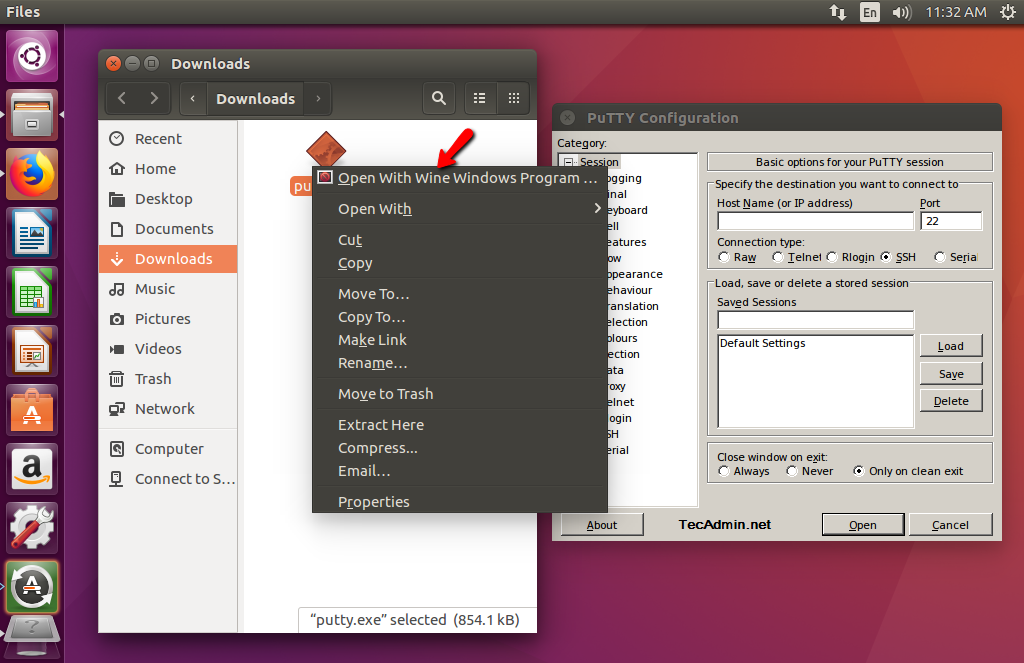
- Navigate to the Executable: Open your file manager and browse to the location of the
.exeor.msifile. - Right-Click and Open: Right-click on the executable. You should see an option like “Open with Wine Windows Program Loader” or similar. Select it.
- Command Line (Alternative): Alternatively, open a terminal, navigate to the directory containing the executable, and run:
bash

wine YourProgram.exe
Or, for an MSI installer:
bash

wine msiexec /i YourInstaller.msi
Follow the installation prompts just as you would on Windows. Once installed, Wine typically creates shortcuts in your applications menu under a “Wine” category, making subsequent launches easy.
Enhancing Compatibility with Winetricks
As mentioned, Winetricks is invaluable for resolving compatibility issues. Many Windows applications rely on specific versions of DirectX, Visual C++ runtimes, .NET Framework, or particular fonts.
To use Winetricks:
- Open Winetricks (either from your applications menu or by typing
winetricksin the terminal). - Select “Select the default wineprefix.”
- Choose to “Install a Windows DLL or component” or “Install a font.”
- Browse the list and select the required components (e.g.,
vcrun2019,dotnet48,d3dx9). - Winetricks will automatically download and install these components into your Wine prefix, often resolving common application crashes or missing functionalities.
This tool is a cornerstone for digital security best practices in the Wine context, as it provides a controlled way to install necessary dependencies without manually searching for and downloading potentially malicious DLLs from unreliable sources.
Troubleshooting Common Wine Issues
Despite Wine’s remarkable capabilities, you might encounter issues. Here’s how to approach common problems:
-
Application Won’t Start/Crashes Immediately:
- Check Wine AppDB: Search for your application on the Wine Application Database (AppDB) at
appdb.winehq.org. This community-driven database provides compatibility ratings, installation notes, and workarounds for thousands of applications. - Run in Terminal: Launch the application from the terminal (
wine YourProgram.exe) and observe the output. Error messages can provide crucial clues. - Winetricks: Use Winetricks to install missing DLLs, runtimes, or fonts.
- Wine Configuration (
winecfg): Try changing the Windows version that Wine is simulating (e.g., from Windows 10 to Windows 7 or XP) under the “Applications” tab for that specific executable. - New Wineprefix: Sometimes, a “clean slate” is needed. Create a new Wine prefix for problem applications:
WINEPREFIX=~/.wine/my_new_prefix winecfg. Then, install the application into this new prefix. This helps isolate potential conflicts.
- Check Wine AppDB: Search for your application on the Wine Application Database (AppDB) at
-
Poor Performance/Graphics Issues:
- Graphics Drivers: Ensure your Linux graphics drivers are up-to-date and correctly installed. This is paramount for good performance, especially in games.
- DXVK/VKD3D-Proton: For modern games, consider using a Wine build that includes DXVK (DirectX to Vulkan translation) or VKD3D-Proton (DirectX 12 to Vulkan). These are often included in Lutris runners or Steam Play (Proton).
- Resource Usage: Check your system’s CPU, RAM, and GPU usage while the application runs. If resources are maxed out, your system might simply be underpowered for the application.
-
Sound Problems:
winecfgAudio Settings: Inwinecfg, go to the “Audio” tab and experiment with different drivers (ALSA, PulseAudio, OSS).- Missing Drivers: Ensure your Linux audio drivers are properly configured.
By methodically addressing these issues and leveraging community resources like the Wine AppDB, you can significantly improve your chances of running even the most stubborn Windows applications on your Linux machine.
The Broader Impact: Wine in the Tech Ecosystem
Wine is more than just a utility; it’s a testament to the power of open-source development and a crucial component in the broader tech ecosystem. Its existence and continuous improvement have far-reaching implications, from user choice and digital security to the evolution of cross-platform compatibility itself.
Digital Security Considerations and Best Practices
While Wine offers incredible flexibility, it’s essential to approach it with an awareness of digital security. When you run a Windows application under Wine, you are executing code designed for a different operating system, which inherently carries some risks.
- Malware: Windows applications are the primary target for malware. If you run a malicious
.exefile in Wine, it could potentially affect your Wine prefix and, in rare cases, parts of your Linux system.- Best Practice: Only download and run executables from trusted sources. Be cautious with cracks, pirated software, or attachments from unknown senders. Treat Windows executables run in Wine with the same level of suspicion you would on a native Windows machine.
- Isolation (Tech Focus): While Wine doesn’t offer the same level of isolation as a virtual machine, you can enhance security by using separate Wine prefixes for different applications. This compartmentalizes potential issues. For example, use one prefix for a critical productivity app and another for a game you’re less sure about.
- Command:
WINEPREFIX=~/.wine/game_prefix winecfgfollowed byWINEPREFIX=~/.wine/game_prefix wine /path/to/game.exe.
- Command:
- Updates: Keep your Wine installation and Linux system updated. Security vulnerabilities are regularly patched in both Wine and the underlying Linux operating system.
- Permissions: Be mindful of file permissions. Wine applications generally operate within your user’s permissions, but it’s good practice to understand what an application is doing.
By adopting these security measures, you can enjoy the benefits of Wine while minimizing potential risks, ensuring your Linux system remains robust and secure.
Wine as a Catalyst for Open Source and User Choice
Wine epitomizes the open-source spirit, directly challenging the notion of vendor lock-in. It allows users to choose their operating system based on preference, ideology, or technical superiority, without being held hostage by software compatibility.
- Empowering Users (Brand Focus): For individuals and businesses, Wine empowers them to define their own computing “brand.” They can embrace the stability, security, and customization of Linux while still accessing specialized Windows software essential for their professional or personal needs. This flexibility strengthens user agency and promotes a more diverse software ecosystem.
- Driving Innovation (Tech Focus): The ongoing development of Wine and related projects like Proton pushes the boundaries of cross-platform compatibility. It forces software developers to consider wider compatibility and indirectly encourages the creation of more platform-agnostic applications. Its technical achievements inspire similar projects and contribute to a richer open-source technology landscape.
- Reducing Monopoly (Money & Tech Focus): By providing a viable alternative to a full Windows environment, Wine contributes to reducing the market dominance of proprietary operating systems. This competition can indirectly lead to better products and more competitive pricing across the software industry, offering economic benefits to consumers and businesses alike. Wine essentially provides a “free” way to access a paid ecosystem, thus democratizing access to software.

Beyond Wine: Exploring Alternatives
While Wine is an excellent solution for many, it’s not the only way to run Windows applications or achieve cross-platform compatibility. Understanding these alternatives can help you make an even more informed decision.
- Virtual Machines (VMs): Solutions like VirtualBox, VMware, or GNOME Boxes allow you to install a full Windows operating system within your Linux environment. This offers 100% compatibility with Windows applications since they run natively in the virtualized Windows. However, VMs are resource-intensive, requiring significant RAM and CPU, and often involve purchasing a Windows license. This is a robust but costly and resource-heavy option.
- Dual Booting: This involves installing both Linux and Windows on separate partitions of your hard drive and choosing which OS to boot into at startup. It offers native performance for both systems but requires rebooting to switch and consumes double the disk space. This is a common solution but lacks the seamless integration of Wine.
- Cloud Desktops/Streaming: Services like Amazon WorkSpaces or various cloud gaming platforms allow you to stream a Windows desktop or application from the cloud. This requires a strong internet connection but frees up local resources and provides access to high-powered Windows environments. This is a growing area but introduces subscription costs and latency considerations.
- Native Linux Alternatives: Often, the best solution is to find a native Linux application that performs the same function. For example, GIMP for Photoshop, LibreOffice for Microsoft Office, Krita for digital painting, or various IDEs for development. Embracing native Linux software often leads to a more integrated, performant, and secure experience, fully aligning with the open-source ethos.
In conclusion, Wine stands as a pivotal piece of software for Linux users, dramatically expanding the utility and appeal of the open-source operating system. By following the installation guidelines and embracing the best practices for configuration and troubleshooting, you can seamlessly integrate a vast array of Windows applications into your Linux workflow. This not only enhances your personal productivity and entertainment options but also reinforces the principles of user choice and open-source innovation within the ever-evolving landscape of technology.
aViewFromTheCave is a participant in the Amazon Services LLC Associates Program, an affiliate advertising program designed to provide a means for sites to earn advertising fees by advertising and linking to Amazon.com. Amazon, the Amazon logo, AmazonSupply, and the AmazonSupply logo are trademarks of Amazon.com, Inc. or its affiliates. As an Amazon Associate we earn affiliate commissions from qualifying purchases.