
Grand Theft Auto IV, a monumental title in open-world gaming, continues to captivate players even years after its initial release. While its gritty realism, compelling narrative, and immersive Liberty City environment provided countless hours of entertainment, a vibrant community of modders has ensured its longevity and replayability. Modding GTA IV allows players to transform virtually every aspect of the game, from subtle graphical enhancements and new vehicle models to entirely new gameplay mechanics and character appearances. To unlock this universe of customization, one tool stands supreme: OpenIV.
OpenIV is an essential multi-purpose editor and archive manager for Grand Theft Auto V, Grand Theft Auto IV, Episodes from Liberty City, Grand Theft Auto III, Grand Theft Auto Vice City, Grand Theft Auto San Andreas, and Max Payne 3. For GTA IV, it serves as the gateway to the game’s intricate file structure, enabling users to seamlessly install, manage, and even create custom content. This comprehensive guide will walk you through the process of installing mods with OpenIV in GTA 4, ensuring you can enhance your Liberty City experience safely and effectively.
The Allure of Modding Grand Theft Auto IV
GTA IV, released in 2008, represented a significant leap forward in game design, particularly in its physics engine and environmental detail. Despite its age, its foundation remains robust, making it a prime candidate for community-driven enhancements. The allure of modding GTA IV stems from several key factors:
Firstly, extended replayability. Once the main story is complete, mods offer fresh challenges, new ways to explore Liberty City, and often entirely different gameplay experiences. Whether it’s driving a real-world car model through the streets, donning custom outfits, or even flying through the city as a superhero, mods inject new life into an otherwise familiar world.
Secondly, graphical fidelity and realism. While GTA IV was graphically impressive for its time, modern hardware and modding capabilities can push its visuals far beyond the original scope. Texture packs, enhanced lighting, improved weather effects, and advanced shaders can make Liberty City look stunningly contemporary, blurring the lines between a classic title and a modern blockbuster. This aligns perfectly with technology trends, showcasing how dedicated communities can extend the life and visual appeal of software beyond its original design.
Finally, personalization and creativity. Modding isn’t just about using content created by others; it’s about making the game your own. For many, the process of finding, installing, and combining different mods is an act of creative expression, tailoring the game to their exact preferences. OpenIV is the cornerstone of this personalization, providing the stable and powerful framework necessary for these transformations. It exemplifies how user-generated content, a core aspect of digital ecosystems, can thrive and enrich the user experience of a software product.
Essential Preparations Before You Begin
Before you embark on your modding journey, proper preparation is paramount. Rushing into installations without understanding the basics can lead to game instability, crashes, or even corrupting your game files. A methodical approach will save you headaches and ensure a smoother experience.
Gathering Your Tools: OpenIV and GTA IV
The first step is to ensure you have the necessary software:
-
Grand Theft Auto IV (PC Version): Naturally, you’ll need the game itself. It’s highly recommended to start with a clean installation of GTA IV. This means no prior mods, no experimental changes, just the base game. If you’ve been modding extensively before, consider uninstalling and reinstalling the game to ensure a pristine foundation. A clean slate minimizes conflicts and makes troubleshooting significantly easier. Ensure your game is patched to the latest version, as many mods are designed for specific updates.
-
OpenIV: This is your primary tool. You can download OpenIV from its official website. The installation process is straightforward: run the installer, select your preferred language, accept the terms, and choose an installation directory. Once installed, OpenIV will prompt you to specify the location of your GTA IV installation. Point it to your game’s root directory (e.g.,
C:Program Files (x86)Rockstar GamesGrand Theft Auto IV). OpenIV will then analyze your game files and prepare itself. This initial setup is crucial for OpenIV to correctly identify and interact with your game’s archives.
The Golden Rule: Back Up Your Game Files
This cannot be stressed enough: Always back up your original game files before modding. Even with OpenIV’s robust mods folder system (which we’ll discuss next), accidents can happen, and incompatible mods can lead to game instability or unplayable states. Digital security, a key aspect of technology management, begins with safeguarding your original software.
There are a few ways to back up your game:
-
Manual Copy: The simplest method is to navigate to your GTA IV installation directory (e.g.,
C:Program Files (x86)Rockstar GamesGrand Theft Auto IV), right-click the entire folder, and copy it to a safe location on your hard drive (e.g.,D:GTA4_Backup). This creates a complete, untouched copy of your game that you can revert to if anything goes wrong. This might take up a significant amount of disk space but offers the most comprehensive protection. -
OpenIV’s
ASI Manager: While primarily for installing the ASI Loader, OpenIV’s ASI Manager will often prompt you to back up core files it intends to modify. Always accept these prompts. -
Specific File Backups: As you become more familiar with modding, you might only back up specific files or archives that a particular mod intends to replace. However, for beginners, a full game backup is the safest approach.
By having a reliable backup, you can experiment with mods without fear of permanently damaging your game installation. If a mod causes issues, you simply delete the problematic mod files and/or restore from your backup.
Understanding the “Mods Folder” Concept
A critical feature introduced by OpenIV (or adopted as a best practice) for modern GTA titles, and applicable to GTA IV, is the use of a “mods” folder. When you first enable “Edit Mode” in OpenIV for GTA IV, the program will often suggest creating a mods folder in your game’s root directory. Always accept this.
The mods folder acts as a virtual overlay for your game files. Instead of directly modifying the original common.rpf, models.rpf, or other .img files within your core game directory, you copy the specific .rpf or .img archives you intend to modify into the mods folder. When the game launches, it checks the mods folder first. If it finds a modified version of an .rpf or .img archive there, it loads that version instead of the original.
Why is this crucial?
- Non-Destructive Modding: Your original game files remain untouched.
- Easy Uninstallation: To remove a mod, you simply delete the modified files from the
modsfolder, or delete the entiremodsfolder to revert to a completely vanilla game. - Game Updates: While GTA IV doesn’t receive frequent official updates anymore, for other titles, this system prevents official patches from overwriting your mods and vice-versa.
- Troubleshooting: If your game crashes, you can quickly isolate if a mod is the culprit by simply renaming or removing the
modsfolder.
To implement the mods folder correctly in OpenIV:
- Open OpenIV and select Grand Theft Auto IV.
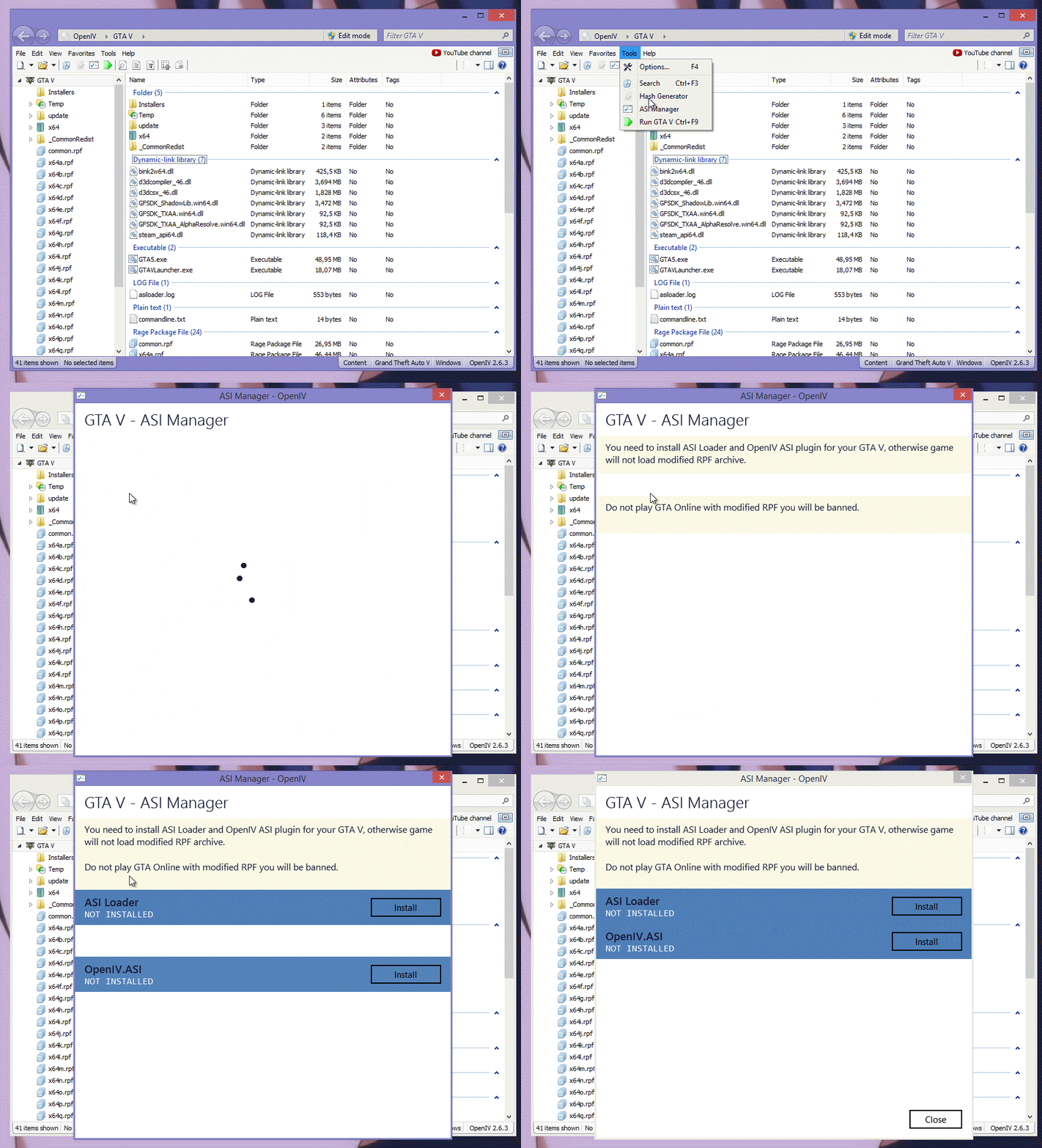
- Go to
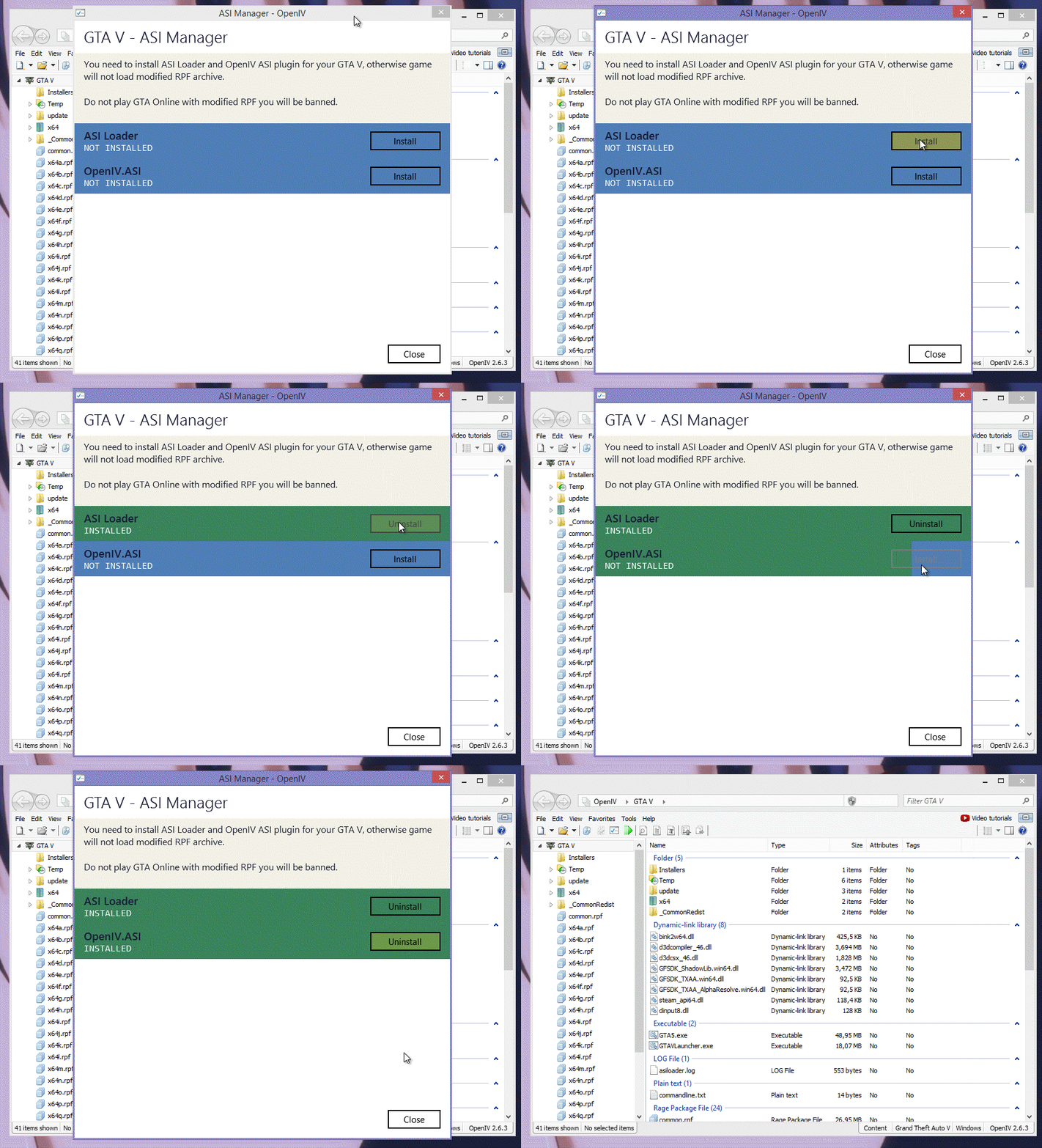
Tools > ASI Manager. Install the “ASI Loader” and “OpenIV.ASI”. This enables OpenIV to function correctly and allows the game to recognize themodsfolder. - OpenIV will prompt you to create the
modsfolder if it doesn’t exist. Confirm. - Whenever you want to modify a
.rpfor.imgfile (e.g.,pc/models/cdimages/vehicles.img), OpenIV will ask if you want to copy it to yourmodsfolder. Always choose to copy it to themodsfolder. Then, perform your modifications on the copy within themodsfolder.
A Step-by-Step Guide to Installing Mods with OpenIV
With your preparations complete, you’re ready to dive into the actual mod installation process. We’ll cover the general workflow for various types of mods.
Launching OpenIV and Navigating Your Game Files
- Launch OpenIV: Double-click the OpenIV icon. Select “Grand Theft Auto IV” from the splash screen.
- Enable Edit Mode: Once OpenIV loads your game files, locate the “Edit Mode” button in the upper toolbar (it often looks like a pencil icon). Click it to enable it. OpenIV will warn you about modifying game files; confirm that you want to proceed. You cannot install mods without Edit Mode enabled.
Identifying and Installing Specific Mod Types
Most GTA IV mods fall into a few categories: vehicle replacements, weapon replacements, character/clothing changes, texture packs, and script mods. The installation process varies slightly depending on the mod type.
Scenario 1: Replacing Vehicle Models (e.g., a custom car)
Vehicle mods are among the most popular. They typically consist of two files: a .wft (model file) and a .wtd (texture dictionary file).
- Locate the Target Files: Vehicles are primarily stored in
pc/models/cdimages/vehicles.img.- In OpenIV, navigate through the file browser on the left:
pc > models > cdimages > vehicles.img. - Double-click
vehicles.imgto open it.
- In OpenIV, navigate through the file browser on the left:
- Copy to Mods Folder: If this is your first time modifying
vehicles.img, OpenIV will prompt you to copy it to yourmodsfolder. Click “Copy to ‘mods’ folder”. OpenIV will then open the copiedvehicles.imgfrom within yourmodsfolder. - Find the Original Vehicle: Use the search bar in OpenIV (top right) to find the name of the vehicle you want to replace (e.g.,
feltzer.wftandfeltzer.wtdif you’re replacing the Feltzer). - Replace the Files:
- Click the “Replace” button in the OpenIV toolbar (often a green plus icon with a downward arrow).
- Browse to the location where you downloaded your new car mod files (the
.wftand.wtdfiles). - Select both files and click “Open”.
- Alternatively, you can simply drag and drop the new
.wftand.wtdfiles directly into thevehicles.imgwindow in OpenIV, replacing the originals.
- Verify and Close: After replacing, you should see the new files listed. You can usually preview the model or textures by double-clicking them within OpenIV. Once done, close the
vehicles.imgtab. There’s no “save” button; changes are applied immediately in Edit Mode.
Scenario 2: Installing Script Mods (e.g., custom trainers, unique abilities)
Script mods often come as .asi files, sometimes accompanied by .ini or other configuration files. These mods extend the game’s functionality.
- Ensure ASI Loader is Installed: Go to
Tools > ASI Managerin OpenIV. Make sure “ASI Loader” and “OpenIV.ASI” are installed (indicated by green text). If not, install them. - Place the Script Files: Most
.asiscripts need to be placed directly into your GTA IV game’s root directory (whereGTAIV.exeis located). Some might require ascriptsfolder within the root directory. Always read the mod’s instructions carefully for the correct placement.- Navigate to your GTA IV root directory using your file explorer (e.g.,
C:Program Files (x86)Rockstar GamesGrand Theft Auto IV). - Copy and paste the
.asiand any accompanying files (like.inior other folders) from your mod download into the specified location.
- Navigate to your GTA IV root directory using your file explorer (e.g.,
Scenario 3: Texture and Other Replacements (e.g., new roads, character clothes)
The process for other texture or model replacements is very similar to vehicles.
- Clothes: Navigate to
pc/models/cdimages/playerped.img. Copy this to yourmodsfolder, then replace the appropriate.wtdor.wddfiles (e.g.,uppr_diff_000_a_uni.wtdfor upper body textures). - Weapons: Navigate to
pc/models/cdimages/weapons.img. Copy tomodsfolder, then replace.wdrand.wtdfiles. - World Textures: These can be found in various
.imgfiles withinpc/data/maps/. For instance,pc/data/maps/manhattan/manhattan.imgmight contain building or road textures. Follow the same “copy to mods folder” and “replace” steps.
Rebuilding Archives and Verifying Installation
For older .img archives, sometimes a “Rebuild” option was necessary in older versions of OpenIV or for direct modifications. However, with the mods folder system, OpenIV typically handles the internal structure seamlessly. Once you’ve replaced files within an archive copied to your mods folder, the changes are effectively saved.
After installing a mod:
- Close OpenIV.
- Launch GTA IV.
- Check In-Game: Drive around, spawn the new vehicle, try on the new clothes, or activate the script mod to verify that it’s working as intended. If you replaced a car, you might need to use a trainer to spawn it, or find it naturally in traffic.
Troubleshooting Common Modding Issues
Modding can sometimes be a trial-and-error process. Don’t be discouraged if things don’t work perfectly on the first try. Here are common issues and their solutions:
Game Crashes and Freezes
- Cause: This is often due to an incompatible mod, a corrupted mod file, incorrect installation, or conflicting mods.
- Solution:
- Revert with Backups: The easiest fix is to restore your game from the backup you made. If you used the
modsfolder, simply delete the entiremodsfolder or remove the recently added mod’s files from it. - Install One Mod at a Time: If you installed multiple mods simultaneously, it’s difficult to pinpoint the culprit. Remove all recently added mods and reinstall them one by one, testing the game after each installation, until you find the problematic mod.
- Check Mod Requirements: Ensure the mod is compatible with your specific GTA IV patch version. Read the mod’s description and comments carefully for any known issues or dependencies.
- Over-saturated Mod List: Too many high-definition textures or complex scripts can strain your system, especially an older one. Try reducing the number of resource-intensive mods.
- Revert with Backups: The easiest fix is to restore your game from the backup you made. If you used the
Mods Not Appearing In-Game
- Cause: Incorrect file path, “Edit Mode” not enabled in OpenIV, forgotten to copy files to the
modsfolder, or the mod itself is flawed. - Solution:
- Verify File Path: Double-check that you placed the mod files in the exact directory specified by the mod author and that you replaced the correct original files. A common mistake is putting a
vehicles.imgmod intocommon.img, for example. - Ensure “Edit Mode” was Active: You must be in “Edit Mode” in OpenIV for changes to apply.
- Confirm
modsFolder Usage: Ensure you copied the relevant.rpfor.imgarchive into yourmodsfolder before modifying it. OpenIV won’t apply changes to the original game files if you’re not in themodsfolder structure. - Corrupted Download: Re-download the mod to ensure the files aren’t corrupted.
- Verify File Path: Double-check that you placed the mod files in the exact directory specified by the mod author and that you replaced the correct original files. A common mistake is putting a
Performance Degradation
- Cause: High-polygon models, high-resolution textures, or complex scripts can significantly impact frame rates, especially on older hardware.
- Solution:
- Review Mod Descriptions: Look for performance warnings in mod descriptions. Some ultra-HD texture packs or highly detailed vehicle models are very demanding.
- Prioritize: Decide which mods are most important to you and consider removing those that cause significant performance drops if they aren’t essential.
- Optimize Game Settings: Reduce some of GTA IV’s in-game graphical settings to compensate for resource-intensive mods.
- Hardware Check: Ensure your system meets (or ideally exceeds) the requirements for both the base game and the added load from mods. Upgrading components might be necessary for a truly seamless modding experience with many heavy mods.
Elevating Your GTA 4 Modding Experience
Modding GTA IV with OpenIV is more than just installing files; it’s about engaging with a community and continuously refining your game.
-
Leverage Community Resources: Websites like GTAForums, GTA5-Mods (which hosts many GTA IV mods as well), and Nexus Mods are invaluable resources. They offer a vast library of mods, detailed installation instructions, troubleshooting tips, and active communities where you can ask for help. Many mod authors actively engage with their users, providing support and updates. This highlights the power of online communities in fostering software enhancement and user-driven development.
-
Curate a Stable Mod List: As you gain experience, you’ll learn to identify high-quality, stable mods. Aim for a curated list of mods that complement each other rather than conflicting. Read comments and reviews to gauge a mod’s stability and compatibility. Sometimes, less is more for a truly enjoyable and stable modded experience.
-
Read Instructions Carefully: Every mod is different. Some have unique installation steps, dependencies, or compatibility notes. Always read the provided
readme.txtfiles or mod page descriptions thoroughly before installing. This attention to detail is crucial for digital security and productivity in any tech-related endeavor. -
Respect Mod Creators: Modding is a labor of love for many creators. Always give credit where it’s due, avoid repackaging and redistributing mods without permission, and consider donating to creators if you enjoy their work.
In conclusion, OpenIV transforms Grand Theft Auto IV from a classic open-world game into an endlessly customizable digital playground. By following the steps outlined in this guide – from meticulous preparation and strategic file management using the mods folder to systematic installation and thoughtful troubleshooting – you can unlock a new dimension of gameplay. Embrace the power of modding, and let your creativity reshape Liberty City into the ultimate personalized experience. Happy modding!