
Star Wars Battlefront 2, despite its age and the conclusion of official content updates, remains a beloved title for many gamers. Its stunning visuals, engaging gameplay, and immersive Star Wars universe continue to captivate. However, for those who have exhausted every official campaign and multiplayer map, the desire for fresh content and new experiences can grow strong. This is where the vibrant modding community steps in, breathing new life into the game.
Modding Battlefront 2 isn’t just about tweaking graphics or adding minor characters; it’s a technological marvel that transforms the game, offering everything from entirely new heroes and villains, custom maps, rebalanced gameplay mechanics, to incredibly detailed visual overhauls. For players, it translates to an extended lifespan for their purchased game, unlocking countless hours of unique entertainment. In a landscape dominated by subscription services and constant new releases, leveraging user-generated content to maximize the value of an existing title is a smart approach, reflecting a savvy personal finance strategy for entertainment.
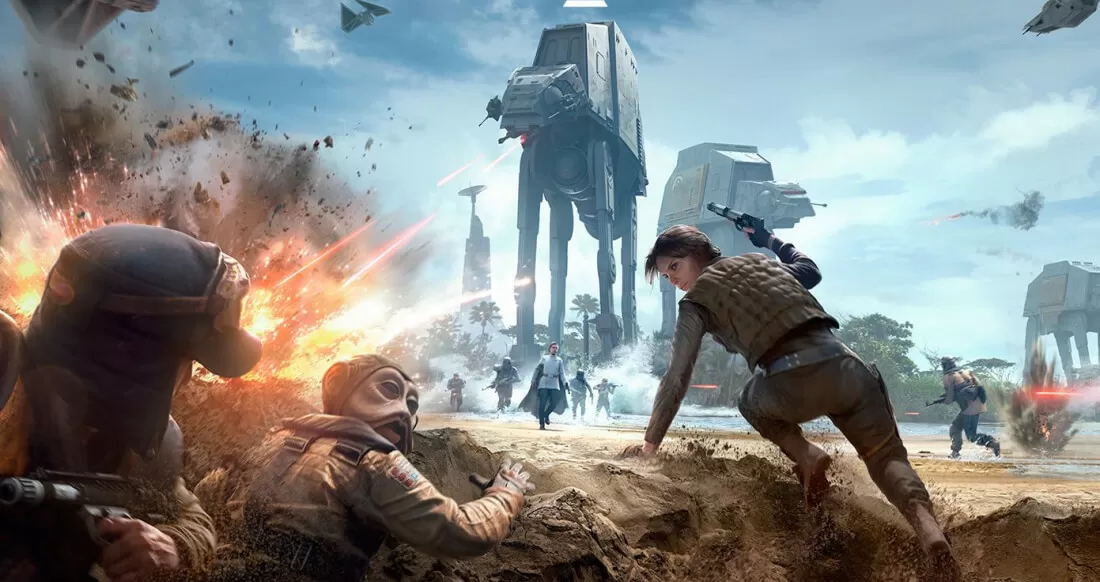
This comprehensive guide will walk you through the entire process of installing mods on Battlefront 2, ensuring you can confidently customize your galactic battles. We’ll cover the essential tools, provide step-by-step instructions, and offer crucial troubleshooting tips, turning you from a mere player into a digital artisan of the Star Wars universe.
The Essentials: Preparing for Your Modding Journey
Before diving headfirst into the exciting world of Battlefront 2 mods, it’s crucial to lay the groundwork. Proper preparation ensures a smooth installation process, minimizes potential headaches, and safeguards your game files. Think of it as a digital security measure, protecting your investment in the game.
Understanding Battlefront 2 Modding Mechanics
Battlefront 2 utilizes a game engine that, while powerful, wasn’t originally designed with extensive mod support in mind. This is where dedicated community tools come into play. The primary software enabling modding for games built on EA’s Frostbite engine (which includes Battlefront 2) is the Frosty Mod Manager. This application acts as a bridge, allowing users to inject custom content into the game without directly altering core files – a critical distinction that enhances stability and reversibility.
The modding scene for Battlefront 2 is robust, showcasing impressive technological creativity from dedicated developers. These modders often operate as small, informal “brands” within the community, building reputations based on the quality and innovation of their creations. Understanding this ecosystem is key to appreciating the efforts involved and choosing reputable sources for your mods.
Key Tools You’ll Need
To embark on your modding adventure, you’ll need a few essential pieces of software. These tools are widely available, generally free, and form the backbone of the Battlefront 2 modding experience.
- Star Wars Battlefront 2 (PC Version): This might seem obvious, but ensure your game is fully updated to the latest version. Game patches often affect mod compatibility, and an outdated game can lead to crashes or non-functional mods.
- Frosty Mod Manager: This is the cornerstone of Battlefront 2 modding. It allows you to import, organize, and apply mods to your game. You can download the latest stable version from reliable sources like Nexus Mods or GitHub. It’s vital to use the correct version; older versions might not support newer game patches.
- Archiving Software (WinRAR, 7-Zip, or similar): Most mods are distributed in compressed archive formats like
.zip,.rar, or.7z. You’ll need one of these programs to extract the mod files before Frosty Mod Manager can use them. Both WinRAR and 7-Zip are excellent, free options. - A Reliable Internet Connection: For downloading mods and the Frosty Mod Manager itself.
- Sufficient Disk Space: Mods can range in size from a few megabytes to several gigabytes. Ensure you have ample free space on your drive.
Backing Up Your Game Files: A Crucial Precaution
While Frosty Mod Manager is designed to be safe, directly modifying game files always carries a small risk. Game updates, corrupt mods, or accidental deletions can potentially damage your installation. To prevent losing your progress or having to redownload the entire game, it’s highly recommended to back up your original game files. This is a fundamental digital security practice.
- Method 1 (Recommended): Copying the Entire Game Folder: Navigate to your Battlefront 2 installation directory (e.g.,
C:Program Files (x86)Origin GamesSTAR WARS Battlefront IIfor Origin/EA App, orC:Program Files (x86)SteamsteamappscommonStar Wars Battlefront IIfor Steam). Copy the entire “STAR WARS Battlefront II” folder and paste it to a safe location on your hard drive or an external storage device. This might take some time and considerable space, but it’s the most robust backup. - Method 2 (Using Game Client Features): Steam and EA App (formerly Origin) offer options to verify or repair game files, which can revert changes and essentially restore your game to its original state. While convenient, it might download files again, consuming bandwidth and time. The manual folder backup is generally safer and quicker for restoration in specific modding scenarios.
By taking these preparatory steps, you establish a secure and efficient environment for introducing custom content, ensuring your personal tech setup is ready for transformation.
Step-by-Step Guide: Installing Battlefront 2 Mods
With your tools in hand and backups secured, you’re ready for the main event: installing your first mods. This process is straightforward but requires attention to detail.
Acquiring Your Mods
The primary hub for Battlefront 2 mods is Nexus Mods. It’s a vast repository where creators upload their work, often accompanied by detailed descriptions, installation instructions, images, and user comments.
- Visit Nexus Mods: Go to nexusmods.com and search for “Star Wars Battlefront II (2017)”. You’ll find thousands of mods.
- Browse and Select: Explore different categories (characters, visual, audio, maps, gameplay, tools) and read mod descriptions carefully. Pay attention to:
- Requirements: Some mods might require others to function.
- Compatibility: Check if the mod is compatible with the latest game version and other mods you plan to install.
- Installation Instructions: While this guide covers the general process, some mods might have specific nuances.
- Endorsements and Comments: These give an idea of a mod’s quality and potential issues.
- Download the Mod: Most mods will have a “Download” button. Choose “Manual Download” if prompted. Save the compressed mod file (usually a
.zip,.rar, or.7z) to a dedicated “Battlefront 2 Mods” folder on your computer. This organization is a productivity hack that saves time later.
Setting Up Frosty Mod Manager
Once you have your desired mods downloaded, the next step is to configure Frosty Mod Manager.
- Extract Frosty Mod Manager: If Frosty was downloaded as a
.zipfile, use your archiving software (WinRAR/7-Zip) to extract its contents to a dedicated folder (e.g.,C:Program Files (x86)Frosty Mod Manager). It’s recommended to place Frosty in a separate folder from your game installation to avoid potential conflicts. - Launch Frosty Mod Manager: Double-click the
FrostyModManager.exefile. - Locate Your Game: The first time you launch Frosty, it will prompt you to locate your Battlefront 2 installation. Navigate to your game’s executable file (
STAR WARS Battlefront II.exe). This is typically found inC:Program Files (x86)Origin GamesSTAR WARS Battlefront IIfor EA App/Origin, orC:Program Files (x86)SteamsteamappscommonStar Wars Battlefront IIfor Steam. Select it and click “Open.” - Frosty Interface: Once the game is successfully linked, Frosty Mod Manager will display its main interface. You’ll see an empty “Applied Mods” list, ready for your additions.
Applying Mods with Frosty
Now, let’s get those mods into Frosty and ready for the game.
- Import Mods: In Frosty Mod Manager, click “File” -> “Import Mod(s)”. Navigate to your “Battlefront 2 Mods” folder and select the mod file you downloaded (the
.zip,.rar, or.7zfile, or the extracted.fbmodfile if the creator packaged it that way). If it’s a compressed archive, Frosty will usually extract the necessary.fbmodfiles automatically. - Activate Mods: Once imported, the mods will appear in the “Available Mods” list on the left side of the Frosty window. To apply a mod, simply drag it from the “Available Mods” list to the “Applied Mods” list on the right.
- Manage Load Order: If you have multiple mods, their order in the “Applied Mods” list matters. Mods at the bottom of the list take precedence over mods higher up if they modify the same game assets. For example, if you have two mods that change the appearance of Luke Skywalker, the one lower down in the list will be the one that appears in-game. Use the arrow buttons on the right to adjust the load order. Always consult mod descriptions for recommended load orders. Incorrect load orders are a common source of crashes and glitches.
- Apply to Game: Once you have all your desired mods in the “Applied Mods” list and their load order is correct, click the “Launch” button (usually a rocket icon) at the bottom of the Frosty Mod Manager window.
Launching Your Modded Game
When you click “Launch” in Frosty, it will initiate the process of applying the mods to your game.
- Mod Application: Frosty will show a progress bar as it integrates the mods. This can take anywhere from a few seconds to several minutes, depending on the number and size of your mods and your system’s speed.
- Game Launch: Once the mods are successfully applied, Frosty will automatically launch Battlefront 2.
- Verify Mods: Once in the game, check to ensure your mods are working as intended. Load a match, play as your new characters, or observe your visual enhancements. If everything looks good, congratulations – you’ve successfully modded Battlefront 2!
Navigating Common Challenges and Best Practices
Modding, while rewarding, isn’t always a flawless process. Encountering issues is part of the experience. Understanding common challenges and adopting best practices will save you time and frustration, akin to proactive maintenance in any tech environment.
Troubleshooting Mod Conflicts and Crashes
Game crashes, freezes, or unexpected behavior are often due to mod conflicts or incorrect installations.
- Mod Conflicts: This is the most frequent culprit. Two or more mods attempting to modify the same game asset can lead to instability.
- Solution: Start by removing recently added mods one by one. Launch the game after each removal to identify the problematic mod.
- Load Order: Experiment with the load order in Frosty. If two mods conflict, try placing one below the other to see if precedence resolves the issue.
- Check Mod Descriptions: Mod authors often list known conflicts with other popular mods.
- Game Updates: Official game updates from EA can break mod compatibility.
- Solution: Wait for mod authors to update their mods or for Frosty Mod Manager itself to be updated. Check Nexus Mods for announcements. Running an old mod on a new game patch is a guaranteed crash.
- Corrupted Downloads: A partially downloaded or corrupted mod file can cause issues.
- Solution: Redownload the mod from Nexus Mods.
- Frosty Mod Manager Issues: Ensure you’re using the latest stable version of Frosty. Old versions might not correctly handle newer game files.
- Solution: Download the newest Frosty Mod Manager.
- DirectX/Graphics Drivers: Ensure your graphics drivers are up to date. Sometimes, mod-related visual changes can interact poorly with outdated drivers.
- Verifying Game Files: If all else fails, use your game client (EA App/Steam) to “verify” or “repair” Battlefront 2. This will revert your game to its original state, removing all applied mods, and allow you to start fresh. This is where your original backup can also come in handy.
Managing Multiple Mods Effectively
As your mod collection grows, organization becomes key to a seamless experience. This is a critical productivity skill for any serious modder.
- Dedicated Mod Folder: Keep all your downloaded mod files in a single, well-organized folder. Create subfolders for different categories or authors if your collection becomes very large.
- Descriptive Naming: Rename downloaded mod files to something more descriptive if their original names are cryptic (e.g.,
Luke_Bespin_Skin_V2.fbmodinstead ofasdf123.fbmod). - Install in Batches: Don’t install dozens of mods at once. Add a few at a time, test the game, and then add more. This makes it easier to pinpoint issues.
- Read Before You Install: Never skip reading the mod description, requirements, and known issues. This step alone prevents most problems.
- Document Your Setup: For complex mod lists, consider keeping a simple text file detailing your installed mods and their load order. This is invaluable for troubleshooting or recreating your setup on a new system.
Staying Updated: Game Patches and Mod Compatibility
The dynamic nature of game development means that official patches can significantly impact the modding scene.
- Automatic Updates: Most game clients (EA App, Steam) automatically update games. Be aware that a new Battlefront 2 patch might break your current mod setup.
- Community Forums: Stay active on modding communities (like Nexus Mods forums or Discord servers). Mod authors and experienced users often announce compatibility updates or workarounds very quickly after a game patch. This demonstrates the power of community and collective knowledge in navigating tech challenges.
- Patience is a Virtue: Sometimes, after a game update, you might need to wait a few days or weeks for Frosty Mod Manager or your favorite mods to be updated for compatibility. Resist the urge to launch your heavily modded game immediately after an update, as it could lead to crashes.
Ethical Modding and Community Etiquette
Modding is a privilege, not a right, and it relies heavily on the goodwill and hard work of creators. Maintaining a positive and ethical approach is crucial for the health and longevity of the modding community – essentially, protecting the “brand” of Battlefront 2 modding.
- Respect Mod Authors: Always give credit where credit is due. If you showcase mods, link back to the original creators. Don’t claim others’ work as your own.
- Report Bugs Respectfully: If you encounter a bug, report it clearly and respectfully to the mod author. Provide details about your setup, other mods, and steps to reproduce the bug. Avoid demanding fixes or being rude.
- Support Creators (If Possible): Many mod authors offer Patreon or other donation options. If a mod significantly enhances your experience, consider offering a small donation as a token of appreciation. This financially supports the community and encourages continued development.
- Multiplayer Considerations: While Battlefront 2’s modding is primarily for offline or private server play, be cautious about using mods in official online multiplayer. Using certain mods (especially those that give an unfair advantage) in official multiplayer can lead to bans. Always check a mod’s description for multiplayer compatibility warnings. Stick to cosmetic mods if you play online and ensure they are “safe” or server-side only.
Elevating Your Battlefront 2 Experience
With the technical aspects covered, it’s time to consider the vast possibilities that modding opens up. This is where you truly start to personalize your game and extract maximum entertainment value from your initial purchase.
Recommended Mods for Newcomers
To kickstart your modding journey, here are a few categories and examples of popular mods that frequently enhance the Battlefront 2 experience:
- Hero and Villain Skins: These are incredibly popular, offering alternative appearances for iconic characters. Think realistic clone troopers from various legions, unique Jedi robes, or even characters from other Star Wars media.
- Visual Enhancements: Mods that tweak lighting, add new environmental details, or introduce stunning graphical overhauls can make the game look even more cinematic and modern. Reshade presets also fall into this category.
- New Playable Characters: Some ambitious mods introduce entirely new heroes or villains, often complete with unique abilities and voice lines, significantly expanding the roster beyond official offerings.
- Quality of Life Improvements: These mods might offer UI tweaks, improve certain gameplay mechanics, or fix minor annoyances that were never addressed officially.
- Custom Maps/Eras: While less common due to the complexity, some impressive projects introduce new maps or alter existing ones to represent different Star Wars eras.
Always check the “Top Mods” or “Trending Mods” sections on Nexus Mods for the community’s most highly regarded creations.

The Future of Battlefront 2 Modding
Even years after its last official content update, Battlefront 2’s modding scene continues to thrive. This longevity is a testament to the dedication of its community and the power of user-generated content. Modding showcases how technology and collective passion can extend a product’s lifecycle far beyond its planned obsolescence. It’s a prime example of a sustainable entertainment model driven by consumers.
The continuous development of new mods, the collaborative efforts to update tools like Frosty Mod Manager, and the vibrant discussions within forums and Discord channels all point to a healthy future for Battlefront 2 modding. It serves as a living archive of fan creativity, constantly refreshing a beloved title and offering a unique, tailored experience that no official DLC could ever match. This active engagement also boosts the game’s perceived “brand value” in the long run, encouraging new players to discover the game and its thriving modding community.
In conclusion, installing mods on Battlefront 2 is a rewarding endeavor that transforms your game into a customized galactic playground. By following this guide, embracing best practices, and engaging respectfully with the modding community, you’re not just enhancing a game; you’re becoming part of a thriving technological ecosystem that continually reinvents a classic. So, prepare your Frosty Mod Manager, download your desired modifications, and dive into a Battlefront 2 experience that is truly your own – one battle at a time.
aViewFromTheCave is a participant in the Amazon Services LLC Associates Program, an affiliate advertising program designed to provide a means for sites to earn advertising fees by advertising and linking to Amazon.com. Amazon, the Amazon logo, AmazonSupply, and the AmazonSupply logo are trademarks of Amazon.com, Inc. or its affiliates. As an Amazon Associate we earn affiliate commissions from qualifying purchases.