
Minecraft: Pocket Edition (now officially part of the Minecraft Bedrock Edition ecosystem) has evolved from a simplified mobile port into a sophisticated piece of software that rivals its desktop counterpart in complexity and versatility. For the modern mobile gamer, the ability to modify the game—commonly referred to as “modding”—is no longer just a hobby; it is a way to push the boundaries of mobile hardware and software architecture.
Installing mods on Minecraft PE (MCPE) requires a nuanced understanding of file management, directory structures, and the specific behavior of the Bedrock Engine. Unlike the Java Edition, which utilizes “mods” that often require a complete overhaul of the game’s source code via APIs like Forge or Fabric, MCPE utilizes “Add-ons.” These are sophisticated packages comprised of Resource Packs and Behavior Packs that leverage the game’s internal JSON-based data-driven architecture.
The Architecture of MCPE Modding: Add-ons and Resource Packs
Before diving into the installation process, it is essential to understand the technical framework that makes customization possible on mobile devices. Minecraft Bedrock Edition was built with a modular philosophy in mind, allowing users to swap out textures, sounds, and entity behaviors without compromising the core stability of the application.
Understanding the .mcpack and .mcworld Formats
In the early days of MCPE modding, users had to manually move files into obscure system folders. However, Mojang introduced the .mcpack and .mcaddon file formats to streamline this process. These are essentially renamed ZIP files that contain a manifest.json file. This manifest tells Minecraft exactly how to handle the data within—whether it should be treated as a visual overlay (Resource Pack) or a fundamental change to game logic (Behavior Pack).
Resource Packs vs. Behavior Packs
To successfully mod your game, you must distinguish between these two components. Resource Packs handle the “what you see” aspect—textures, models, and UI elements. Behavior Packs handle the “what it does” aspect—mob AI, loot tables, and item properties. Most high-level mods require both to function correctly. If you install a Behavior Pack without its corresponding Resource Pack, you might find a dragon that behaves like a jet fighter but still looks like a pig.
The Role of the Manifest File
The manifest.json is the brain of any MCPE mod. It contains a Universally Unique Identifier (UUID) and versioning data. If you are troubleshooting a mod that refuses to import, the technical culprit is often a duplicate UUID or a version mismatch within this file. Understanding this hierarchy allows players to move from being casual users to technical power-users who can manually fix broken mods.
Essential Tools and Environmental Setup
To install mods effectively, especially on restricted operating systems like iOS or older Android versions, you need a specific digital toolkit. Relying solely on the game’s internal interface is often insufficient for complex installations.
Selecting a Robust File Manager
On Android, the native file explorer is often too limited for deep-system navigation. Applications such as ZArchiver or FX File Explorer are industry standards for mobile modders. They allow you to view hidden folders and manipulate compressed files without corrupting the metadata. For iOS users, the “Files” app has improved significantly, but third-party solutions or a desktop connection (via iTunes or iMazing) are still preferred for manual directory overrides.
The Importance of Version Synchronization
Minecraft PE updates frequently. A common technical hurdle is the “Version Mismatch” error. Before attempting an installation, you must verify that the mod’s API version matches your game version. Most modern mods are designed for the latest stable release, but “Experimental Gameplay” toggles within the game settings are often required to unlock the full potential of custom scripts and Holiday Creator Features.
Security and Source Verification
In the tech world, downloading third-party software always carries a risk. When sourcing mods from repositories like MCPEDL or CurseForge, it is vital to audit the files. A legitimate .mcpack should never ask for administrative permissions on your device or require the installation of an external APK (on Android) unless it is a well-known launcher like BlockLauncher (which is largely deprecated in the modern era).
Procedural Installation: Step-by-Step Integration

The installation process varies depending on your operating system’s architecture. Below is the technical workflow for the two primary mobile platforms.
The Android Workflow: Direct Execution
Android’s open-file system makes it the preferred platform for MCPE modding.
- Download and Identify: Once you download the
.mcpackor.mcaddonfile, locate it in your “Downloads” folder using your file manager. - File Association: In most cases, tapping the file will prompt the Android OS to ask which app should open it. Select “Minecraft.”
- Internal Import: Minecraft will launch automatically and display a “Level Import Started” or “Import Started” banner.
- Manual Moving (Backup Method): If the direct execution fails, you must manually move the unzipped folder. Navigate to
Android/data/com.mojang.minecraftpe/files/games/com.mojang/. From here, move Resource Packs to theresource_packsfolder and Behavior Packs tobehavior_packs.
The iOS Workflow: Navigating the Sandbox
iOS utilizes a “sandboxing” security model, which makes manual file movement more difficult.
- The Share Sheet Method: After downloading the mod in Safari, tap the file and select the “Share” icon. Scroll through the app list and select “Minecraft.” If it isn’t visible, tap “More.”
- The Files App Integration: If the share sheet fails, save the file to the “On My iPhone” section within the Files app. Tap the file; iOS will recognize the extension and launch Minecraft to begin the import.
- Directory Access: For advanced modding, you can access the Minecraft folder via a Mac/PC. The path is typically
Apps/Minecraft/games/com.mojang/.
Optimizing Game Settings for Mod Stability
Once the files are successfully imported, the technical work is not yet finished. You must configure the “World” settings to ensure the mods initialize correctly within the game engine.
Activating Experimental Toggles
Many high-end mods utilize “Experimental Gameplay” features. These are hidden APIs that Mojang is still testing. Within your world edit settings, you must frequently enable:
- Holiday Creator Features: For custom items and blocks.
- Upcoming Creator Features: For advanced scripting.
- Molang Features: For complex animations.
- GameTest Framework: For mods that include custom JavaScript logic.
Layering and Priority Logic
Minecraft processes Resource Packs from the top down. If you have two mods that change the texture of a sword, the one at the top of the “Active” list will take precedence. Understanding this “Stack Order” is crucial for preventing visual glitches. If a mod is not appearing correctly, it is likely being overwritten by a pack higher in the hierarchy.
Memory Allocation and Performance
Modding increases the RAM overhead of MCPE. Each high-resolution texture and complex behavior script consumes a portion of the device’s volatile memory. If you experience frequent crashes (CTDs), you may need to reduce the “Render Distance” or disable high-fidelity shaders. On the technical side, monitoring your device’s thermal output is also recommended, as heavy modding can lead to CPU throttling on older mobile chipsets.
Troubleshooting and Maintenance of a Modded Environment
Maintaining a stable modded version of Minecraft PE requires ongoing technical oversight. As the game’s codebase evolves, older mods often “break” due to changes in the rendering engine (such as the shift to the “RenderDragon” engine).
Resolving Manifest Conflicts
If you receive an error stating “Duplicate Pack Detected,” you must navigate to the com.mojang folder and manually delete the older version of the mod. The game’s UI often fails to delete these files completely, leaving “ghost files” that prevent new versions from loading.
Log Analysis for Script Errors
For those using complex mods with JavaScript integration, you can enable the “Content Log” in the Profile settings. This log acts as a debugger, providing real-time feedback on why a specific script failed to execute. Analyzing these logs is the quickest way to identify if a mod is failing due to a syntax error or a missing dependency.
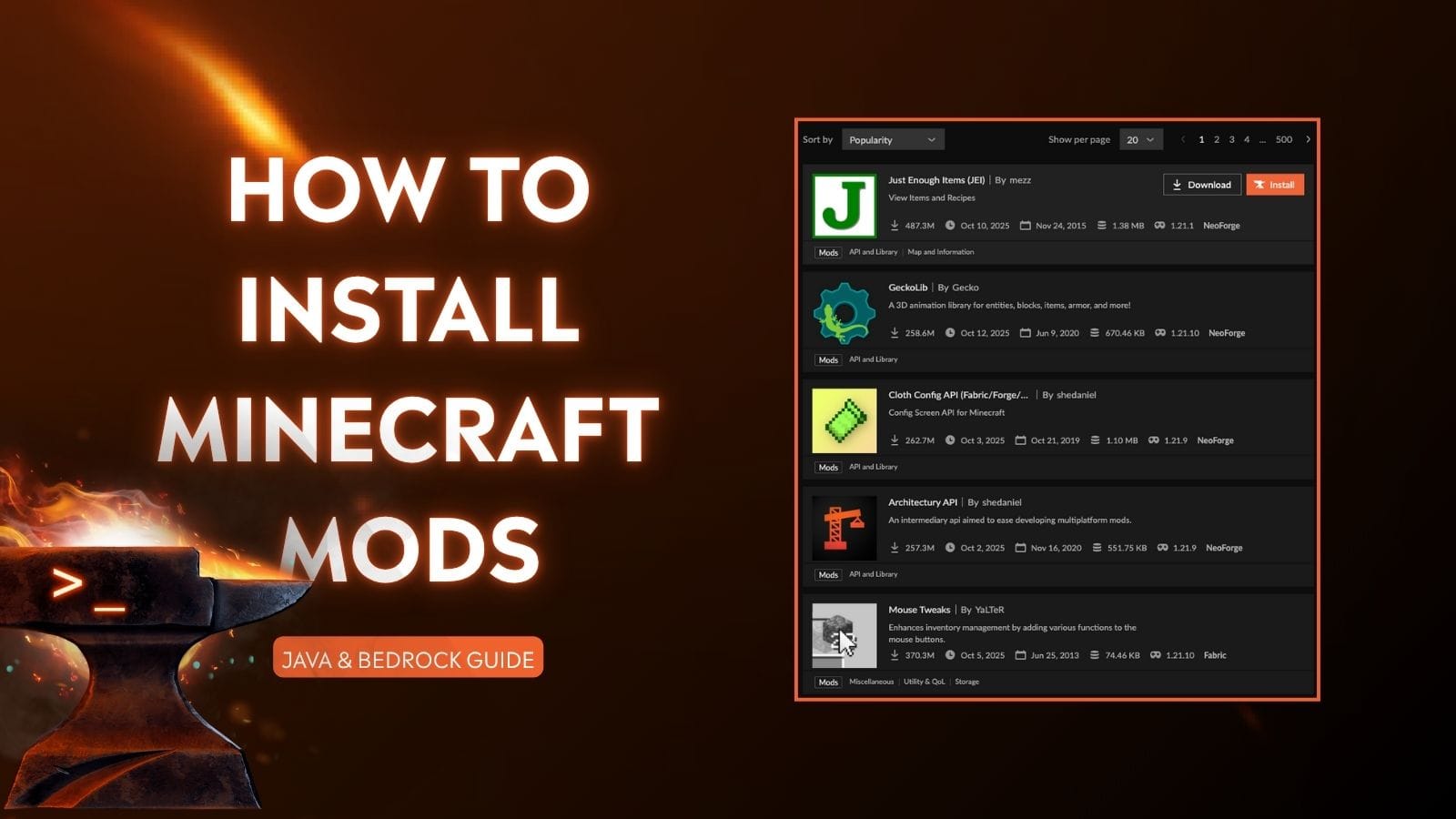
The Future of MCPE Modding: Scripting API
The industry is moving toward a more robust “Scripting API” for Bedrock Edition. This allows for deeper integration than traditional JSON-based Add-ons. Staying updated on these technical shifts is essential for any user looking to maintain a cutting-edge mobile gaming environment.
In conclusion, installing mods on Minecraft PE is a sophisticated process that bridges the gap between casual gaming and software management. By mastering the directory structures of mobile operating systems, understanding the dependency between resource and behavior packs, and effectively managing system resources, players can transform their mobile device into a powerful gaming workstation. As the Bedrock engine continues to mature, the technical barrier to entry will likely lower, but the fundamental principles of file integrity and system optimization will remain the cornerstone of the modding community.
aViewFromTheCave is a participant in the Amazon Services LLC Associates Program, an affiliate advertising program designed to provide a means for sites to earn advertising fees by advertising and linking to Amazon.com. Amazon, the Amazon logo, AmazonSupply, and the AmazonSupply logo are trademarks of Amazon.com, Inc. or its affiliates. As an Amazon Associate we earn affiliate commissions from qualifying purchases.