
Marvel Rivals, the highly anticipated 6v6 superhero shooter, has stormed onto the gaming scene, captivating players with its dynamic combat, iconic character roster, and visually stunning environments. As with many popular PC titles, the allure of customization and extended gameplay often leads players to explore the vibrant world of modding. Mods, or modifications, are user-created content that can alter various aspects of a game, from character skins and user interfaces to gameplay mechanics and new maps. For Marvel Rivals, a game still in its early stages, modding opens up a realm of possibilities for personalization and community-driven innovation.

This comprehensive guide will walk you through the process of installing mods for Marvel Rivals, ensuring you have the knowledge to safely and effectively enhance your gaming experience. We’ll cover everything from essential preparations and the step-by-step installation process to troubleshooting common issues and best practices for maintaining a stable, enjoyable modded game. Dive in and discover how to unlock the full potential of your Marvel Rivals adventure!
Understanding Modding: Benefits, Risks, and the Marvel Rivals Landscape
Before we delve into the technicalities, it’s crucial to understand what modding entails, why players choose to do it, and the potential implications, especially for an online competitive game like Marvel Rivals.
Why Mod Marvel Rivals? Enhancing Your Experience
The primary motivation behind modding is often to tailor the game to individual preferences, extending its lifespan and introducing fresh content. For Marvel Rivals, this could translate into several exciting possibilities:
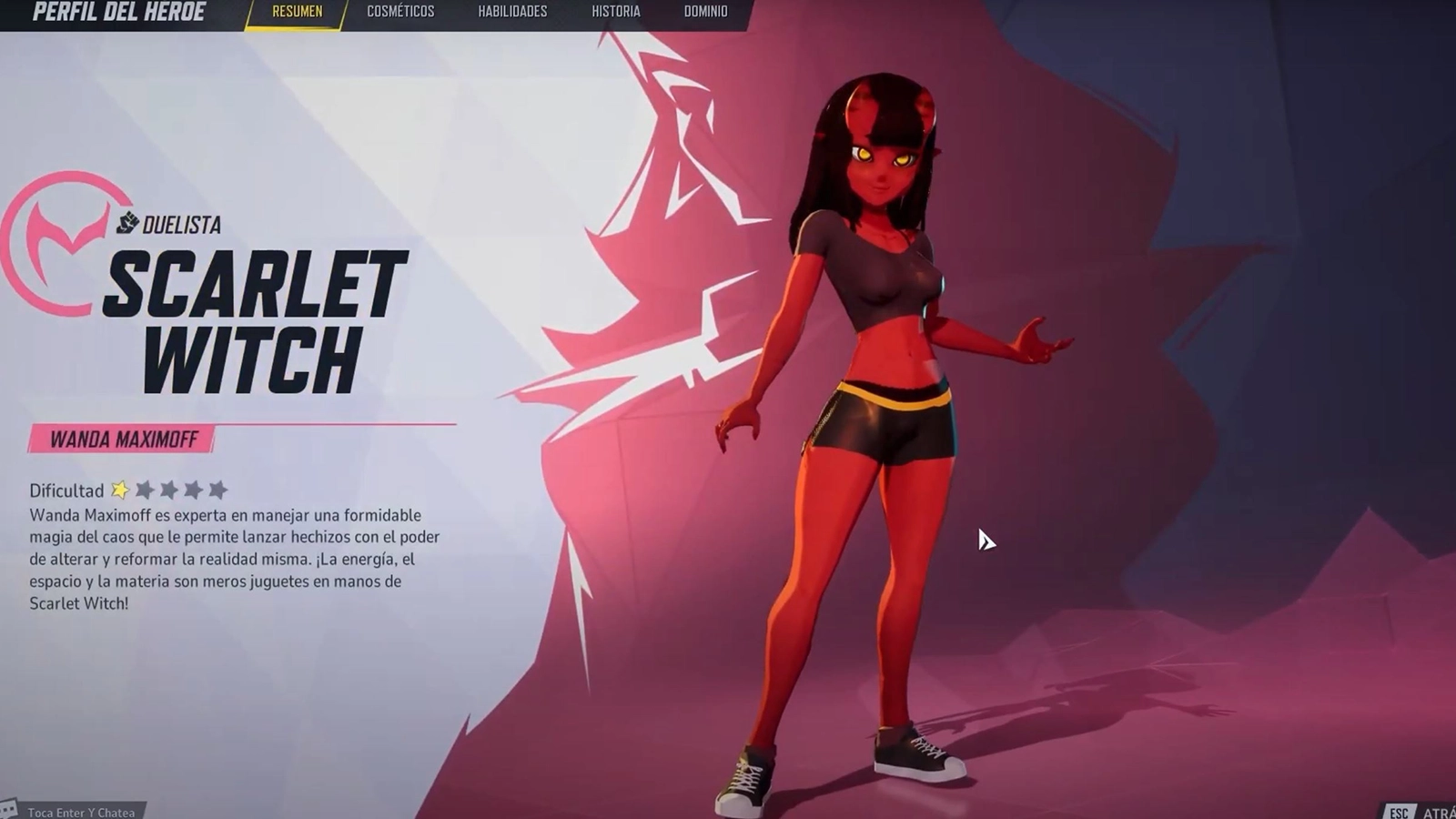
- Personalization and Aesthetics: Imagine custom skins for your favorite heroes that aren’t officially available, unique weapon effects, or revamped UI elements that suit your style. Mods can provide an unparalleled level of visual customization, making your game truly unique.
- Quality-of-Life Improvements: Some mods focus on enhancing the user experience, perhaps by streamlining menus, improving information display, or adding minor functionalities that the developers haven’t yet implemented.
- Community-Driven Content: The modding community is a wellspring of creativity. Players might develop new spectator tools, training utilities, or even custom game modes (though this is more complex for online games). This collaborative effort breathes new life into games, keeping them engaging long after their initial release.
- Extended Replayability: When official content begins to feel stale, mods can offer a fresh perspective, encouraging players to revisit the game and explore new ways to play. This not only benefits the player but also implicitly extends the perceived value of the game.
Navigating the Perils: Potential Pitfalls and Considerations
While the benefits are clear, modding is not without its risks, especially for a game like Marvel Rivals that features online multiplayer and anti-cheat systems. Understanding these risks is vital for a safe modding journey.
- Game Instability and Crashes: Mods, especially poorly made or conflicting ones, can introduce bugs, glitches, or even cause the game to crash frequently. This can lead to frustration and a degraded gaming experience.
- Security Risks: Downloading mods from untrustworthy sources can expose your system to malware, viruses, or other malicious software. It’s crucial to exercise extreme caution regarding where you obtain your mods.
- Violation of Terms of Service/EULA: Most online games have strict End User License Agreements (EULAs) that prohibit modifications, particularly those that offer an unfair advantage (cheating) or alter core game files. Using such mods in Marvel Rivals could lead to temporary bans or even permanent account suspension, affecting your access to the game and potentially other linked services. Developers, keen on protecting their brand and the integrity of their game, often take a firm stance against unauthorized modifications that impact fair play.
- Compatibility Issues with Updates: Game developers frequently release patches and updates. These updates can often break existing mods, requiring mod creators to update their work or rendering the mods unusable until they are. This can lead to a cycle of installing, removing, and reinstalling mods.
- Impact on Competitive Play: For a competitive shooter like Marvel Rivals, mods that affect gameplay mechanics, aim assistance, or reveal hidden information are unequivocally considered cheating. These will trigger anti-cheat systems, resulting in severe penalties. Even cosmetic mods might sometimes be flagged, so understanding the developer’s stance on modding is paramount.
Essential Preparations Before Modding Marvel Rivals
A successful modding experience begins with thorough preparation. Taking these steps will mitigate many potential headaches and protect your game files.
1. Back Up Your Game Files: Your Digital Safety Net
This is arguably the most critical step. Before installing any mods, especially for a game as new as Marvel Rivals, you must create a backup of your vanilla (unmodded) game files. If something goes wrong, this backup will allow you to quickly restore your game to its original state without a full re-download.
- Locate Your Marvel Rivals Installation Folder:
- Steam: Open Steam, right-click Marvel Rivals in your Library, go to “Manage,” then “Browse local files.”
- Epic Games Store: Open Epic Games Launcher, go to your Library, click the three dots next to Marvel Rivals, then “Manage,” and click the folder icon next to “Installation.”
- Standalone/Other: If you installed it directly, it would be in the directory you chose during installation, typically under
C:Program FilesorC:Program Files (x86).
- Copy the Entire Folder: Once you’ve found the main “Marvel Rivals” folder (or similar, containing the game’s executable), copy the entire folder.
- Paste to a Safe Location: Paste this copied folder to a different drive or a dedicated “Game Backups” folder outside of your game’s installation directory. Name it something clear, like “Marvel RivalsVANILLABACKUP.”
2. Research and Choose Reliable Mod Sources
The internet is vast, and not all modding communities are created equal. For your safety and to minimize issues, stick to reputable sources.
- Nexus Mods: This is one of the largest and most well-established modding websites globally. While Marvel Rivals might be new, if a dedicated modding community emerges, Nexus Mods is a likely hub. Always check comments, endorsements, and virus scans associated with mods.
- Official Game Forums/Community Discords: Sometimes, developers or community managers will highlight approved or community-vetted mods. Joining official or large community Discord servers can also provide direct links and advice from experienced modders.
- Beware of Unverified Sites: Avoid downloading mods from random, unfamiliar websites. These are often hotbeds for malware. If a mod looks too good to be true, it probably is. Always cross-reference mods found on less-known sites with more reputable ones if possible.
3. Consider a Mod Manager (If Available/Adaptable)
For many games, dedicated mod managers simplify the installation, management, and uninstallation of mods. While Marvel Rivals is new and may not have a bespoke manager yet, generic tools like Vortex (from Nexus Mods) or Mod Organizer 2 might be adaptable if the modding structure allows for it.
- How Mod Managers Help: They handle file placements, resolve load order conflicts, and often allow for easy enabling/disabling of mods without directly touching game files. They essentially create a “virtual” mod setup, keeping your core game clean.
- Initial Absence: For a brand-new game like Marvel Rivals, you might initially rely on manual installation. Keep an eye on modding communities; if a manager becomes popular, it will be widely discussed.
Step-by-Step Guide: Installing Mods for Marvel Rivals
With your preparations complete, let’s get into the actual process of installing mods. Given Marvel Rivals’ newness, manual installation is likely the primary method, particularly if mods are implemented via common Unreal Engine methods (e.g., .pak files, .dll injections).
1. Download Your Chosen Mod(s)
- From your chosen reliable source, download the mod file(s). These usually come in compressed formats like
.zip,.rar, or.7z. - Read Mod Instructions Carefully: Every mod is different. Always read the mod author’s installation instructions provided on the download page or within the archive. They often contain critical, mod-specific details.
2. Extract the Mod Files
- Use an Archiver Tool: You’ll need a program like WinRAR, 7-Zip, or WinZip to extract the contents of the downloaded archive.
- Extract to a Temporary Folder: Create a new folder on your desktop (e.g., “Marvel Rivals Mods”) and extract the mod’s contents there. This helps you examine the files before moving them into your game directory.
- Identify File Types: Look at the extracted files. Common types you might encounter include:
.pakfiles (Unreal Engine asset archives).dllfiles (Dynamic Link Libraries, often used for code injections or mod loaders).inior.jsonfiles (configuration files)- Texture files (
.dds,.png,.tga) - Folders containing other assets.
3. Locating the Correct Installation Directory Within Marvel Rivals
This is where understanding the game’s file structure is crucial. For Unreal Engine games (which Marvel Rivals likely is), mods often go into specific subfolders.
- The
PaksFolder: Many cosmetic and asset replacement mods (like skins or textures) for Unreal Engine games are placed into a specificPaksfolder.- Navigate to your Marvel Rivals installation folder.
- Look for
Marvel RivalsContentPaks. - Within
Paks, you might need to create a new folder, often named~modsor_mods(pay attention to the tilde~or underscore_– this often helps the game load these custom Paks first). If the mod instructions specify a different name, use that.
- The Game Root Folder: Some mods, particularly those involving
.dllfiles (like mod loaders or framework mods), might need to be placed directly into the main Marvel Rivals folder where the game’s executable (MarvelRivals.exe) resides. - Other Specific Folders: Some mods might have unique installation paths; always defer to the mod author’s instructions.
4. Manually Installing the Mod Files
Once you’ve identified where the mod files need to go:
- For
.pakfiles: If your mod consists of.pakfiles, copy them into theMarvel RivalsContentPaks~mods(or_mods) folder you created. - For
.dllor other root files: Copy these directly into the mainMarvel Rivalsgame folder (where the.exeis). - For folder structures: Some mods come with their own folder structure (e.g.,
ModNameContentPaks). You’ll need to replicate this structure within your game directory or merge it appropriately. The mod author’s instructions are paramount here.
5. Using a Mod Manager (If Applicable)
If you’re using a generic mod manager like Vortex and it supports Marvel Rivals (either natively or through a community-made extension):
- Install the Mod Manager: Download and install your chosen manager.
- Set Up Marvel Rivals: Configure the mod manager to detect your Marvel Rivals installation.
- Add Mod Archive: Drag and drop the downloaded mod archive (the
.zip,.rar, etc.) into the mod manager’s interface, or use its “Add Mod” function. - Install/Deploy: Follow the manager’s prompts to install or “deploy” the mod. The manager will handle placing the files in the correct locations and manage potential conflicts.
- Resolve Conflicts: If you have multiple mods, the manager will often highlight conflicts and help you choose a load order.
6. Test Your Mods In-Game
After installation, launch Marvel Rivals to verify that your mods are working correctly.
- Check Visuals: If you installed cosmetic mods, look for the new skins, textures, or UI elements.
- Test Functionality: If it’s a gameplay mod, test its specific features.
- Monitor for Stability: Play for a while to ensure the game doesn’t crash or exhibit unusual behavior.
Troubleshooting Common Modding Issues
Even with careful preparation, issues can arise. Here’s how to tackle some common modding problems.
1. Game Crashes, Freezes, or Won’t Launch
- Most Common Cause: Conflicting Mods or Bad Installation.
- Remove Latest Mod: If the issue started after installing a new mod, remove it first.
- Disable All Mods: If you installed several, remove or disable all of them to see if the vanilla game launches. Then reintroduce them one by one to pinpoint the culprit.
- Check Mod Requirements: Ensure you have all necessary dependency mods (e.g., a specific mod loader or framework) installed.
- Verify Game Files (Steam/Epic): Use the game launcher’s built-in tool (e.g., “Verify integrity of game files” on Steam, “Verify” on Epic) to check for corrupted vanilla files. This might overwrite mod files, so have your backup ready.
- Restore Backup: If all else fails, delete your modded game folder and replace it with your clean backup.
2. Mods Not Appearing or Not Working
- Incorrect Installation Path: Double-check that you copied the files to the exact location specified by the mod author. Even a slight misspelling or misplaced folder can prevent the mod from loading.
- Missing Dependencies: Some mods require other mods to function. Ensure you’ve installed all prerequisites.
- Load Order Issues: If you’re using a mod manager or have multiple mods, the order in which they load can matter. Conflicting files might be overwritten by later-loading mods. Experiment with load orders or consult modding forums.
- Outdated Mod: The mod might be outdated and incompatible with the current version of Marvel Rivals. Check the mod page for updates or reports of incompatibility.
3. Performance Drops (Low FPS, Stuttering)
- Resource-Intensive Mods: Some mods (especially high-resolution texture packs or complex gameplay overhauls) can significantly impact performance.
- Reduce Mod Count: Try playing with fewer mods enabled to see if performance improves.
- Check Your System Specs: Ensure your PC meets or exceeds the requirements for running the game, and factor in the additional overhead from mods.
- Adjust Game Settings: Lower in-game graphical settings to free up resources.
- Conflicting Mods: Even if they don’t crash the game, conflicting mods can sometimes cause performance bottlenecks.
Best Practices for a Seamless Marvel Rivals Modding Experience
To ensure long-term enjoyment and minimize frustrations, adopt these best practices when modding Marvel Rivals.
1. Keep Mods Organized and Updated
- Dedicated Mod Folder: Maintain a separate folder outside your game directory where you store all your downloaded mod archives, along with their associated instructions.
- Sensible Naming: Rename downloaded archives to something descriptive (e.g., “MarvelRivalsCustomSkinIronMan_v1.0″).
- Stay Updated: Regularly check mod pages for updates, especially after official Marvel Rivals patches. Outdated mods are a prime cause of issues.
2. Engage with the Modding Community
- Forums and Discord: Participate in modding forums and Discord servers dedicated to Marvel Rivals. These are invaluable resources for finding new mods, getting support, and sharing your experiences.
- Report Bugs: If you encounter a bug with a mod, report it respectfully to the mod author. Provide clear details and steps to reproduce the issue.
- Show Appreciation: Mod creators dedicate countless hours to their work. Leaving positive comments, endorsements, or even donations (if offered) supports their efforts.
3. Respect Developers, EULAs, and Fair Play
- Online Game Caution: Be extremely cautious about using mods in online competitive games like Marvel Rivals. Any mod that provides an unfair advantage will be detected by anti-cheat systems and lead to penalties. Even purely cosmetic mods can sometimes trigger false positives or be deemed against the EULA if they modify core files. Prioritizing fair play safeguards the game’s integrity and the brand reputation of the developers.
- Read the EULA: While tedious, skimming the game’s EULA regarding modifications can help you understand the official stance and avoid account suspension.
- When in Doubt, Don’t Mod Online: If you’re unsure whether a mod is safe for online play, err on the side of caution and use it only in offline modes (if available) or simply avoid it for competitive matches.
Conclusion
Modding Marvel Rivals offers a thrilling opportunity to personalize your gaming experience, extend its replayability, and explore the creative output of a passionate community. From custom skins to potential quality-of-life enhancements, mods can breathe new life into an already exciting game. However, a successful modding journey hinges on careful preparation, diligent research, and a clear understanding of the risks involved.
By meticulously backing up your game, sourcing mods from trusted platforms, following installation instructions precisely, and adhering to best practices, you can largely mitigate common pitfalls. Always remember to prioritize game stability and, crucially, respect the developer’s terms of service, especially in an online competitive environment. Embrace the world of Marvel Rivals modding responsibly, and prepare to unlock an even more unique and engaging superhero showdown!
aViewFromTheCave is a participant in the Amazon Services LLC Associates Program, an affiliate advertising program designed to provide a means for sites to earn advertising fees by advertising and linking to Amazon.com. Amazon, the Amazon logo, AmazonSupply, and the AmazonSupply logo are trademarks of Amazon.com, Inc. or its affiliates. As an Amazon Associate we earn affiliate commissions from qualifying purchases.