
The world of gaming is constantly evolving, driven not just by developers but also by passionate communities that seek to enhance, expand, and personalize their favorite titles. For a game like Star Wars Battlefront 2, which boasts a rich universe and engaging gameplay, modding has become a cornerstone of its enduring appeal. While Electronic Arts and DICE delivered a visually stunning and mechanically sound game, it’s the modding community that has truly pushed the boundaries, introducing everything from new characters and iconic skins to substantial gameplay overhauls and quality-of-life improvements. This guide will walk you through the process of installing mods for Battlefront 2 on PC, transforming your gaming experience and unlocking new dimensions of fun.
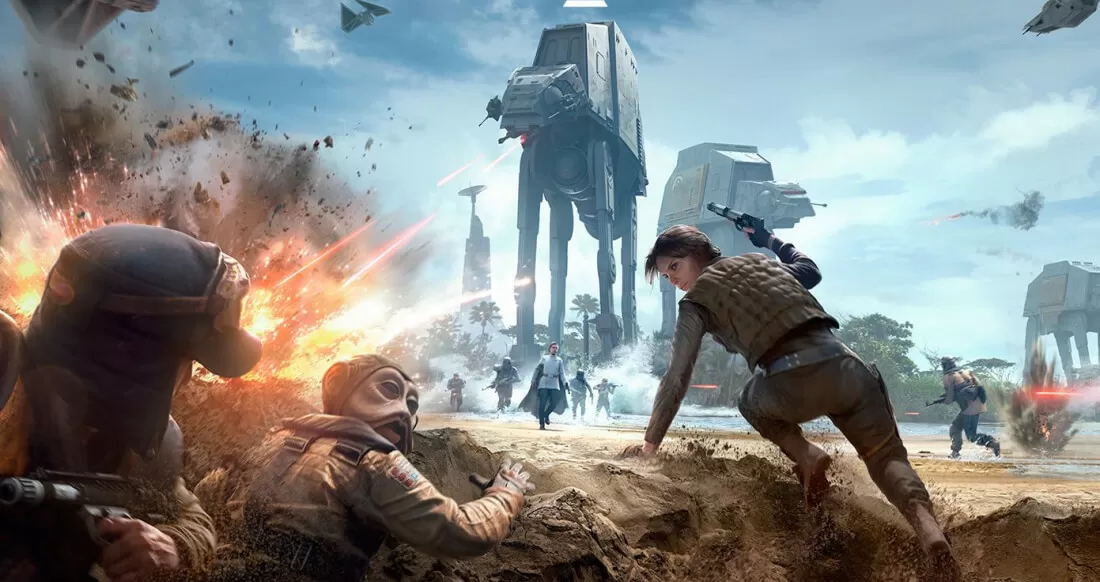
Modding, at its core, is about leveraging technology to customize software beyond its original design. For gamers, this means taking control of their digital experience, making games their own, and ensuring their favorite titles remain fresh and engaging for years. In the context of Battlefront 2, mods can breathe new life into an already beloved game, offering players unique perspectives and endless possibilities within the Star Wars galaxy. From adding fan-favorite heroes like Ahsoka Tano and Captain Rex to implementing realistic visual effects or even rebalancing specific units, the modding scene is a vibrant ecosystem that thrives on creativity and technical ingenuity. This guide aims to demystify the process, making it accessible to both seasoned modders and those new to the exciting world of game customization.
Understanding Battlefront 2 Modding Essentials
Before diving into the practical steps of installing mods, it’s crucial to understand the fundamental tools and considerations that underpin the Battlefront 2 modding landscape. Like any intricate technological process, preparation is key to a smooth and enjoyable experience. This section will outline what you need and why Battlefront 2 modding is such a rewarding endeavor for PC players.
What You Need Before You Start
Embarking on your Battlefront 2 modding journey requires a few essential components and a solid understanding of best practices. Having these elements in place will not only streamline the installation process but also help prevent potential issues down the line.
Firstly, and most obviously, you need a PC version of Star Wars Battlefront 2 (2017). While the game is available on consoles, modding is exclusive to the PC platform, allowing direct manipulation of game files. Ensure your game is fully updated to its latest version, as older versions might have compatibility issues with newer mods or the modding tools themselves.
The single most critical tool for Battlefront 2 modding is the Frosty Mod Manager. Developed by the community, Frosty is an incredibly powerful and user-friendly application designed specifically for games built on EA’s Frostbite engine (which includes Battlefront 2). It acts as an intermediary, allowing you to easily import, apply, and manage your mods without directly altering the game’s core files. This non-destructive approach is vital for maintaining game integrity and making it simple to enable or disable mods as needed. You’ll typically download Frosty Mod Manager from reputable sources like Nexus Mods or its official GitHub repository.
While not strictly necessary for installation, it’s also worth mentioning the Frosty Mod Editor. This sister tool is used by mod creators to actually develop the mods themselves. Understanding its existence helps appreciate the depth of the modding ecosystem, but for the average player simply wanting to install mods, the Frosty Mod Manager is your primary concern.
Your main source for mods will be Nexus Mods (www.nexusmods.com). This website is the largest repository for game mods across hundreds of titles, and Battlefront 2 has a thriving section there. You’ll find thousands of mods, ranging from simple texture replacements to complex gameplay overhauls. Creating a free account on Nexus Mods is recommended, as it allows for easier tracking of downloaded files and participation in mod discussions.
Finally, a basic understanding of file management on your PC is beneficial. Knowing how to navigate folders, extract ZIP files, and identify file types will make the process much smoother. While Frosty simplifies much of this, fundamental computer literacy is always a plus.
It’s also crucial to consider a few disclaimers. While single-player modding is generally safe and encouraged by the community, using certain mods in online multiplayer can potentially lead to issues. Some anti-cheat systems might flag modifications as suspicious, leading to temporary or permanent bans. Always exercise caution and consult mod descriptions for online compatibility notes. When in doubt, it’s best to disable all mods before venturing into multiplayer matches. Furthermore, backing up your game files or at least knowing how to verify game integrity through your game launcher (Steam, EA App, Origin) is a good practice, ensuring you can revert to a clean installation if something goes wrong.
Why Mod Battlefront 2?
The allure of modding Battlefront 2 extends far beyond simple customization; it’s about enriching an already stellar experience and keeping the game vibrant years after its initial release. The “why” behind modding is multifaceted, catering to various player desires and contributing significantly to the game’s longevity.
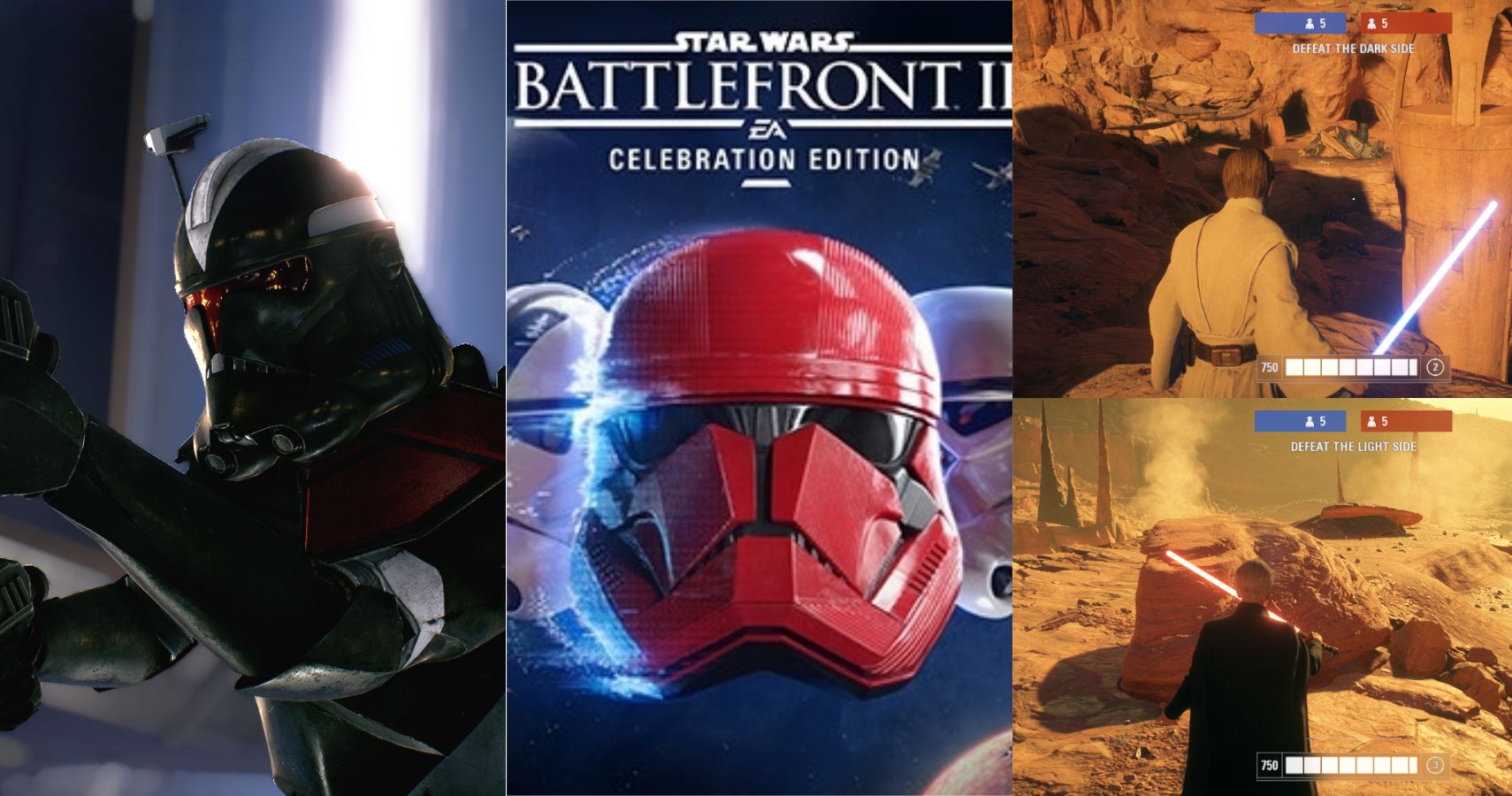
One of the most immediate and impactful reasons to mod Battlefront 2 is for enhanced visuals and immersion. Modders can introduce incredibly detailed texture packs, re-envision lighting systems, or even alter environmental assets to create a more realistic or stylized Star Wars experience. Imagine playing on Naboo with ultra-high-resolution textures for the royal palace, or seeing more granular details on your Clone Trooper armor. These visual overhauls can truly elevate the game’s already impressive graphics.
Beyond aesthetics, mods introduce an incredible array of new characters, skins, and cosmetic options. The Star Wars universe is vast, and while DICE included many iconic figures, the modding community has filled in the gaps. Players can embody heroes like Ahsoka Tano, Grand Admiral Thrawn, or even characters from the Old Republic era, complete with unique abilities and voice lines. Custom skins allow for unprecedented personalization, letting you play as your favorite obscure character or a unique variant of an existing hero. This aspect significantly expands the game’s replayability, as new character experiences can fundamentally alter gameplay dynamics.
Gameplay tweaks and balance changes are another significant draw. Modders can adjust hero abilities, alter weapon stats, modify unit health, or even introduce entirely new game mechanics. While some prefer the vanilla experience, others seek a more challenging, balanced, or simply different gameplay loop. These mods can cater to specific playstyles or address perceived imbalances within the base game, offering a fresh perspective on familiar battles.
Quality-of-life improvements and UI enhancements might seem minor but can significantly improve the overall player experience. This includes clearer HUD elements, better menu navigation, more informative loadout screens, or even enhanced accessibility options. These “invisible” mods often iron out small frustrations, making the game smoother and more enjoyable to interact with.
Ultimately, modding extends the game’s life and replayability indefinitely. As official support for Battlefront 2 winds down, the modding community ensures that the game continues to evolve. New content, fresh challenges, and innovative ways to experience the Star Wars universe are constantly being developed, preventing the game from feeling stale. It transforms Battlefront 2 from a finite product into an ongoing project, driven by the collective passion of its player base. It’s a testament to the power of a dedicated community and open-ended technology to keep a digital world alive and thriving.
Step-by-Step Guide to Installing Battlefront 2 Mods
Now that you understand the essentials and the compelling reasons to mod, it’s time to get hands-on. This section provides a clear, step-by-step walkthrough for installing mods using the Frosty Mod Manager, guiding you from acquiring the necessary tools to launching your modded game.
Step 1: Acquiring the Frosty Mod Manager
Your first task is to obtain the Frosty Mod Manager, the cornerstone of Battlefront 2 modding. This application simplifies the entire process, making it accessible even for beginners.
Begin by navigating to a reputable source to download the Frosty Mod Manager. The most common and recommended places are Nexus Mods or the official Frosty GitHub repository. On Nexus Mods, search for “Frosty Mod Manager” under the Battlefront 2 section. Always download the latest stable version available to ensure maximum compatibility with current mods and game updates.
Once downloaded, the Frosty Mod Manager will typically come as a ZIP archive. You’ll need to extract its contents to a location on your hard drive. It’s highly recommended to create a dedicated folder for Frosty Mod Manager in a logical place, such as C:GamesFrostyModManager or within your documents folder, but outside of your Battlefront 2 installation directory. This keeps your game files clean and organized. Simply right-click the downloaded ZIP file and select “Extract All” (or use a program like 7-Zip or WinRAR) to unpack its contents into your chosen folder.
After extraction, open the newly created Frosty Mod Manager folder. You should find an executable file named FrostyModManager.exe. Double-click this file to launch the application. The first time you run it, Frosty will likely prompt you to locate your Battlefront 2 installation. You’ll need to navigate to your game directory and select the main executable file for Battlefront 2 (e.g., STAR WARS Battlefront II.exe). This step is crucial as it tells Frosty where your game is located, allowing it to correctly apply mods. Once linked, Frosty will remember this path for future use.
Step 2: Finding and Downloading Mods
With Frosty Mod Manager set up, your next step is to explore the vast library of Battlefront 2 mods and download the ones that pique your interest.
Head over to www.nexusmods.com and search for “Star Wars Battlefront II (2017)”. This will take you to the game’s dedicated modding section. The Nexus Mods interface is well-organized, allowing you to browse mods by category (e.g., characters, visuals, gameplay), popularity, recent uploads, or endorsements.
When browsing, pay close attention to several factors:
- Mod Description: Always read the full description provided by the mod author. This will detail what the mod does, any specific requirements (e.g., other mods needed to function), known issues, and often, instructions or tips for installation.
- Compatibility: Check if the mod is compatible with the latest version of Battlefront 2. Mod authors usually update their descriptions to reflect this. Also, be aware of potential conflicts with other mods – some descriptions will explicitly state if a mod is incompatible with another popular mod.
- Requirements: Some mods might require specific DLCs or other foundational mods to work correctly. Ensure you meet these requirements before downloading.
- Endorsements and Comments: Look at the number of endorsements and read through the comments section. High endorsements generally indicate a stable and well-liked mod, while comments can provide valuable insights into user experiences, troubleshooting tips, and potential issues.
Once you’ve found a mod you want, click the “Files” tab on the mod’s page. Most Battlefront 2 mods that are compatible with Frosty Mod Manager will be in a .fbmod file format. Download the “Main File” that corresponds to the Frosty Mod Manager. Nexus Mods offers both “Mod Manager Download” (which uses their proprietary Vortex Mod Manager, not recommended for BF2) and “Manual Download” options. For Frosty, always choose the “Manual Download”. This will download the .fbmod file directly to your computer. Create a dedicated “Battlefront 2 Mods” folder somewhere logical (e.g., C:GamesBattlefront2Mods) to store all your downloaded mod files, keeping them organized.
Step 3: Importing Mods into Frosty Mod Manager
With your .fbmod files downloaded, the next step is to import them into the Frosty Mod Manager, preparing them for application to your game.
Open your Frosty Mod Manager. In the main interface, you’ll see a panel, usually on the left, where imported mods are listed. To add your downloaded mods, click the “Import Mod(s)” button, which is typically located in the top menu or on the left-hand panel.
A file browser window will appear. Navigate to the folder where you saved your downloaded .fbmod files (e.g., C:GamesBattlefront2Mods). Select the .fbmod file(s) you wish to import. You can select multiple files at once by holding Ctrl (Windows) or Cmd (Mac) and clicking each file, then click “Open”.
Frosty Mod Manager will then process and import the selected mods. Once imported, they will appear in the left-hand panel. At this stage, the mods are imported but not yet applied to your game. They are simply available within Frosty’s library. Each mod will have a checkbox next to its name. To enable a mod, simply click the checkbox next to its entry in the list. You can enable or disable mods at any time by checking or unchecking this box.
Step 4: Applying and Launching Mods
This is the final stage where your selected mods are integrated into the game, ready for you to enjoy.
After you have checked all the mods you wish to use in the left-hand panel of Frosty Mod Manager, you need to apply them to your game. Look for the “Apply Mod(s)” button, usually prominent in the Frosty interface (often near the bottom right or top of the mod list). Clicking this button will initiate the process of Frosty injecting the selected mods into your Battlefront 2 game files. This process might take a few moments, depending on the number and size of the mods you’ve selected. Frosty will display a progress bar.
An important consideration at this stage is mod order (load order). If you have multiple mods that affect the same game assets (e.g., two different texture mods for Darth Vader), they might conflict. Frosty Mod Manager processes mods from top to bottom in its list. This means that a mod lower down in the list will override changes made by a mod higher up. If you encounter conflicts or unexpected behavior, try reordering your mods by dragging and dropping them in the list. Often, mod authors will specify if their mod needs to be loaded at a particular position (e.g., “load this mod last”).
Once the application process is complete, the “Apply Mod(s)” button will typically change to a “Launch” button (or there will be a dedicated “Launch” button). Click this button to start Star Wars Battlefront 2 with all your enabled mods active. The game will launch through your primary game launcher (EA App, Origin, or Steam).
If the game fails to launch or crashes immediately, it usually indicates a mod conflict or an improperly installed mod. In such cases, revert to a smaller set of mods, or even just one, to identify the culprit. Common troubleshooting steps include:
- Verify Game Files: Use your game launcher (Steam, EA App) to verify the integrity of Battlefront 2’s game files. This can fix any corrupted or missing original files.
- Clear Mod Data: Frosty Mod Manager usually has an option to “Clear Mod Data” or “Uninstall All Mods.” This effectively reverts your game to its vanilla state, allowing you to start fresh.
- Check Frosty Version: Ensure your Frosty Mod Manager is up to date.
- Read Mod Comments: Often, issues you encounter have already been discussed and resolved in the comments section of the mod on Nexus Mods.
By following these steps, you should be able to successfully install and launch Battlefront 2 with your desired modifications, opening up a universe of custom content and enhanced gameplay.
Advanced Tips and Troubleshooting for Modding
While the core modding process with Frosty Mod Manager is designed to be straightforward, diving deeper into the modding ecosystem can present complexities. Understanding how to manage mod conflicts, adopting best practices, and knowing where to find help are crucial for a consistently smooth and enjoyable modded experience.
Managing Mod Conflicts and Load Order
Mod conflicts are perhaps the most common challenge in game modding. They occur when two or more mods attempt to modify the same game asset or script in incompatible ways, leading to crashes, visual glitches, or unexpected behavior. In Battlefront 2, the Frosty Mod Manager provides tools to mitigate this, but user understanding is key.
How Conflicts Occur: Imagine you have two mods: one changes Darth Vader’s cape to a vibrant red, and another changes it to a sleek black. If both are active, they are trying to apply different textures to the same object. Without proper handling, one will overwrite the other, or worse, cause an error. Frosty handles this by applying mods sequentially based on their load order.
Understanding Load Order in Frosty: Frosty Mod Manager’s left-hand panel, where you enable mods, also dictates their load order. Mods higher in the list are applied first, and mods lower in the list are applied afterward. This means that if two mods conflict, the mod that is lower in the list will take precedence and its changes will be the ones that appear in the game. To change the load order, simply drag and drop the mods in the list to your desired position.
Strategies for Conflict Resolution:
- Read Mod Descriptions Meticulously: Mod authors often specify if their mod conflicts with other popular mods or if it needs to be loaded at a specific position (e.g., “load this mod after any other Vader skin mods”). This is your primary source of information.
- Install Mods Incrementally: When adding several new mods, install and test them one by one. If an issue arises, you’ll know which mod is causing it.
- Use Frosty’s Profile System: Frosty Mod Manager allows you to create different “profiles” or sets of active mods. This is incredibly useful for experimenting with different mod combinations without affecting your main setup. You could have a “Vader Skins Profile,” a “Visual Overhaul Profile,” and a “Vanilla” profile for online play.
- Look for Patches: Sometimes, mod authors create “compatibility patches” designed to make their mod work seamlessly with another specific mod. Check the “Files” tab on Nexus Mods for such patches.
- Seek Community Advice: If you’re struggling to resolve a conflict, describe your issue and your active mod list in the comments section of the mods on Nexus Mods, or in relevant modding forums. Experienced users can often provide guidance.
Best Practices for a Smooth Modding Experience
To ensure your modding journey is as smooth and trouble-free as possible, adhere to these recommended best practices:
-
Backup Your Game Files (or Know How to Restore): Before embarking on heavy modding, it’s wise to either create a manual backup of your Battlefront 2 installation folder or, more commonly, understand how to use your game launcher’s “Verify Integrity of Game Files” feature. This feature (available on Steam and EA App/Origin) will scan your game installation and replace any modified or corrupted files with the original, clean versions, effectively reverting your game to an unmodded state. This is invaluable for troubleshooting.
-
Keep Frosty Mod Manager Updated: Mod authors, and the Frosty team themselves, frequently release updates to ensure compatibility with new game patches and to improve functionality. Always use the latest stable version of Frosty to minimize issues.
-
Disable Mods for Online Play: As mentioned earlier, using certain mods in multiplayer can trigger anti-cheat systems, potentially leading to bans. While some cosmetic mods might fly under the radar, it’s best practice to disable all mods before joining any online match. Frosty makes this easy: simply uncheck all mods and then launch the game.
-
Read, Read, Read: This cannot be stressed enough. Every mod description, every comment, and every forum post can contain vital information. Understanding what a mod does, its requirements, and known issues will save you countless hours of troubleshooting.
-
Be Patient and Persistent: Modding can sometimes be trial and error. Not every mod will work perfectly out of the box, and conflicts can be tricky to resolve. Approach it with patience, and don’t be afraid to experiment or seek help.
-
Organize Your Mod Files: Keep your downloaded
.fbmodfiles in a clearly organized folder structure outside of your game directory. This makes it easy to find, update, or remove mods from your Frosty library.
Where to Find More Help and Community Resources
Even with the best practices, you might occasionally run into unique issues or seek further inspiration. The Battlefront 2 modding community is vibrant and supportive, offering numerous resources for assistance:
- Nexus Mods Forums and Comments: The Nexus Mods website isn’t just a download hub; it also features dedicated forums for Battlefront 2. Furthermore, the comments section on each mod page is an excellent place to ask questions, report bugs, and find solutions specific to that mod.
- Reddit Communities: Subreddits like
r/BattlefrontModdingandr/StarWarsBattlefrontoften have discussions about mods, troubleshooting tips, and showcases of new creations. Posting your issue there can quickly connect you with experienced modders. - Discord Servers: Many mod authors and modding communities host Discord servers. These real-time chat platforms are fantastic for immediate help, staying updated on mod development, and connecting with like-minded players. Look for links to Discord servers on mod pages or in Reddit communities.
- YouTube Tutorials: For visual learners, YouTube is a treasure trove of tutorials. Many content creators walk through the mod installation process step-by-step, demonstrate specific mod features, and offer troubleshooting guides. Searching for “Battlefront 2 modding tutorial” will yield plenty of helpful videos.
By leveraging these community resources, you can overcome almost any modding hurdle and expand your knowledge of the Battlefront 2 modding scene, ensuring a rich and continually evolving experience with your favorite Star Wars game.
In conclusion, installing mods for Star Wars Battlefront 2 is a rewarding endeavor that significantly enhances the game’s longevity and personal appeal. By utilizing the Frosty Mod Manager, carefully selecting mods from Nexus Mods, and adhering to best practices, players can unlock a universe of custom content, from stunning visual overhauls to entirely new gameplay experiences. While the process involves a technical understanding of file management and conflict resolution, the vibrant modding community stands ready to assist, transforming Battlefront 2 from a fantastic game into a truly personalized Star Wars epic. Embrace the technological creativity of modding, and May the Force be with your custom game!
aViewFromTheCave is a participant in the Amazon Services LLC Associates Program, an affiliate advertising program designed to provide a means for sites to earn advertising fees by advertising and linking to Amazon.com. Amazon, the Amazon logo, AmazonSupply, and the AmazonSupply logo are trademarks of Amazon.com, Inc. or its affiliates. As an Amazon Associate we earn affiliate commissions from qualifying purchases.