
In the relentless pursuit of peak performance and striking aesthetics, PC enthusiasts and professionals alike are increasingly turning to liquid cooling solutions. Beyond the captivating glow of custom loops and the sleek efficiency of all-in-one (AIO) units, liquid cooling offers tangible benefits that directly impact your system’s longevity, operational noise, and overall capabilities. For a tech-focused individual, understanding and mastering the installation of such a system is not just a skill – it’s an investment in your digital future, a statement about your dedication to a superior computing experience, and a practical step towards maximizing the value of your hardware.
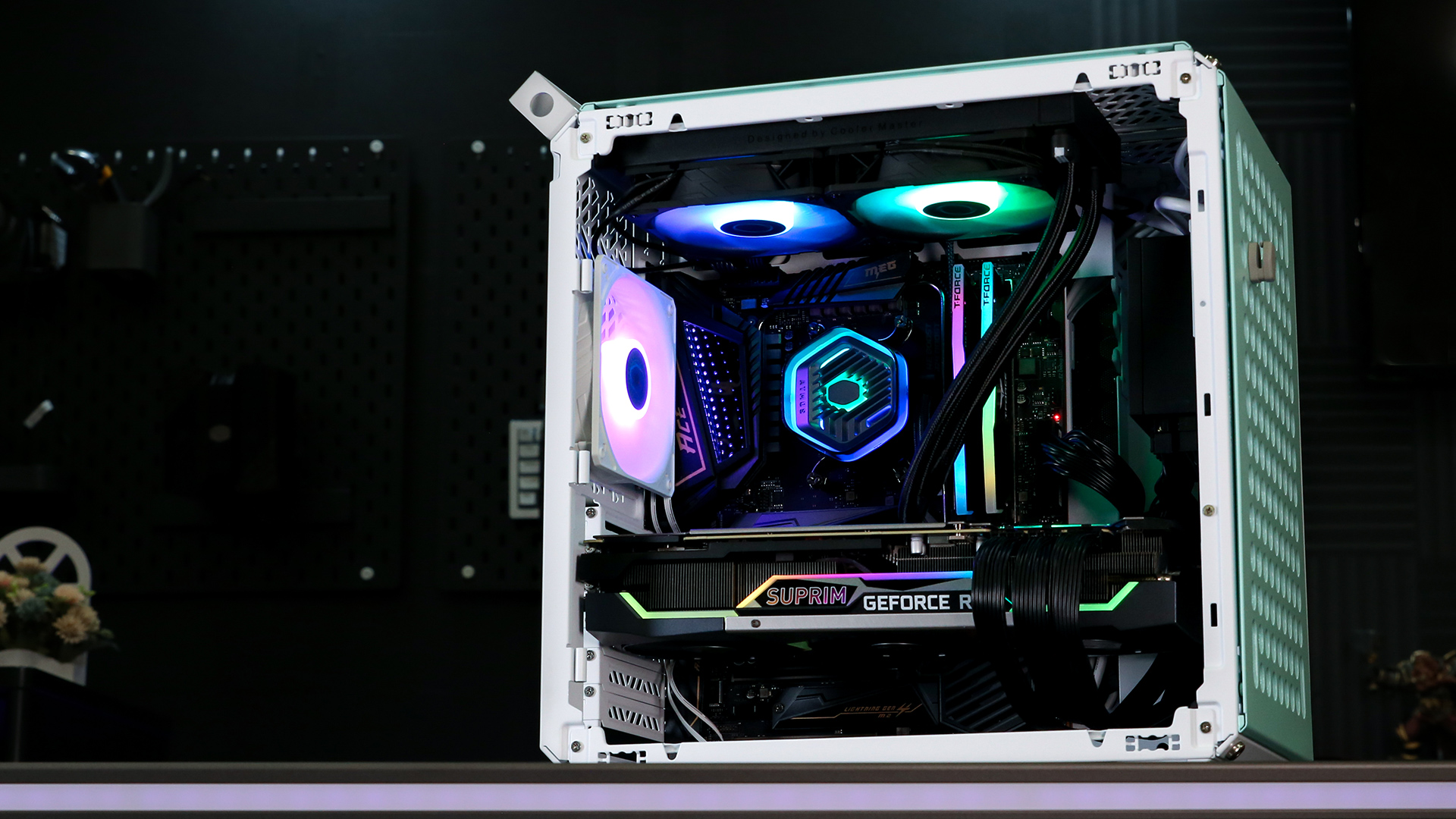
This guide will walk you through the intricacies of installing liquid cooling, demystifying the process and equipping you with the knowledge to confidently upgrade your rig. We’ll delve into the technological nuances, discuss the financial implications, and even touch upon how a well-executed liquid cooling setup can enhance your personal brand within the tech community.
Understanding Liquid Cooling Systems: A Core Tech Investment
Before diving into the nuts and bolts of installation, it’s crucial to grasp the fundamental differences between the primary types of liquid cooling systems available today. Each offers a unique blend of performance, complexity, and cost, directly influencing your initial investment and long-term satisfaction.
All-in-One (AIO) Coolers: Simplicity Meets Performance
AIO coolers represent the most accessible entry point into liquid cooling. These sealed units come pre-filled and require minimal assembly, making them an ideal choice for users seeking a significant upgrade over air cooling without the complexities of a custom loop. An AIO typically consists of a CPU block (which often integrates the pump), tubing, a radiator, and fans. The liquid circulates within this closed system, drawing heat away from your CPU (and sometimes GPU) and dissipating it through the radiator fins.
Tech Perspective: AIOs are celebrated for their ease of installation and excellent thermal performance relative to their cost. They effectively manage heat generated by high-end CPUs, preventing thermal throttling and allowing your processor to maintain its boost clocks for longer periods. This translates to smoother gaming, faster rendering, and improved overall system responsiveness – a clear enhancement for any tech user.
Money Perspective: From a financial standpoint, AIOs offer a compelling value proposition. They are significantly more affordable than custom loops, reducing the initial financial barrier to entry for liquid cooling. While they don’t offer the same level of customization or ultimate performance as a custom setup, their plug-and-play nature means less time spent on installation, effectively saving you labor costs if you were to pay a professional, or simply saving your own valuable time. Their sealed design also means less maintenance, reducing potential long-term expenses on coolants or replacement parts.
Custom Liquid Cooling Loops: The Apex of Performance and Personal Branding
For the ultimate enthusiast or professional who demands the absolute best in thermal performance and aesthetic customization, a custom liquid cooling loop is the pinnacle. These systems are built from individual components – a CPU block, often a GPU block, a pump, a reservoir, radiators, tubing, fittings, and specialized coolant. Each component is chosen independently, allowing for unparalleled control over performance, noise levels, and visual design.
Tech Perspective: Custom loops deliver superior cooling capacity, often allowing for more aggressive overclocks and significantly lower operating temperatures across multiple components. This level of thermal management is critical for high-demand applications like video editing, 3D rendering, scientific simulations, or competitive gaming where every degree counts. The modular nature also means that individual components can be upgraded or replaced, offering a future-proof solution.
Brand Perspective: This is where custom loops truly shine as a statement piece. The meticulous routing of hardline tubing, the vibrant colors of the coolant, the specific designs of water blocks, and the placement of components all contribute to a unique, high-performance aesthetic. Building a custom loop is a highly visible expression of your technical prowess and dedication, serving as a powerful element of your personal brand within the tech community. For content creators or streamers, a visually stunning liquid-cooled PC can become a distinctive part of their on-screen identity, attracting viewers and reinforcing their professional image. It’s not just a cooling solution; it’s a piece of functional art.
Money Perspective: The initial investment for a custom loop is considerably higher than an AIO. Component costs for blocks, pumps, radiators, and tubing can quickly add up. However, viewing this through a financial lens, a custom loop can be seen as a long-term investment. The enhanced cooling prolongs the lifespan of expensive components like CPUs and GPUs by keeping them within optimal thermal ranges, potentially delaying costly replacements. Furthermore, a meticulously built and high-performing custom-cooled PC often commands a higher resale value, appealing to discerning buyers who appreciate the craftsmanship and performance benefits. It’s an upfront cost that pays dividends in longevity, performance headroom, and potential market value.
Preparing for Installation: Setting the Stage for Success
Regardless of whether you choose an AIO or a custom loop, meticulous preparation is key to a smooth and successful installation. Skipping these preliminary steps can lead to costly errors, wasted time, and potential damage to your valuable components.
Compatibility Checks: Ensuring a Perfect Fit
Before purchasing any components, thorough compatibility research is paramount.
- CPU Socket: Ensure your chosen CPU block (whether AIO or custom) supports your CPU’s socket type (e.g., Intel LGA 1700, AMD AM5).
- Case Clearance: This is critical. Measure your PC case’s available space for radiators and fans. Consider the thickness of the radiator, plus the fans on one or both sides. Check clearance against your motherboard’s heatsinks, RAM modules (especially tall ones), and GPU. For custom loops, also account for pump/reservoir mounting locations and tubing runs.
- Motherboard: Verify your motherboard has appropriate fan headers and RGB headers (if applicable) for your cooling components. For custom loops, ensure you have enough USB headers if your pump or other components require them for software control.
- RAM: Tall RAM heatsinks can interfere with CPU block installation or radiator/fan placement, particularly with top-mounted radiators.
Tech Perspective: Compatibility ensures optimal airflow, proper component mounting, and avoids physical obstructions that can compromise performance or lead to frustrating re-installations. It’s a fundamental technical requirement that prevents system instability or damage.
Money Perspective: Investing time in compatibility checks is a direct financial saver. It prevents the need to return incompatible parts, incurring restocking fees or shipping costs. More importantly, it safeguards your existing expensive hardware from potential physical damage due to forced installations. Think of it as preventative maintenance for your wallet.
Essential Tools and Supplies: Equipping Your Workspace
Having the right tools at hand makes the installation process significantly easier and safer.
- Screwdrivers: A good quality Phillips head screwdriver (magnetic tip recommended) is essential. A smaller flathead might also be useful.
- Thermal Paste: Many AIOs come with pre-applied paste, but having a high-quality tube on hand for custom builds or re-applications is wise.
- Microfiber Cloth & Isopropyl Alcohol: For cleaning old thermal paste from the CPU IHS (Integrated Heat Spreader) and GPU die.
- Zip Ties or Velcro Straps: For efficient cable management, enhancing both airflow and aesthetics.
- Anti-Static Wrist Strap: Critical for preventing electrostatic discharge (ESD) which can irreparably damage sensitive electronic components.
- Cable Snips: For cutting zip ties cleanly.
- Flashlight/Headlamp: To illuminate cramped areas within the case.
- For Custom Loops: Tubing cutters (for soft tubing) or a hacksaw/rotary tool (for hard tubing), a deburring tool, a heat gun (for hard tubing bends), a leak tester, and distilled water for flushing.
Money Perspective: While it might seem like a small upfront cost, investing in proper tools prevents damage to components (e.g., stripped screws, damaged PCBs). The anti-static strap alone can save you hundreds, if not thousands, by protecting your CPU, GPU, and motherboard from ESD failure. These tools are also long-term assets for any PC builder.
Safety First: Protecting Yourself and Your Investment
Working inside a computer requires adherence to basic safety protocols.
- Power Off and Unplug: Always ensure your PC is completely powered off and disconnected from the mains electricity.
- Discharge Static: Wear an anti-static wrist strap connected to an unpainted metal surface on your PC case (or another grounded object). Avoid working on carpet.
- Organized Workspace: Clear a clean, well-lit area. Keep screws and small parts organized to prevent loss.
- Handle Components Carefully: Avoid touching gold contacts or exposed circuitry. Hold components by their edges.

Brand Perspective: A professional approach to installation, including safety measures, reflects positively on your technical skills and attention to detail. This contributes to a strong personal brand as a competent and reliable tech enthusiast.
Step-by-Step Installation Guide: Bringing Your Rig to Life
With preparations complete, it’s time for the hands-on process of installing your liquid cooling system. We’ll cover both AIOs and provide an overview for custom loops.
Installing an AIO CPU Cooler: A Streamlined Process
- Prepare the CPU Socket: If upgrading, carefully remove your old CPU cooler. Clean any existing thermal paste from the CPU’s IHS using isopropyl alcohol and a microfiber cloth.
- Install the Mounting Bracket: Most AIOs use a universal backplate that mounts behind the motherboard, with standoffs that screw in from the front. Follow your cooler’s specific instructions for your CPU socket type.
- Apply Thermal Paste (if not pre-applied): Apply a small pea-sized dot or a thin line of thermal paste to the center of your CPU’s IHS. Don’t overdo it.
- Mount the CPU Block/Pump: Carefully align the CPU block over the CPU, ensuring the mounting holes line up with the standoffs. Gently lower it, then tighten the screws in a cross pattern (e.g., top-left, bottom-right, top-right, bottom-left) until snug. Do not overtighten.
- Mount the Radiator and Fans: Decide on the radiator’s optimal mounting location (top, front, or rear) and fan orientation (intake or exhaust). Mount the fans to the radiator, then mount the radiator to your case. Ensure good airflow – typically, front radiators are intake, top/rear are exhaust.
- Connect Cables:
- Pump Power: Connect the pump power cable to your motherboard’s “CPUFAN” or “PUMPFAN” header. This is critical as the pump needs constant power to operate.
- Fan Power: Connect the radiator fans to your motherboard’s “SYS_FAN” headers, or to a fan splitter/controller if your AIO includes one.
- RGB/ARGB (if applicable): Connect any lighting cables to the appropriate motherboard headers or a dedicated RGB controller.
Tech Perspective: Correct fan orientation and cable connections are vital for optimal thermal performance and system stability. Incorrect pump power or fan orientation can lead to rapid overheating and potential component damage.
Building a Custom Loop: A Masterclass in PC Engineering (Overview)
Custom loops are significantly more involved and demand precision and patience.
- Planning and Component Layout: Before assembly, meticulously plan your tubing runs, component placement (pump/res combo, radiators), and routing. Visualize the entire system.
- Install Water Blocks:
- CPU Block: Clean the CPU, apply thermal paste, and install the CPU block following the manufacturer’s instructions.
- GPU Block (if applicable): This is more complex. You’ll need to disassemble your GPU’s original cooler, clean the GPU die and VRAM, apply thermal pads and paste, and carefully install the water block.
- Mount Radiators, Pump, and Reservoir: Securely mount your radiators with fans, and position your pump and reservoir (often a combined unit) within the case.
- Tubing Runs and Fittings: This is the most artistic and challenging part.
- Soft Tubing: Measure, cut, and attach soft tubing with compression fittings. Ensure secure connections to prevent leaks.
- Hard Tubing: Measure, cut, and bend hard tubing (using a heat gun) to create precise runs. Deburr the edges, then connect with appropriate hardline fittings. This requires significant skill and practice.
- Leak Testing: THIS IS CRITICAL. Before introducing power to your system, fill the loop with distilled water (or a non-conductive leak testing fluid) and run the pump for at least 12-24 hours without powering on your other PC components. Use paper towels around fittings to detect any drips. A dedicated air pressure leak tester is also highly recommended.
- Fill with Coolant: Once leak-free, drain the distilled water and fill the loop with your chosen liquid cooling specific coolant. Bleed air from the system by tilting the case and running the pump on low settings.
Brand Perspective: The artistry involved in hard tubing bends, the choice of coolant color, and the overall cleanliness of the build contribute massively to the “showcase” aspect of a custom PC. It’s a testament to your personal brand as a builder and enthusiast.
Money Perspective: The time invested in careful planning, precise execution, and thorough leak testing for a custom loop is an investment that pays off by preventing catastrophic failures (e.g., leaks shorting out components) and ensuring the longevity of your high-value hardware.
Cable Management and Final Checks: The Finishing Touches
After installing all components, take the time for proper cable management. Route cables neatly behind the motherboard tray, using zip ties or Velcro straps. This not only improves aesthetics (enhancing your personal brand) but also aids in airflow and simplifies future maintenance. Double-check all power connections (motherboard, GPU, fans, pump), fan orientations, and ensure no tools or loose screws are left inside the case.
Post-Installation and Maintenance: Protecting Your Investment
Installing liquid cooling is just the first step. Proper post-installation procedures and ongoing maintenance are crucial for maximizing performance, ensuring longevity, and protecting your significant investment.
Initial Boot and Monitoring: Verifying Your Work
- BIOS Check: Upon first boot, enter your motherboard’s BIOS/UEFI. Verify that the CPU fan/pump header is correctly configured (often to “PWM” mode or “Full Speed” for the pump) and that all fans are detected and spinning.
- Operating System Boot: Boot into your OS. Install monitoring software (e.g., HWMonitor, MSI Afterburner, CAM, iCUE, HWInfo64) to observe CPU and GPU temperatures.
- Stress Test: Run a CPU stress test (e.g., Prime95, Cinebench) and/or a GPU stress test (e.g., FurMark, 3DMark) to push your system and observe temperatures under load. Compare these to typical air cooling temperatures to confirm your liquid cooling is performing as expected. Pay close attention to pump noise and fan speeds.
Tech Perspective: These steps are vital for validating the technical integrity of your installation. Early detection of issues like high temperatures or non-functioning components can prevent damage and ensures your system is stable under pressure.
Money Perspective: By proactively monitoring and testing, you protect your substantial investment in high-performance components. Catching an issue early can save you from costly hardware failures or diminished lifespan, reinforcing the value proposition of liquid cooling.
Ongoing Maintenance: Sustaining Performance and Value
Maintenance schedules vary between AIOs and custom loops.
- AIO Coolers: Generally low maintenance. Periodically clean dust from the radiator fins and fans with compressed air. Check tubing for any signs of wear or leakage, though this is rare in sealed units.
- Custom Loops: Require more diligent maintenance.
- Dust Cleaning: Like AIOs, regularly clean radiator fins and fans.
- Coolant Check/Replacement: Inspect your coolant every 6-12 months. Look for discoloration, cloudiness, or particulate matter. Coolant should typically be replaced every 1-2 years, or sooner if contaminants are observed.
- Component Inspection: Periodically check fittings for tightness and tubing for signs of wear or plasticizer leaching.
- Flushing (Optional): When replacing coolant, some users choose to flush the system with distilled water or a dedicated cleaning solution to remove old coolant residue.
Tech Perspective: Regular maintenance ensures consistent thermal performance, prevents the buildup of debris or algae within the loop, and extends the operational life of your cooling system. This directly impacts the long-term stability and efficiency of your PC.
Brand Perspective: A well-maintained liquid cooling system, especially a custom loop, is a testament to your commitment to excellence. It keeps your system looking its best and performing optimally, reinforcing your personal brand as someone who cares about their tech.
Money Perspective: Consistent maintenance is an investment in longevity. Replacing coolant and cleaning your system costs far less than replacing a clogged pump, a damaged radiator, or even worse, a CPU or GPU that failed due to chronic overheating. It ensures your initial significant investment continues to deliver peak performance and retains its value over time. Moreover, a well-maintained, clean liquid-cooled PC is far more attractive on the second-hand market, potentially boosting its resale value.

Conclusion: The Strategic Advantage of Liquid Cooling
Installing liquid cooling is more than just a technical upgrade; it’s a strategic decision that touches upon technology, personal branding, and smart financial planning. From the initial thrill of choosing components to the satisfaction of a perfectly leak-tested loop, the journey imbues you with valuable technical skills and a deeper understanding of your system.
Technologically, you gain superior thermal management, unlocking higher performance ceilings and ensuring the longevity of your most expensive components. From a branding perspective, a liquid-cooled rig, particularly a custom loop, serves as a powerful visual statement, showcasing your expertise and passion for high-performance computing. Financially, while the initial outlay can be significant, the extended lifespan of components, reduced risk of thermal failure, and enhanced resale value represent a sound investment.
Whether you opt for the simplicity of an AIO or the intricate beauty of a custom loop, embracing liquid cooling is a definitive step towards building a truly exceptional PC – one that performs brilliantly, looks stunning, and stands as a testament to your commitment to cutting-edge technology. So, take the plunge, follow this guide, and transform your computing experience from merely functional to truly extraordinary.
aViewFromTheCave is a participant in the Amazon Services LLC Associates Program, an affiliate advertising program designed to provide a means for sites to earn advertising fees by advertising and linking to Amazon.com. Amazon, the Amazon logo, AmazonSupply, and the AmazonSupply logo are trademarks of Amazon.com, Inc. or its affiliates. As an Amazon Associate we earn affiliate commissions from qualifying purchases.