
The iPad has evolved from a simple consumption device into a powerhouse for creativity, productivity, and professional work. Its stunning display, intuitive touch interface, and the vast ecosystem of apps make it an ideal tool for everything from digital art and graphic design to detailed note-taking and business presentations. However, to truly personalize your iPad experience and elevate your output, one crucial customization often overlooked is the ability to install custom fonts.
Standard iOS comes with a respectable selection of fonts, but the world of typography offers an infinite palette of styles, moods, and functionalities. Imagine being able to use a specific brand font for your social media graphics, a unique handwritten script for your digital journal, or a highly readable sans-serif for your academic papers. Installing custom fonts on your iPad isn’t just a technical tweak; it’s about unlocking a new dimension of creative expression, enhancing your personal brand, and significantly boosting your productivity. This comprehensive guide will walk you through the various methods of installing fonts on your iPad, delve into why they matter, and provide best practices to ensure a seamless and secure experience.

The Power of Custom Fonts on Your iPad
Integrating custom fonts into your iPad workflow extends beyond mere aesthetics. It’s a strategic move that can dramatically impact how you interact with your device and the quality of the content you produce. Understanding these benefits underscores why mastering font installation is an invaluable skill for any serious iPad user.
Enhancing Creativity and Design
For artists, designers, and content creators, typography is a fundamental element of visual communication. A carefully chosen font can convey mood, reinforce a message, and establish a distinct brand identity. On an iPad, where apps like Procreate, Affinity Designer, LumaFusion, and various Adobe Creative Cloud tools thrive, having access to a diverse font library is transformative. You can craft unique logos, design captivating social media posts, illustrate dynamic presentations, or even create personalized digital stationery that truly stands out. The ability to experiment with different typefaces empowers you to push creative boundaries, ensuring your work always looks professional and original, directly aligning with design best practices and fostering individual style within the broader tech landscape.
Boosting Professionalism and Branding
In the professional realm, consistency and polish are paramount. Whether you’re a small business owner, a freelancer, or a corporate professional, your documents, presentations, and digital communications reflect your brand. Using a consistent brand font across all your materials – from marketing collateral to internal reports – establishes a cohesive and professional image. Installing your corporate identity fonts on your iPad means you can maintain this consistency even when working on the go. Imagine effortlessly applying your company’s official typeface to client proposals drafted in Pages, Keynote presentations created on the fly, or even detailed notes taken in GoodNotes. This level of brand adherence not only elevates professionalism but also reinforces trust and recognition, making your work instantly identifiable and more impactful.
Improving Readability and Personalization
Beyond design and branding, custom fonts can significantly improve the usability and accessibility of your iPad. For many, the default system fonts, while clean, may not always be the most comfortable for extended reading. Installing alternative typefaces designed for specific purposes—such as those optimized for dyslexia, high readability on digital screens, or simply a preferred aesthetic—can enhance your personal reading and working experience. Personalization extends to productivity apps too; a font that feels right can make note-taking more enjoyable, reading e-books more immersive, and general interaction with your iPad more intuitive. This aspect aligns with the broader tech trend of user-centric design and digital comfort, allowing you to tailor your device to your specific visual preferences and needs.
Essential Preparations Before Font Installation
Before diving into the technical steps of installing fonts, a few preparatory considerations will ensure a smooth, secure, and legally sound process. Understanding these fundamentals will save you time, prevent potential issues, and ensure you’re making responsible choices in the digital typography landscape.
Understanding Font Formats and Licensing
Fonts typically come in a few common file formats, with the most prevalent being TrueType Font (.ttf) and OpenType Font (.otf). Both are widely compatible with iOS and offer robust features. Less common but sometimes encountered are Web Open Font Format (.woff and .woff2), which are primarily for web use but might be part of larger font packages. When acquiring fonts, pay close attention to the file extension to ensure compatibility.
More critically, you must understand font licensing. Fonts are intellectual property, and their use is governed by licenses.
- Personal Use License: Allows you to use the font for non-commercial projects, like personal scrapbooks, digital journals, or non-profit design work.
- Commercial Use License: Required for any project that generates revenue, directly or indirectly. This includes branding for your business, client work, marketing materials, products for sale, or anything used by a brand (personal or corporate) to promote itself.
- Open Source/Public Domain Fonts: These fonts are freely available for both personal and commercial use without a specific license fee, though some may require attribution.
Always review the license agreement before using a font, especially for commercial purposes. Incorrect licensing can lead to legal issues and financial penalties, highlighting a crucial intersection of tech, intellectual property, and financial responsibility.
Sourcing Fonts Safely and Responsibly
The internet is teeming with free and paid font resources, but not all sources are equally reliable. Downloading fonts from untrusted websites can expose your device to malware, viruses, or corrupt files, posing a significant digital security risk.
Reputable Free Font Sources:
- Google Fonts: A vast library of high-quality, open-source fonts. All fonts are free for personal and commercial use and are regularly updated.
- DaFont: Offers a massive collection of free fonts, often categorized for easy browsing. Always double-check the license for each font, as many are “free for personal use” only.
- Font Squirrel: Specializes in “handpicked” free fonts that are 100% free for commercial use, making it an excellent resource for professionals.
- Creative Market / Envato Elements (Free Sections): Often provide free weekly or monthly assets, including fonts, from their premium collections.
Reputable Paid Font Sources:
- Adobe Fonts (Typekit): Included with Adobe Creative Cloud subscriptions, offering thousands of high-quality fonts for commercial use.
- MyFonts: One of the largest commercial font marketplaces, featuring fonts from independent designers and major foundries.
- Creative Market / Envato Elements: Platforms where independent designers sell their fonts with various license options.
When downloading, ensure the website uses HTTPS, and exercise caution with any executable files or suspicious pop-ups. Prioritize security by sticking to well-known, established platforms.
Organizing Your Font Library
As you accumulate fonts, managing them efficiently becomes critical. A well-organized font library saves time and prevents clutter.
- Create a dedicated folder: On your iPad (in the Files app), in iCloud Drive, or another cloud storage service (Dropbox, Google Drive), create a folder named “Fonts.”
- Subfolders for categories: Within this main folder, create subfolders for different categories, e.g., “Serif,” “Sans Serif,” “Script,” “Display,” “Brand Fonts,” “Downloaded Free,” “Purchased.”
- Keep original license files: Store any license agreements for paid or commercially used free fonts within their respective font folders for easy reference.
- Cloud synchronization: Using cloud storage ensures your font library is accessible across all your devices and provides an automatic backup, linking directly to digital productivity and data management best practices.
Step-by-Step Guides: Installing Fonts on iPad
Installing fonts on your iPad has become significantly easier with recent iOS updates. While older methods often relied solely on third-party apps, iOS now offers native support through the Files app. We’ll explore both the native approach and the popular third-party app method, along with how creative apps handle fonts.
Method 1: The Native iOS Approach (Using the Files App)
Since iOS 13, Apple has integrated a system-wide font installation capability, allowing you to install fonts directly from the Files app. This method is straightforward and doesn’t require any additional app purchases.
Prerequisites:
- iPad running iOS 13 or later.
- The font file(s) (.ttf or .otf) downloaded to your iPad (preferably stored in a dedicated “Fonts” folder in iCloud Drive or “On My iPad” within the Files app).
Detailed Steps:
- Download Your Font: Use Safari or another browser to download the font file from your chosen reputable source. Most font downloads will be in a
.ziparchive. - Unzip the Font File: Open the “Files” app. Navigate to the location where you downloaded the
.zipfile (e.g., “Downloads” folder in iCloud Drive or “On My iPad”). Tap on the.zipfile. iOS will automatically create a new folder with the same name, containing your unzipped font files. - Locate the Font File: Open the newly created folder. You should see your
.ttfor.otffont file(s). - Install the Font:
- For iOS 17 and later: Tap and hold on the font file until a context menu appears. Select “Install” (or “Install Font”). You may be prompted to approve the installation.
- For iOS 13-16: Tap on the font file. A preview of the font will appear. In the top right corner, tap the “Share” icon (a square with an upward arrow). Scroll down and select “Install” (or “Install Font”). This will typically take you to Settings > Profile Downloaded.
- Install the Profile (iOS 13-16): If you were redirected to Settings, you’ll see a “Profile Downloaded” option near the top. Tap on it. Review the font profile and tap “Install” in the top right corner. You’ll be asked to enter your iPad’s passcode for security. Confirm by tapping “Install” again.
- Verify Installation: Once installed, the font is now available system-wide. Open any compatible app (Pages, Keynote, Mail, Procreate, GoodNotes, etc.) and check the font selection menu. Your newly installed font should appear in the list.
Managing Installed Fonts: You can view and remove natively installed fonts by going to Settings > General > Fonts. This section lists all fonts installed via the profile method. Tap “Edit” to delete any fonts you no longer need.
Method 2: Leveraging Third-Party Font Management Apps
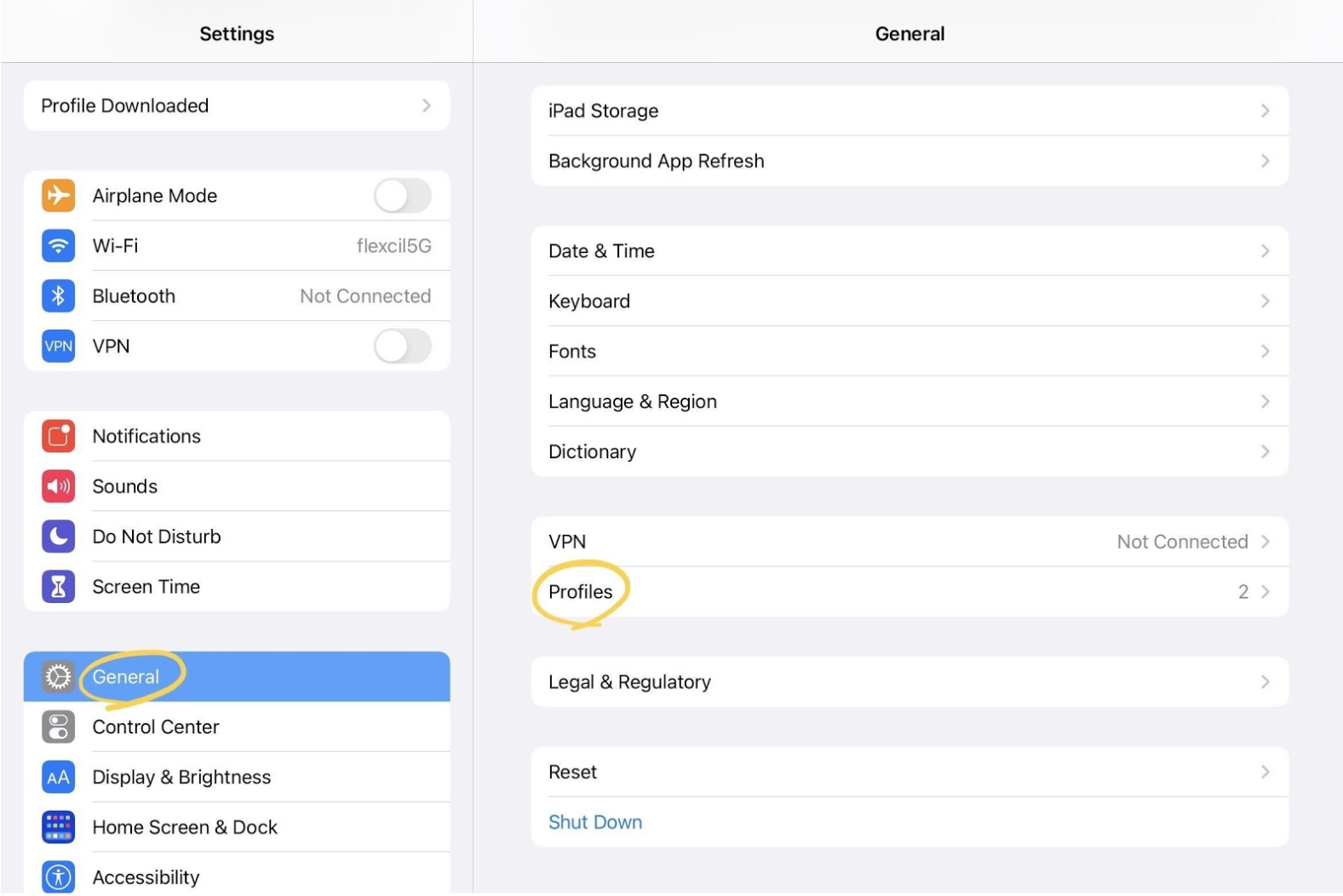
While the native method is great for single installations, third-party font management apps offer enhanced features, especially for bulk installations, easier browsing, and sometimes more robust management tools. Popular options include AnyFont, iFont, and Font Diner. These apps essentially streamline the profile installation process.
Why Use Them?
- Bulk Installation: Install multiple fonts at once more easily.
- Preview Features: Often include better font preview and categorization.
- Simplified Workflow: Can make the entire process feel more guided.
Step-by-Step Example (using a typical app like AnyFont or iFont):
- Download a Font Management App: Purchase and download a reputable font management app (e.g., AnyFont, iFont) from the App Store.
- Acquire Font Files: Download your desired font files (again, preferably
.ttfor.otfin a.ziparchive) to your iPad and unzip them using the Files app (as described in Method 1, step 2). - Import Fonts into the App: Open your chosen font management app. Most apps will have an “Import” or “+” button.
- Navigate to your “Fonts” folder in the Files app (or wherever you unzipped your font files).
- Select the font files you wish to import.
- The app will typically list the imported fonts, often with previews.
- Install Fonts via the App: Within the font management app, select the font(s) you want to install. There will usually be an “Install” button.
- The app will guide you through creating and installing a configuration profile, similar to the native iOS method. You’ll be redirected to Settings > Profile Downloaded.
- Tap “Install” on the profile, enter your passcode, and confirm the installation.
- Verify Installation: Once the profile is installed, the fonts will be available system-wide in compatible apps.
These apps often provide a more user-friendly interface for browsing and selecting fonts before installation, making the process feel more integrated for those who frequently manage their font library.
Method 3: App-Specific Font Installation (for Creative Professionals)
Some powerful creative applications, particularly those with a strong focus on design and typography, offer their own internal font management systems that work independently of iOS’s system-wide installation. This means fonts installed this way are only available within that specific app, not in other apps on your iPad.
Examples:
- Procreate: Allows you to import
.ttfor.otffiles directly into its font library when editing text. Simply tap the “Text” tool, then the font name in the Keyboard bar, and then “Import Font.” - Adobe Creative Cloud Apps (e.g., Photoshop, Illustrator, Fresco): If you have an Adobe Creative Cloud subscription, you can synchronize fonts directly from Adobe Fonts (formerly Typekit). These fonts will be available across all your Adobe apps on your iPad and desktop. You can also import local font files into some Adobe apps directly.
- Affinity Designer/Photo/Publisher: These professional-grade apps often have robust font management. You can usually import fonts directly through their in-app text tools or preferences.
- GoodNotes/Notability: While these note-taking apps primarily use system-installed fonts, their integration with the iOS font system means any font installed via Method 1 or 2 will be immediately available.
This method is crucial for designers who might need to manage a vast number of fonts for specific projects without cluttering their entire iPad’s system font list. It provides granular control and can be particularly useful when dealing with specific project requirements or unique font families.
Troubleshooting Common Font Installation Issues
While installing fonts on your iPad is generally straightforward, you might occasionally encounter hiccups. Knowing how to troubleshoot these common problems can save you frustration and get you back to creating.
Fonts Not Appearing in Apps
This is the most frequent issue. If your newly installed font isn’t showing up in the app’s font list, consider these solutions:
- Restart the App: Close the app completely (swipe up from the bottom of the screen to reveal the app switcher, then swipe the app preview upwards to dismiss it) and reopen it. Many apps only refresh their font lists on launch.
- Restart Your iPad: A full device restart can often resolve deeper system-level issues that prevent fonts from registering correctly.
- Check App Compatibility: Not all apps support custom fonts. While most major productivity and creative apps do, some simpler apps might be limited to system defaults.
- Reinstall the Font: If the above steps fail, try deleting the font (via Settings > General > Fonts or your font management app) and reinstalling it carefully, following the steps outlined earlier.
- Verify Font File Integrity: Ensure the
.ttfor.otffile itself isn’t corrupt. Try installing a different, known-good font to rule out issues with the specific font file.
Profile Installation Problems
When using methods that rely on configuration profiles, you might face specific challenges:
- “Profile Downloaded” Not Appearing: If you tap “Install Font” but aren’t redirected to Settings or don’t see “Profile Downloaded,” try manually going to Settings > General > VPN & Device Management. The profile should appear there. If not, the download/creation step failed, and you should repeat the installation process from the beginning.
- Passcode or Trust Issues: You must enter your iPad’s passcode when prompted to install a profile. If you cancel or enter the wrong code, the installation will fail. Ensure you tap “Install” multiple times when prompted, accepting the security warnings.
- Network Issues: A stable internet connection is sometimes necessary for profile installation or validation, especially if an app is fetching components. Ensure you’re connected to Wi-Fi or cellular data.
Managing and Deleting Fonts
An abundance of fonts can sometimes slow down your iPad or clutter your font lists. Regular management is a good practice.
- System-Wide Fonts: Go to Settings > General > Fonts. Here you can see all fonts installed via configuration profiles. Tap “Edit” in the top right, then select the fonts you wish to remove and tap “Remove.”
- Font Management Apps: If you used an app like AnyFont or iFont, you can often manage and delete fonts directly within that app. Deleting them through the app should also remove their corresponding profiles from the system.
- App-Specific Fonts: For fonts installed directly into apps like Procreate, you’ll need to use that app’s internal font management tools to remove them.
By systematically addressing these issues, you can efficiently resolve most font-related problems and maintain a smooth, responsive iPad experience.
Beyond Installation: Optimizing Your Font Workflow
Installing fonts is just the first step. To truly integrate custom typography into your digital life, consider how to optimize your workflow, ensure consistency, and stay ahead of emerging trends.
Cloud Synchronization and Cross-Device Consistency
For professionals and creatives working across multiple devices (iPad, iPhone, Mac, PC), maintaining a consistent font library is essential.
- Cloud Storage for Font Files: Store your master font library (the
.ttf/.otffiles) in a cloud service like iCloud Drive, Google Drive, or Dropbox. This ensures your fonts are always accessible for download and installation on any device. - Font Sync Services: For specific professional needs, services like Adobe Fonts automatically sync fonts across all your Adobe Creative Cloud applications on different devices. Some third-party font managers for macOS/Windows also offer cloud sync capabilities.
- Productivity and Brand Cohesion: This strategy ensures that whether you’re designing a logo on your desktop or creating a presentation on your iPad, you always have immediate access to your brand-approved or preferred fonts, reinforcing brand consistency and boosting overall productivity.
The Future of Fonts on iPad: Variable Fonts and AI Integration
The world of typography is constantly evolving, and the iPad will undoubtedly keep pace.
- Variable Fonts: These next-generation fonts allow for continuous variations along multiple design axes (e.g., weight, width, slant) from a single font file, offering unparalleled flexibility and smaller file sizes. iOS already has some support for variable fonts, and their presence will likely expand, offering even more creative control to iPad users.
- AI Integration: Artificial intelligence is beginning to play a role in font selection and design. Imagine AI tools suggesting optimal font pairings for your project, generating custom typefaces based on your input, or even providing accessibility insights for chosen fonts. As AI tools become more integrated into apps, expect these capabilities to trickle down to iPad creative suites, further enhancing the power of custom typography.
Digital Security Best Practices for Font Downloads
Reiterating the importance of digital security is crucial. Malicious software can be disguised as font files, posing a risk to your device and data.
- Stick to Reputable Sources: As discussed, only download fonts from well-known and trusted websites.
- Antivirus/Malware Scans: If you download fonts on a desktop computer before transferring them to your iPad, consider running a scan with antivirus software on the desktop.
- Beware of “Too Good to Be True” Offers: If a premium font family is suddenly available for free from an unknown site, exercise extreme caution.
- Regular Software Updates: Keep your iPad’s iOS up to date. Apple regularly releases security patches that protect against new threats.
By adopting these practices, you not only enhance your creative and professional output but also ensure your digital environment remains secure and efficient, which is a cornerstone of responsible technology use.

Conclusion
The iPad, with its remarkable capabilities, becomes an even more potent tool when you harness the power of custom fonts. Far from being a mere aesthetic choice, the ability to install unique typefaces elevates your creative projects, strengthens your professional brand, and personalizes your digital experience, all while contributing to a more efficient and enjoyable workflow.
Whether you opt for the simplicity of the native iOS Files app, the streamlined management of a third-party application, or the specialized control offered by creative suite integrations, the process of installing fonts is now more accessible than ever. By understanding font licensing, sourcing responsibly, and organizing your growing library, you can ensure a secure and productive typographical journey.
Embrace the freedom that custom fonts offer. Experiment with new styles, find the perfect typeface to convey your message, and watch as your iPad transforms into an even more powerful extension of your creativity and productivity. Unlock the full potential of your iPad today – your ideas deserve to be presented beautifully.
aViewFromTheCave is a participant in the Amazon Services LLC Associates Program, an affiliate advertising program designed to provide a means for sites to earn advertising fees by advertising and linking to Amazon.com. Amazon, the Amazon logo, AmazonSupply, and the AmazonSupply logo are trademarks of Amazon.com, Inc. or its affiliates. As an Amazon Associate we earn affiliate commissions from qualifying purchases.