
In the intricate world of modern computing, your monitor is far more than just a screen; it’s your primary window into digital productivity, entertainment, and creation. From high-refresh-rate gaming displays to color-accurate panels for professional design, the specifications of your monitor significantly impact your daily experience. Yet, for many, the exact model and capabilities of their display remain a mystery. Whether you’re looking to upgrade, troubleshoot an issue, optimize your settings, or simply understand the value of your tech investment, knowing the specifics of your monitor is crucial.
Understanding your monitor’s brand, model, resolution, refresh rate, and panel type empowers you to make informed decisions about your setup, diagnose problems effectively, and even gauge its resale value. It helps you ensure compatibility with new graphics cards, select the right accessories like monitor arms or docking stations, and fully leverage its capabilities for tasks ranging from intensive gaming to detailed graphic design. This guide will walk you through a comprehensive set of methods, from simple physical checks to in-depth software diagnostics, enabling you to uncover every essential detail about the monitor staring back at you.

The Obvious Clues: Physical Inspection
Before diving into the digital realm, the most straightforward way to identify your monitor’s details is often through a thorough physical inspection. Manufacturers typically label their products with key information, making it accessible even without powering up your system.
Checking Labels and Bezels
Start by examining the front bezel of your monitor, the thin frame around the screen. Many manufacturers proudly display their brand name here (e.g., Dell, HP, LG, Samsung, Acer, ASUS, BenQ, AOC). While the brand is a good starting point, it’s rarely enough.
Next, look for a model number. This is often found on a sticker or etched into the plastic on the back of the monitor, on the bottom edge, or sometimes even on the stand. The model number is your golden ticket to unlocking detailed specifications. It’s usually an alphanumeric string (e.g., “U2719D,” “G27FC,” “LS27F350FH”). Pay close attention to any small print, as it can be easy to miss. On some monitors, you might also find a serial number, which is unique to your specific unit and can be useful for warranty claims or manufacturer support, though less helpful for general specification lookups.
Don’t overlook any regulatory labels, such as those for Energy Star, CE, or FCC compliance. While their primary purpose is certification, they sometimes include the model number or other identifying information within the fine print. These labels often hint at the monitor’s power efficiency and adherence to international standards, which can indirectly speak to the brand’s commitment to quality and modern technology.
Ports and Connections
The array of ports on the back of your monitor offers valuable insights into its capabilities and age. Modern monitors typically feature HDMI (High-Definition Multimedia Interface) and DisplayPort for high-resolution and high-refresh-rate connections. The presence of multiple HDMI versions (e.g., HDMI 2.0 vs. 2.1) or DisplayPort versions (e.g., 1.2 vs. 1.4) can indicate support for higher resolutions and refresh rates, crucial for gaming or professional video editing.
Older monitors might still have DVI (Digital Visual Interface) or VGA (Video Graphics Array) ports. A VGA port, with its distinctive blue color and screw connectors, usually signifies an older, analog-only display, often limited to 1080p resolution and lower refresh rates.
Beyond video inputs, many monitors serve as USB hubs, featuring USB-A ports for connecting peripherals like keyboards, mice, or external drives. The presence of USB-C is a premium feature, enabling a single cable to carry video, data, and power delivery, making it ideal for laptop users seeking a clean desk setup and enhanced productivity. Observing the power input type (internal vs. external power brick) can also provide clues about the monitor’s design and features.
Physical Design and Features
While less precise, the monitor’s physical design can also offer hints. You can roughly measure the screen size diagonally (from one corner of the visible screen to the opposite) to get an estimate (e.g., 24-inch, 27-inch, 32-inch).
Examine the stand’s adjustability. A stand that offers height adjustment, tilt, swivel, and pivot (rotating the screen 90 degrees for portrait mode) often indicates a higher-end, ergonomically focused monitor, catering to professionals and users who prioritize comfort and productivity. Simpler stands might only offer basic tilt.
Other integrated features like built-in speakers, a webcam, or a more extensive USB hub (especially with fast charging capabilities) can also point to specific models or feature sets. These integrated components add convenience and can reduce desktop clutter, contributing to a more streamlined workspace, a key aspect of modern tech efficiency.
Diving Deeper: Software and Operating System Tools
When physical labels are worn, missing, or simply not detailed enough, your computer’s operating system and various software tools become invaluable resources for identifying your monitor.
Windows Operating System
For Windows users, several built-in utilities can provide the information you need:
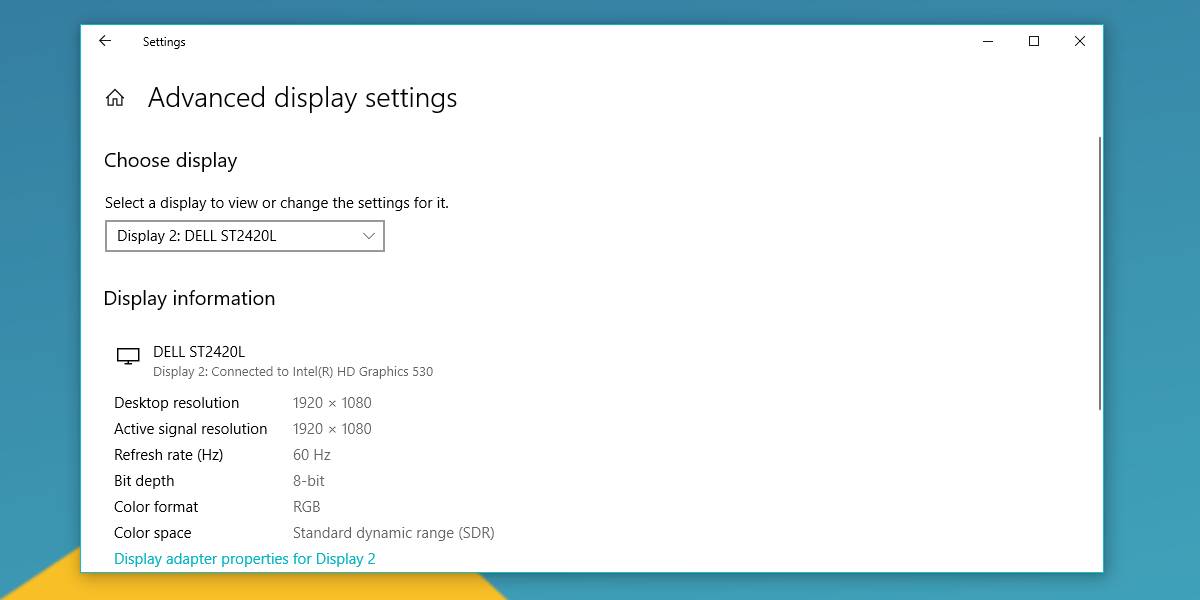
- Display Settings: Right-click anywhere on your desktop and select “Display settings.” Scroll down to “Advanced display settings.” Here, you’ll typically see basic information like your monitor’s resolution and refresh rate. It might also list a generic monitor name (e.g., “Generic PnP Monitor”) if specific drivers aren’t installed, but sometimes it will show the actual model.
- Device Manager: Press
Windows key + Xand select “Device Manager.” Expand the “Monitors” section. You should see a list of connected monitors, often displaying their precise model name. If it still shows “Generic PnP Monitor,” it means Windows is using a default driver, and you might need to update your graphics drivers or use another method. - DirectX Diagnostic Tool (dxdiag): Press
Windows key + R, typedxdiag, and press Enter. After the tool loads, navigate to the “Display” tab (or multiple display tabs if you have several monitors). This tool provides extensive details about your graphics card and, critically, often lists your monitor’s name, current mode (resolution and refresh rate), and sometimes even its manufacturer. This is particularly useful for troubleshooting graphics-related issues. - System Information (msinfo32): Press
Windows key + R, typemsinfo32, and press Enter. In the System Information window, navigate to “Components” > “Display.” While primarily detailing your graphics card, it sometimes provides details about the attached monitor under “Monitor Type” or similar entries.
macOS Operating System
Mac users have equally straightforward methods:
- About This Mac: Click the Apple menu in the top-left corner and select “About This Mac.” In the overview window, click on the “Displays” tab. This will show you the name of your connected monitor(s), their resolution, and sometimes their refresh rate.
- System Information App: For more granular details, within “About This Mac,” click “System Report…” (or hold
Optionand click the Apple menu, then select “System Information”). In the left-hand sidebar, navigate to “Hardware” > “Graphics/Displays.” This section provides comprehensive information about your graphics card and all connected displays, including their model ID, resolution, pixel depth, refresh rate, and manufacturer.
Linux Operating System
Linux distributions also offer command-line tools and graphical interfaces:
xrandrcommand: Open a terminal and typexrandr. This command lists all connected displays, their supported resolutions, and refresh rates. It often includes the monitor’s model name or a derived identifier.lshwcommand: This powerful tool can list detailed hardware information. Open a terminal and typesudo lshw -c display. You might need to parse the output, but it often reveals monitor details.- Desktop Environment Settings: Most modern Linux desktop environments (e.g., GNOME, KDE Plasma, XFCE) have graphical display settings panels that provide information similar to Windows or macOS, showing connected monitors, their resolutions, and refresh rates.
Third-Party Utilities
For the most comprehensive hardware reports, third-party software can be invaluable, especially if built-in tools are insufficient or you need to inspect an older system:
- Speccy (Windows): A popular free tool from Piriform (the creators of CCleaner) that provides a detailed overview of your PC’s hardware, including monitors. It lists the brand, model, resolution, refresh rate, size, and even manufacturing date.
- HWiNFO (Windows): A highly detailed system information and diagnostics tool that offers an exhaustive report on every component, including monitors. It can even show advanced features like supported HDR modes.
- AIDA64 (Windows, Paid with Trial): A professional-grade system information, diagnostic, and benchmarking solution that provides incredibly detailed insights into your display’s capabilities and sensors.
These utilities offer a granular look at your system’s components, making them excellent choices for tech enthusiasts, IT professionals, and anyone needing an in-depth understanding of their hardware assets.
Unveiling Specifications: Online Research and Manufacturer Support
Once you have a model number or even just a solid brand name and partial identifier, the internet becomes your most powerful research tool.
Using Model and Serial Numbers
- Google Search: The simplest and most effective first step. Type your monitor’s model number (e.g., “Dell U2719D specifications”) into Google. You’ll likely be met with numerous results leading to product pages, reviews, and forums.
- Manufacturer’s Official Website: The best source for accurate information. Go directly to the manufacturer’s support or product page and search for your model number. You’ll find detailed specifications, user manuals, driver downloads, and often FAQs. This is where you’ll confirm everything from panel type to specific connectivity options and warranty details.
- Tech Review Sites: Websites like RTINGS, TechRadar, AnandTech, Tom’s Hardware, and PCMag offer in-depth reviews and technical specifications for a vast array of monitors. These sites often provide comparative analyses, performance benchmarks, and insights into real-world usage, helping you understand how your monitor stacks up against its competitors. This also ties into the “Brand” aspect of our website topics, as these reviews often shape brand perception and reputation.
Decoding Monitor Terminology (Briefly)
When researching, you’ll encounter a host of technical terms. Here’s a quick rundown of the most important:
- Resolution: The number of pixels on the screen (e.g., 1920×1080 Full HD, 2560×1440 QHD/2K, 3840×2160 4K/UHD). Higher resolution means sharper images and more screen real estate, vital for productivity and visual fidelity.
- Refresh Rate: How many times the image on the screen is updated per second, measured in Hertz (Hz). Common rates are 60Hz, 75Hz, 120Hz, 144Hz, 240Hz, or even higher. Higher refresh rates result in smoother motion, especially beneficial for gaming and fast-paced video.
- Panel Type: The underlying technology of the display.
- IPS (In-Plane Switching): Known for excellent color accuracy and wide viewing angles, ideal for graphic design and media consumption.
- VA (Vertical Alignment): Offers high contrast ratios and deep blacks, good for movies and some gaming, but with slower response times than TN.
- TN (Twisted Nematic): Fastest response times, making them popular for competitive gaming, but suffer from poorer color reproduction and narrow viewing angles.
- OLED (Organic Light-Emitting Diode): Premium panels with per-pixel lighting, offering infinite contrast and perfect blacks, but typically more expensive.
- Response Time: How quickly a pixel can change from one color to another, measured in milliseconds (ms). Lower response times (e.g., 1ms or 5ms) reduce motion blur and ghosting, crucial for fast-action gaming.
- Adaptive Sync: Technologies like NVIDIA G-Sync and AMD FreeSync synchronize the monitor’s refresh rate with the graphics card’s frame rate, eliminating screen tearing and stuttering for a smoother gaming experience.
- HDR (High Dynamic Range): Enhances contrast, brightness, and color gamut, providing a more vibrant and realistic image, especially noticeable in supported content like HDR movies and games.
- Connectivity: Knowing the specific versions of HDMI, DisplayPort, or USB-C inputs helps you understand what resolutions and refresh rates the monitor can support from various devices.
Why Knowing Your Monitor Matters: Practical Applications
Understanding your monitor’s specifications isn’t just about satisfying curiosity; it’s about empowering you to make smarter technology and financial decisions, enhance your productivity, and optimize your digital experience.
Upgrading and Compatibility
Knowing your monitor’s capabilities is paramount when planning an upgrade to your PC setup. If you’re investing in a new, powerful graphics card, you’ll want to ensure your monitor can fully utilize its performance, whether that’s displaying a 4K resolution, a high refresh rate, or leveraging adaptive sync technologies. Conversely, if your monitor is dated, it might be the bottleneck preventing you from experiencing your new GPU’s full potential, making it a priority for your next tech investment. This knowledge also ensures compatibility with monitor arms (Vesa mount sizes), docking stations, or other accessories, preventing costly mistakes. For multi-monitor setups, understanding the specific attributes of each display helps you create a cohesive and efficient workspace.
Troubleshooting and Optimization
Detailed monitor information is a key asset for effective troubleshooting. If you’re experiencing display issues like flickering, incorrect resolutions, or color inaccuracies, knowing the exact model allows you to search for specific driver updates, firmware updates from the manufacturer, or common solutions tailored to your monitor. Furthermore, it enables you to optimize settings like refresh rate, color profiles, and scaling to achieve the best possible visual experience for your specific use case, from accurate color calibration for creative work to maximizing frame rates for competitive gaming.
Value and Resale
From a “Money” perspective, knowing your monitor’s exact model and specifications is crucial for accurately assessing its market value. If you decide to sell or trade up, an informed listing with precise details about its features (resolution, refresh rate, panel type, adaptive sync, HDR support) will attract more buyers and ensure you get a fair price. Understanding its initial price point and current depreciation helps you gauge your tech investment and plan for future upgrades. A well-known brand and highly-rated model will also inherently carry a stronger resale value, linking back to “Brand” reputation.
Productivity and Ergonomics
Beyond raw technical specs, understanding your monitor’s features directly impacts your daily productivity and comfort. A large, high-resolution display significantly enhances screen real estate for multitasking, allowing you to open multiple applications side-by-side without constant window switching. Features like pivot functionality (for portrait mode) are invaluable for coders, writers, and anyone dealing with long documents. An ergonomically adjustable stand contributes to better posture and reduced strain during long working hours, directly impacting long-term health and efficiency. Choosing the right panel type (e.g., an IPS panel for color-critical design work versus a TN panel for ultra-fast gaming) ensures your tools are perfectly matched to your tasks, making your digital life smoother and more effective.
“Tech” and “Money” Integration
Ultimately, identifying your monitor is a foundational step in mastering your personal technology ecosystem. It’s about understanding the specific gadget you own, its capabilities, and its role in your overall productivity. This knowledge then translates into smart financial decisions, whether it’s making an informed investment in an upgrade, understanding the value of your current assets, or optimizing your setup for better online income generation through enhanced workflows. The brand reputation of your monitor also plays a subtle role, often reflecting reliability, support, and perceived quality, all of which influence both tech satisfaction and monetary value.

Conclusion
Knowing what monitor you have is a fundamental piece of information that every computer user should possess. It’s the key to unlocking your system’s full potential, making intelligent upgrade decisions, troubleshooting with confidence, and ensuring your display perfectly aligns with your personal and professional needs. By utilizing a combination of physical inspection, operating system tools, and online research, you can quickly gather all the crucial details about your display. Empower yourself with this knowledge, and take control of your digital viewport, ensuring every pixel contributes to a superior computing experience.
aViewFromTheCave is a participant in the Amazon Services LLC Associates Program, an affiliate advertising program designed to provide a means for sites to earn advertising fees by advertising and linking to Amazon.com. Amazon, the Amazon logo, AmazonSupply, and the AmazonSupply logo are trademarks of Amazon.com, Inc. or its affiliates. As an Amazon Associate we earn affiliate commissions from qualifying purchases.