
In the modern computing landscape, the Graphics Processing Unit (GPU) has evolved from a simple component responsible for rendering basic desktop windows into a powerhouse of parallel processing. Whether you are a creative professional rendering 4K video, a data scientist running machine learning models, or a dedicated gamer seeking the highest frames per second, your GPU is the heart of your visual experience. However, hardware is only as capable as the software that instructs it. This software is known as the graphics driver.
Keeping your graphics driver updated is one of the most essential maintenance tasks for any PC user. An outdated driver can lead to system instability, visual artifacts, poor application performance, and even security vulnerabilities. This guide provides a deep dive into the technical nuances of graphics drivers and provides a step-by-step roadmap for ensuring your system remains at the cutting edge of performance.

Understanding the Role of Graphics Drivers in System Performance
To appreciate why updates are necessary, one must understand what a graphics driver actually does. In technical terms, the driver acts as a translation layer between the Operating System (Windows, macOS, or Linux), the software applications (like Adobe Premiere or Cyberpunk 2077), and the physical GPU hardware.
Bridging the Gap Between Software and Hardware
When an application wants to display an image, it sends instructions via an Application Programming Interface (API) such as DirectX, Vulkan, or OpenGL. The GPU driver receives these high-level instructions and translates them into low-level machine code that the specific architecture of your graphics card (such as NVIDIA’s Ada Lovelace or AMD’s RDNA 3) can execute. Without an optimized driver, this communication becomes inefficient, leading to “bottlenecks” where the hardware sits idle while waiting for instructions.
The Impact of Optimization and Bug Fixes
Graphics card manufacturers—primarily NVIDIA, AMD, and Intel—constantly refine their driver code. These refinements often include “Game Ready” optimizations, which are specific tweaks designed to improve performance for newly released software titles. Beyond performance, updates frequently patch critical bugs that cause “Blue Screen of Death” (BSOD) errors or application crashes. In a professional environment, these stability improvements are often more valuable than raw speed, as they prevent data loss and downtime.
Security and Compatibility
Modern GPUs are increasingly used for general-purpose computing. Because they have direct access to system memory, a vulnerability in a graphics driver can be a significant security risk. Manufacturers regularly release security patches to prevent malicious actors from exploiting driver-level flaws. Furthermore, as Windows or macOS receives major updates, drivers must be updated to maintain compatibility with new system-level display architectures, such as High Dynamic Range (HDR) support or variable refresh rate (VRR) technologies.
Streamlined Updates via Windows and Integrated Tools
For many casual users, the easiest way to manage drivers is through the tools already integrated into the operating system. While these methods are convenient, they come with certain trade-offs regarding how “up-to-date” the software actually is.
Utilizing Windows Update for Stability
Windows Update is the most seamless method for updating drivers. Microsoft works with hardware vendors to certify drivers through the Windows Hardware Quality Labs (WHQL). When you run a Windows Update, the system automatically checks for these certified drivers.
- The Pro: These drivers are rigorously tested for stability and are highly unlikely to cause system crashes.
- The Con: The certification process takes time. Consequently, the drivers found on Windows Update are often several months old and may lack the latest performance optimizations for new games or professional software.
Managing Drivers Through Device Manager
If you suspect a driver issue but don’t want to install third-party software, the Windows Device Manager is your primary internal tool. By navigating to “Display Adapters,” right-clicking your GPU, and selecting “Update Driver,” you can force Windows to search for a newer version. This is particularly useful for resolving “Yellow Triangle” exclamation marks that indicate a driver has failed to load correctly. However, like Windows Update, this method rarely fetches the absolute latest version available from the manufacturer’s website.
Leveraging Manufacturer-Specific Software Suites
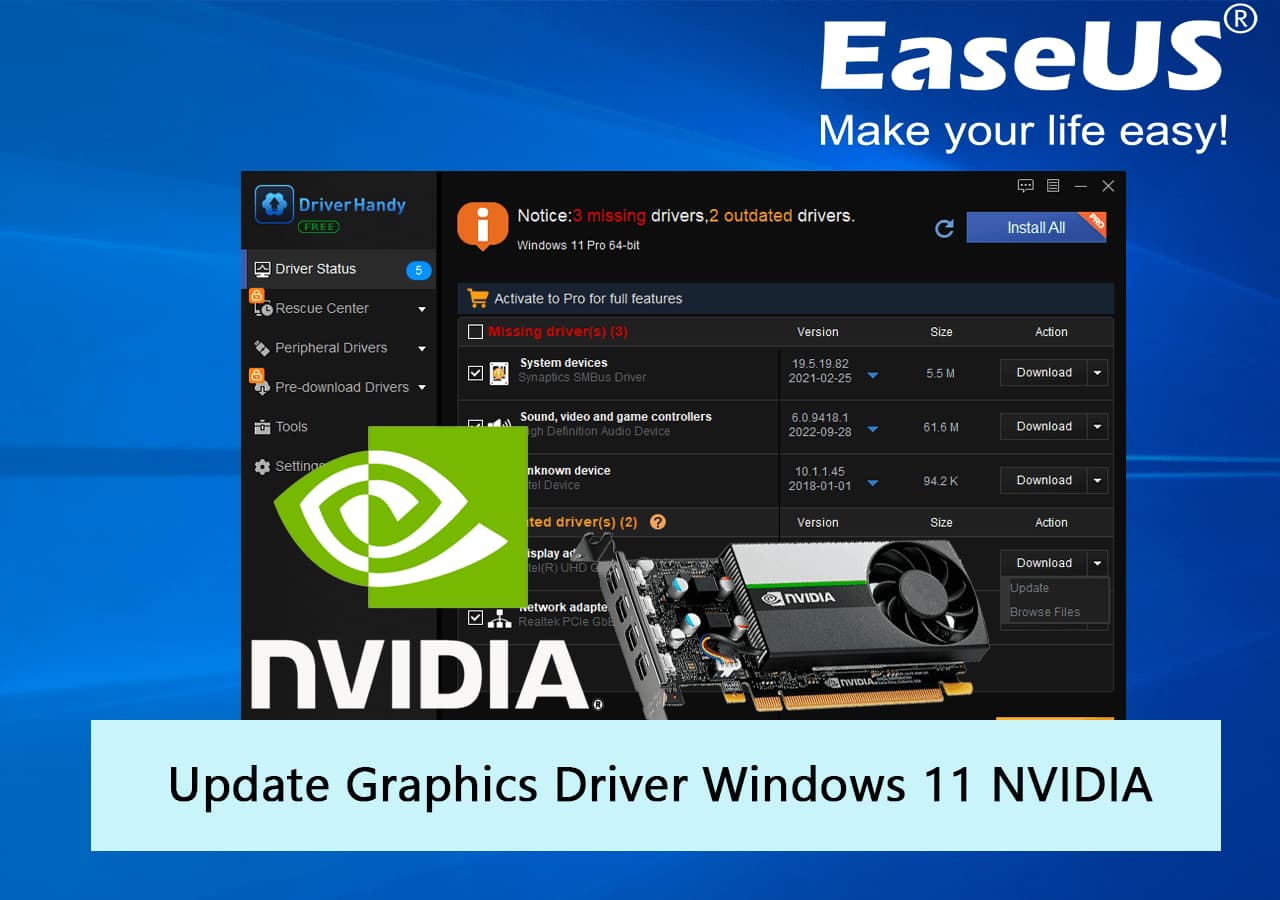
For power users, enthusiasts, and professionals, the manufacturer’s proprietary software is the gold standard for driver management. These suites provide a bridge between ease of use and maximum performance.
NVIDIA GeForce Experience and NVIDIA App
NVIDIA users typically utilize “GeForce Experience” (recently being transitioned to the unified “NVIDIA App”). These tools provide a “Check for Updates” button that communicates directly with NVIDIA’s servers.
- Game Ready Drivers: These are optimized for the latest gaming releases.
- Studio Drivers: For professionals using apps like DaVinci Resolve or Maya, NVIDIA offers “Studio Drivers,” which prioritize long-term stability and extensive testing across creative suites.
The software also offers one-click optimization for game settings based on your specific hardware configuration, ensuring you get the best visual-to-performance ratio.
AMD Software: Adrenalin Edition
AMD’s software suite is widely praised for its comprehensive feature set. The Adrenalin Edition doesn’t just update drivers; it provides a full dashboard for monitoring GPU temperature, clock speeds, and power consumption. The update process within Adrenalin allows users to choose between “Recommended” (stable) or “Optional” (cutting-edge) versions. AMD also includes a “Factory Reset” option during installation, which clears out old driver files to prevent conflicts—a feature that often saves users from needing third-party uninstallation tools.
Intel Graphics Command Center and Arc Control
With the entry of Intel into the high-performance GPU market with their Arc series, the Intel Driver & Support Assistant (DSA) and the Intel Arc Control software have become vital. Intel drivers are updated frequently as they continue to refine their new architecture. Using the Intel DSA tool is highly recommended for users with integrated UHD/Iris Xe graphics or dedicated Arc GPUs, as it scans the entire system for chipset and display updates simultaneously.
Manual Installation: A Step-by-Step Guide for Advanced Users
Sometimes, automated tools fail due to network errors or software conflicts. In these cases, a manual installation is the most reliable path. This process ensures you have the exact file intended for your specific hardware.
Step 1: Identifying Your Hardware
Before downloading a driver, you must know your exact GPU model. The fastest way to do this on Windows is to press Win + R, type dxdiag, and hit Enter. Under the “Display” tab, you will see the name and manufacturer of your chip. Take note of whether it is a desktop or notebook (mobile) version, as the drivers are often different.
Step 2: Sourcing the Driver
Always download drivers directly from the official source. Avoid “Driver Booster” third-party sites, as these can bundle malware or provide incorrect files.
- NVIDIA: nvidia.com/Download
- AMD: amd.com/en/support
- Intel: intel.com/content/www/us/en/download-center
Step 3: Performing a “Clean Install”
When running the downloaded installer, look for “Advanced” or “Custom” installation options. Most installers offer a “Perform a clean installation” checkbox. Selecting this will remove old profiles and registry keys before installing the new version. This is the single best way to fix persistent graphical glitches or performance drops that occurred after a previous update.
Troubleshooting and Best Practices for Driver Maintenance
While updating drivers is generally safe, the complexity of modern operating systems means things can occasionally go wrong. Understanding how to revert changes is just as important as knowing how to apply them.
When to Use Display Driver Uninstaller (DDU)
If you are experiencing severe issues—such as frequent crashes, black screens, or switching from an NVIDIA card to an AMD card—a standard uninstallation might not be enough. Tech enthusiasts use a utility called Display Driver Uninstaller (DDU). This tool, used in Windows Safe Mode, completely wipes every trace of a graphics driver from the system registry and file folders. It provides a “blank slate” that is often necessary for resolving deep-seated software conflicts.
The Art of the Rollback
Newer isn’t always better. Occasionally, a new driver version may introduce a regression—a bug that wasn’t there before. If you notice performance dropping immediately after an update, Windows allows you to “Roll Back Driver” through the Device Manager. This reverts the system to the previously installed version. Keeping a copy of the previous stable installer on your drive for a few days after an update is a wise precaution for professionals who cannot afford downtime.

Establishing a Maintenance Schedule
How often should you update? For gamers, checking once a month or before a major game release is ideal. For office or general use, once every quarter is sufficient. However, always keep an eye on tech news for “critical security updates.” By maintaining a proactive approach to your graphics drivers, you ensure that your hardware continues to deliver the crisp visuals and fluid performance it was designed for, protecting your investment and enhancing your digital experience.
aViewFromTheCave is a participant in the Amazon Services LLC Associates Program, an affiliate advertising program designed to provide a means for sites to earn advertising fees by advertising and linking to Amazon.com. Amazon, the Amazon logo, AmazonSupply, and the AmazonSupply logo are trademarks of Amazon.com, Inc. or its affiliates. As an Amazon Associate we earn affiliate commissions from qualifying purchases.