
For nearly two decades, iTunes was the undisputed gateway between Windows PCs and the Apple ecosystem. It was the software that handled everything from music libraries and movie rentals to iPhone backups and software updates. However, as the digital landscape evolved, iTunes became increasingly “bloated”—a term often used by tech enthusiasts to describe software that attempts to do too many things at once, resulting in a slow and cumbersome user experience.
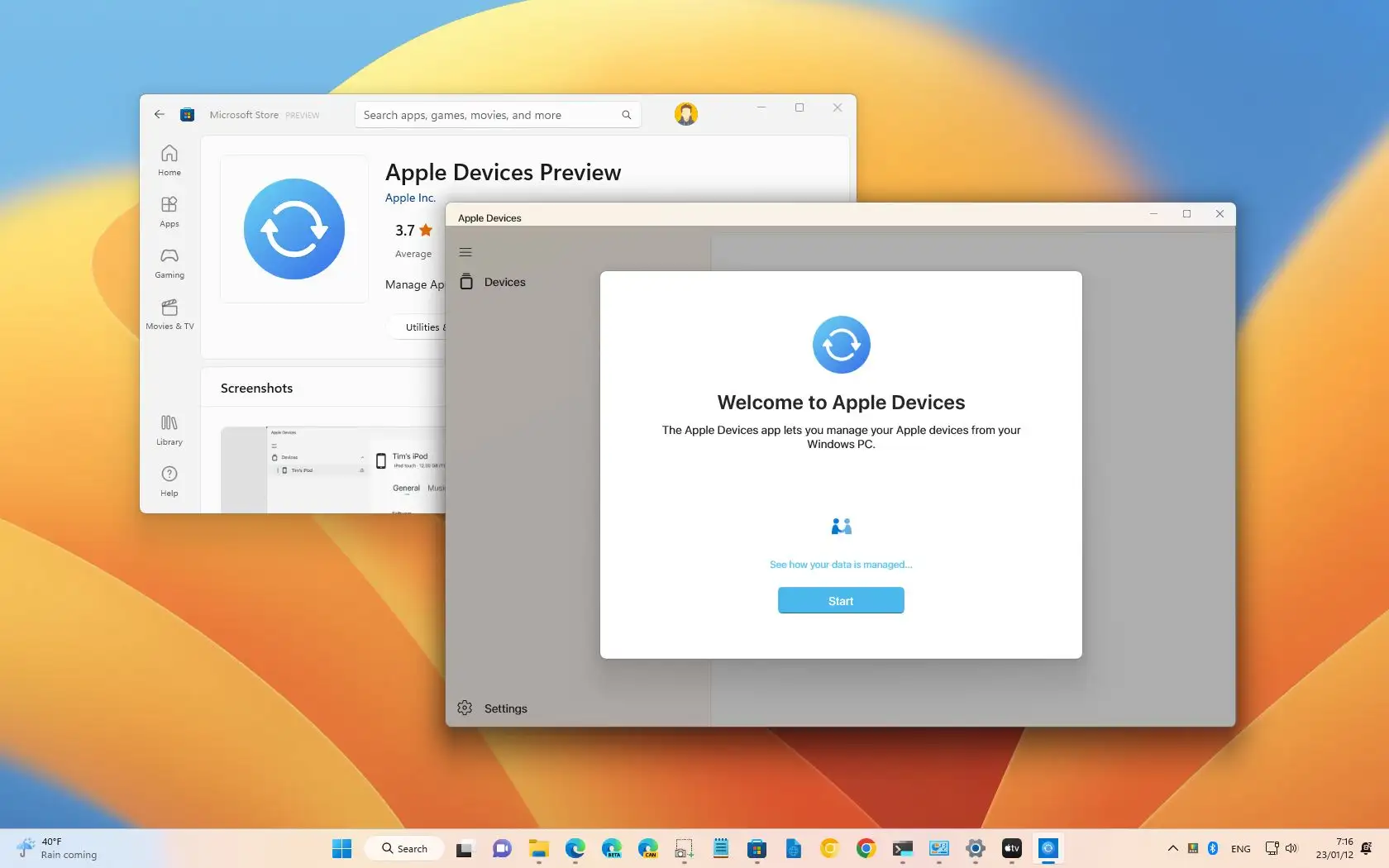
In a significant move to modernize its software suite, Apple recently introduced the Apple Devices app for Windows. This specialized application is designed to decouple device management from media playback, providing a faster, more reliable, and streamlined way for Windows users to interact with their iPhones and iPads. This article explores the transition from iTunes, the core functionalities of the Apple Devices app, and how it fits into the broader modern tech ecosystem.
Transitioning from iTunes: The Evolution of Apple Software on Windows
The release of the Apple Devices app marks the end of an era for Windows users. While macOS users saw iTunes disappear with the release of macOS Catalina in 2019—replaced by separate apps for Music, TV, and Podcasts, with device management moved to the Finder—Windows users were left with the legacy iTunes app for several more years.
Why iTunes was Retired
The primary driver behind retiring iTunes was complexity. Originally a simple music player, iTunes eventually grew to include a video store, a podcast manager, an app store, and a backup utility. This “everything-in-one” approach led to frequent crashes, slow sync times, and a confusing interface. By splitting these features into dedicated applications, Apple has optimized the performance of each task. The Apple Devices app is the final piece of that puzzle, focusing solely on the communication between your PC and your mobile hardware.
The New Trio: Apple Music, Apple TV, and Apple Devices
To replace the functions of iTunes on Windows, Apple introduced three distinct apps:
- Apple Music: Focused entirely on your music library and the Apple Music streaming service.
- Apple TV: The hub for movies, TV shows, and the Apple TV+ subscription.
- Apple Devices: The utility for syncing, backing up, and updating your iPhone, iPad, and iPod.
When you install these apps, iTunes is essentially deactivated (though your media library remains intact). This modular approach ensures that background processes are only running when you actually need them, significantly improving system resource management on Windows 10 and 11.
Core Features and Functionality of the Apple Devices App
The Apple Devices app is not just a cosmetic update; it is a high-performance utility designed for the modern era of mobile computing. Its primary purpose is to provide a dedicated environment for hardware management without the distractions of media stores or social features.
Device Management and Synchronization
At its heart, the app serves as a local bridge for your data. When you connect an iPhone or iPad to your PC, the Apple Devices app provides a comprehensive dashboard of your hardware. You can sync specific content categories, including:
- Photos and Videos: Offload media to your PC or sync albums from your computer to your device.
- Music and TV Shows: While the playback happens in separate apps, the Apple Devices app handles the physical transfer of files to your mobile device.
- Files: Through the “Files” tab, users can move documents between their PC and specific apps on their iOS or iPadOS device.
Backup and Restoration Processes
One of the most critical functions of the Apple Devices app is local backup management. While iCloud offers a convenient wireless backup solution, many users prefer local backups for added security, faster restoration speeds, and to avoid monthly cloud storage fees.
- Full Backups: The app allows you to create a bit-for-bit copy of your device on your PC’s hard drive.
- Encryption: For security-conscious users, the app offers “Encrypt Local Backup,” which protects your data with a password and allows for the backup of sensitive information like saved passwords, Health data, and HomeKit settings.
- Restoration: In the event of a device failure or an upgrade to a new model, the Apple Devices app makes it seamless to “Restore Backup,” moving all your settings and data onto the new hardware.
Updating and Restoring Firmware
Maintaining the latest version of iOS or iPadOS is vital for digital security. The Apple Devices app automates this by checking for updates whenever your device is connected. Furthermore, it acts as a lifeline for “bricked” or malfunctioning devices. Through “Recovery Mode” or “DFU Mode” integration, the app can download and re-install the entire operating system, often fixing software-level issues that cannot be resolved on the device itself.

How to Set Up and Use the Apple Devices App
Moving to the Apple Devices app is straightforward, but it requires a basic understanding of the new Windows-Apple architecture.
System Requirements and Installation
The Apple Devices app is available through the Microsoft Store. To run it, you generally need a PC running Windows 10 version 19045.0 or higher.
- Open the Microsoft Store on your PC.
- Search for “Apple Devices.”
- Click “Install.”
Upon installation, if you have iTunes currently installed, the system will inform you that iTunes will no longer be used for device management. It is recommended to install the Apple Music and Apple TV apps simultaneously to ensure a complete transition.
Navigating the User Interface
The interface of the Apple Devices app is remarkably clean compared to its predecessor. Upon launching the app and connecting a device via USB, you are greeted with a sidebar containing the following categories:
- General: Displays device serial numbers, battery percentage, and storage capacity. This is also where you manage backups and software updates.
- Music/Movies/TV Shows: These tabs allow you to toggle syncing for specific media libraries.
- Photos: Used to manage how your PC communicates with your device’s photo library.
- Files: A dedicated space for drag-and-drop file transfers for supported apps.
Connecting via Cable vs. Wi-Fi
While a physical USB-C or Lightning cable is required for the initial setup and for large data transfers (like a full system restore), the Apple Devices app supports Wi-Fi syncing. Once enabled in the “General” tab, your iPhone or iPad will appear in the app whenever both the PC and the mobile device are on the same wireless network. This allows for seamless, hands-free backups and light syncing throughout the day.
Security and Data Privacy in the Apple Ecosystem
In the age of frequent data breaches, the Apple Devices app emphasizes local control over personal information. By using this app, users can maintain a high level of digital security without relying exclusively on the cloud.
Encrypted Backups and Local Storage
By choosing to back up to a Windows PC rather than iCloud, you are essentially creating a “cold storage” version of your digital life. The Apple Devices app uses industry-standard encryption for its backups. This means that even if someone gains access to your PC’s files, they cannot read your iPhone backup without the specific password you set during the encryption process. This is a vital feature for professionals handling sensitive corporate data or individuals prioritizing personal privacy.
Security Protocols for Device Communication
The app utilizes Apple’s proprietary pairing protocols. When you first connect your device, you must “Trust This Computer” on your iPhone or iPad and enter your device passcode. This “handshake” creates a unique cryptographic key pair, ensuring that no unauthorized computer can pull data from your device through the USB port. This hardware-level security is a cornerstone of Apple’s commitment to user privacy.
The Future of Apple’s Windows Integration
The introduction of the Apple Devices app signifies a broader trend in the tech industry: the pursuit of Continuity. Apple is no longer viewing Windows users as an afterthought; instead, they are creating a suite of tools that make the cross-platform experience feel native.
Continuity Across Platforms
While Apple hardware works best within its own ecosystem (using a Mac, iPhone, and iPad together), a vast majority of the global workforce relies on Windows for professional tasks. The Apple Devices app ensures that owning an iPhone is not a hindrance to using a Windows PC. By aligning the Windows experience with the macOS Finder experience, Apple has reduced the learning curve for users who switch between different operating systems at home and work.

Troubleshooting Common Issues
Despite its improvements, users may occasionally encounter issues. Common troubleshooting steps for the Apple Devices app include:
- Driver Updates: Ensure that the “Apple Mobile Device USB Device” driver is updated in the Windows Device Manager.
- Cable Integrity: Use Apple-certified (MFi) cables to avoid connection drops during backups.
- App Conflicts: Ensure that legacy versions of iTunes have been fully updated or transitioned to the new app suite to avoid software conflicts.
The Apple Devices app is a welcome evolution for the millions of people who navigate the intersection of Apple hardware and Windows software. By stripping away the clutter of the past and focusing on speed, security, and simplicity, Apple has provided Windows users with a professional-grade tool that finally does justice to the power of the iPhone and iPad. Whether you are performing a weekly backup, syncing a massive lossless music library, or reviving a stalled device, the Apple Devices app is the modern, efficient solution the Windows community has long awaited.
aViewFromTheCave is a participant in the Amazon Services LLC Associates Program, an affiliate advertising program designed to provide a means for sites to earn advertising fees by advertising and linking to Amazon.com. Amazon, the Amazon logo, AmazonSupply, and the AmazonSupply logo are trademarks of Amazon.com, Inc. or its affiliates. As an Amazon Associate we earn affiliate commissions from qualifying purchases.