
In the evolving landscape of personal computing, the balance between user freedom and system integrity has always been a point of contention. For years, the Windows operating system was synonymous with an “open” architecture—allowing users to install any software from any source. However, this openness often came at the cost of security vulnerabilities, system slowdowns, and “bit rot.” To address these concerns, Microsoft introduced S Mode.
Initially launched as Windows 10 S and later integrated as a specific “mode” within Windows 10 and Windows 11, S Mode represents a streamlined, secure, and performance-oriented version of the world’s most popular operating system. But what exactly is S Mode, and why does it exist? This guide explores the technical architecture, the benefits, the limitations, and the practical implications of running your device in this restricted environment.
Understanding the Fundamentals of Windows S Mode
At its core, S Mode is a configuration of Windows designed to provide a more consistent and reliable experience. It is not a separate version of the OS in the way that “Pro” or “Home” are; rather, it is a locked-down state that prioritizes security and speed above all else.
Defining the “S” in S Mode
While Microsoft has never officially confirmed a single word that the “S” stands for, it is widely accepted to represent a combination of Security, Speed, and Simplicity. The philosophy behind S Mode is to create a “walled garden” similar to mobile operating systems like iOS or iPadOS. By limiting the sources of software and the types of processes that can run in the background, Microsoft aims to eliminate the most common causes of Windows instability: malware and poorly optimized third-party applications.
How S Mode Differs from Standard Windows
The primary technical difference lies in the execution of code. In a standard Windows environment, you can download a .exe or .msi file from a website and run it. In S Mode, this is strictly prohibited. The system only allows applications that are sourced from the Microsoft Store.
Furthermore, S Mode restricts the use of command-line shells like PowerShell or Command Prompt and prevents the installation of non-Microsoft drivers. This ensures that every piece of software interacting with the hardware has been digitally signed and verified for safety. By narrowing the “attack surface” of the computer, S Mode provides a level of protection that is difficult to achieve in a standard, open configuration.
The Core Benefits: Why Microsoft Created S Mode
The decision to limit a user’s software choices might seem counterintuitive, but for a significant portion of the population, the benefits far outweigh the restrictions. S Mode was engineered to solve three specific pain points: security, performance, and battery life.
Enhanced Security and Malware Protection
The most significant advantage of S Mode is its inherent resistance to malware. Most Windows viruses, ransomware, and spyware are distributed via unofficial software installers or through browser-based exploits that attempt to run unauthorized scripts.
Because S Mode only allows apps from the Microsoft Store, every piece of software is vetted by Microsoft before it reaches your device. These apps are “sandboxed,” meaning they run in an isolated environment where they cannot access or modify critical system files or other applications’ data. This architecture virtually eliminates the risk of traditional viruses and keeps the user’s data significantly safer.
Optimized Performance and System Longevity
We are all familiar with the phenomenon of a “slow PC”—a computer that feels fast on day one but becomes sluggish after a year of use. This is often caused by “bloatware” and background processes that accumulate as users install various programs. Many standard Windows applications add themselves to the startup sequence, hogging RAM and CPU cycles even when they aren’t being used.
S Mode prevents this “registry bloat.” Since Microsoft Store apps are managed more strictly, they are cleaner to install and—crucially—cleaner to uninstall. Systems running in S Mode typically boast faster boot times and more consistent performance over the lifespan of the device, as the OS remains in a “factory-fresh” state for much longer.
Battery Efficiency for Mobile Users
For users on the go, battery life is the ultimate metric. Traditional x86 applications can be highly inefficient, consuming excessive power even in the background. S Mode favors Universal Windows Platform (UWP) apps, which are designed to be power-conscious. By preventing heavy background services from running unchecked, S Mode allows laptops and tablets to squeeze more hours out of a single charge, making it an ideal choice for low-power devices like the Surface Go or budget-friendly student laptops.
The Trade-offs: Limitations You Need to Know
While the security and speed of S Mode are impressive, they come at the cost of flexibility. For power users, developers, or anyone who relies on specific professional software, S Mode can feel like a digital cage.
The Microsoft Store Restriction
The most immediate hurdle is the inability to install software from the web. If you need the full Adobe Creative Cloud suite, specialized CAD software, or even a niche utility like a specific VPN client that isn’t in the Microsoft Store, you will find S Mode unusable. While the Store has improved significantly, it still lacks many of the heavy-duty professional tools that define the Windows ecosystem for many users.
Browser and Search Engine Constraints
In S Mode, Microsoft Edge is the only browser you can use. While you can download other browsers if they are available in the Store, the system will not allow you to change the default browser. Furthermore, within Edge, Bing is the default search engine, and the ability to change the system-wide default search provider is often restricted. For users who are deeply entrenched in the Google ecosystem or prefer specialized browsers like Brave or Vivaldi, this can be a dealbreaker.
Challenges for Developers and Power Users
S Mode is explicitly not for developers. Since the system blocks access to the Command Prompt, PowerShell, and various code compilers, it is impossible to write and test software locally in this environment. Similarly, power users who enjoy “tweaking” their system through registry edits or advanced administrative tools will find those pathways blocked to ensure system integrity.
Is S Mode Right for You? Evaluating Use Cases
Deciding whether to stay in S Mode or switch to a standard Windows configuration depends entirely on your technical needs and your comfort level with digital risk.
S Mode for Education and Students
Education is perhaps the strongest use case for S Mode. In a classroom setting, IT administrators need devices that are “unbreakable.” Students are prone to accidentally downloading malware while searching for resources or games. S Mode provides a managed environment where the device remains functional and secure throughout the school year, ensuring that the focus remains on learning rather than technical troubleshooting.
Corporate Environments and Fleet Management
For businesses that provide devices to employees who primarily use web-based tools (SaaS), S Mode is an excellent choice. It reduces the overhead for IT departments by minimizing the likelihood of security breaches. Devices can be deployed with the confidence that the user cannot inadvertently compromise the corporate network by installing unauthorized software.
The Casual User Experience
For the “casual” user—those who primarily use their computer for web browsing, streaming Netflix, checking email, and basic word processing—S Mode is often the better option. It removes the anxiety of clicking the “wrong” link and keeps the computer running smoothly without requiring manual maintenance. If your digital life lives inside a browser or common apps like Spotify and Zoom, S Mode offers a premium, low-maintenance experience.
Making the Switch: How to Exit S Mode
One of the most important things to understand about S Mode is that it is not necessarily permanent, but it is a one-way street. If you find that S Mode is too restrictive for your needs, Microsoft allows you to “switch out” to the standard version of Windows (Home or Pro, depending on your license).
The Step-by-Step Transition Process
Exiting S Mode is a straightforward process, provided you have an internet connection and a Microsoft account:
- Open Settings on your Windows device.
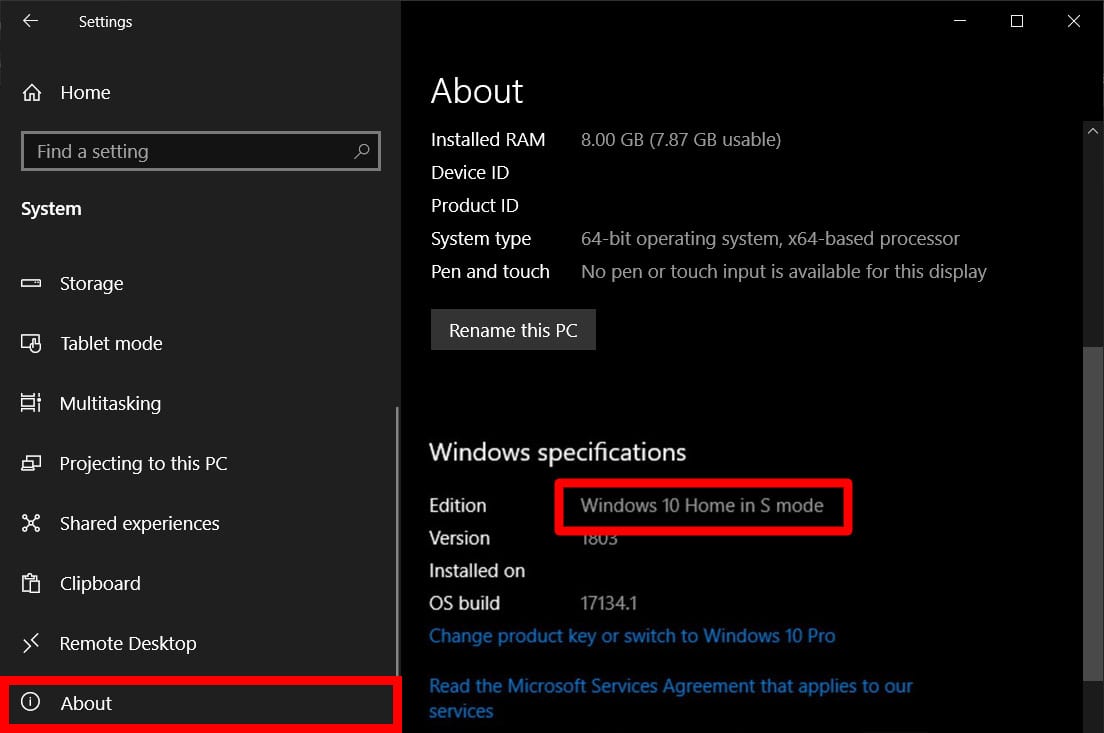
- Navigate to Update & Security (or System in Windows 11) and then click on Activation.
- Find the section titled “Switch to Windows 11 Home” or “Switch to Windows 11 Pro.”
- Click the link that says Go to the Store.
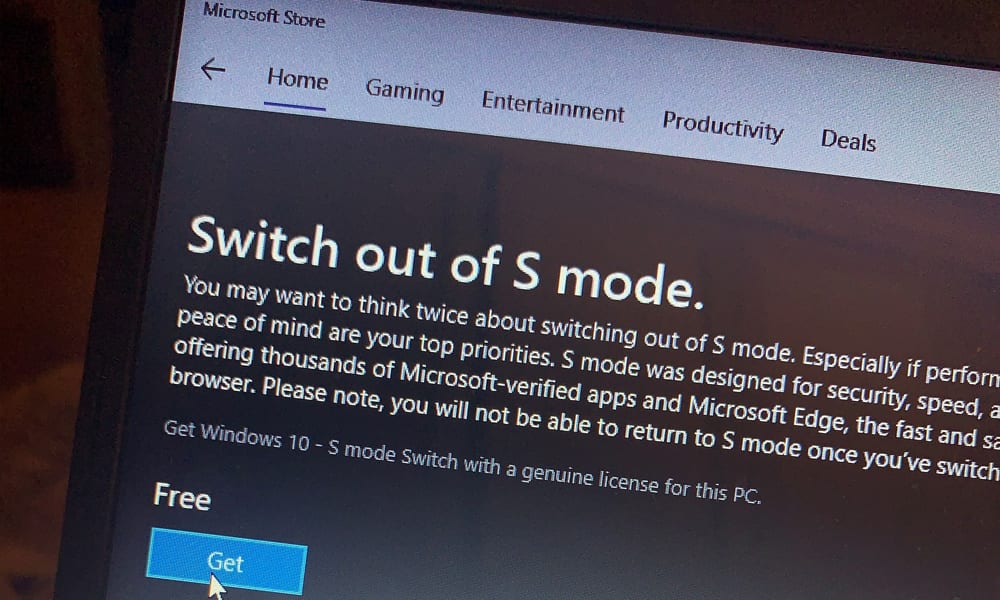
- On the “Switch out of S Mode” page in the Microsoft Store, click the Get button.
- Once confirmed, your device will immediately allow the installation of third-party
.exefiles. No reboot is typically required.
Important Considerations Before Switching
Before you click that “Get” button, you must realize that switching out of S Mode is permanent. Once you have transitioned to standard Windows, you cannot go back to S Mode without performing a complete factory reset using a specific recovery image from the manufacturer.
When you leave S Mode, you take on the responsibility of managing your own security. You will need to be more vigilant about the websites you visit and the software you download. You may also notice that, over time, the system performance may degrade if you install many background-heavy applications. However, for those who need Chrome, specialized hardware drivers, or professional software, leaving S Mode is a necessary step to unlocking the full potential of their hardware.
Conclusion
Windows S Mode is a testament to Microsoft’s effort to modernize the PC experience. By prioritizing a “security-first” architecture, it offers a streamlined alternative for users who value stability and safety over total software freedom. Whether you choose to remain in the protected confines of S Mode or venture into the open world of standard Windows, understanding the technical nuances of this mode ensures you can make the most of your digital tools.
aViewFromTheCave is a participant in the Amazon Services LLC Associates Program, an affiliate advertising program designed to provide a means for sites to earn advertising fees by advertising and linking to Amazon.com. Amazon, the Amazon logo, AmazonSupply, and the AmazonSupply logo are trademarks of Amazon.com, Inc. or its affiliates. As an Amazon Associate we earn affiliate commissions from qualifying purchases.