
If you have ever opened the Windows Task Manager to investigate why your computer is slowing down or simply to see what processes are running in the background, you have likely encountered a process titled “Desktop Window Manager” or its executable file name, dwm.exe. For many users, seeing a process consume a noticeable amount of memory or GPU resources can be a cause for concern. Is it a virus? Can it be disabled? Why is it necessary?
In the modern Windows ecosystem—specifically Windows 10 and Windows 11—Desktop Window Manager is not just another background task; it is a fundamental component of the graphical user interface (GUI). Understanding what this process does is essential for troubleshooting performance issues and gaining a deeper appreciation for how modern operating systems render the visuals we interact with every day.

Understanding the Core Mechanics of Desktop Window Manager
At its heart, Desktop Window Manager (DWM) is a compositing window manager. To understand its role, one must first understand how Windows used to handle graphics. In legacy versions of Windows, such as Windows XP and earlier, every application was responsible for drawing its own window directly to the screen. If one window moved over another, the system had to tell the underlying window to “redraw” itself. This often led to the infamous “trail” or “hall of mirrors” effect when an application crashed or lagged, leaving remnants of its borders across the desktop.
The Transition from Legacy Rendering to DWM
DWM changed this paradigm entirely. Introduced with Windows Vista and significantly refined in every subsequent version, DWM acts as an intermediary. Instead of applications drawing directly to your monitor, they draw their window’s contents to specific buffers in the system memory. The Desktop Window Manager then takes these individual buffers and “composes” the final image that you see on your screen.
This compositing approach ensures that the desktop experience remains fluid. Because DWM holds a buffer of every open window, it can redraw the desktop instantly if a window is moved, minimized, or closed, without needing to wait for the individual applications to respond.
How DWM Utilizes Hardware Acceleration
One of the most significant technical shifts brought by DWM is the move from CPU-bound rendering to GPU-bound rendering. DWM leverages the power of your Graphics Processing Unit (GPU) via DirectX. By offloading the visual composition of the desktop to the GPU, the CPU is freed up to handle logic, calculations, and application-specific tasks.
This hardware acceleration is what allows for complex visual effects—such as transparency, shadows, and window animations—to run smoothly without stuttering. Even if you do not have a high-end gaming graphics card, the integrated graphics on your processor are specifically designed to handle the tasks DWM requires.
Essential Functions of DWM in Modern Windows Environments
DWM is responsible for much more than just drawing windows; it manages the entire visual “personality” of the Windows operating system. From the way windows look to the way they behave during multitasking, DWM is the engine behind the curtain.
Visual Aesthetics and Transparency
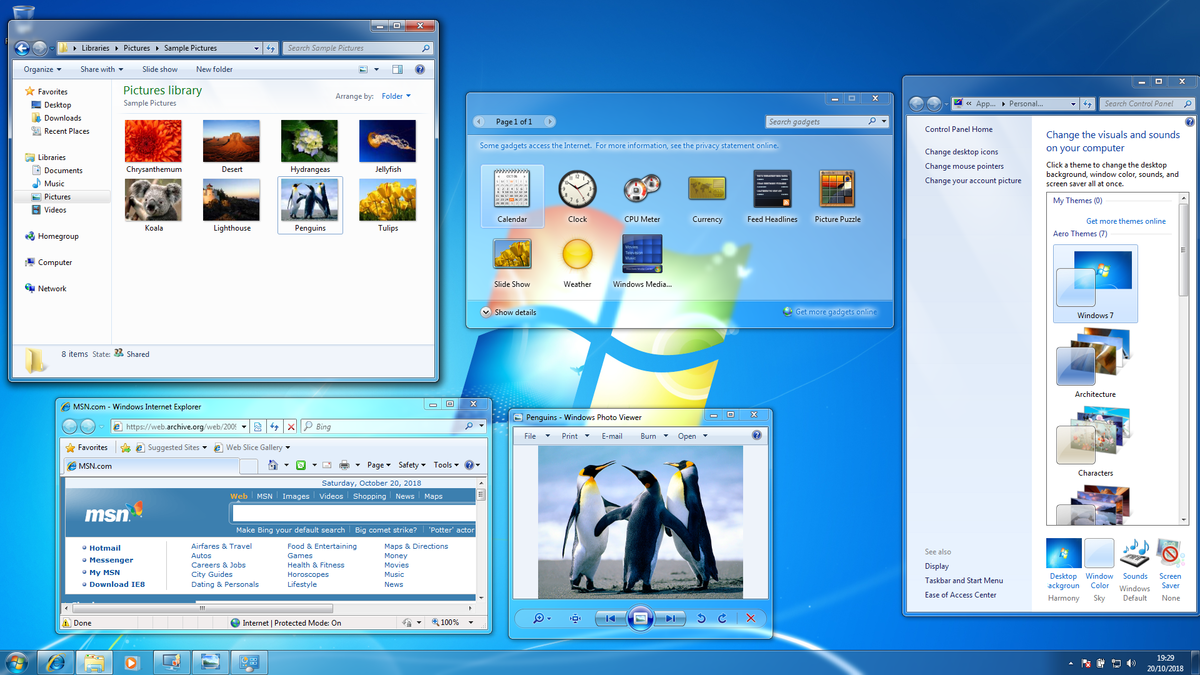
The most recognizable feature powered by DWM was originally known as the “Aero” glass effect in Windows 7. In modern Windows 10 and 11, this has evolved into “Fluent Design,” which features acrylic materials, mica effects, and subtle drop shadows. DWM manages these semi-transparent layers by calculating how light and color from background windows should bleed through the foreground window. Without DWM, the Windows interface would look flat, rigid, and much like the “Windows Classic” theme of the late 90s.
High-Resolution Support and Multi-Monitor Scaling
As display technology has advanced to 4K and 8K resolutions, the need for sophisticated scaling has increased. DWM plays a critical role in High DPI (Dots Per Inch) scaling. When you plug in a high-resolution monitor and set the scaling to 150% or 200%, DWM ensures that text and icons remain crisp rather than blurry.
Furthermore, DWM is the component that handles multi-monitor setups. It manages the hand-off of window buffers as you drag an application from one screen to another, ensuring that the refresh rates and resolutions of different monitors are synchronized to prevent visual tearing.
Flip 3D, Taskbar Previews, and Snap Layouts
Have you ever hovered your mouse over an icon in the taskbar and seen a small, live thumbnail of that window? Or used the “Alt+Tab” shortcut to cycle through open apps? These are direct functions of the Desktop Window Manager. Because DWM maintains a constant buffer of what is happening in every window, it can provide real-time previews without the application itself being in the foreground. In Windows 11, this functionality extends to “Snap Layouts,” where DWM helps calculate the zones and animations for docking windows into specific grid patterns.
Addressing Performance Concerns: Why DWM Uses High Resources
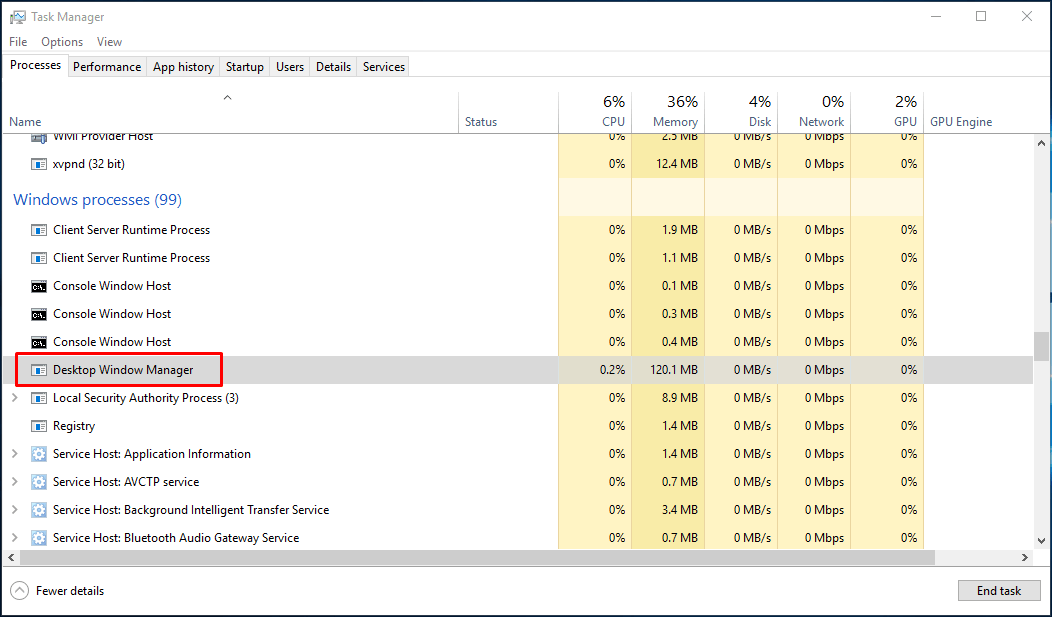
It is common to see dwm.exe consuming a few hundred megabytes of RAM or a small percentage of GPU power. Under normal circumstances, this is a sign that the system is working as intended. However, there are instances where these numbers spike, leading to user anxiety.
Identifying High Memory and CPU Usage
Typically, DWM should use between 50MB and 150MB of RAM. If you see it climbing into the gigabytes, you are likely experiencing a “memory leak.” A memory leak occurs when a program requests memory but fails to give it back to the system when it is done. In the case of DWM, this is rarely the fault of DWM itself and is usually caused by an external factor, such as a faulty third-party application or a background process trying to hook into the visual layers of the OS.
The Role of Graphics Drivers
Since DWM relies heavily on the GPU and DirectX, the health of your graphics drivers is paramount. Outdated, corrupted, or incompatible GPU drivers are the number one cause of Desktop Window Manager performance issues. When a driver fails to communicate correctly with DWM, the process may fall back on the CPU to handle compositing, leading to high CPU usage and a sluggish interface. Keeping NVIDIA, AMD, or Intel drivers updated is the first step in maintaining a healthy DWM process.
Malware vs. Legitimate System Processes
Like any vital system process, malware sometimes attempts to hide in plain sight by naming itself dwm.exe. To verify if your process is legitimate, you can right-click “Desktop Window Manager” in the Task Manager and select “Open file location.” The real file should always be located in C:WindowsSystem32. If the file is located anywhere else, it is likely a security threat and should be scanned with a digital security suite immediately.
Troubleshooting and Optimizing Desktop Window Manager
If you find that DWM is consuming too many resources, there are several steps you can take to optimize its performance without sacrificing the stability of your operating system.
Can You Disable dwm.exe?
In the days of Windows 7, users could disable Aero to save resources. However, starting with Windows 8 and continuing through Windows 11, Desktop Window Manager can no longer be disabled. It is so deeply integrated into the OS shell that the system cannot function without it. Attempting to force-close the process will usually result in a black screen or an immediate system restart. Instead of trying to disable it, the focus should be on ensuring it runs efficiently.
Updating Drivers and Windows OS
As mentioned previously, the relationship between DWM and your GPU is symbiotic. Beyond just graphics drivers, Windows Updates often contain “hotfixes” for DWM-related bugs. Microsoft frequently tunes how DWM handles memory management and multi-monitor synchronization, so staying current with OS builds is a primary defense against resource spikes.
Adjusting Performance Options for Better Efficiency
If you are running Windows on older hardware and want to reduce the load on DWM, you can adjust the visual effects:
- Search for “Adjust the appearance and performance of Windows” in the Start menu.
- Select the “Visual Effects” tab.
- Choose “Adjust for best performance” or manually uncheck options like “Animate windows when minimizing and maximizing” and “Enable Peek.”
While this won’t turn off DWM, it significantly reduces the complexity of the compositing tasks it has to perform, lowering the overall GPU and RAM footprint.
The Future of Desktop Compositing in Windows 11 and Beyond
As we move further into the era of AI-accelerated computing and high-refresh-rate displays, the Desktop Window Manager continues to evolve. In Windows 11, DWM has been updated to support “Optimizations for windowed games,” a feature that reduces latency for games running in windowed or borderless windowed mode—effectively bringing the performance of full-screen mode to the flexibility of a window.
Integration with DirectX 12 and HDR
Modern versions of DWM are now better equipped to handle High Dynamic Range (HDR) content. DWM manages the “Auto HDR” feature in Windows 11, which uses machine learning to upgrade standard-definition visuals to HDR in real-time. This requires an even tighter integration with DirectX 12, ensuring that the desktop can handle 10-bit or 12-bit color depths without crashing.
Enhancements for Gaming and Virtual Desktops
With the rise of virtual and augmented reality, as well as the increasing popularity of “Virtual Desktops” for productivity, DWM’s role in spatial management is expanding. It now handles the smooth transitions between different desktop environments with higher precision, ensuring that background desktops do not consume active GPU cycles unless they are being switched into view.
In conclusion, the Desktop Window Manager is the silent workhorse of the Windows interface. While it may occasionally draw attention due to resource usage, it is the technology that makes the modern computing experience visually rich, responsive, and stable. By understanding its function and maintaining the underlying drivers, users can ensure their digital workspace remains fluid and efficient.
aViewFromTheCave is a participant in the Amazon Services LLC Associates Program, an affiliate advertising program designed to provide a means for sites to earn advertising fees by advertising and linking to Amazon.com. Amazon, the Amazon logo, AmazonSupply, and the AmazonSupply logo are trademarks of Amazon.com, Inc. or its affiliates. As an Amazon Associate we earn affiliate commissions from qualifying purchases.