
In the complex ecosystem of modern computing, hardware and software must speak a common language to function harmoniously. This communication is facilitated by small but critical pieces of software known as device drivers. Whether it is your graphics card rendering a high-definition video, your network adapter maintaining a stable gigabit connection, or your motherboard managing power distribution, drivers act as the essential translators. Keeping these components updated is not merely a matter of routine maintenance; it is a fundamental practice for ensuring system stability, unlocking hardware potential, and fortifying your digital security.

The Strategic Importance of Driver Maintenance
To understand why updating drivers is vital, one must first understand their role. A driver is essentially a manual for the operating system (OS), telling it exactly how to interact with a specific piece of hardware. As operating systems like Windows 11 or Linux distributions evolve, the way they handle instructions changes. If your hardware is still using “instructions” from three years ago, inefficiencies and errors are inevitable.
Enhancing System Stability and Reducing Crashes
The most common symptom of an outdated or corrupt driver is the dreaded “Blue Screen of Death” (BSOD) or a sudden system freeze. These critical errors often occur when the OS sends a command that the hardware cannot execute because the driver fails to bridge the gap. By updating to the latest stable release, users benefit from thousands of hours of manufacturer testing aimed specifically at resolving these kernel-level conflicts.
Unlocking Hardware Performance and New Features
For enthusiasts and professionals—particularly those in creative fields or gaming—driver updates are synonymous with performance boosts. Graphics card manufacturers like NVIDIA and AMD frequently release “Game Ready” or “Studio” drivers. These updates often include optimizations that can increase frame rates by 10-20% in specific applications or enable new technologies like Ray Tracing or AI-driven upscaling (DLSS/FSR). Without regular updates, you are effectively leaving hardware performance on the table.
Patching Security Vulnerabilities
In the contemporary cybersecurity landscape, hackers increasingly target low-level software. A vulnerability in a Wi-Fi driver or a printer driver can allow an attacker to gain “kernel-level” access to your machine, bypassing standard antivirus software. Manufacturers release security patches through driver updates to close these backdoors. Treating driver updates as part of your security protocol is just as important as updating your browser or OS.
Leveraging Built-in OS Tools for Seamless Updates
For the average user, the operating system provides automated tools designed to handle the heavy lifting of driver management. These tools are curated to ensure that the drivers installed are digitally signed and verified for compatibility.
Windows Update: The First Line of Defense
Modern versions of Windows have integrated driver management directly into the Windows Update service. Microsoft collaborates with major hardware vendors (Original Equipment Manufacturers or OEMs) to distribute “Plug and Play” drivers.
- How to use it: Navigate to Settings > Windows Update and click Check for updates.
- Optional Updates: Often, Windows categorizes specific driver updates as “Optional.” To find these, go to Advanced Options > Optional Updates. This is where you will frequently find specific firmware or peripheral updates that aren’t deemed “critical” but are necessary for full functionality.
The Role of the Microsoft Update Catalog
For IT professionals or those managing offline systems, the Microsoft Update Catalog is a powerful resource. It allows you to manually search for driver packages by hardware ID. While less user-friendly, it ensures you are getting a version of the driver that has passed Microsoft’s Windows Hardware Quality Labs (WHQL) testing, ensuring the highest level of stability.
Manufacturer-Specific Utilities: The Proactive Approach
While Windows Update is excellent for general compatibility, it often lags behind the latest releases provided directly by hardware manufacturers. To get the most recent “bleeding-edge” versions, using manufacturer-specific software is the preferred professional method.
OEM Support Assistants
Companies like Dell, HP, and Lenovo provide proprietary tools (e.g., Dell SupportAssist, HP Support Assistant, or Lenovo Vantage). These applications scan your specific serial number or service tag to identify the exact hardware configuration of your machine.
- BIOS and Firmware: These tools are particularly important for updating the BIOS (Basic Input/Output System) or UEFI. Unlike standard drivers, BIOS updates manage the hardware at a level below the operating system. Using the manufacturer’s tool is the safest way to perform these high-stakes updates.
Graphics and Specialized Hardware Suites
For those with dedicated GPUs, the manufacturer’s software is indispensable.
- NVIDIA GeForce Experience / AMD Software: Adrenalin Edition: These suites notify you the moment a new driver is available. They also offer “clean installation” options, which remove old driver remnants before installing the new ones, preventing the “driver ghosting” that often causes performance degradation over time.
- Peripherals: High-end peripherals, such as mechanical keyboards, multi-button mice, or professional audio interfaces, often require specific software (like Logitech G Hub or Razer Synapse) to function beyond basic capabilities.
Mastering Manual Updates via Device Manager
There are instances where automated tools fail, or where a specific component—such as an older network card or a specialized piece of lab equipment—requires a hands-on approach. This is where the Device Manager becomes the primary tool for a tech professional.
Identifying the Hardware
To update manually, you must first know exactly what you are looking for.
- Right-click the Start button and select Device Manager.
- Locate the component (e.g., “Network adapters”).
- Right-click the device and select Properties.
- Under the Details tab, select Hardware Ids from the dropdown. This string of characters can be searched online to find the exact manufacturer and model if the OS labels it as a “Generic Device.”
The Manual Installation Process
Once you have downloaded the correct driver file from the manufacturer’s website (usually in a .zip or .inf format), follow these steps:
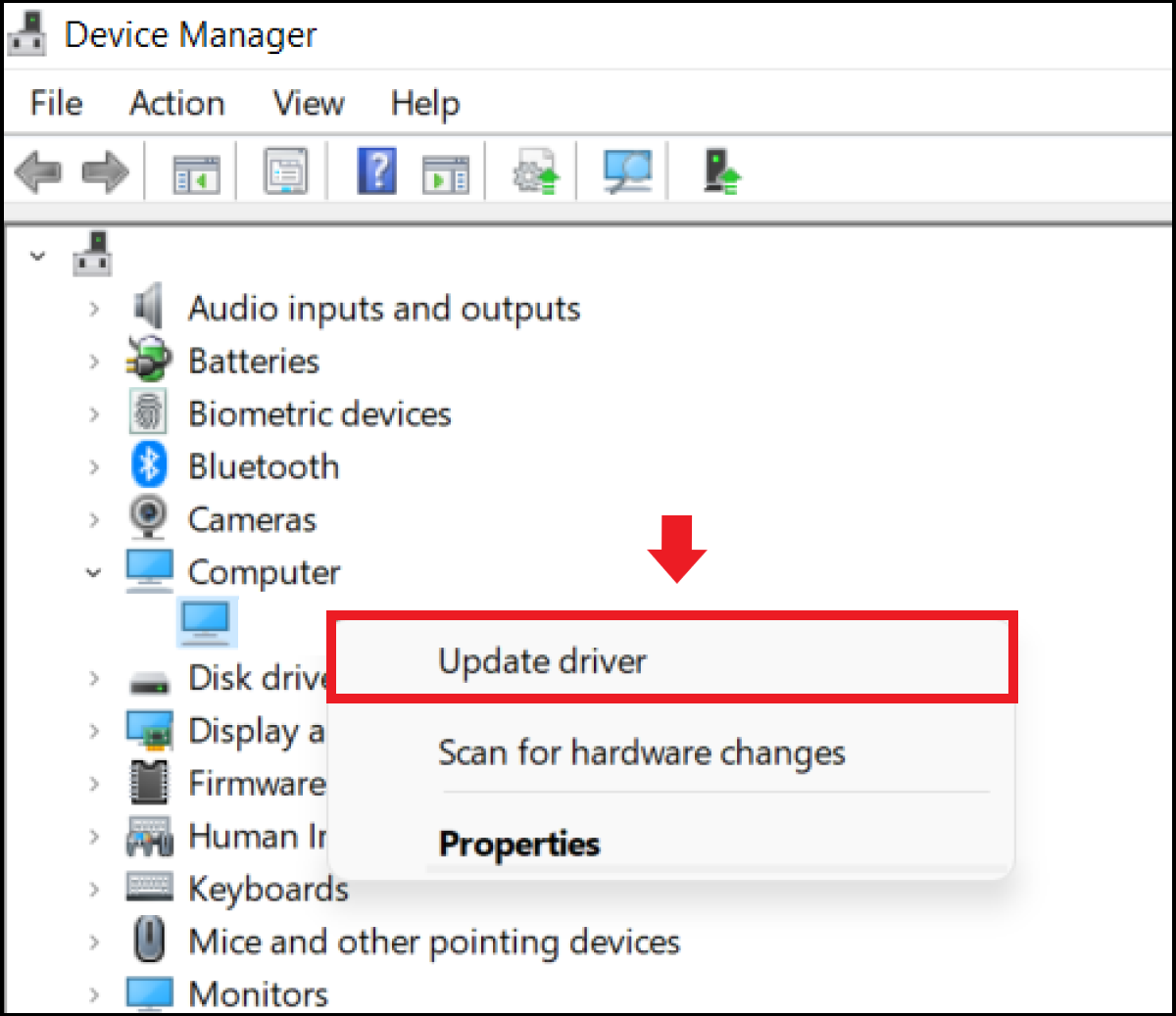
- In Device Manager, right-click the device and select Update driver.
- Choose “Browse my computer for drivers.”
- Point the wizard to the folder containing your downloaded files.
- The OS will then verify the driver signature and install the specific files. This method bypasses the “installer bloat” that sometimes comes with executable (.exe) driver packages.
Maintaining System Stability: Risks, Rollbacks, and Best Practices
While updating drivers is generally beneficial, it is not without risks. Occasionally, a new driver may contain a bug that wasn’t caught during testing, or it may conflict with another piece of software on your unique system configuration.
The “If It Ain’t Broke” Philosophy
In a professional enterprise environment, the philosophy often shifts from “always latest” to “most stable.” If a workstation is performing mission-critical tasks without error, updating a stable driver purely for the sake of having the latest version number can introduce unnecessary variables. Always weigh the benefit of an update (like a specific bug fix) against the current stability of the system.
Creating Restore Points
Before performing significant driver updates—especially BIOS or GPU updates—it is best practice to create a System Restore Point.
- Search for “Create a restore point” in the Windows taskbar.
- Select your system drive and click Create.
- This allows you to revert the entire state of your operating system to a point in time before the driver was installed, should the system become unbootable.
Utilizing the “Roll Back Driver” Feature
If a specific device stops working correctly after an update, Windows maintains a backup of the previous driver.
- Open Device Manager.
- Right-click the problematic device > Properties.
- Go to the Driver tab.
- Click Roll Back Driver. This is a localized solution that only affects the specific hardware in question, making it a faster and safer fix than a full system restore.

Conclusion
Updating your drivers is a cornerstone of digital hygiene. In an era where hardware capabilities are rapidly expanding and security threats are becoming more sophisticated, the “set it and forget it” mentality no longer suffices. By combining the convenience of automated OS updates with the precision of manufacturer-specific tools and manual overrides, you can ensure your technology remains fast, reliable, and secure. Whether you are a gamer seeking every possible frame per second or a professional requiring absolute system uptime, mastering the art of driver management is an essential skill in the modern tech landscape.
aViewFromTheCave is a participant in the Amazon Services LLC Associates Program, an affiliate advertising program designed to provide a means for sites to earn advertising fees by advertising and linking to Amazon.com. Amazon, the Amazon logo, AmazonSupply, and the AmazonSupply logo are trademarks of Amazon.com, Inc. or its affiliates. As an Amazon Associate we earn affiliate commissions from qualifying purchases.