
In the ever-evolving landscape of digital entertainment, streaming services like YouTube TV have become indispensable for countless households. Offering a live TV experience without the traditional cable box, it represents a significant leap in how we consume media. However, like any subscription-based service, maintaining uninterrupted access hinges on one crucial element: up-to-date payment information. For the tech-savvy user, managing these digital subscriptions is a fundamental skill, ensuring seamless entertainment and peace of mind. This article will serve as a comprehensive guide, walking you through the technical steps of updating your payment method on YouTube TV, troubleshooting common issues, and reinforcing best practices for digital security within this technological ecosystem.
Navigating the YouTube TV Interface for Account Management
Modern digital services are designed to centralize user controls, and YouTube TV is no exception. Understanding where and how to access your account settings is the first step in efficient subscription management.
Understanding Your Digital Subscription Hub
Think of your YouTube TV account page as your personal digital subscription hub. It’s the central point where you can modify your plan, add or remove add-ons, view your billing history, and, critically, manage your payment methods. This hub is a prime example of user-centric design in software, aiming to give subscribers full autonomy over their service. The interface is meticulously crafted to be intuitive, yet knowing the exact pathways can save valuable time and prevent frustration. The design principles behind such interfaces prioritize accessibility and clarity, ensuring even less tech-fluent users can navigate complex settings with relative ease.
Accessing Payment Settings: Desktop vs. Mobile
YouTube TV, being a versatile streaming platform, offers multiple avenues to manage your account. The primary methods typically involve a web browser on a computer or the YouTube TV app on a mobile device (smartphone or tablet).
- On a Desktop Browser: This is often the most straightforward method due as it offers a larger display for navigation. You’ll typically log in to tv.youtube.com, click on your profile picture, and then navigate to “Settings” and subsequently “Membership.” The larger screen real estate allows for clearer visibility of menus and input fields, reducing the chances of misclicks or data entry errors. Furthermore, desktop browsers often provide more robust debugging tools and allow for easier copying and pasting of complex information, like long credit card numbers if you have them stored in a secure digital wallet or password manager.
- On a Mobile Device (via the YouTube TV App): While the steps are similar, the user interface on a mobile app might be optimized for touch input and smaller screens. You’ll open the app, tap your profile icon, and then select “Settings” followed by “Membership.” Be mindful of potential layout differences or truncated menus on mobile. The convenience of managing subscriptions on the go is a hallmark of modern app design, but users should be aware that some functionalities might be nested differently compared to their desktop counterparts. It’s a trade-off between portability and comprehensive display.
The Importance of a Stable Internet Connection
While seemingly basic, a stable and reliable internet connection is paramount when updating sensitive information like payment details. Network fluctuations or intermittent connectivity can lead to errors during data submission, potentially causing your updates to fail or even corrupting temporary data. Before initiating any changes, ensure you are connected to a strong Wi-Fi network or have a robust cellular data signal. This minimizes technical hiccups and ensures your data is transmitted securely and completely to Google’s servers. A dropped connection mid-transaction isn’t just an inconvenience; it can sometimes lead to ambiguous states requiring further troubleshooting.
Step-by-Step Guide: Updating Your Payment Method
The process of updating payment information on YouTube TV is designed to be user-friendly, echoing the intuitive nature of most Google services. Following these steps will ensure a smooth update.
Logging In Securely
Before anything else, ensure you’re logging into your YouTube TV account securely. Always use strong, unique passwords for your Google account (which powers YouTube TV). If you’ve enabled two-factor authentication (2FA) – a highly recommended security measure – be prepared to enter the verification code from your phone or security key. This initial step of secure access is crucial; it’s the first line of defense against unauthorized access to your billing information. Utilizing a reputable password manager can also streamline this process while maintaining robust security protocols.
Locating the Billing Section
Once logged in:
- Click/Tap Your Profile Picture: This is usually located in the top-right corner of the interface (on desktop) or at the top of the app.
- Select “Settings”: From the dropdown menu, choose “Settings.”
- Navigate to “Membership”: Within the Settings menu, you’ll find a section dedicated to your membership details, including billing information.
- Click “Manage Payments” or “Update Payment Method”: This will take you to the Google Pay interface, which Google uses to manage all its associated billing for services like YouTube TV, Google Play, and YouTube Premium. This integration streamlines billing management across Google’s vast ecosystem of products, offering a unified control panel for your financial relationship with the tech giant.
Adding a New Payment Method
Within the Google Pay interface:
- Click “Add Payment Method”: This option is typically prominent on the page.
- Choose Payment Type: You’ll be prompted to select the type of payment, usually Credit/Debit Card or PayPal.
- Enter Details:
- For Credit/Debit Card: Carefully enter your card number, expiration date (month/year), CVC (the 3 or 4-digit security code on the back/front of your card), and the cardholder’s name and billing address. Double-check every digit to prevent errors.
- For PayPal: You’ll be redirected to PayPal’s secure login page to link your account. Follow the on-screen prompts from PayPal to authorize Google Pay to use your PayPal account.
- Save: Once all details are accurately entered, click the “Save” or “Add” button. Google Pay often performs a quick validation check to ensure the card is active and legitimate.
Setting a New Primary Payment Method
After adding a new payment method, it might not automatically be set as your primary one.
- Locate the Desired Payment Method: In the “Payment Methods” section, find the card or PayPal account you wish to make primary.
- Select “Set as Primary” or “Make Default”: There will typically be an option (often three dots next to the payment method or a direct link) to designate it as your primary payment source for YouTube TV and other associated Google services. This ensures that future recurring charges for your YouTube TV subscription will be drawn from this selected method.
Removing Outdated Payment Information
For security and account hygiene, it’s wise to remove expired or unused payment methods.
- Identify the Outdated Method: In the “Payment Methods” section, locate the card or account you wish to remove.
- Click “Remove” or “Delete”: Similar to setting a primary method, there will be an option (often an “X” or a “Remove” link) to delete the payment information. Confirm your decision when prompted. This helps reduce your digital footprint and minimizes the risk associated with having inactive financial data stored online.
Reviewing and Confirming Changes
Always take a moment to review all your changes before exiting the payment management interface. Ensure the correct card is set as primary and that any old, irrelevant methods have been successfully removed. This final verification step is a simple yet effective practice in digital account management, providing assurance that your billing information is precisely as you intend.
Troubleshooting Common Payment Update Issues
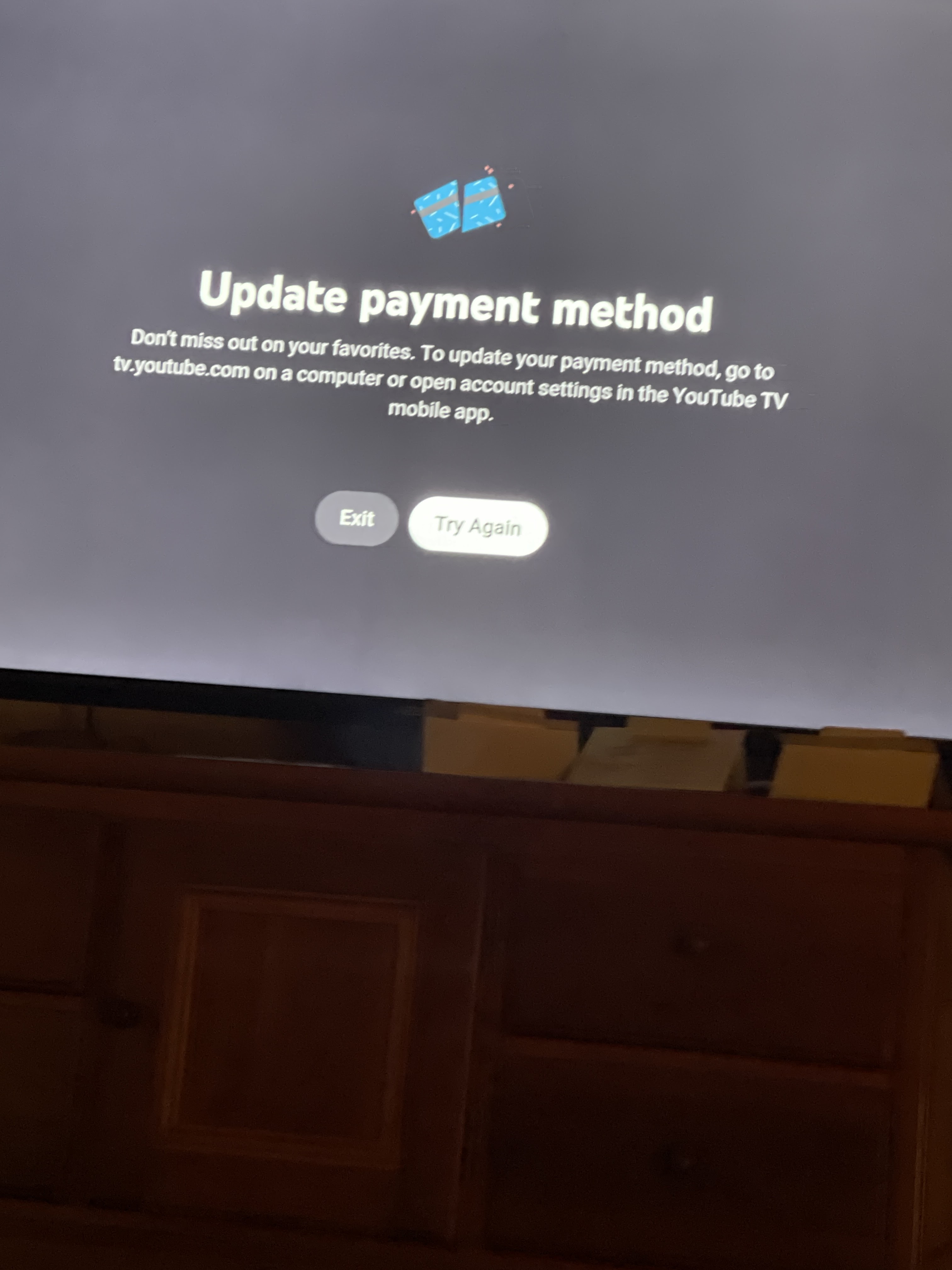
Even with the most intuitive interfaces, technical issues can arise. Understanding how to troubleshoot common problems is a key aspect of being a competent digital user.
“Payment Method Declined” or “Invalid Details”
These are perhaps the most frequent errors.
- Typographical Errors: The simplest explanation is often the correct one. Double-check card numbers, expiration dates, and CVC codes. Even a single digit out of place can invalidate the entry.
- Expired Card: Ensure the card’s expiration date is in the future.
- Insufficient Funds/Credit Limit: While not a technical error on YouTube TV’s part, it results in a decline. Check with your bank or credit card company.
- Bank Security Measures: Your bank might flag a recurring charge from Google as suspicious, especially if it’s a new card or if you’ve recently made international purchases. Contact your bank to authorize the transaction.
- Network Issues: A weak internet connection can sometimes lead to incomplete data transmission, resulting in a perceived “invalid details” error. Retry on a more stable network.
- Card Type Restrictions: Although rare for major platforms, some online services might not accept certain card types (e.g., specific debit cards or prepaid cards).
Browser or App Glitches
Software isn’t always perfect.
- Clear Browser Cache and Cookies: Accumulated browser data can sometimes interfere with website functionality. Clearing your cache and cookies often resolves these issues.
- Try a Different Browser: If Chrome is giving you trouble, try Firefox, Edge, or Safari. Sometimes browser extensions can also cause conflicts.
- Update the App: Ensure your YouTube TV app is updated to the latest version. Developers frequently release updates to fix bugs and improve performance.
- Restart Your Device: A simple restart of your computer or mobile device can often resolve underlying software conflicts or memory issues.
Geographic Restrictions and Payment Methods
In some cases, payment methods might be tied to specific geographic regions. For instance, a card issued in one country might face restrictions when used with a Google account registered in another, especially if there are IP address discrepancies. While YouTube TV is largely US-centric, if you’re managing accounts across different regions, this could become a factor. Ensure your payment method’s billing address aligns with your Google Play country settings.
What to Do When All Else Fails: Contacting Support
If you’ve exhausted all troubleshooting steps, it’s time to reach out to YouTube TV’s technical support.
- Access Support Channels: This is usually done via the “Help” or “Contact Us” section within your YouTube TV settings or on the YouTube TV help website.
- Provide Detailed Information: When contacting support, be prepared to provide specifics about the error messages you received, the steps you’ve already taken, and details about your payment method. This helps support agents diagnose the problem efficiently.
Enhancing Your Digital Security While Managing Payments
Security is paramount when dealing with financial transactions online. Adopting robust digital security practices is not just about protecting your YouTube TV subscription but your broader digital identity.
Strong Passwords and Two-Factor Authentication (2FA)
These are your first and best lines of defense. A strong password combines uppercase and lowercase letters, numbers, and symbols, and is unique to your Google account. 2FA adds an extra layer of security by requiring a second verification step, typically a code sent to your phone, making it significantly harder for unauthorized users to access your account even if they somehow obtain your password. Google offers excellent 2FA options, including prompts to your phone and the use of physical security keys.
Recognizing Phishing Attempts
Be vigilant against phishing. Scammers frequently mimic legitimate services like YouTube or Google to trick users into revealing their login credentials or payment information.
- Check Sender Email: Always scrutinize the sender’s email address. Official communications from Google will come from official google.com domains.
- Hover Over Links: Before clicking, hover your mouse over any links in suspicious emails to see the actual URL. If it doesn’t lead to a google.com domain, do not click it.
- Never Share Details Via Email: Google will never ask you for your full credit card number, password, or 2FA codes via email. Always navigate directly to the YouTube TV website to make any changes.
Secure Device Usage
The security of your devices directly impacts the security of your online transactions.
- Keep Software Updated: Regularly update your operating system (Windows, macOS, iOS, Android) and web browsers. These updates often contain critical security patches that protect against newly discovered vulnerabilities.
- Use Reputable Antivirus/Anti-Malware: Ensure your computer has up-to-date antivirus and anti-malware software to protect against malicious software that could steal your credentials.
- Public Wi-Fi Caution: Avoid managing sensitive financial information over unsecured public Wi-Fi networks, as these are susceptible to eavesdropping. If you must, use a Virtual Private Network (VPN) for an encrypted connection.
Regular Review of Account Activity
Periodically review your Google Pay activity and bank statements for any unauthorized or suspicious charges. YouTube TV typically sends billing notifications, which can also serve as a prompt to check your accounts. Promptly reporting any discrepancies to Google support and your financial institution is crucial.
Proactive Payment Management: A Tech-Savvy Approach
Moving beyond reactive troubleshooting, a proactive approach to managing your digital subscriptions can prevent issues before they arise, enhancing your overall digital life.
Setting Reminders for Card Expiry
Many digital calendar applications (Google Calendar, Outlook Calendar) or reminder apps can be incredibly useful. Set a recurring reminder for a month or two before your credit card is due to expire. This simple digital habit ensures you have ample time to update your payment method on YouTube TV and other services, avoiding last-minute service interruptions.
Streamlining Digital Subscriptions
Consider using digital tools to help manage your growing number of subscriptions. Password managers (like LastPass, 1Password, Bitwarden) not only store your credentials securely but often have features to track which services are linked to which payment methods. Some specialized subscription tracking apps can also give you a holistic view of your recurring payments, making it easier to see what needs updating and when. This consolidation of information is a powerful tech strategy for maintaining control over your digital financial landscape.
Conclusion
Updating your payment information on YouTube TV is a straightforward process when approached with a clear understanding of the platform’s interface and fundamental digital security practices. By familiarizing yourself with the step-by-step guide, learning to troubleshoot common technical issues, and diligently applying robust security measures, you ensure uninterrupted access to your favorite content. In the modern digital age, managing your online subscriptions effectively is more than just a convenience; it’s an essential aspect of maintaining a secure, efficient, and enjoyable tech-driven lifestyle. Taking a proactive stance, coupled with a solid grasp of these technical procedures, empowers you to navigate the digital world with confidence and peace of mind.
aViewFromTheCave is a participant in the Amazon Services LLC Associates Program, an affiliate advertising program designed to provide a means for sites to earn advertising fees by advertising and linking to Amazon.com. Amazon, the Amazon logo, AmazonSupply, and the AmazonSupply logo are trademarks of Amazon.com, Inc. or its affiliates. As an Amazon Associate we earn affiliate commissions from qualifying purchases.