
YouTube, the undisputed titan of online video, offers an unparalleled wealth of content, from educational tutorials and breaking news to entertainment and music. While anyone can browse and watch videos without an account, the true power and personalization of the platform are unlocked only when you sign in. Signing in transforms YouTube from a passive viewing platform into a dynamic, interactive, and tailored experience, remembering your preferences, curating content just for you, and enabling you to engage with the global community.
This comprehensive guide will walk you through the essential steps of signing into YouTube across various devices, delve into the critical role your Google Account plays in this process, provide crucial troubleshooting tips, and highlight the manifold benefits of being a signed-in user. Whether you’re a new user eager to dive in or a seasoned viewer encountering login challenges, understanding the sign-in process is your gateway to a richer, more personalized YouTube journey.
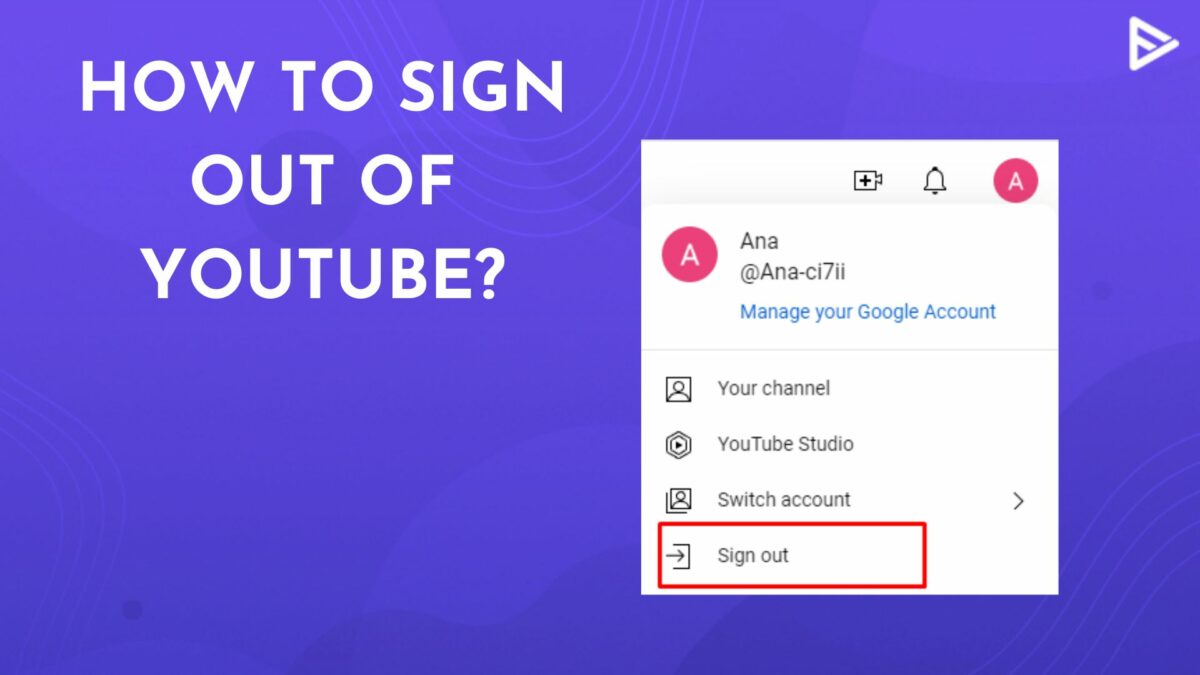
The Foundation: Your Google Account and the YouTube Ecosystem
At its core, signing into YouTube is intrinsically linked to your Google Account. Google, the parent company of YouTube, seamlessly integrates its services, meaning one account serves as your universal key across Gmail, Google Drive, Google Photos, and, of course, YouTube. This integration simplifies user management but also means understanding your Google Account is paramount to a smooth YouTube experience.
Google Account: Your Universal Digital Passport
Your Google Account acts as your digital passport for YouTube. If you have an email address ending in @gmail.com, you already possess a Google Account. If not, creating one is a straightforward and free process that unlocks not just YouTube but an entire suite of Google’s powerful tools. This single sign-on approach streamlines access and ensures that your preferences, subscriptions, and watch history are consistent regardless of which device you use to access YouTube. It’s a unified identity that powers your interaction with the world’s largest video-sharing platform.
The Unlocked Benefits of Being Signed In
The distinction between a signed-out and a signed-in YouTube experience is night and day. While unsigned users can watch publicly available videos, they miss out on a wealth of features that enhance convenience, personalization, and interaction.
- Personalized Recommendations: YouTube’s powerful algorithms learn from your watch history, likes, and searches to suggest videos you’re genuinely likely to enjoy. This significantly cuts down browsing time and introduces you to new content tailored to your tastes.
- Subscriptions: Subscribing to channels is a fundamental YouTube feature. When signed in, you can easily follow your favorite creators, receive notifications for new uploads, and access a consolidated feed of content from all the channels you subscribe to.
- Watch History and “Watch Later”: Never lose track of a video again. Your watch history is meticulously recorded, allowing you to easily revisit previously viewed content. The “Watch Later” playlist is perfect for saving videos you don’t have time for immediately.
- Comments and Interactions: Engaging with the YouTube community is a core part of the experience. Being signed in allows you to comment on videos, like or dislike content, share videos, and even participate in live chat during streams.
- Content Creation: For aspiring YouTubers, signing in is essential for uploading videos, managing your channel, tracking analytics, and interacting with your audience. Without a Google Account login, content creation is simply not possible.
- Restricted Content Access: Some videos may have age restrictions or regional limitations. Being signed in allows YouTube to verify your age and grant access to appropriate content based on your account details.
Step-by-Step Guide: Signing In Across Devices
The process of signing into YouTube is largely consistent but varies slightly depending on whether you’re using a web browser, a mobile app, or a smart TV.
On Desktop or Laptop (Web Browser)
Signing in via a web browser is typically the most common method for many users.
- Open Your Browser: Launch your preferred web browser (Chrome, Firefox, Edge, Safari, etc.).
- Navigate to YouTube: Go to
www.youtube.com. - Locate the Sign In Button: In the top right corner of the YouTube homepage, you’ll see a “Sign In” button. Click it.
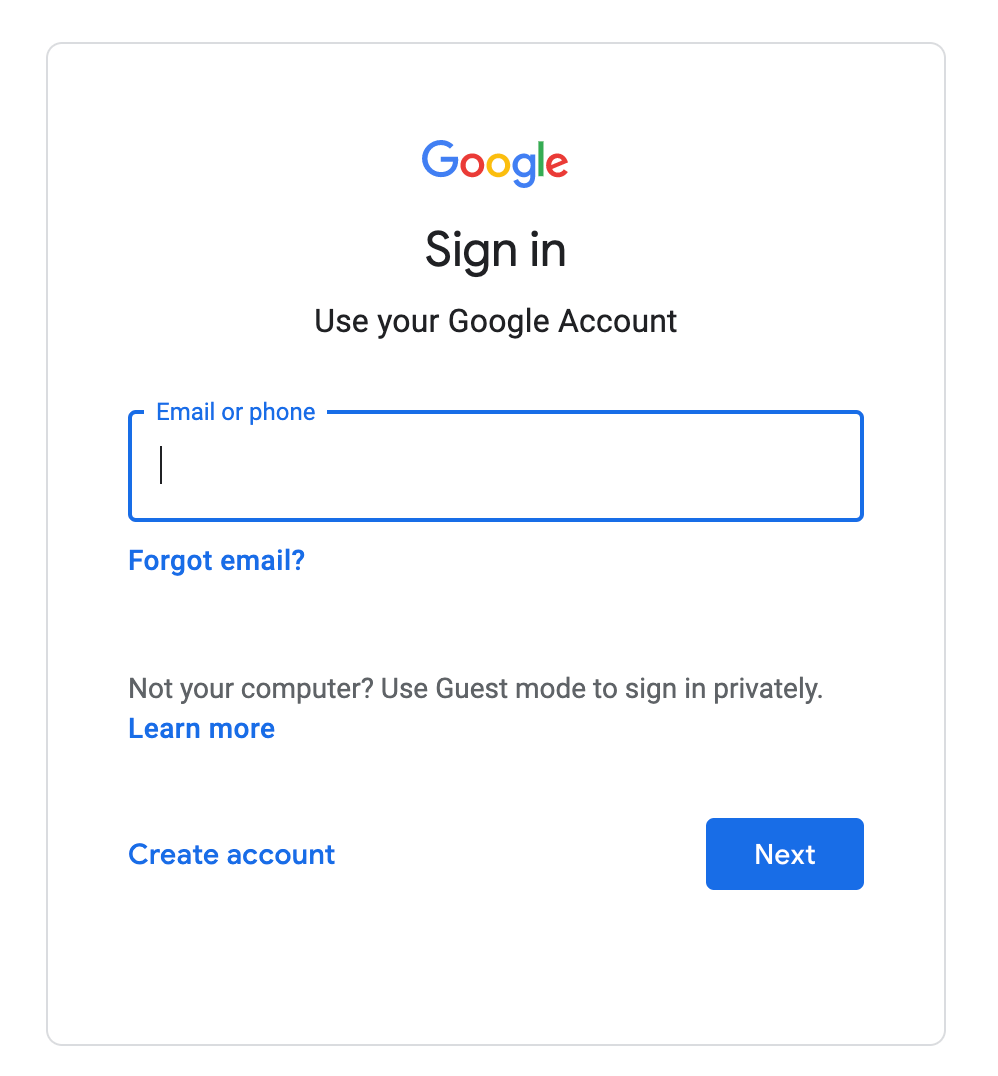
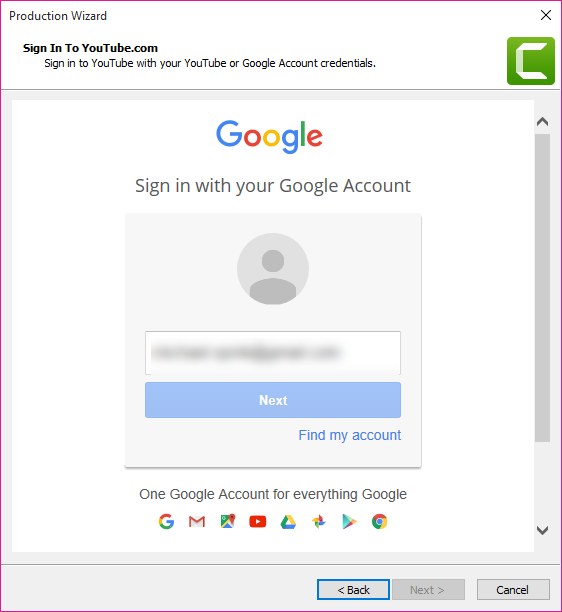
- Enter Google Account Credentials: You will be redirected to Google’s sign-in page.
- Enter your Google Account email address or phone number.
- Click “Next.”
- Enter your password.
- Click “Next.”
- Two-Factor Authentication (if enabled): If you have 2FA enabled, you will be prompted to verify your identity, often via a code sent to your phone or a prompt on another trusted device.
- Success: Once successfully authenticated, you will be redirected back to YouTube, now signed in. Your profile picture or initial will appear in the top right corner.
On Mobile Devices (YouTube App for iOS/Android)
The YouTube mobile app offers a streamlined experience tailored for smartphones and tablets.
- Open the YouTube App: Tap the YouTube icon on your device’s home screen.
- Tap Profile Icon: In the top right corner of the app, tap on the circular profile icon (it might be a generic silhouette if you’re not signed in, or your existing profile picture if you are).
- Tap “Sign In” or “Add Account”:
- If you’re not signed in, tap “Sign In.”
- If you’re already signed in but want to switch accounts or add another, tap on your current account name/email, then choose “Add Account” or “Switch Account.”
- Choose or Add Google Account:
- If your Google Account is already set up on your device (e.g., for Gmail or Android phone setup), it will appear in a list. Select the one you wish to use.
- If it’s not listed, tap “Add Account” and then follow the prompts to enter your Google Account email and password, similar to the desktop process.
- Authenticate: Complete any necessary authentication steps, including 2FA if enabled.
- Signed In: The app will automatically sign you in, and your profile picture will now be visible in the top right corner.
On Smart TVs and Streaming Devices (YouTube App)
Accessing YouTube on a larger screen typically involves a slightly different method, often requiring pairing with a mobile device or computer.
- Open YouTube App on TV: Navigate to and open the YouTube application on your smart TV (Samsung, LG, Sony, etc.) or streaming device (Roku, Apple TV, Fire TV, Chromecast with Google TV, gaming consoles).
- Select “Sign In”: Look for a “Sign In” option within the app interface.
- Choose Sign-In Method: You’ll usually be presented with two main options:
- Sign in with your phone or computer (Recommended): This is often the easiest.
- Your TV will display a unique 8-digit code.
- On your phone or computer, open a web browser and go to
youtube.com/activate. - Sign in to your Google Account on that device if you aren’t already.
- Enter the 8-digit code from your TV into the webpage.
- Click “Allow Access” or “Next” to confirm the link.
- Sign in directly on this device: This option requires you to manually enter your Google Account email and password using the TV’s remote or an on-screen keyboard, which can be cumbersome.
- Sign in with your phone or computer (Recommended): This is often the easiest.
- Confirmation: Once authenticated, your TV’s YouTube app will update to show you’re signed in, displaying your subscriptions, personalized recommendations, and watch history.
Managing Your Google Account for Seamless YouTube Access
Your Google Account is the cornerstone of your YouTube identity. Effective management of this account is crucial for both security and uninterrupted access.
Creating a New Google Account (If Needed)
If you don’t already have a Google Account, the process is straightforward:
- Go to
accounts.google.com/signup. - Follow the prompts to enter your first name, last name, desired username (which will become your Gmail address), and a strong password.
- Provide a phone number for verification and recovery, and a recovery email address.
- Agree to Google’s Terms of Service and Privacy Policy.
- Once created, you can use these credentials to sign into YouTube immediately.
Recovering Your Account or Resetting Password
Forgetting your password is a common occurrence. Google provides robust recovery options:
- On the Google sign-in page, after entering your email, click “Forgot password?”
- Google will guide you through verification steps, which might include:
- Entering the last password you remember.
- Receiving a verification code via text message to your recovery phone number.
- Receiving a prompt on a trusted device where you are already signed in.
- Answering security questions.
- Using a recovery email address to receive a reset link.
- Once verified, you can set a new, strong password. Always choose a unique password that combines letters, numbers, and symbols, and avoid reusing it across different services.
Two-Factor Authentication (2FA) for Enhanced Security
Enabling Two-Factor Authentication (also known as Two-Step Verification) is one of the most effective ways to secure your Google Account and, by extension, your YouTube access.
- How it Works: Beyond just your password, 2FA requires a second piece of information that only you would have, such as a code sent to your phone, a prompt on a trusted device, or a physical security key.
- Why it’s Important: Even if someone steals your password, they cannot access your account without this second verification step, significantly reducing the risk of unauthorized access and account compromise.
- Setup: Go to your Google Account security settings (
myaccount.google.com/security), find “2-Step Verification,” and follow the instructions to set it up. It’s a small extra step that offers immense protection.
Troubleshooting Common Sign-In Issues
Despite the straightforward nature of signing in, users occasionally encounter hurdles. Here’s how to address some common problems.
Incorrect Password or Username
- Double-Check: Ensure you’re entering the correct email address and password. Pay attention to case sensitivity for passwords.
- Caps Lock: Make sure your Caps Lock key isn’t accidentally engaged.
- Reset Password: If you’re certain the password is wrong, use the “Forgot password?” link to reset it, as detailed above.
- Username Check: Confirm you’re using the email address associated with your Google Account, not just a YouTube channel name (unless it’s an older legacy account linked differently).
Browser or App Related Problems
- Clear Cache and Cookies: Accumulated browser data can sometimes interfere with login processes. Clear your browser’s cache and cookies and try again. For apps, you can often clear the app’s cache and data in your device’s settings.
- Update Browser/App: Ensure your web browser and the YouTube app are updated to their latest versions. Outdated software can lead to compatibility issues.
- Try Incognito/Private Mode: Open an Incognito (Chrome) or Private (Firefox/Safari) window and try signing in. This disables extensions and uses a clean session, helping to determine if browser extensions are causing the problem.
- Try a Different Browser/Device: If one browser or device is giving you trouble, try another. This helps isolate whether the issue is with the specific platform or your account.
Account Suspensions or Restrictions
- Check Email: If your account has been suspended or restricted, Google will typically send an email to your registered email address explaining the reason and providing instructions on how to appeal or resolve the issue.
- Review YouTube Policies: Familiarize yourself with YouTube’s Community Guidelines and Terms of Service to understand why an account might be suspended.
- Contact Support: Follow the instructions in Google’s email or visit YouTube’s help center for information on appealing account actions.
Network Connectivity Issues
- Check Internet Connection: Ensure you have a stable internet connection. A weak or intermittent connection can prevent authentication.
- Restart Router/Modem: A simple restart of your network equipment can often resolve connectivity problems.
- Disable VPN/Proxy: If you’re using a VPN or proxy, try temporarily disabling it, as it can sometimes interfere with login security checks.
Maximizing Your Signed-In YouTube Experience
Once you’re signed in and navigating the platform with ease, there are further steps you can take to fully leverage your personalized YouTube experience.
Customizing Your Feed and Notifications
- Refine Recommendations: Actively use the “Not interested” or “Don’t recommend channel” options (found by clicking the three-dot menu next to a video title) for content you don’t want to see. Conversely, liking videos and subscribing to channels reinforces your preferences.
- Manage Notifications: Go to your YouTube settings to customize email and push notifications. You can choose to be alerted only for specific types of content from your subscriptions, like new uploads or live streams, or turn them off entirely.
Engaging with the Community
- Thoughtful Comments: Participate in discussions by leaving constructive comments. Remember YouTube’s community guidelines for respectful interaction.
- Likes and Dislikes: Use the like and dislike buttons not just to express your opinion, but also to signal to YouTube’s algorithm what content you prefer (or don’t).
- Sharing: Easily share videos with friends and family via social media, email, or messaging apps, spreading content you enjoy.
Exploring Creator Features
Even if you don’t plan to be a full-time YouTuber, being signed in allows you to access basic creator tools. You can effortlessly upload private videos for friends, create public content, or even explore the YouTube Studio dashboard to see basic analytics if you ever decide to publish your own work. The ability to manage your personal playlists, create public or private collections of videos, and interact with live chats further enriches your experience.
In conclusion, signing into YouTube is far more than a mere formality; it’s the fundamental action that transforms a vast, anonymous video library into your personal, curated media hub. By understanding the role of your Google Account, mastering the sign-in process across devices, safeguarding your access with security measures like 2FA, and knowing how to troubleshoot common issues, you unlock the full potential of YouTube. Embrace the personalized recommendations, engage with the vibrant community, and take control of your viewing experience – all made possible by that simple, yet powerful, act of signing in.
aViewFromTheCave is a participant in the Amazon Services LLC Associates Program, an affiliate advertising program designed to provide a means for sites to earn advertising fees by advertising and linking to Amazon.com. Amazon, the Amazon logo, AmazonSupply, and the AmazonSupply logo are trademarks of Amazon.com, Inc. or its affiliates. As an Amazon Associate we earn affiliate commissions from qualifying purchases.