
In an era defined by digital content consumption, YouTube has become an indispensable platform, offering an unparalleled library of videos ranging from educational tutorials and breaking news to entertainment, music, and vlogs. While smartphone and computer screens offer convenience, the immersive experience of watching YouTube on a large television screen remains unmatched. Connecting YouTube to your TV transforms the viewing experience, bringing content to life with superior visuals and audio, making it perfect for solo enjoyment or shared moments with family and friends. This guide will delve into the various methods—both wireless and wired—to seamlessly bridge the gap between YouTube and your television, ensuring you can enjoy your favorite content on the biggest screen in your home.

The Unrivaled Benefits of Big Screen YouTube
Moving your YouTube experience from a small handheld device or laptop to a large television screen offers a multitude of advantages that profoundly enhance content consumption. It transforms passive viewing into an engaging, dynamic experience, catering to both individual preferences and group interactions.
Enhanced Viewing Pleasure
The most immediate and obvious benefit is the sheer visual and auditory upgrade. High-definition (HD) and Ultra High-Definition (UHD/4K) content truly shine on a larger display, revealing details that might be missed on smaller screens. This is particularly crucial for visually rich content like documentaries, travel vlogs, cinematic short films, or gaming streams. Coupled with your TV’s superior speakers or a connected home theater system, the audio quality also experiences a significant boost, creating a more enveloping soundscape that draws you deeper into the content. Moreover, reclining on a couch and watching from a comfortable distance is inherently more relaxing and ergonomically sound than hunching over a smaller device, reducing eye strain and physical discomfort during extended viewing sessions.
Social Sharing & Group Enjoyment
YouTube is not just a personal entertainment hub; it’s a powerful tool for shared experiences. Connecting it to your TV facilitates communal viewing, turning your living room into a mini-theater. Imagine sharing funny viral videos with friends, watching music concerts with family, or collectively following a live event. It fosters interaction, sparking conversations, laughter, and shared emotions that a solitary viewing experience can’t replicate. This capability makes your TV the focal point for entertainment during gatherings, parties, or simply quality family time, allowing everyone to participate and enjoy the content together without crowding around a small screen.
Immersive Content Consumption
Beyond mere entertainment, YouTube hosts a vast array of educational content, tutorials, fitness guides, and artistic performances. Watching a complex tutorial on a larger screen makes it easier to follow intricate steps, while a virtual tour of a historical site becomes more captivating and informative. For fitness enthusiasts, following workout routines on a big screen allows for better posture and form checking. Gamers can immerse themselves in live streams and esports tournaments with unparalleled clarity, feeling closer to the action. The larger display creates a sense of presence, pulling you into the narrative or instructional flow, making learning and entertainment more effective and enjoyable.
Wireless Connectivity: The Modern & Flexible Approach
Wireless methods represent the pinnacle of convenience for connecting YouTube to your TV, offering flexibility and minimal cable clutter. These solutions leverage your home Wi-Fi network to stream content directly from YouTube, often controlled via a smartphone, tablet, or a dedicated remote.
Smart TVs with Built-in YouTube
Many modern televisions are “smart TVs,” equipped with internet connectivity and pre-installed apps, including YouTube. This is arguably the simplest method, as it requires no additional hardware.
How to connect:
- Ensure Wi-Fi Connection: Navigate to your TV’s settings and connect it to your home Wi-Fi network.
- Locate YouTube App: Find the YouTube app in your TV’s app menu or smart hub. It’s often prominently displayed on the home screen.
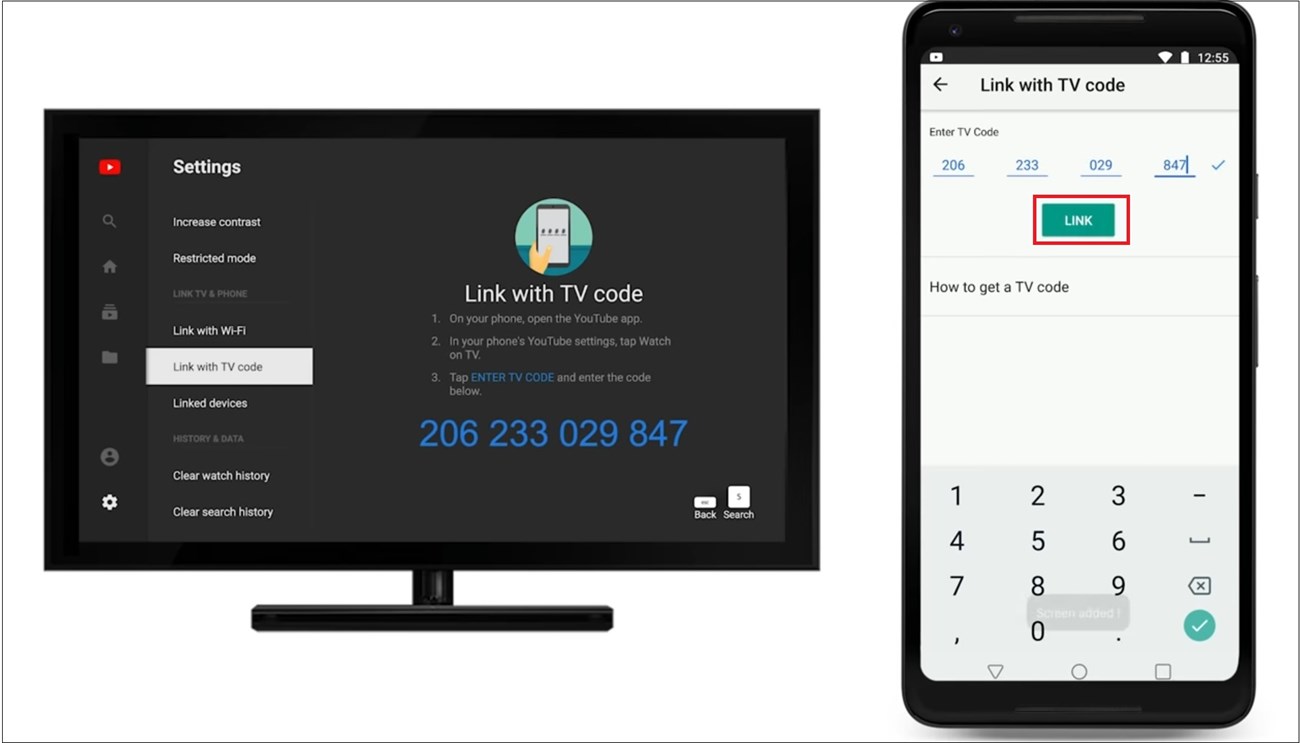
- Launch and Log In: Open the app. You may be prompted to sign in with your Google account to access your subscriptions, playlists, and personalized recommendations. Follow the on-screen instructions, which often involve visiting a URL (e.g., youtube.com/activate) on a computer or phone and entering a code displayed on your TV.
- Start Watching: Once logged in, you can browse and play videos using your TV’s remote control.
Casting Devices (Chromecast, Roku, Fire TV Stick)
Casting devices are small, affordable gadgets that plug into your TV’s HDMI port, transforming it into a smart TV capable of streaming content from various apps, including YouTube. They act as intermediaries, receiving signals from your phone, tablet, or computer and displaying them on the TV.
- Google Chromecast:
- Setup: Plug the Chromecast into an HDMI port and connect its power cable. Download the Google Home app on your smartphone or tablet, which will guide you through connecting the Chromecast to your Wi-Fi network.
- Casting YouTube: Open the YouTube app on your smartphone or computer. Look for the “Cast” icon (a rectangle with a Wi-Fi symbol in the bottom left corner). Tap it, select your Chromecast device from the list, and the video will begin playing on your TV. You can then use your phone as a remote control.
- Roku Devices (e.g., Roku Express, Streaming Stick):
- Setup: Plug the Roku into an HDMI port and power it on. Follow the on-screen instructions to connect to your Wi-Fi network and create/link a Roku account.
- Accessing YouTube: Go to the Roku Channel Store, search for and add the YouTube app. Once installed, launch it from your home screen. You can log in to your Google account or use the “Cast” feature from your phone/computer’s YouTube app (Roku supports DIAL protocol for casting).
- Amazon Fire TV Stick:
- Setup: Similar to Roku, plug the Fire TV Stick into an HDMI port, power it, and follow on-screen instructions to connect to Wi-Fi and log in to your Amazon account.
- Accessing YouTube: Search for and install the YouTube app from the Fire TV Appstore. Once installed, launch it and sign in. Fire TV Sticks also support casting from the YouTube mobile app.
AirPlay for Apple Ecosystem
AirPlay is Apple’s proprietary wireless technology that allows users to stream audio, video, and photos from Apple devices (iPhones, iPads, Macs) to compatible devices, most notably Apple TV.
How to connect:
- Apple TV: Ensure your Apple TV is connected to your television via HDMI and is on the same Wi-Fi network as your iPhone, iPad, or Mac.
- Stream from iOS/iPadOS: Open the YouTube app on your iPhone or iPad. Play a video. Tap the AirPlay icon (a square with an upward-pointing arrow). Select your Apple TV from the list. The video will now play on your television.
- Mirroring: Alternatively, you can mirror your entire device screen to the Apple TV. Swipe down from the top-right corner (or up from the bottom for older models) to open Control Center, tap “Screen Mirroring,” and select your Apple TV. Then open YouTube on your device.
Game Consoles (PlayStation, Xbox)
Modern game consoles are versatile entertainment hubs, and most offer a dedicated YouTube app.
How to connect:
- Install App: Go to your console’s digital store (PlayStation Store or Microsoft Store) and search for the YouTube app. Download and install it.
- Launch and Log In: Open the YouTube app from your console’s home screen. You’ll likely be prompted to sign in with your Google account, often by visiting a web address on another device and entering a code.
- Control: Use your game controller to navigate the app, browse videos, and play content.
Wired Connections: Ensuring Stability and Broad Compatibility
While wireless methods offer convenience, wired connections provide unmatched stability and can be a lifesaver for older TVs or scenarios where Wi-Fi is unreliable. They also typically offer a direct, high-quality signal without potential latency issues sometimes associated with wireless streaming.
HDMI Cables and Adapters
HDMI (High-Definition Multimedia Interface) is the universal standard for connecting audio-visual equipment. If your TV has an HDMI port, you can connect a laptop or desktop computer directly.

How to connect:
- Connect Cable: Plug one end of an HDMI cable into your laptop’s or computer’s HDMI output port and the other end into an available HDMI input port on your TV.
- Select Input: Use your TV remote to select the correct HDMI input channel (e.g., HDMI 1, HDMI 2).
- Configure Display (PC/Mac):
- Windows: Right-click on your desktop, select “Display settings,” and choose “Duplicate these displays” or “Extend these displays” if you want to use the TV as a second monitor.
- macOS: Go to “System Settings” > “Displays” and select how you want to use the TV.
- Launch YouTube: Open your web browser on your computer, navigate to YouTube, and play your desired video. It will appear on your TV.
Mobile High-Definition Link (MHL)
MHL is an older standard that allowed certain Android smartphones (and some tablets) to output video and audio to a TV via an MHL-to-HDMI cable. Not all devices support MHL, and it has largely been superseded by newer technologies.
How to connect:
- Check Device Compatibility: Verify if your Android smartphone supports MHL (a quick online search for your phone model and “MHL support” should confirm).
- Acquire Cable: Purchase an MHL-to-HDMI adapter or cable. These typically have a micro-USB connector for the phone, an HDMI connector for the TV, and sometimes a USB power cable to keep the phone charged.
- Connect & Play: Connect the MHL adapter to your phone’s charging port and the HDMI end to your TV. Select the correct HDMI input on your TV. Your phone screen should be mirrored, allowing you to open YouTube and play videos.
USB-C to HDMI Adapters
With the widespread adoption of USB-C as a versatile port on many modern smartphones, tablets, and laptops, a simple USB-C to HDMI adapter (or a USB-C hub with an HDMI port) offers an elegant wired solution.
How to connect:
- Acquire Adapter: Purchase a USB-C to HDMI adapter. Ensure it supports video output.
- Connect: Plug the USB-C end into your device and the HDMI end into your TV.
- Select Input: Change your TV’s input source to the HDMI port you’ve used.
- Play YouTube: Your device’s screen should automatically mirror or extend to the TV, allowing you to open YouTube and enjoy content.
Troubleshooting Common Connection Hurdles
While connecting YouTube to your TV is generally straightforward, occasional issues can arise. Understanding how to diagnose and resolve these common problems can save you time and frustration.
Network Connectivity Issues
Most wireless connection problems stem from your Wi-Fi network.
- Check Wi-Fi Signal: Ensure your TV or casting device is within good range of your Wi-Fi router. A weak signal can cause buffering or connection drops.
- Restart Router/Modem: Unplug your Wi-Fi router and modem for 30 seconds, then plug them back in. This often resolves minor network glitches.
- Restart Device: Power cycle your smart TV, casting device, or console. A simple reboot can clear temporary software errors.
- Internet Speed: Ensure your internet speed is adequate for streaming HD video (at least 5-10 Mbps for HD, more for 4K). You can test this using online speed tests.
Device Compatibility & Updates
Outdated software or incompatible hardware can prevent a successful connection.
- Firmware/Software Updates: Always ensure your smart TV, casting device, console, or even your smartphone’s operating system is running the latest software version. Manufacturers frequently release updates that improve compatibility and fix bugs.
- YouTube App Updates: Similarly, check for updates to the YouTube app itself on your device. An outdated app might not function correctly.
- HDMI Cables: For wired connections, try a different HDMI cable. Faulty cables can cause signal loss or intermittent issues. Ensure your cable supports the resolution you’re trying to display (e.g., HDMI 2.0 for 4K content).
Display Settings & Input Selection
Sometimes the connection is fine, but your TV isn’t showing the right picture.
- Correct HDMI Input: Double-check that your TV is set to the correct HDMI input source corresponding to where your device is plugged in (e.g., HDMI 1, HDMI 2, PC input).
- Resolution Settings: If your computer or phone’s display isn’t appearing correctly, adjust its resolution settings to match your TV’s native resolution or a compatible one (e.g., 1920×1080 for Full HD TVs).
- Display Mode: For wired connections from a computer, ensure your display settings are configured to “Duplicate” or “Extend” the desktop to the TV.
App-Specific Problems
If only YouTube isn’t working, but other apps are, the issue might be specific to YouTube.
- Clear Cache & Data: On smart TVs, casting devices, or consoles, try clearing the cache and data for the YouTube app within the device’s application settings. This can resolve corrupted data issues.
- Reinstall App: If clearing the cache doesn’t work, uninstall and then reinstall the YouTube app.
- Sign Out/In: Log out of your YouTube/Google account within the app and then sign back in.
Elevating Your YouTube TV Experience
Once connected, there are several ways to enhance your big-screen YouTube experience, leveraging both the platform’s features and your home entertainment setup.
Mastering the Remote Control & App Interfaces
Whether you’re using a TV remote, a casting device remote, a game controller, or your smartphone as a remote, familiarizing yourself with the navigation is key.
- Smart TV Remotes: Learn shortcuts for quick app access, voice search features, and media controls.
- Casting Devices: Utilize your smartphone’s YouTube app to queue videos, manage playlists, and even browse without interrupting the current video on TV.
- Voice Commands: Many smart TVs and casting devices integrate with voice assistants (Google Assistant, Alexa), allowing you to search for videos, control playback, and open the app with simple voice commands.
Personalized Recommendations & Playlists
YouTube’s algorithm excels at suggesting content tailored to your viewing history. When signed in on your TV, these recommendations become even more valuable for discovering new content.
- Leverage Subscriptions: Keep your subscriptions organized to easily access content from your favorite creators.
- Create Playlists: Build custom playlists for different moods or occasions (e.g., “Workout Mix,” “Relaxing Background Music,” “Educational Documentaries”) for seamless big-screen playback.
- “Watch Later”: Use the “Watch Later” feature to bookmark videos on your phone or computer, and then easily access them from your TV.
Exploring YouTube Premium Benefits
For an uninterrupted and enhanced viewing experience, consider YouTube Premium.
- Ad-Free Viewing: No more commercial breaks disrupting your big-screen entertainment.
- Background Play: Continue listening to audio from videos even when you navigate away from the app or turn off your TV screen (useful for music).
- Downloads: Save videos for offline viewing, which can be beneficial if your internet is intermittent, though less critical for TV viewing where a consistent connection is typically assumed.
- YouTube Music Premium: Included with YouTube Premium, offering an ad-free music streaming service.
Audio Setup & Enhancements
While visuals are paramount, audio significantly contributes to immersion.
- Soundbars: A dedicated soundbar can dramatically improve your TV’s audio quality, providing clearer dialogue and richer soundscapes for music and special effects.
- Home Theater Systems: For the ultimate audio experience, integrate your TV with a full home theater system, including surround sound speakers. Ensure your TV and receiver are correctly configured to output multi-channel audio from the YouTube app.
- Bluetooth Headphones: If you want a personal, immersive experience without disturbing others, connect Bluetooth headphones directly to your smart TV or casting device (if supported).
Connecting YouTube to your TV is a simple yet transformative upgrade to your digital entertainment. Whether you opt for the wireless convenience of smart TVs and casting devices or the robust reliability of wired HDMI connections, the joy of experiencing YouTube on a grand scale is within easy reach. By understanding the various methods, troubleshooting common issues, and optimizing your setup, you can unlock a superior viewing experience that brings your favorite content to life in your living room.
aViewFromTheCave is a participant in the Amazon Services LLC Associates Program, an affiliate advertising program designed to provide a means for sites to earn advertising fees by advertising and linking to Amazon.com. Amazon, the Amazon logo, AmazonSupply, and the AmazonSupply logo are trademarks of Amazon.com, Inc. or its affiliates. As an Amazon Associate we earn affiliate commissions from qualifying purchases.