
In the digital age, managing personal and business finances often involves navigating a myriad of file formats. Among these, the .TAX file extension holds a unique and critical position, primarily because it encapsulates some of the most sensitive and important data an individual or entity possesses: their tax return information. Understanding how to properly access and manage these files is not merely a matter of technical proficiency; it’s a crucial aspect of digital security, regulatory compliance, and personal financial record-keeping. This comprehensive guide will demystify the .TAX file, providing an insightful and professional walkthrough on how to open it, troubleshoot common issues, and implement best practices for its management.

Understanding the .TAX File Format
Before diving into the mechanics of opening a .TAX file, it’s essential to grasp what this format represents and why it exists. Unlike generic document files (like .DOCX or .PDF) or spreadsheet files (.XLSX), a .TAX file is highly specialized and, for the most part, proprietary.
What Exactly is a .TAX File?
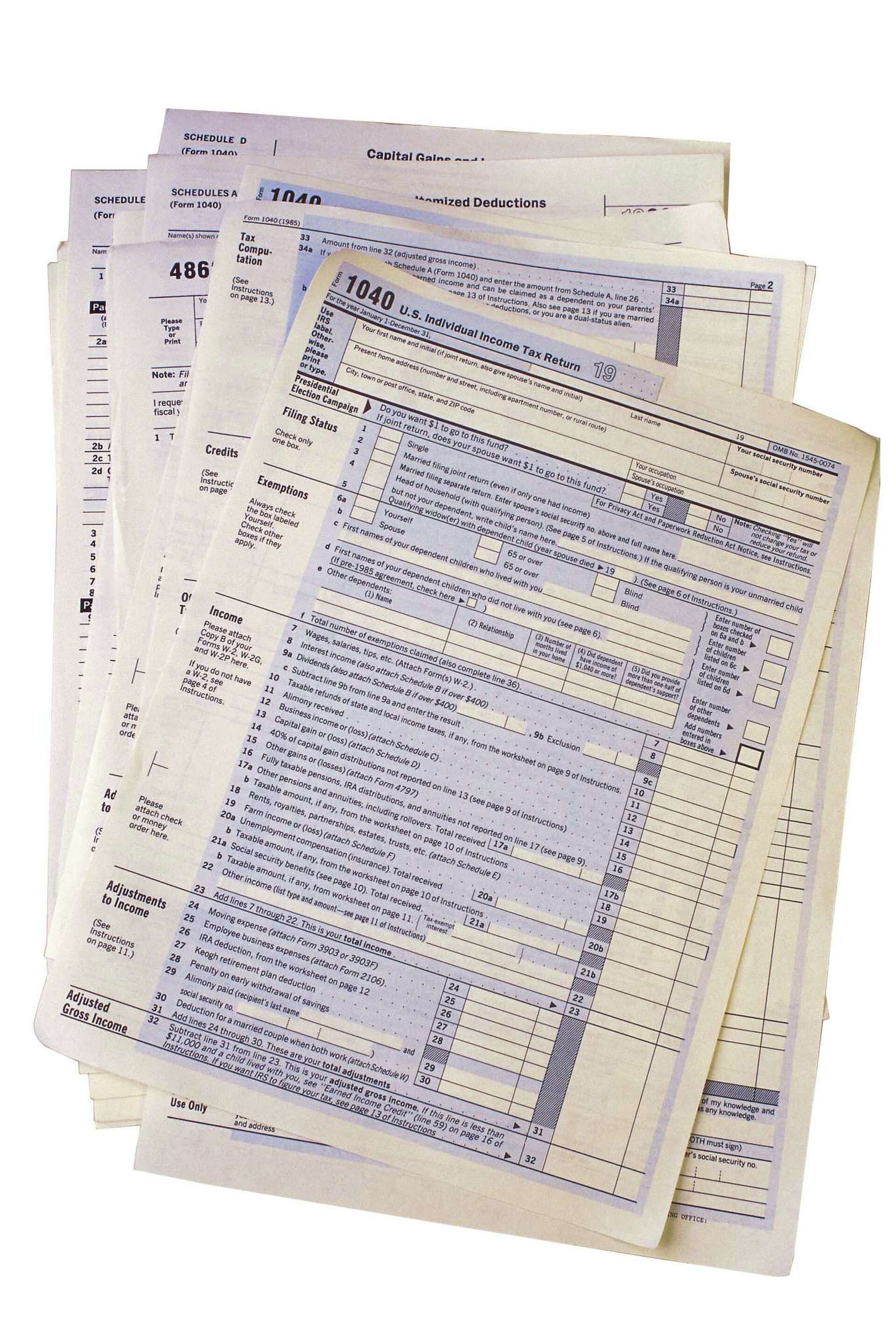
A .TAX file is a data file created by specific tax preparation software applications. It contains all the information pertaining to a particular tax year’s return: income details, deductions, credits, personal information, and the various forms and schedules generated by the software. Think of it as a comprehensive digital archive of your tax return, saved in a format optimized for the application that created it. This isn’t a universally readable document like a PDF of your completed return; rather, it’s a structured database designed to be interpreted and manipulated by the specific software.
The Importance and Proprietary Nature
The primary importance of a .TAX file lies in its ability to facilitate amendments, re-filing, or simply reviewing the detailed breakdown of a previous tax year’s return within the originating software environment. It allows users to go back and see how specific figures were calculated, modify entries, or print specific forms, rather than just viewing the final output.
Crucially, .TAX files are almost exclusively proprietary. This means that a .TAX file created by TurboTax, for example, is primarily designed to be opened by TurboTax software, and typically only by a version compatible with the year the file was created. Similarly, H&R Block tax software generates its own proprietary .TAX files (though sometimes they use slightly different extensions like .TX* for specific years, the principle remains the same). This proprietary design ensures data integrity within the software ecosystem but also presents challenges when attempting to open these files outside their intended environment or with incompatible software versions. There is no universal “tax file viewer” that can open all .TAX files from all software vendors.
Essential Software for Opening .TAX Files
The golden rule for opening a .TAX file is straightforward: use the software that created it. Deviation from this rule usually leads to frustration and failure, as generic file viewers or other tax programs are simply not equipped to interpret the proprietary data structure.
Identifying the Original Tax Preparation Software
The first step is to recall or determine which tax preparation software was used to generate the .TAX file. The most common consumer-grade tax software packages in the US include:
- Intuit TurboTax: Files created by TurboTax will typically have a
.taxextension, often followed by the last two digits of the tax year (e.g.,mytaxes2023.tax2023or simplymytaxes.tax). - H&R Block Tax Software: Similar to TurboTax, H&R Block’s desktop software also generates proprietary files, often with extensions like
.tax,.txy, or.tx3depending on the year and version. - TaxAct: Another popular choice, TaxAct also uses its own proprietary file formats, usually with a
.taxor.ta*extension. - TaxSlayer: Like its competitors, TaxSlayer employs proprietary file formats, often identifiable by the
.taxextension.
If you don’t remember which software was used, examine the file name for clues, or consider which software you’ve historically used for tax preparation.
Using the Original Software and Compatible Versions
Once you’ve identified the software, you’ll need to have a compatible version of that software installed on your computer. Compatibility is key:
- Same Software, Same Year: Ideally, you should open a
2023.taxfile with the 2023 version of TurboTax (or whichever software created it). While newer versions might sometimes be able to import older files, it’s not guaranteed, and sometimes older files require older software versions. - Software Updates: Ensure your software is fully updated. Patches and updates can sometimes improve compatibility or fix bugs related to file opening.
- Operating System Compatibility: Verify that the tax software version is compatible with your current operating system (e.g., Windows 11, macOS Sonoma). Older software may not run on newer OS versions without compatibility modes or virtual machines.
Web-based versions of tax software typically store your data on their servers, meaning you don’t have a local .TAX file to open in the same way. If you used an online version, you usually log into your account to access prior year returns. The .TAX files we’re discussing generally originate from desktop software installations.
Step-by-Step Guide to Accessing Your .TAX Data
The process for opening a .TAX file is remarkably similar across different tax preparation software, once you have the correct program installed.
Locating and Installing the Correct Software
If you don’t have the original software installed, your first task is to acquire it.
- Check Previous Installations: Look through your computer’s installed programs. If you prepared your taxes on this machine before, the software might still be there.
- Purchase or Re-download: If not, you may need to purchase or download the specific version of the software for the year your .TAX file corresponds to. Many tax software companies offer past years’ versions for sale or download on their websites. Be prepared to pay for older versions, as they are not always free.
- Installation: Follow the on-screen instructions to install the software. Ensure your system meets the minimum requirements.
Opening the File Directly
Once the compatible software is installed and running, you can proceed to open your .TAX file:
- Launch the Software: Open the tax preparation software (e.g., TurboTax 2023).
- Use the “Open” Function: Within the software, look for an “Open,” “File,” or “Continue a prior year return” option, usually found in the “File” menu or on the initial welcome screen.
- Navigate to Your File: A standard file browser window will appear. Navigate to the location on your computer where your .TAX file is saved.
- Select and Open: Select the .TAX file and click “Open.” The software should then load your tax return data, allowing you to review or modify it.
Importing into Newer Software (If Supported)
Some tax software brands offer limited import functionality, allowing a newer version of their software to import a .TAX file from a slightly older version. For instance, TurboTax 2024 might be able to import a .TAX2023 file. This isn’t universal, especially across significant version gaps or different brands.
- Check for Import Option: Within the new software, look for an option like “Start a new return from a prior year file” or “Import from previous year.”
- Select the Old File: If available, the software will guide you to locate your prior year’s .TAX file.
- Review Imported Data: After import, meticulously review all imported data to ensure accuracy, as some information might not transfer perfectly or might require updates for the current tax year. This method primarily helps pre-fill current year returns, rather than fully open and work within the old file’s context.
Troubleshooting Common .TAX File Issues
Even with the correct software, you might encounter issues. Here are some common problems and their solutions.
“File Not Found” or Corrupted File Errors
- Incorrect Path/Location: Double-check that you are navigating to the exact folder where the .TAX file is saved.
- Renamed or Moved File: Ensure the file hasn’t been accidentally renamed (changing the extension) or moved to an obscure location.
- Corrupted File: If the file was not saved properly, or if there was a disk error, it might be corrupted. Unfortunately, recovering corrupted .TAX files can be very difficult. If you have backups, try an older version.
- Cloud Storage Sync Issues: If the file is on a cloud drive (OneDrive, Dropbox), ensure it’s fully synced to your local machine before attempting to open it.
Software Version Mismatches
The most frequent culprit for failure to open.
- Wrong Year Software: Attempting to open a
tax2023file withtax2022software will almost certainly fail. Verify the year of both the file and the software. - Missing Patches: Ensure your tax software is fully updated. Sometimes, an update is required to correctly recognize certain file types or handle specific data structures.
Operating System Compatibility
- Outdated Software on New OS: Older tax software might not function correctly on newer operating systems (e.g., Windows 11, latest macOS versions) due to compatibility issues.
- Solution:
- Compatibility Mode (Windows): Right-click the software’s executable file, select “Properties,” go to the “Compatibility” tab, and try running it in compatibility mode for an older Windows version.
- Virtual Machine: For persistent issues, consider setting up a virtual machine with an older operating system that the software is known to support (e.g., Windows 7 or 10 for very old software). This is a more advanced solution but effective.
Contacting Support and Alternative Solutions
If all else fails:
- Software Provider Support: Contact the customer support for the specific tax software. They often have dedicated troubleshooting steps or can provide insight into known issues.
- Print to PDF: If your goal is simply to view the contents of the tax return, and you successfully opened it previously (or can get it open on an older machine), remember that you can always “print” the entire return to a PDF document. This creates a universally readable copy of your finalized return, though it won’t allow you to modify the underlying data.
- Professional Help: A tax professional (CPA or Enrolled Agent) might be able to help, especially if they use the same software and have access to older versions.
Best Practices for Managing .TAX Files
Given the sensitive nature of the information contained within .TAX files, robust management practices are paramount.
Secure Storage and Encryption
Your .TAX files contain your entire financial identity, making them prime targets for identity theft.
- Encryption: Store .TAX files on encrypted drives or within encrypted folders. Many operating systems (Windows BitLocker, macOS FileVault) offer full disk encryption. You can also use third-party encryption software for specific folders.
- Limited Access: Ensure only authorized individuals have access to the directories where these files are stored. Use strong passwords for your user accounts.
- Avoid Public Computers: Never save or work with .TAX files on public or shared computers.
Regular Backups
Loss of a .TAX file can be devastating.
- Multiple Copies: Keep at least two copies of your .TAX files on different storage mediums. For instance, one on your primary computer and another on an external hard drive or a secure cloud backup service.
- Version Control: If you frequently make changes, consider saving dated versions (e.g.,
mytaxes_2023_v1.tax,mytaxes_2023_final.tax). - Cloud Backup: Utilize reputable cloud backup services (e.g., Google Drive, OneDrive, Dropbox, Backblaze) that offer encryption and versioning. Ensure these services are secure and trusted.
Archiving and Retention Policies
Tax authorities require you to keep tax records for a certain period, typically three to seven years, depending on the specifics.
- Organized Archiving: Create a structured archiving system. A dedicated “Taxes” folder, with subfolders for each year (e.g.,
Taxes/2023), containing both the .TAX file and a PDF printout of the final return, is highly recommended. - Retention Schedule: Familiarize yourself with IRS guidelines for record retention to ensure you’re keeping files for the appropriate duration. While digital files take up little space, knowing when it’s safe to securely delete them is important for data hygiene.

Password Protection and Digital Hygiene
- Strong Passwords: If your tax software allows for password-protecting the file itself, utilize this feature with a strong, unique password.
- Secure Deletion: When the retention period expires, don’t just drag .TAX files to the recycle bin. Use secure deletion tools or methods to ensure the data is truly unrecoverable.
- Regular Software Updates: Keep your tax software, operating system, and antivirus software up-to-date to protect against vulnerabilities that could expose your sensitive data.
Opening a .TAX file is a common yet sometimes intricate task in the realm of digital record-keeping. By understanding the proprietary nature of these files, knowing which software to use, and following best practices for security and management, you can ensure your critical tax data remains accessible, secure, and compliant. This proactive approach not only safeguards your financial history but also provides peace of mind in an increasingly complex digital world.
aViewFromTheCave is a participant in the Amazon Services LLC Associates Program, an affiliate advertising program designed to provide a means for sites to earn advertising fees by advertising and linking to Amazon.com. Amazon, the Amazon logo, AmazonSupply, and the AmazonSupply logo are trademarks of Amazon.com, Inc. or its affiliates. As an Amazon Associate we earn affiliate commissions from qualifying purchases.