
In an increasingly connected world, the ability to disconnect, yet remain entertained, is a coveted luxury. Amazon Prime Video, a titan in the streaming industry, understands this paradigm shift, offering its subscribers a robust feature for offline viewing. Whether you’re embarking on a long-haul flight, commuting through an area with patchy signal, or simply wish to conserve mobile data, downloading films and TV shows from Amazon Prime Video transforms your device into a portable, internet-independent cinema. This guide delves deep into the mechanics, benefits, and best practices of downloading content, ensuring you maximize your Prime subscription with seamless offline access to your favorite entertainment.
The Imperative of Offline Entertainment: Why Download?
The convenience of streaming has revolutionized media consumption, but it’s not without its limitations. Downloading content from Amazon Prime Video offers a strategic advantage, catering to a range of practical scenarios and enhancing the overall user experience.
Uninterrupted Viewing On-the-Go
Imagine being halfway through a gripping thriller only for your train to enter a tunnel, or your flight’s Wi-Fi to sputter out. These interruptions are more than minor annoyances; they disrupt the immersive experience that film and television are designed to deliver. By downloading content beforehand, you create a buffer against such connectivity disruptions, guaranteeing a smooth, uninterrupted viewing experience regardless of your physical location or network availability. This is particularly invaluable for travelers, daily commuters, and anyone frequently in areas with unreliable internet.
Battling Connectivity Woes
Not all internet connections are created equal. Public Wi-Fi can be notoriously slow, hotel networks often struggle with multiple users, and mobile data speeds can fluctuate wildly based on location and provider. Streaming high-definition video over a weak connection leads to constant buffering, resolution drops, and a frustrating user journey. Downloading, conversely, pre-loads the entire file onto your device, eliminating reliance on a live internet stream during playback. This ensures consistent quality and instant playback, freeing you from the whims of your local network.
Data Conservation and Cost Efficiency
Streaming high-quality video consumes significant amounts of data. For users with limited mobile data plans or those subject to data caps, streaming movies on the go can quickly lead to excess charges or throttled speeds. Downloading content over a robust Wi-Fi connection at home or work, where data is often unlimited or more cost-effective, is a smart way to manage your data consumption. Once downloaded, the content can be watched multiple times without using any additional data, presenting a clear financial and practical advantage.
Navigating the Amazon Prime Video App: A Step-by-Step Tutorial
The process of downloading films from Amazon Prime Video is intuitive and user-friendly, designed to integrate seamlessly into your viewing habits. While the interface may have minor variations across different operating systems, the core steps remain consistent.
Getting Started: App Installation and Login
Before you can download, you must have the Amazon Prime Video app installed on a compatible device. The service supports a wide array of platforms, including iOS (iPhone, iPad), Android smartphones and tablets, and dedicated apps for Windows and macOS. Navigate to your device’s respective app store (App Store for iOS, Google Play Store for Android, or the Microsoft Store/Mac App Store for desktops), search for “Amazon Prime Video,” and install the application. Once installed, launch the app and log in using your Amazon account credentials associated with your Prime membership. Ensure your Prime membership is active, as downloading is a premium feature exclusive to subscribers.
Locating Downloadable Content
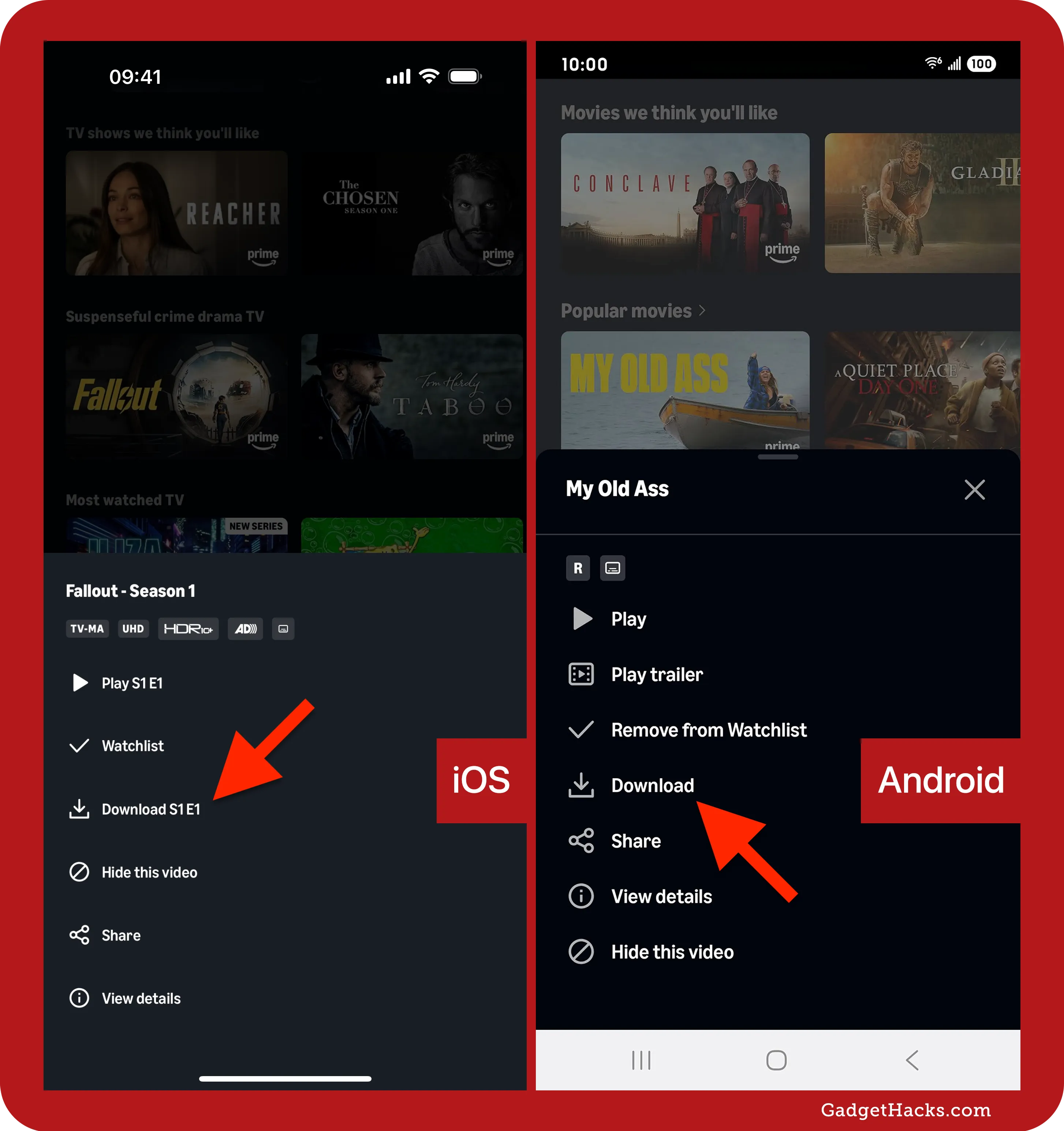
Not all content on Amazon Prime Video is available for download. Films and TV shows included with your Prime membership are generally downloadable, whereas content rented or purchased often has specific download restrictions (though most purchased content is downloadable). To find downloadable titles, you can either browse the library as usual – you’ll often see a “Download” icon (a downward-pointing arrow) next to eligible titles or episodes – or you can specifically filter for “Downloadable” content. The app also features a dedicated “Downloads” section or a “Available to Download” filter, making it easier to discover content suitable for offline viewing.
Executing the Download: Quality Settings and Storage
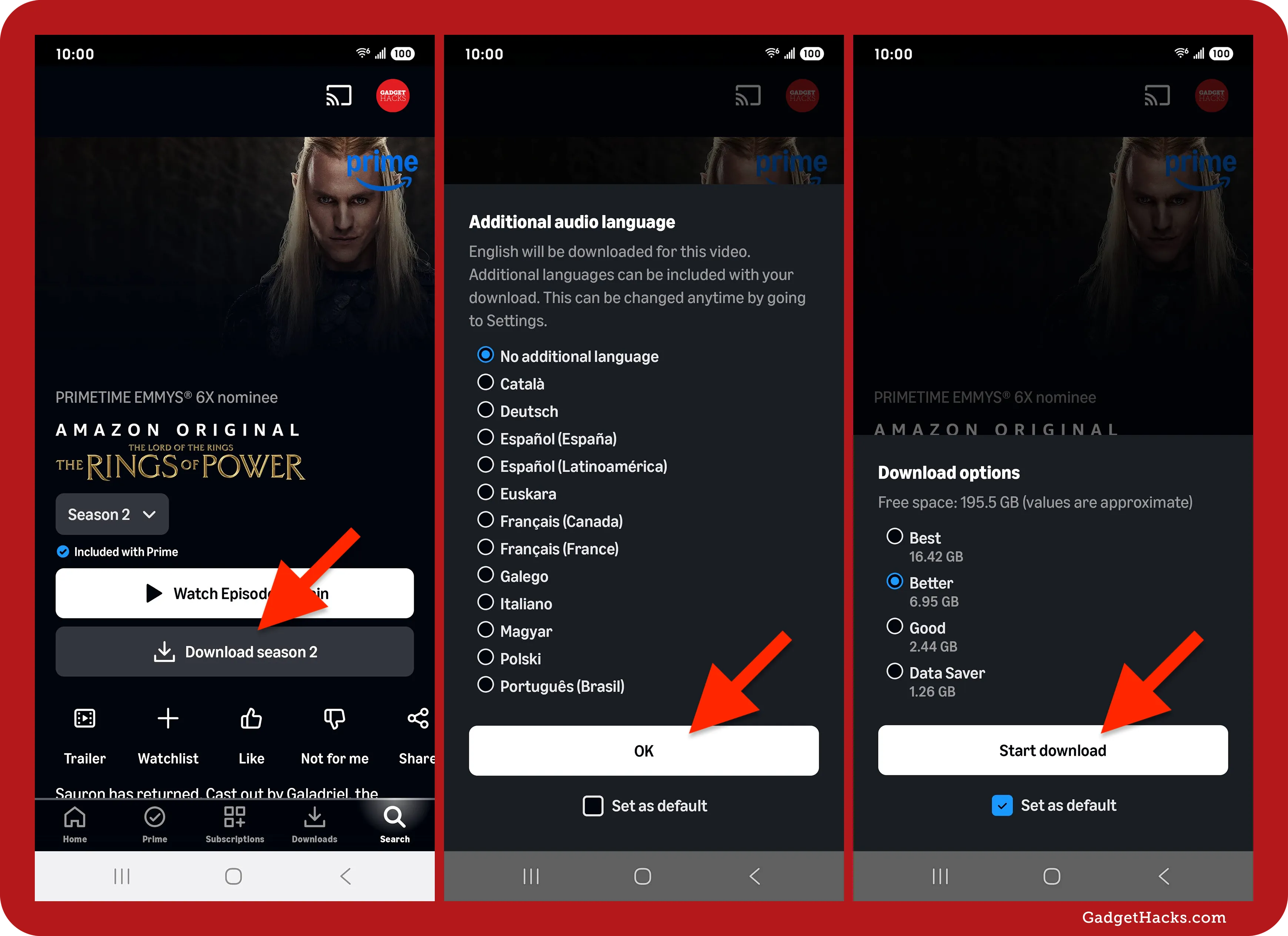
Once you’ve selected a title, tapping on it will bring you to its detail page. Here, you’ll typically find a prominent “Download” button or icon. For TV series, you’ll usually have the option to download individual episodes or an entire season (if available). Before the download commences, the app will often prompt you to select your preferred video quality:
- Good: Uses the least storage and downloads fastest, suitable for smaller screens or limited storage.
- Better: A good balance of quality and file size.
- Best: Highest quality, but consumes the most storage and takes longer to download.
- Data Saver: An even lower quality option, prioritizing speed and minimal data usage.
Choose your desired quality based on your device’s storage capacity and internet speed. After selection, the download will begin, and a progress bar will typically appear, indicating the status.
Managing Your Downloads: Deletion and Re-download
Downloaded content is stored within the Amazon Prime Video app itself. To access your downloaded films and shows, navigate to the “Downloads” section (often accessible from the main menu or bottom navigation bar). Here, you’ll see a list of all content stored on your device. To delete a downloaded title, simply tap on the edit/manage option (usually a pencil icon or a context menu) and select the content you wish to remove. Deleting frees up storage space on your device. You can re-download content at any time, provided it’s still available with your Prime membership and you haven’t exceeded any download limits.
Device-Specific Instructions for Seamless Downloads
While the core process is similar, slight variations exist depending on the device you’re using. Understanding these nuances ensures a smoother experience across your digital ecosystem.
Mobile Devices (iOS and Android)
The experience on smartphones and smaller tablets is highly optimized for touch interfaces. After installing the app and logging in, browsing for content is intuitive. When viewing a film’s detail page or a TV show’s episode list, the download icon is usually prominent. On iOS, once downloaded, films appear in the “Downloads” tab at the bottom of the screen. Android devices also feature a dedicated “Downloads” section, often accessible from the main menu. Both platforms offer granular control over download quality and storage management within the app’s settings, allowing users to specify where downloads are saved (internal storage or SD card, if available).
Tablets (iPadOS and Android Tablets)
Tablets, with their larger screens, offer a more immersive viewing experience for downloaded content. The process mirrors that of smartphones, with the app interface adapting to the larger display. The “Downloads” section is usually easily accessible from the main navigation. One key advantage of tablets is often greater storage capacity, allowing users to store more “Best” quality downloads. Users should check their tablet’s storage regularly, especially if downloading multiple movies in high definition.
Desktop App for Windows and macOS
Amazon Prime Video also offers dedicated desktop applications for Windows and macOS. These apps replicate much of the mobile experience but are tailored for keyboard and mouse navigation. After installing from the respective app stores, logging in, and finding your content, the download button functions identically. The “Downloads” section is typically found in the left-hand navigation pane. These desktop apps are particularly useful for users who prefer to watch on a laptop while traveling or who wish to offload content from their mobile devices for a larger screen experience without internet dependency.
Limitations and Exclusions for Other Devices (Smart TVs, Fire TV Sticks)
It’s crucial to understand that downloading content is primarily a feature for portable devices designed for individual use. Smart TVs, gaming consoles (PlayStation, Xbox), Roku devices, Apple TV, and Amazon’s own Fire TV Sticks are primarily streaming devices. They are designed to stream content directly from the internet and generally do not support the local storage and playback of downloaded Prime Video content. This means you cannot download films directly onto your Fire TV Stick for offline viewing; you must use a compatible mobile device or desktop app.
Optimizing Your Offline Viewing Experience
Beyond the basic download steps, a few expert tips can significantly enhance your offline Prime Video experience, addressing common pitfalls and maximizing convenience.
Understanding Download Limitations and Expiry
Amazon Prime Video imposes certain limitations on downloaded content due to licensing agreements.
- Expiry Dates: Downloaded films and TV shows typically have an expiry period, usually 30 days from the date of download or 48 hours once you start watching. After this period, the content will disappear from your device or require an internet connection to re-authenticate your membership.
- Device Limits: There’s often a limit to how many devices can simultaneously hold the same downloaded content, and a maximum number of titles you can download across all devices at any given time.
- Geographical Restrictions: While downloaded, some content may still be restricted based on your current geographical location when you attempt to play it for the first time or after a long period offline.
Always check the details associated with individual titles within the app for specific expiry and access rules.
Storage Management Best Practices
High-quality video files can consume significant storage space. A full-length HD movie can easily be several gigabytes.
- Prioritize Quality: If storage is limited, opt for “Better” or “Good” quality settings rather than “Best.” The difference might be negligible on smaller screens.
- Delete After Watching: Make it a habit to delete films and episodes after you’ve watched them. This frees up space for new content. The app usually provides a quick way to manage and delete downloads.
- External Storage: If your Android device supports an SD card, configure the Prime Video app settings to save downloads to the external card, preserving your internal storage for other apps and data.
Troubleshooting Common Download Issues
Encountering a problem during the download process can be frustrating. Here are common issues and solutions:
- “Download Failed” Error: Check your internet connection stability. Ensure you have sufficient storage space on your device. Sometimes, simply restarting the app or your device can resolve temporary glitches.
- “Content Not Available” or “Expired”: Verify your Prime membership is active. If the content has expired, you may need an internet connection to refresh its validity or re-download it.
- Cannot Find Download Button: The title may not be available for download, or it might be content you’ve rented/purchased with specific viewing rules. Always check if the “Download” icon is present.
- App Freezing/Crashing: Ensure your Amazon Prime Video app is updated to the latest version. Clear the app’s cache (in device settings) or reinstall the app if issues persist.
Beyond Basic Downloads: Advanced Tips for Prime Video Users
Leveraging Amazon Prime Video’s download feature to its fullest potential involves understanding its deeper functionalities and integrating it smartly into your media consumption strategy.
Parental Controls and Offline Content
For families, managing what children can access, especially offline, is crucial. Amazon Prime Video offers robust parental controls, allowing you to set viewing restrictions based on content ratings and even PIN-protect purchases or specific profiles. These controls extend to downloaded content. When setting up profiles for children, ensure their profile settings reflect the appropriate content filters. Downloaded content will adhere to these restrictions, meaning a child’s profile won’t be able to play a downloaded R-rated movie if parental controls are active. Always review and adjust these settings as needed for peace of mind.
The Nuance of Rented vs. Purchased Downloads
While this guide primarily focuses on content included with your Prime membership, it’s worth noting the distinction for rented and purchased titles.
- Purchased Content: Generally, films and TV shows you’ve purchased are available for download indefinitely and can often be downloaded to more devices simultaneously than Prime-included content. They don’t typically expire, offering permanent offline access.
- Rented Content: Rentals are more restrictive. They usually have a 30-day window to start watching after rental, and once started, you typically have 48 hours to finish it. Downloads for rented content adhere to these same strict timelines and cannot be re-downloaded once expired. Always prioritize watching rented content promptly.
Understanding these differences helps manage expectations and usage patterns for diverse content libraries.

Maximizing Battery Life for Extended Offline Sessions
Watching downloaded content consumes less battery than streaming, as the device isn’t constantly processing network data. However, for extended viewing sessions, especially on long journeys, optimizing battery life is key.
- Lower Screen Brightness: The display is a major power consumer. Reduce brightness to a comfortable level.
- Disable Background Apps: Close unnecessary apps running in the background to free up system resources.
- Airplane Mode: Once your content is downloaded and you no longer need an internet connection, activating airplane mode can significantly conserve battery life by turning off Wi-Fi, cellular, and Bluetooth radios.
- External Power Bank: For truly marathon viewing, consider carrying a portable power bank to recharge your device.
By strategically utilizing these tips, you can transform your device into a reliable, long-lasting entertainment hub, making the most of your Amazon Prime Video downloads.
Downloading films and TV shows from Amazon Prime Video is a powerful feature that empowers subscribers to take their entertainment anywhere, independent of internet connectivity. By following these guidelines and understanding the technological underpinnings, you can ensure a flawless offline viewing experience, making every journey and every quiet moment an opportunity for cinematic enjoyment. Embrace the freedom of offline access and unlock the full potential of your Prime membership.
aViewFromTheCave is a participant in the Amazon Services LLC Associates Program, an affiliate advertising program designed to provide a means for sites to earn advertising fees by advertising and linking to Amazon.com. Amazon, the Amazon logo, AmazonSupply, and the AmazonSupply logo are trademarks of Amazon.com, Inc. or its affiliates. As an Amazon Associate we earn affiliate commissions from qualifying purchases.