
In the era of digital entertainment, streaming services have revolutionized how we consume media, offering an unparalleled library of content at our fingertips. Among the giants in this space, Amazon Prime Video stands out, not just for its vast collection of movies, TV shows, and exclusive originals, but also for its integration with the broader Amazon ecosystem. While watching on a phone, tablet, or computer offers convenience, there’s an undeniable appeal to experiencing your favorite series and blockbusters on the grand scale of a television screen. This guide will walk you through every method, device, and tip to ensure you can enjoy Prime Video on your TV with optimal quality and ease, transforming your living room into a personal cinema.

Understanding Your Options: Devices for Streaming Prime Video
The beauty of modern streaming lies in its versatility. Prime Video is accessible across a multitude of devices, ensuring that almost any TV setup can become a gateway to Amazon’s content library. Choosing the right method often depends on your existing hardware, budget, and desired level of convenience.
Smart TVs with Built-in Prime Video App
Perhaps the most straightforward approach, many contemporary smart TVs come with a built-in internet connection and pre-installed apps for popular streaming services, including Prime Video. Brands like Samsung, LG, Sony, Vizio, and Panasonic often feature dedicated app stores or pre-loaded interfaces that make accessing Prime Video as simple as navigating to an icon. Once you select the Prime Video app, you’ll be prompted to sign in with your Amazon account credentials. The major advantage here is simplicity: no extra hardware, no additional cables, just a direct pathway from your TV to your entertainment. Ensure your smart TV’s software is regularly updated to benefit from the latest features and security enhancements for the Prime Video app.
Dedicated Streaming Devices
For those with older non-smart TVs, or users seeking a more streamlined and feature-rich streaming experience, dedicated streaming devices are an excellent solution. These compact gadgets plug directly into your TV’s HDMI port and connect to your home Wi-Fi network, providing access to a myriad of apps, including Prime Video.
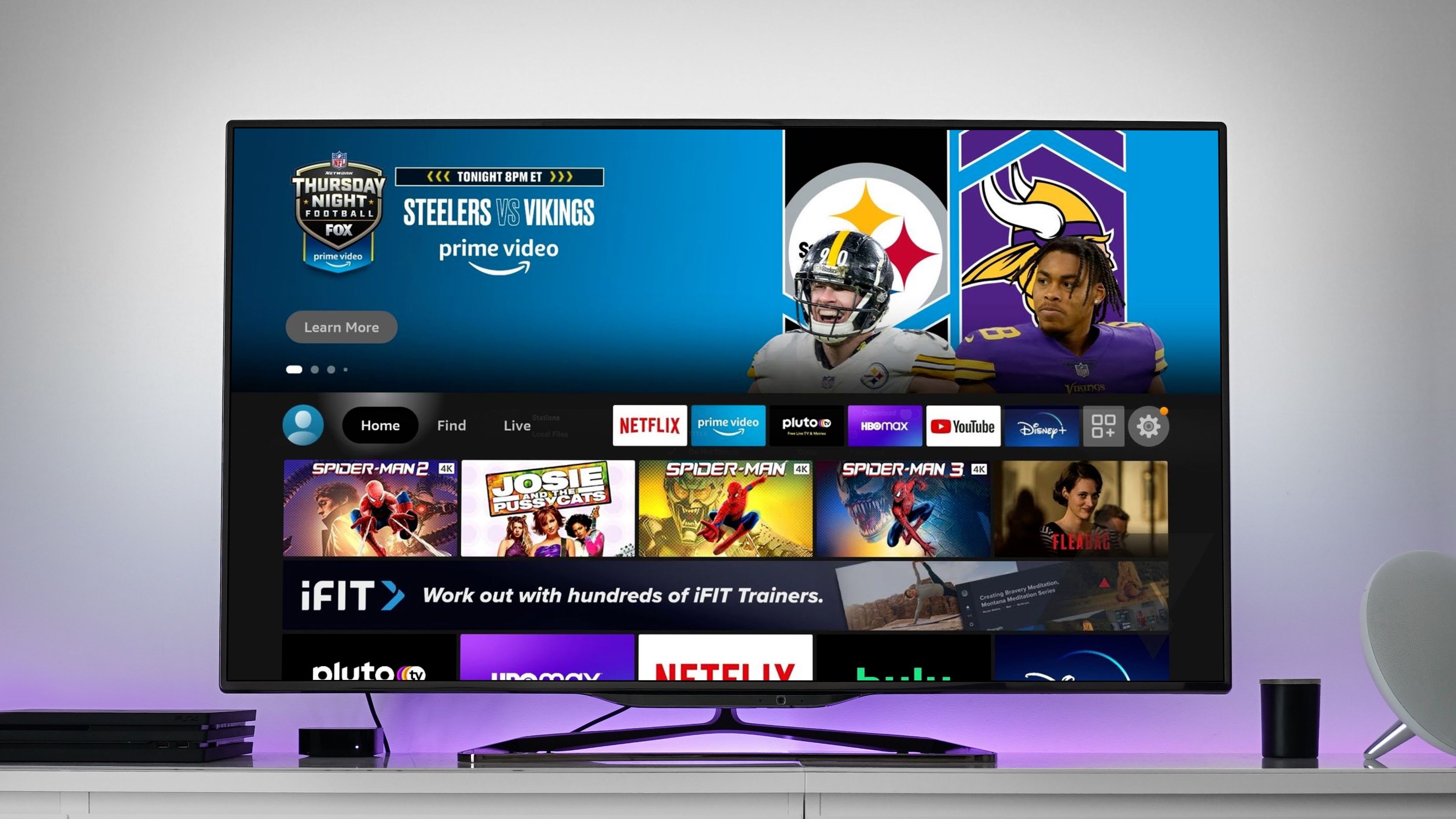
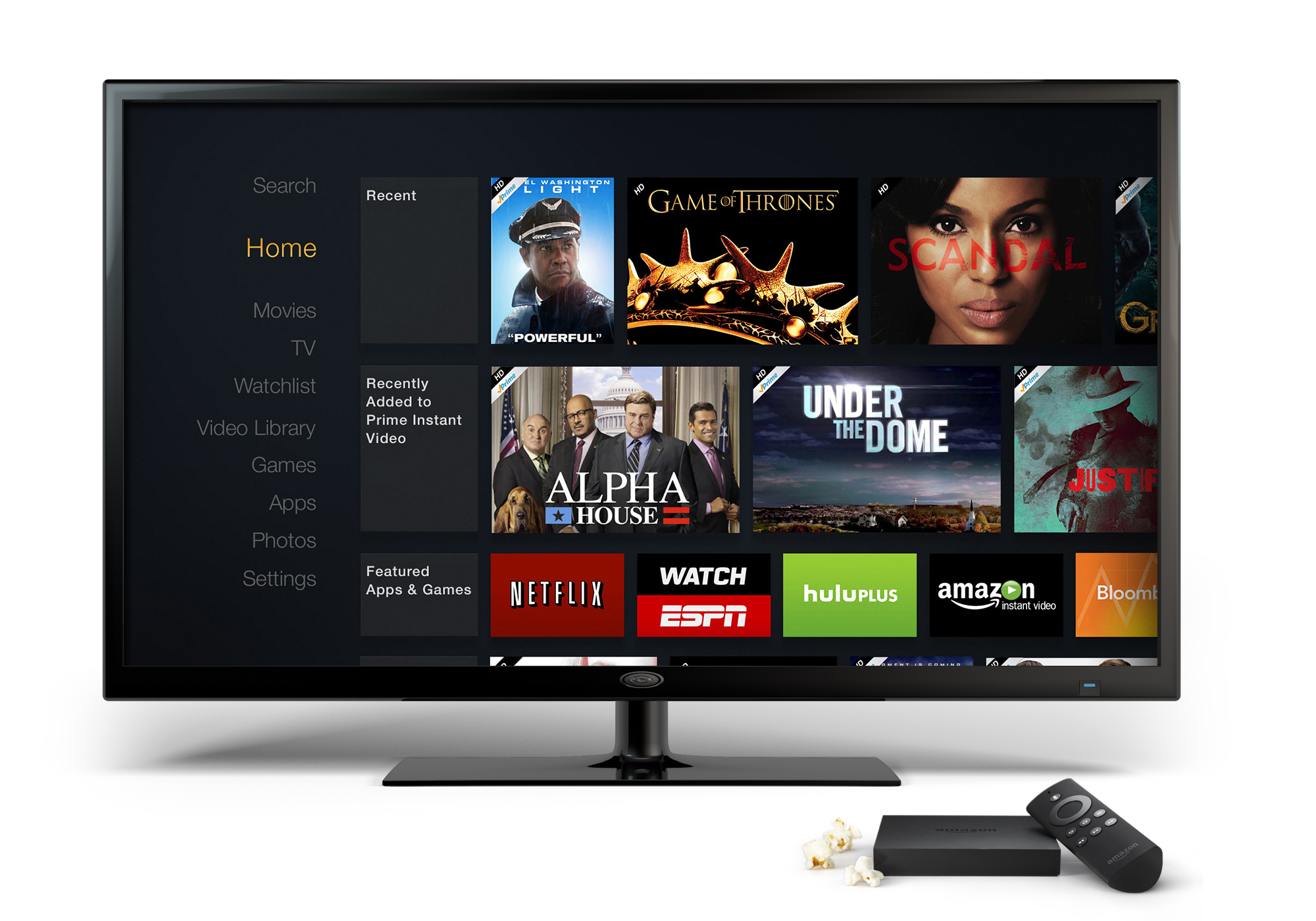
- Amazon Fire TV Devices: Unsurprisingly, Amazon’s own Fire TV Sticks and Fire TV Cubes offer the most seamless integration with Prime Video. They come pre-loaded with the app, often feature voice control via Alexa for easy content search, and prioritize Amazon’s content within their user interface. Setup is typically very simple, often requiring only an Amazon account login.
- Roku Devices: Roku offers a range of streaming players, from entry-level sticks to advanced Ultra models, all known for their user-friendly interface and extensive app support. Prime Video is readily available in the Roku Channel Store, and the platform’s universal search makes finding content across different services effortless.
- Apple TV: For users within the Apple ecosystem, Apple TV provides a premium streaming experience with a polished interface and strong integration with other Apple services. The Prime Video app is available for download, offering high-quality playback and a smooth user experience.
- Google Chromecast: Chromecast devices take a different approach, allowing you to “cast” content from your smartphone, tablet, or computer directly to your TV. You initiate playback within the Prime Video app on your mobile device or through the Chrome browser on your computer, then select the cast icon to send the video stream to your Chromecast-connected TV. This is ideal for those who prefer to browse and control content from their handheld devices.
Gaming Consoles
Modern gaming consoles have evolved beyond their primary function, transforming into powerful home entertainment hubs. Both Sony PlayStation (PS4, PS5) and Microsoft Xbox (Xbox One, Xbox Series X/S) feature robust app stores where you can download the Prime Video app. Once installed, these consoles offer a high-fidelity streaming experience, leveraging their powerful processors for smooth playback, often supporting 4K HDR content. This is a convenient option if you already own a console and want to consolidate your entertainment setup.
Blu-ray Players and Home Theater Systems
While less common now, some internet-connected Blu-ray players and select home theater systems also include app support, allowing you to download and use the Prime Video app. This can be a viable option if you have an older, premium home theater setup that predates smart TVs or dedicated streamers but still has internet capabilities.
Step-by-Step Guides for Popular Methods
Once you’ve identified your preferred device, getting Prime Video up and running on your TV is a straightforward process. Here’s a general walkthrough for the most common methods.
On a Smart TV
- Turn on Your Smart TV: Ensure it’s connected to the internet, either via Wi-Fi or Ethernet.
- Locate the Prime Video App: Most smart TVs have a home screen or app launcher. Look for the Prime Video icon. If you can’t find it, navigate to your TV’s app store (e.g., LG Content Store, Samsung Smart Hub, Google Play Store for Android TVs) and search for “Prime Video” to download and install it.
- Launch the App: Open Prime Video.
- Sign In: You’ll be prompted to sign in using your Amazon account details. This might involve entering your email and password directly on the TV or visiting a specific Amazon URL on a separate device (computer or phone) and entering a registration code displayed on your TV screen.
- Start Watching: Once logged in, you can browse the Prime Video library and begin streaming.
Using an Amazon Fire TV Device
- Plug in the Fire TV Device: Connect your Fire TV Stick or Cube to an HDMI port on your TV and plug it into a power source.
- Select Input: Switch your TV’s input (source) to the HDMI port your Fire TV is connected to.
- Connect to Wi-Fi: Follow the on-screen prompts to connect your Fire TV device to your home Wi-Fi network.
- Register Your Device: If your Fire TV wasn’t pre-registered to your Amazon account, you’ll need to sign in with your Amazon credentials.
- Navigate and Watch: The Fire TV interface prominently features Prime Video content. You can browse, search with your remote, or use Alexa voice commands to find and play titles.
Casting with Chromecast or Fire TV
- Ensure Devices are on the Same Network: Your mobile device (phone/tablet) or computer and your Chromecast/Fire TV must be connected to the same Wi-Fi network.
- Open Prime Video App/Website: On your mobile device, launch the Prime Video app. On your computer, go to primevideo.com using Google Chrome.
- Select Content: Find the movie or show you wish to watch.
- Tap the Cast Icon: Look for the “cast” icon (a rectangle with a Wi-Fi symbol in the bottom left corner) usually located in the upper right corner of the video player or within the app interface.
- Choose Your TV: A list of available casting devices will appear. Select your Chromecast or Fire TV device.
- Control Playback: Your content will start playing on your TV, and you can use your mobile device or computer as a remote control for playback, volume, and browsing.
Via Gaming Console
- Turn on Your Console: Ensure it’s connected to the internet.
- Access the Console’s Store: Navigate to the PlayStation Store (PS) or Microsoft Store (Xbox).
- Search for Prime Video: Find and download the Prime Video app.
- Launch and Sign In: Open the app and sign in with your Amazon account details, similar to the Smart TV process.
- Enjoy: Browse and stream Prime Video content directly through your gaming console.
Optimizing Your Prime Video Viewing Experience
Simply getting Prime Video onto your TV is just the first step. To truly enjoy the vast library, it’s crucial to optimize your setup for the best possible audio and visual quality.
Ensuring a Stable Internet Connection
The backbone of any streaming service is a reliable internet connection. For standard definition (SD) content, a speed of 3 Mbps is generally sufficient. For high definition (HD), 5-10 Mbps is recommended, and for stunning 4K Ultra HD with HDR, you’ll ideally need 15-25 Mbps or higher.
- Wi-Fi vs. Ethernet: While Wi-Fi offers flexibility, a wired Ethernet connection to your streaming device or smart TV provides greater stability and often faster speeds, reducing the chances of buffering, especially for 4K content.
- Router Placement: Position your Wi-Fi router centrally in your home, away from obstructions and other electronics that might interfere with the signal.
- Check Bandwidth: If multiple devices are using your network simultaneously, ensure your overall internet plan can handle the combined load, or prioritize your streaming device’s bandwidth if your router supports QoS (Quality of Service) settings.
Adjusting Video Quality and Playback Settings
Prime Video typically auto-adjusts video quality based on your internet speed, but you might want to manage this. On some devices and within the Prime Video app settings, you can manually select streaming quality to save data (e.g., if you have a capped internet plan) or force higher quality if you suspect an issue. Always ensure your TV’s picture settings (brightness, contrast, color, sharpness) are calibrated for optimal viewing, especially when watching HDR content. Look for your TV’s picture modes (e.g., “Cinema,” “Movie,” or “HDR” mode) to get the best out-of-the-box settings for film and TV content.
Troubleshooting Common Issues
Even with the best setup, occasional glitches can occur. Here are quick fixes for common problems:
- Buffering or Lag:
- Check your internet connection speed.
- Restart your router and modem.
- Restart your streaming device or TV.
- Close other apps or devices using bandwidth.
- Try a wired Ethernet connection if possible.
- App Crashes or Freezing:
- Restart the Prime Video app.
- Clear the app’s cache (usually found in device settings under ‘Apps’ or ‘Storage’).
- Uninstall and reinstall the Prime Video app.
- Restart your entire TV or streaming device.
- Login Problems:
- Double-check your Amazon credentials.
- Try logging in on a different device to confirm your password.
- Reset your Amazon password if necessary.
- Black Screen/No Picture:
- Ensure all HDMI cables are securely connected.
- Try a different HDMI port.
- Restart your TV and streaming device.
Advanced Tips and Features for Prime Video Users
Beyond basic streaming, Prime Video offers several features that can enhance your viewing experience and provide greater control over your content.
Parental Controls and Watchlist Management
For households with children, setting up parental controls is essential. Within your Amazon account settings or the Prime Video app, you can set viewing restrictions based on age ratings, requiring a PIN for playback of certain content. This ensures younger viewers only access appropriate material. Efficiently managing your Watchlist allows you to keep track of shows and movies you want to watch later, and Prime Video’s robust recommendation engine learns from your viewing habits to suggest new titles you might enjoy. Creating separate user profiles for different family members also ensures personalized recommendations and viewing history for everyone.
X-Ray Feature and IMDb Integration
One of Prime Video’s unique and most beloved features is X-Ray, powered by IMDb. While watching a title, X-Ray provides instant, context-sensitive information about the actors on screen, the music playing, trivia, and even goofs. On most devices, you can access X-Ray by pausing the content or by pressing an “up” or “info” button on your remote. This feature adds a rich, interactive layer to your viewing, perfect for film buffs and casual viewers alike who want to dive deeper into the production.
Multi-User Profiles and Account Sharing
Prime Video supports multiple user profiles under a single Amazon account, allowing each family member to have their own personalized viewing experience, watch history, and recommendations. While account sharing is generally allowed within a household, be mindful of simultaneous stream limits, which typically permit up to three simultaneous streams within the same account, with a limit of two streams for the same title at any given time.
The Future of TV Streaming and Prime Video
The streaming landscape is constantly evolving, and Prime Video is at the forefront of this transformation. As technology advances, so too will the ways we interact with and consume our digital entertainment.
AI-Enhanced Recommendations
The algorithms behind content recommendations are becoming increasingly sophisticated, leveraging artificial intelligence to analyze viewing habits, preferences, and even emotional responses to content. Expect Prime Video’s suggestions to become even more tailored and predictive, helping you discover new favorites with remarkable accuracy and efficiency, often before you even know you want to watch them.
Evolution of Streaming Devices
Future streaming devices will likely boast more powerful processors, enabling even smoother 4K HDR playback and potentially paving the way for 8K content. Integration with smart home ecosystems will deepen, allowing for voice control over not just content, but also ambient lighting, sound systems, and other smart appliances to create the perfect viewing environment with simple commands.
The Convergence of Content Platforms
The trend towards content aggregation and unified interfaces will continue. While Prime Video offers channels and subscriptions to other services within its platform, we may see further convergence, with systems that seamlessly integrate content from all your streaming subscriptions into a single, intuitive interface, simplifying content discovery and management across the fragmented streaming market.
Conclusion
Watching Prime Video on your TV is more accessible and versatile than ever before, thanks to a wide array of compatible devices and user-friendly interfaces. Whether you own a cutting-edge smart TV, a dedicated streaming stick, or a powerful gaming console, there’s a seamless path to bringing Amazon’s extensive library of movies, series, and live events to your big screen. By understanding the various methods, optimizing your internet connection, and leveraging Prime Video’s unique features, you can unlock a premium home entertainment experience. So, settle in, grab your remote, and immerse yourself in the world of Prime Video – your ultimate viewing journey awaits.
aViewFromTheCave is a participant in the Amazon Services LLC Associates Program, an affiliate advertising program designed to provide a means for sites to earn advertising fees by advertising and linking to Amazon.com. Amazon, the Amazon logo, AmazonSupply, and the AmazonSupply logo are trademarks of Amazon.com, Inc. or its affiliates. As an Amazon Associate we earn affiliate commissions from qualifying purchases.