
In an era defined by abundant digital choices, managing our technology subscriptions has become a critical aspect of personal finance and digital well-being. Services like YouTube TV, which revolutionized the way many consume live television, offer unparalleled convenience and flexibility. However, as content landscapes evolve, personal preferences shift, and economic considerations come to the fore, the need to reassess and occasionally cancel these subscriptions becomes inevitable. This guide delves into the precise steps for canceling your YouTube TV service, contextualizing it within the broader framework of digital subscription management, user experience design, and the evolving tech ecosystem.

Navigating the Digital Subscription Ecosystem: Why Cancellation Matters
The proliferation of streaming services has fundamentally reshaped our relationship with media and technology. From dedicated movie platforms to live TV alternatives, consumers now curate a personalized entertainment portfolio. Yet, this freedom comes with the responsibility of active management, making the process of cancellation an integral part of a healthy tech lifecycle.
The Shifting Sands of Streaming Entertainment
For years, traditional cable TV was the unchallenged king, offering bundles of channels with little flexibility. YouTube TV, launched by Google in 2017, was a significant disruptor, offering a compelling alternative with its cloud DVR, extensive channel lineup, and multi-device accessibility. It represented a pivotal moment in the “cord-cutting” movement, allowing users to ditch expensive, rigid cable contracts for a more agile, internet-based solution. However, the streaming market is dynamic. Competitors have emerged, content licensing deals shift, and exclusive programming becomes a differentiating factor. What might have been the perfect service a year ago may no longer align with a user’s evolving needs or available content. Understanding these shifts is key to making informed subscription decisions.
Identifying Your Core Streaming Needs
Before embarking on the cancellation process, it’s insightful to reflect on why you’re considering the change. Is it a matter of cost-saving? YouTube TV, while often cheaper than cable, has seen price increases, making budget a common trigger for reassessment. Is it content availability? Perhaps your favorite sports team’s games are now exclusive to another platform, or a new show you love isn’t available on YouTube TV. Is it the user experience itself? While YouTube TV boasts a clean interface and robust features, individual preferences for navigation, DVR management, or ad experience can vary. Pinpointing these core needs helps in making future streaming choices, whether it’s an alternative live TV service or a complete pivot to on-demand platforms.
The Economic and Experiential Drivers of Cancellation
Beyond content and cost, the sheer volume of digital subscriptions can lead to “subscription fatigue.” Consumers are increasingly aware of the cumulative monthly spend across Netflix, Spotify, cloud storage, productivity apps, and various streaming services. This often prompts a periodic audit, where services deemed less essential are pared down. From a tech perspective, the ease or difficulty of cancellation also plays a significant role in user experience. A cumbersome cancellation process can breed frustration and negative brand sentiment, while a straightforward one, even if it results in churn, often leaves a user with a more positive impression, potentially encouraging future re-subscription. Understanding these drivers is crucial not just for the user, but for the platform providers who design these critical interaction points.
A Comprehensive Guide to Seamless YouTube TV Cancellation
Canceling a digital subscription should be a straightforward process, designed for user convenience. Fortunately, YouTube TV provides a relatively clear path to manage your membership, whether you intend to fully cancel or simply pause.
Pre-Cancellation Checklist: What You Need to Know
Before you click that ‘cancel’ button, a few key considerations can save you potential headaches:
- Billing Cycle: Understand your current billing cycle. You typically retain access to YouTube TV until the end of your paid billing period, even after canceling. This means you won’t receive a partial refund for the current month.
- Cloud DVR Recordings: Unlike some services, YouTube TV’s cloud DVR recordings are tied to your active subscription. Once you cancel, access to these recordings will cease at the end of your billing cycle. If there’s content you absolutely need to watch, do so before your access expires.
- Family Sharing: If you’re part of a YouTube TV family group, canceling your account (if you are the primary account holder) will affect all members. Ensure you communicate with your family or transfer primary ownership if necessary.
- Linked Services: Check if YouTube TV is bundled or linked with any other services (e.g., certain internet provider bundles). Canceling might affect those arrangements.
Step-by-Step Process via Web Browser
The most reliable way to manage your YouTube TV subscription is through a web browser on a computer or mobile device. While the YouTube TV app is excellent for viewing, subscription management features are often streamlined via the web.
- Access YouTube TV: Go to
tv.youtube.comin your web browser. - Sign In: Ensure you are signed into the Google account associated with your YouTube TV membership. This is a critical step, as many users have multiple Google accounts.
- Navigate to Settings: In the top right corner of the screen, click on your profile picture. A dropdown menu will appear.
- Select ‘Settings’: From the dropdown menu, choose the ‘Settings’ option (often represented by a gear icon).
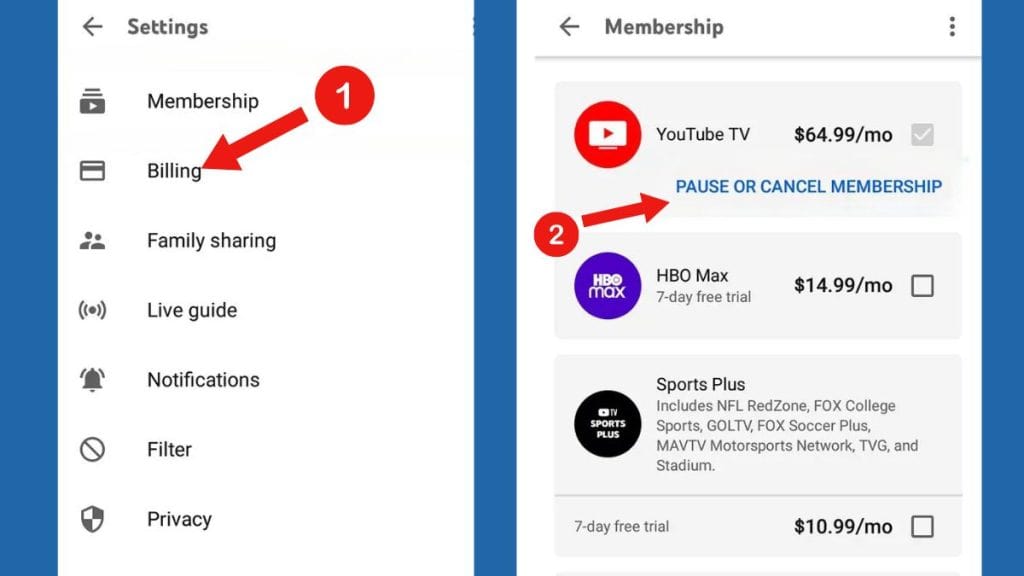
- Go to ‘Membership’: On the left-hand navigation pane within the Settings page, click on ‘Membership’ (or ‘Membership & Billing’ depending on UI updates).
- Locate ‘Manage Membership’: You will see details about your current plan. Look for an option that says ‘Manage Membership’ or ‘Cancel Membership’. Click on it.
- Initiate Cancellation: YouTube TV will likely present you with a few prompts, possibly asking why you’re canceling or offering a ‘Pause’ option (which we’ll discuss next). Proceed through these prompts.
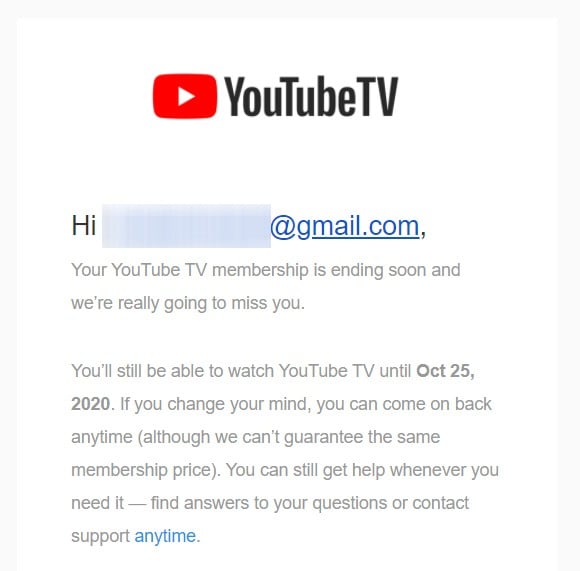
- Confirm Cancellation: Follow the final instructions to confirm your decision. You should receive an email confirmation shortly after. Keep this email for your records.
Understanding the “Pause” Option: A Smart Alternative
YouTube TV, recognizing that many cancellations are temporary, offers a “pause” feature. This is an excellent tech-driven solution for users who want to take a break without fully severing ties.
- How it works: When you initiate a cancellation, YouTube TV often presents the option to ‘Pause’ your membership instead. You can choose to pause for 4 weeks, 8 weeks, up to 6 months.
- Benefits: During the pause, you won’t be billed, but your settings and library preferences will be saved. When you’re ready to resume, it’s a simple click, and your service will be reactivated, avoiding the hassle of a full re-subscription. This is particularly useful for seasonal viewers or those taking an extended vacation.
- Considerations: Your cloud DVR recordings will remain, but you won’t have access to new live content during the pause period.
Verifying Your Cancellation and Avoiding Pitfalls
After completing the cancellation steps, always verify.
- Check for Email Confirmation: A confirmation email from YouTube TV or Google usually arrives within minutes. If it doesn’t, check your spam folder.
- Re-check Account Status: Log back into
tv.youtube.comand navigate to your ‘Membership’ settings. It should clearly indicate that your membership is canceled or paused, and specify the date until which you retain access. - Monitor Bank Statements: For the next billing cycle, keep an eye on your bank or credit card statements to ensure no further charges are made. If an erroneous charge occurs, contact YouTube TV support immediately.
Post-Cancellation Landscape: Exploring Alternatives and Maximizing Value
Canceling YouTube TV doesn’t mean the end of your streaming journey. It often marks an opportunity to recalibrate your tech consumption and explore new, potentially better-suited services.
Life After YouTube TV: Access Period and Data Considerations
As mentioned, you retain access to YouTube TV until the end of your current billing cycle. During this period, you can still enjoy all features, including live TV and your cloud DVR. Once this period concludes, your account typically moves to a ‘canceled’ state. While your personal viewing data (watch history, preferences) might be retained by Google for a period (in accordance with their privacy policy), your active access to content ceases. Should you decide to resubscribe later, your preferences are usually preserved, offering a seamless return. This data retention strategy is a common tech practice, designed to enhance user experience upon re-engagement while adhering to data privacy regulations.
A Deep Dive into Live TV Streaming Competitors
The live TV streaming market is robust, with several contenders vying for your attention:
- Hulu + Live TV: Often cited as YouTube TV’s closest competitor, Hulu + Live TV offers a strong channel lineup, a robust on-demand library (Hulu’s own content), and popular add-ons. Its integration with Hulu’s vast on-demand content makes it a compelling bundle.
- Sling TV: Known for its lower price point and customizable channel “Orange” and “Blue” packages, Sling TV is ideal for budget-conscious streamers who don’t need every channel. It offers more ala carte flexibility.
- fuboTV: A strong contender for sports enthusiasts, fuboTV boasts an impressive array of sports channels, often including international sports not found elsewhere. Its general entertainment lineup has also expanded significantly.
- DirecTV Stream: Formerly AT&T TV Now, DirecTV Stream offers various packages, including those that mirror traditional cable bundles, sometimes at a premium price point but with extensive channel options and regional sports networks.
Each service has its strengths in terms of channel lineups, cloud DVR features, simultaneous streams, and pricing. A thorough comparison based on your core viewing habits is recommended.
The Rise of On-Demand: Complementing Live TV with SVOD Services
Many users find that they don’t always need live TV. Services like Netflix, Max, Disney+, Apple TV+, and Prime Video offer vast libraries of movies, TV shows, and original content, all available on demand.
- Cost-Effectiveness: Subscribing to 2-3 SVOD (Subscription Video On Demand) services can often be more cost-effective than a single live TV streaming service.
- Flexibility: On-demand means no schedules, no missed shows, and the ability to binge-watch entire seasons at your leisure.
- Hybrid Approach: A growing trend is a hybrid model: subscribe to one primary SVOD service for daily entertainment and use an antenna for local live TV, or occasionally subscribe to a live TV service only during specific sports seasons or events. This flexible approach leverages technology to optimize both content access and spending.
Future-Proofing Your Entertainment Strategy
The tech landscape is always evolving. To future-proof your entertainment strategy:
- Periodic Audits: Regularly review your subscriptions (e.g., quarterly) to ensure they still meet your needs and budget.
- Leverage Free Trials: Utilize free trials for competing services to test them out before committing.
- Stay Informed: Keep abreast of new services, content deals, and pricing changes in the streaming world. Tech news outlets often cover these developments.
- Consider Ad-Supported Options: Many services now offer cheaper, ad-supported tiers or entirely free ad-supported streaming services (FAST) like Pluto TV, Tubi, and Peacock Free, which can supplement paid subscriptions.
The Broader Implications of Subscription Management in Tech
The act of canceling a service like YouTube TV, while seemingly minor, touches upon broader themes within the technology industry: user experience, financial technology, and data privacy.
Combatting Subscription Fatigue: A Growing User Challenge
As the average household juggles numerous digital subscriptions, “subscription fatigue” has become a recognized phenomenon. Users feel overwhelmed by the sheer number of services, the recurring charges, and the effort required to manage them all. This fatigue isn’t just a nuisance; it can lead to unintentional spending on services that are no longer actively used. Technology providers are responding by simplifying cancellation processes, offering pause options, and even integrating subscription management features directly into operating systems or financial apps.
The Role of UX/UI Design in Cancellation Flows
The design of a cancellation process (User Experience/User Interface, or UX/UI) is a critical component of customer retention and brand perception. A well-designed cancellation flow is:
- Clear and Obvious: The option to cancel should be easy to find, not buried deep within menus.
- Straightforward: The steps should be logical and require minimal clicks.
- Transparent: Users should be informed about the implications (e.g., access period, data retention) at each step.
- Respectful: While companies may try to retain customers with offers, these should not be overly aggressive or coercive. A positive cancellation experience can lead to higher re-subscription rates if the user’s circumstances change. YouTube TV’s approach, with its clear steps and pause option, generally aligns with good UX practices.
Leveraging Technology for Subscription Tracking and Optimization
The tech industry has also stepped up to help consumers manage their subscriptions. A variety of tools and apps are available:
- Financial Tracking Apps: Many personal finance apps (e.g., Mint, YNAB, Rocket Money) can automatically detect recurring subscriptions and help you track your monthly spend.
- Dedicated Subscription Managers: Apps like Bobby, Trim, or Truebill specialize in listing all your subscriptions, identifying unused ones, and sometimes even helping you cancel them directly.
- Platform-Level Features: Operating systems (e.g., iOS, Android) and app stores often have sections where you can review and manage subscriptions tied to that ecosystem. These tools empower users to regain control over their digital finances, making informed decisions about which services to keep, pause, or cancel.
Data Privacy and Account Deactivation Best Practices
Beyond simply stopping billing, the act of canceling a service also touches on data privacy. When you cancel YouTube TV, your Google account remains active, and a history of your past subscriptions and viewing habits may be retained in accordance with Google’s privacy policy. If you wish to completely remove your data or deactivate your entire Google account, that is a separate, more comprehensive process with different implications. For most users, canceling YouTube TV merely stops the recurring charge and access, leaving the broader Google account intact. Understanding the distinction is crucial for maintaining digital privacy and security.
In conclusion, canceling YouTube TV is more than just a procedural task; it’s an informed decision within a dynamic tech landscape. By understanding the ‘how-to,’ considering alternatives, and embracing broader subscription management strategies, users can confidently navigate their digital entertainment choices, ensuring they get the most value from their technology investments.
aViewFromTheCave is a participant in the Amazon Services LLC Associates Program, an affiliate advertising program designed to provide a means for sites to earn advertising fees by advertising and linking to Amazon.com. Amazon, the Amazon logo, AmazonSupply, and the AmazonSupply logo are trademarks of Amazon.com, Inc. or its affiliates. As an Amazon Associate we earn affiliate commissions from qualifying purchases.