
In the ever-evolving landscape of digital entertainment, subscription services have become a cornerstone of how many households access their content. YouTube TV, Google’s venture into the live TV streaming market, offers a robust package of channels, DVR capabilities, and on-demand content, all accessible across a myriad of devices. However, as viewer preferences shift, budgets tighten, or alternative services emerge, the need to manage these subscriptions, including cancellation, becomes a common task. This guide aims to provide a clear, step-by-step walkthrough on how to cancel your YouTube TV membership, ensuring a smooth and hassle-free process.

Understanding how to manage your digital subscriptions is an essential skill in today’s interconnected world. Whether you’re consolidating your streaming services, finding a better deal, or simply taking a break from live television, the process of unsubscribing from YouTube TV is designed to be straightforward. We’ll delve into the specific steps required on different platforms, explore your options beyond outright cancellation, and address common troubleshooting scenarios, all through the lens of maximizing your control over your digital entertainment ecosystem.
Navigating the Cancellation Process on Different Devices
The flexibility of YouTube TV extends to how you manage your subscription, offering cancellation options across various platforms. The most common and recommended methods involve using a web browser or the mobile app, as these provide the most direct access to your account settings.
Cancelling via a Web Browser (Desktop/Laptop)
Using a desktop or laptop web browser is often the most straightforward method due to the larger interface and clearer navigation. This method is universal and typically mirrors the primary way to manage Google subscriptions.
- Access YouTube TV: Open your preferred web browser (Chrome, Firefox, Edge, Safari, etc.) and navigate to tv.youtube.com. Ensure you are signed into the Google account associated with your YouTube TV membership. If you’re not signed in, you’ll be prompted to do so.
- Navigate to Settings: Once logged in, locate your profile icon in the top right corner of the screen. Click on this icon to reveal a dropdown menu. From this menu, select “Settings.”
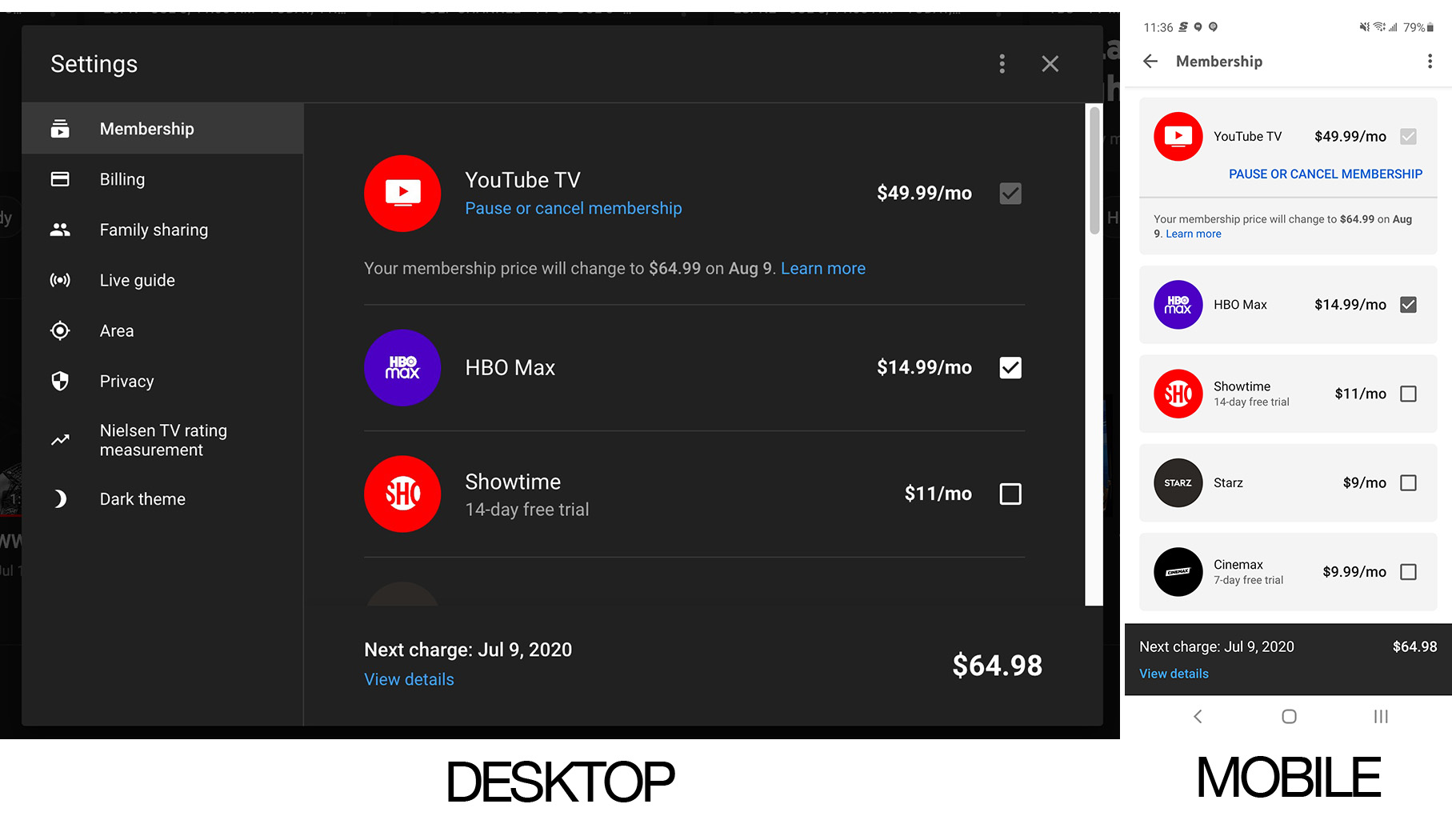
- Go to Membership: Within the “Settings” menu, you’ll see several categories listed on the left sidebar. Click on “Membership.” This section displays your current plan, billing information, and options to manage your subscription.
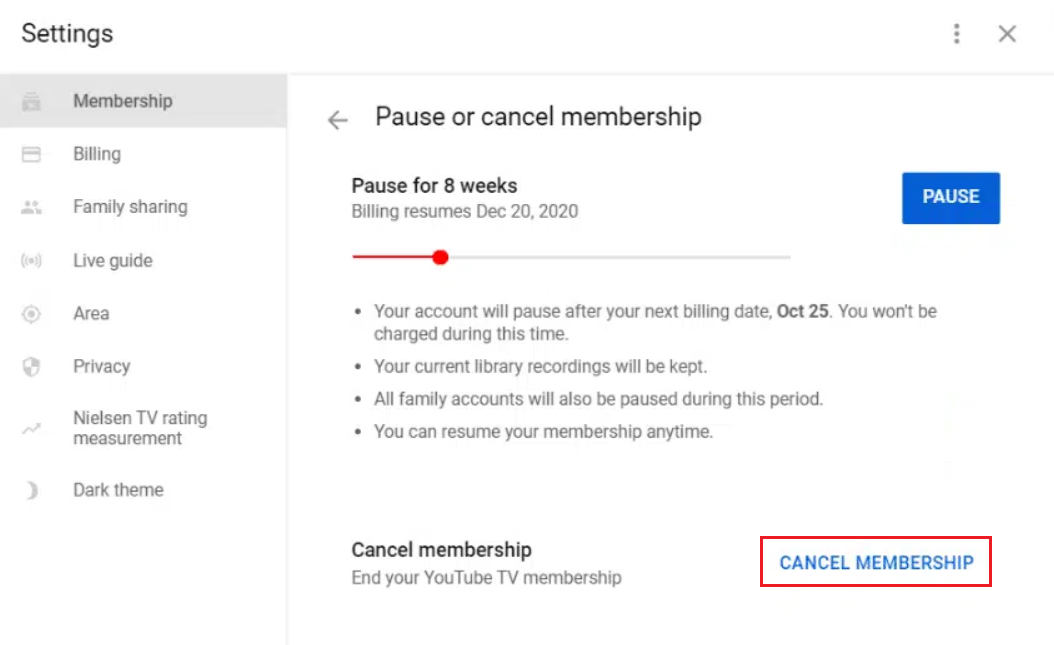
- Initiate Cancellation: Under your “YouTube TV Membership” details, you should see an option to “Cancel Membership” or “Pause Membership.” To proceed with full cancellation, click on “Cancel Membership.”
- Follow On-Screen Prompts: YouTube TV will often present a series of screens asking for feedback on why you’re cancelling and may offer alternatives, such as pausing your membership (which we’ll discuss shortly). You might also be shown a reminder of what you’ll lose access to upon cancellation. Continue through these prompts, confirming your decision until you reach a final confirmation screen.
- Confirmation: Look for a confirmation message on your screen and, crucially, an email confirmation sent to the Gmail address associated with your Google account. This email is your proof of cancellation. Your membership will typically remain active until the end of your current billing cycle.
Cancelling via the YouTube TV Mobile App (iOS/Android)
The YouTube TV mobile app provides a convenient way to manage your subscription on the go. The steps are largely similar to the web browser method, with slight variations in interface design.
- Open the YouTube TV App: Launch the YouTube TV app on your iOS or Android device. Ensure you are signed into the correct Google account.
- Access Settings: Tap on your profile icon, usually located in the top right corner of the app screen. From the resulting menu, tap “Settings.”
- Manage Membership: In the “Settings” menu, tap on “Membership.” Here, you’ll find details about your current plan.
- Select Cancellation: Tap on the “Cancel Membership” option. Similar to the web browser, you might be offered a “Pause” option or asked for feedback.
- Complete the Process: Follow the on-screen instructions, confirming your choice to cancel.
- Verify Cancellation: As with the web browser method, ensure you receive an on-screen confirmation and an email notification confirming your cancellation.
Cancelling on Smart TVs or Streaming Devices
While you can watch YouTube TV on smart TVs (Samsung, LG, Vizio), streaming sticks (Roku, Amazon Fire TV Stick, Chromecast), and gaming consoles (PlayStation, Xbox), directly managing or cancelling your subscription through these devices is generally not possible. These platforms are primarily designed for content consumption.
If you initiated your YouTube TV subscription directly through one of these device’s app stores (e.g., through your Roku account or Google Play on an Android TV), you might need to manage the subscription through that specific platform’s subscription management interface. However, for most YouTube TV users, the subscription is managed directly through Google. Therefore, the recommended approach is always to use a web browser or the mobile app as described above. If in doubt, accessing your Google account’s subscription management page (pay.google.com/subscriptions) is an excellent way to see all active Google-billed subscriptions.
Understanding Your Options: Pause vs. Cancel
Before committing to a full cancellation, it’s insightful to consider YouTube TV’s “Pause Membership” feature. This option offers a flexible alternative for users who anticipate returning to the service but need a temporary break.
The “Pause” Membership Feature
The “Pause Membership” feature is a brilliant technological solution for subscription fatigue or temporary needs. It allows you to suspend your YouTube TV service and billing for a predetermined period, typically ranging from 4 weeks to 6 months.
- Benefits:
- Cost Savings: You won’t be billed during the pause period.
- Data Retention: Crucially, your Library recordings (DVR content) and personalized recommendations are preserved. When you resume your subscription, everything will be exactly as you left it.
- Ease of Resumption: You can unpause your membership at any time, or it will automatically resume at the end of your chosen pause period.
- Use Cases:
- Seasonal Viewing: Perfect for those who only watch live TV during certain sports seasons or holiday events.
- Vacation/Travel: If you’re going away for an extended period and won’t be using the service.
- Budgeting: A temporary financial adjustment without permanently losing your customized experience.
To pause, simply follow the initial steps for cancellation (Settings > Membership) and select the “Pause Membership” option when it’s presented. You’ll then choose the duration of your pause.
Full Cancellation: What Happens
When you choose full cancellation, it’s important to understand the implications:
- Loss of Access: Your access to live channels, on-demand content, and your DVR recordings will cease at the end of your current billing cycle.
- Billing Stops: No further charges will be applied.
- Library Recordings: All content saved in your Library will be deleted after the membership ends. There’s no way to retrieve these once your subscription is fully cancelled.
- Family Sharing: If you were part of a family group, other members will also lose access to YouTube TV through your subscription.
- Google Account Status: Your Google account itself remains active and unaffected. Only the YouTube TV service is terminated.
Full cancellation is best suited when you are certain you no longer need or want the service, or if you are permanently switching to a different live TV provider.
Post-Cancellation Considerations and Alternatives
After cancelling your YouTube TV membership, there are a few technological aspects to consider, as well as the vast landscape of alternative streaming services to explore.
Data Retention and Account Access
While your YouTube TV access and recordings are removed, your fundamental Google account remains intact. This means your YouTube viewing history, Google Photos, Gmail, and other Google services are completely unaffected. Your YouTube TV profile settings (like which channels you favorite or past watch history within the YouTube TV interface) will be retained for a period, making it easier to resume if you ever decide to resubscribe. However, the DVR content is purged.
Exploring Alternative Live TV Streaming Services
The streaming market is highly competitive, offering a wealth of options if you’re looking for a different live TV experience. Each service leverages different technological infrastructures and content deals to offer distinct packages:
- Hulu + Live TV: Combines live television with a vast on-demand library, often including Disney+ and ESPN+. Its tech stack seamlessly integrates these offerings.
- Sling TV: A more budget-friendly option that allows for greater customization with various channel bundles. Its technology focuses on modularity and cloud-based streaming.
- FuboTV: Heavily focused on sports, offering a wide array of sports channels and 4K streaming capabilities. Its platform is optimized for high-quality live sports delivery.
- DirecTV Stream: Offers a more traditional cable-like experience with higher channel counts, including regional sports networks, often leveraging both IP-based streaming and satellite technology for specific offerings.
When evaluating alternatives, consider their device compatibility, user interface design, DVR capabilities, and internet bandwidth requirements – all key technological considerations.
On-Demand Streaming Services
It’s also worth differentiating live TV streaming from purely on-demand services. If your primary goal was to watch specific shows or movies rather than live broadcasts, services like Netflix, Max, Disney+, Apple TV+, and Amazon Prime Video offer extensive libraries without the complexities of live scheduling or channel lineups. These services often provide superior user interfaces for discovering content and managing watchlists, as their technological focus is purely on on-demand delivery and personalized recommendations.
Troubleshooting Common Cancellation Issues
While the cancellation process is designed to be user-friendly, technological glitches or user misunderstandings can occasionally arise. Here’s how to troubleshoot common issues.
“Why Can’t I Find the Cancel Button?”
This is a frequently encountered issue, often stemming from one of several reasons:
- Billing Through a Third Party: If you originally subscribed to YouTube TV through an external service (e.g., Apple App Store, Google Play Store directly on certain devices, or a specific internet provider promotion), your subscription might be managed through that third party. In this case, you’ll need to go to their respective subscription management settings to cancel, not directly through YouTube TV.
- Outdated App or Browser: Ensure your YouTube TV app is updated to the latest version, or try cancelling from a different web browser. Browser extensions or ad blockers can sometimes interfere with site functionality.
- Wrong Google Account: Double-check that you are signed into the exact Google account that holds the YouTube TV membership. Many users have multiple Google accounts, and subscribing with the wrong one is a common mistake.
- Subscription Already Cancelled/Paused: It’s possible the subscription is already cancelled or paused, and you’re just not recognizing the confirmation. Check your email for past cancellation notices.
Verifying Cancellation
After initiating the cancellation, it’s crucial to confirm it was successful:
- Confirmation Email: The most reliable verification is an email from Google or YouTube TV confirming your cancellation. Keep this email for your records.
- Account Status in Settings: Go back to the “Membership” section in YouTube TV settings (via web or app). It should now clearly state that your membership is cancelled and indicate the date until which you still have access.
- Billing Statement: Monitor your bank or credit card statement for the next billing cycle to ensure no further charges are applied.
If you don’t receive an email or your account status still shows “Active” after following all steps, contact YouTube TV support immediately. Their support channels are typically accessible via the “Help” section in your YouTube TV settings.
Rejoining YouTube TV
Should your circumstances change and you wish to resubscribe, the process is generally straightforward. Simply visit tv.youtube.com or open the app, and you’ll typically see an option to “Restart Membership” or “Sign Up” again. Your previous preferences and watch history (though not your old DVR recordings) might be reinstated, providing a somewhat familiar experience.
Conclusion
Managing your digital subscriptions is a fundamental aspect of navigating the modern technological landscape. Cancelling your YouTube TV membership, whether to explore alternatives, take a break, or simply reduce expenses, is a process designed for user autonomy. By understanding the steps involved on various platforms, discerning between pausing and outright cancellation, and being aware of post-cancellation implications, you maintain full control over your digital entertainment choices.
This comprehensive guide, firmly rooted in the Tech domain, provides the necessary tools and insights to confidently manage your YouTube TV subscription. Remember to always verify your cancellation and explore the myriad of streaming options available, ensuring your entertainment setup perfectly aligns with your current needs and preferences. Empowering yourself with the knowledge to manage these services effectively is key to a streamlined and enjoyable digital experience.
aViewFromTheCave is a participant in the Amazon Services LLC Associates Program, an affiliate advertising program designed to provide a means for sites to earn advertising fees by advertising and linking to Amazon.com. Amazon, the Amazon logo, AmazonSupply, and the AmazonSupply logo are trademarks of Amazon.com, Inc. or its affiliates. As an Amazon Associate we earn affiliate commissions from qualifying purchases.