
In the rapidly evolving landscape of personal computing, the synergy between hardware and software is governed by a critical, yet often overlooked, component: the device driver. A driver acts as a specialized translator, allowing your operating system (OS) to communicate effectively with hardware components like graphics cards, printers, network adapters, and sound systems. Without up-to-date drivers, even the most powerful hardware can underperform, exhibit glitches, or become a gateway for security vulnerabilities. Understanding how to manage and update these components is a fundamental skill for any tech enthusiast, professional, or gamer aiming to maintain a high-performance digital environment.
Why Driver Maintenance is Essential in the Modern Tech Ecosystem
The digital world moves at a breakneck pace. As operating systems like Windows 11 or macOS Sonoma introduce new features and security protocols, hardware manufacturers must release updated instructions—drivers—to ensure their devices remain compatible. Neglecting these updates can lead to a “bottleneck” effect where your hardware’s potential is stifled by outdated software instructions.
The Bridge Between Hardware and the Operating System
At its core, a driver is a file that tells the OS how to interact with a specific piece of hardware. When you click “Print,” the OS sends a generic command, but the printer driver translates that command into the specific language the printer understands. As software becomes more complex, these translations need to be more efficient. Updating drivers ensures that this communication remains seamless, reducing latency and preventing system crashes known as the “Blue Screen of Death” (BSOD).
Security and Performance Enhancements
Beyond mere compatibility, driver updates frequently contain critical security patches. Cybercriminals often target vulnerabilities in hardware firmware or driver code to gain kernel-level access to a system. Furthermore, for users involved in high-intensity tasks like 3D rendering or competitive gaming, driver updates often include “Game Ready” optimizations. These specific tweaks can provide double-digit percentage increases in frame rates and stability for newly released software titles.
Automated Updates: Leveraging OS Built-in Tools
For the majority of users, the most reliable and safest way to update drivers is through the built-in utilities provided by the operating system. These tools prioritize stability by sourcing drivers that have undergone rigorous testing.
Utilizing Windows Update for Seamless Integration
Microsoft has streamlined driver management significantly in Windows 10 and 11. Most essential drivers—such as those for your chipset, Wi-Fi card, and basic peripherals—are delivered through Windows Update.
To access these:
- Navigate to Settings > Windows Update.
- Click Check for updates.
- Crucially, explore Advanced options > Optional updates. This is where Microsoft hides non-critical driver updates, such as those for older printers or specialized USB devices.
By using Windows Update, you ensure that the drivers have passed the Windows Hardware Quality Labs (WHQL) testing, which minimizes the risk of system instability.
macOS and the Integrated Firmware Approach
Unlike the fragmented hardware landscape of PCs, Apple controls both the hardware and the software. Consequently, driver updates on a Mac are rarely standalone. They are bundled directly into macOS Software Updates. If you are experiencing issues with a MacBook’s trackpad or the display on an iMac, the solution almost always lies in System Settings > General > Software Update. This integrated approach ensures that the firmware and the OS are always in perfect lockstep.
Manual Driver Updates for Power Users and Gamers
While automated tools are excellent for general stability, they often lag behind the “bleeding edge” versions released by hardware manufacturers. Power users who require the latest features or the highest possible performance often need to take a manual approach.

Graphics Card Drivers: NVIDIA, AMD, and Intel
The Graphics Processing Unit (GPU) is perhaps the most driver-dependent component in a computer. Manufacturers like NVIDIA and AMD release updates as frequently as twice a month.
- NVIDIA GeForce Experience: This utility notifies users of new drivers and allows for a “clean installation,” which removes old driver files before installing new ones to prevent conflicts.
- AMD Software: Adrenalin Edition: Similar to NVIDIA, this suite provides fine-tuned control over GPU performance and instant access to the latest driver revisions.
- Intel Arc & Iris Xe Graphics: With Intel’s entry into the discrete GPU market, their “Driver & Support Assistant” has become vital for users running Intel-based graphics.
Manual installation involves visiting the manufacturer’s website, selecting your specific hardware model, and downloading the executable installer. This method ensures you have the latest optimizations for the newest creative software and games.
Sourcing Drivers from OEM Manufacturer Websites
If you are using a laptop from Dell, HP, Lenovo, or ASUS, or a custom-built PC with a specific motherboard (e.g., MSI or Gigabyte), the manufacturer’s support page is your best resource. These Original Equipment Manufacturers (OEMs) often customize drivers specifically for their hardware configurations. For instance, a generic Realtek audio driver might work, but the version customized by your laptop manufacturer may include specific Dolby Atmos tuning or noise-cancellation features that the generic version lacks.
Evaluating Third-Party Driver Update Software
A common question in the tech community is whether third-party “driver updater” tools are worth the investment. These tools scan your system and claim to find dozens of outdated drivers that Windows Update might miss.
The Benefits and Risks of Automation Tools
Third-party tools can be useful for reviving “legacy” hardware—older scanners or specialized MIDI controllers—where the original manufacturer has stopped providing easy-to-find updates. They maintain massive databases of old and new drivers, making them a one-stop-shop for complex system rebuilds.
However, caution is advised. Many free driver updaters are bundled with “bloatware” or aggressive advertising. Furthermore, installing a driver that hasn’t been verified for your specific OS build can cause more harm than good. If you choose this route, stick to reputable, well-reviewed software and always avoid tools that promise “miraculous” speed increases.
Identifying Unverified Sources
In the tech world, “if it seems too good to be true, it probably is.” Avoid downloading drivers from obscure forums or “driver repository” websites that look like they haven’t been updated since 2005. These are frequent hosts for malware. Always prioritize the official manufacturer’s website (identified by a secure HTTPS connection and a verified domain) to ensure the integrity of the software you are installing at a system level.
Troubleshooting and Driver Management Best Practices
Updating drivers is generally safe, but because drivers operate at the kernel level (the core of the OS), errors can occasionally occur. Knowing how to recover from a bad update is as important as knowing how to install a new one.
The Art of the “Roll Back” and Device Manager
If you install a new driver and your screen starts flickering or your Wi-Fi stops connecting, Windows provides a “Roll Back” feature.
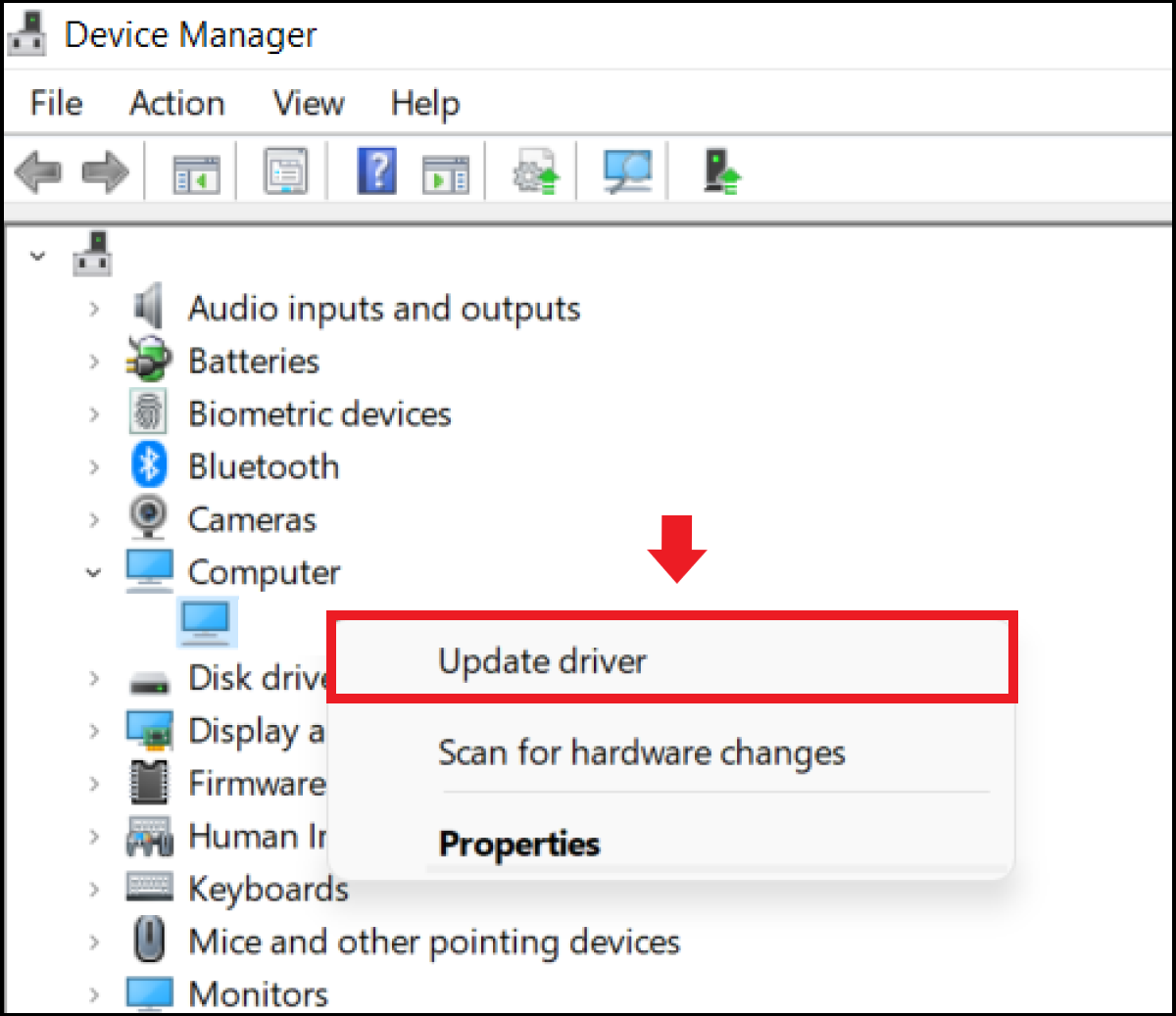
- Right-click the Start button and select Device Manager.
- Locate the problematic hardware (e.g., under “Network adapters”).
- Right-click the device and select Properties.
- Under the Driver tab, click Roll Back Driver.
This instantly reverts the system to the previously functioning version, providing an immediate safety net.
Creating System Restore Points
Before performing a major round of driver updates—especially for critical components like the BIOS or the chipset—it is a tech “best practice” to create a System Restore Point. This takes a snapshot of your system’s configuration. If the update causes a catastrophic failure or prevents the OS from booting correctly, you can use a recovery drive to return the system to its pre-update state, ensuring your data and settings remains intact.
The “If It Ain’t Broke” Philosophy
In high-stakes professional environments (like video editing suites or server rooms), many tech leads follow a conservative update policy. If a system is performing its specific task perfectly, updating a minor driver might introduce unnecessary risk. However, this philosophy should never apply to security-related drivers (like Wi-Fi or Bluetooth). The key is to find a balance: update your GPU and security-critical components regularly, but exercise caution with niche firmware unless you are solving a specific problem.

Conclusion: The Path to a Healthier System
Maintaining updated drivers is a cornerstone of modern digital hygiene. By blending the convenience of automated OS updates with the precision of manual installations for high-performance components, users can ensure their technology remains fast, secure, and reliable. Whether you are a gamer seeking the highest frame rates, a creative professional requiring software stability, or a casual user wanting a secure browsing experience, the proactive management of your system’s drivers is the most effective way to protect your hardware investment and optimize your daily tech experience.
aViewFromTheCave is a participant in the Amazon Services LLC Associates Program, an affiliate advertising program designed to provide a means for sites to earn advertising fees by advertising and linking to Amazon.com. Amazon, the Amazon logo, AmazonSupply, and the AmazonSupply logo are trademarks of Amazon.com, Inc. or its affiliates. As an Amazon Associate we earn affiliate commissions from qualifying purchases.