
In an increasingly data-driven world, the ability to fluidly transition between different numerical representations is not just a mathematical skill but a fundamental technological literacy. Fractions and decimals are two sides of the same numerical coin, each offering unique advantages depending on the context. While understanding the underlying mathematical principles is crucial, modern technology, specifically the calculator, simplifies this conversion process to an intuitive series of keystrokes. This guide delves into the technical intricacies and practical applications of using a calculator to convert fractions to decimals, exploring everything from basic scientific calculators to advanced apps and future AI tools.
The Fundamental Role of Decimal and Fraction Conversions in the Digital Age
The digital realm thrives on precision and standardized formats. While fractions elegantly represent parts of a whole, decimals offer a universal system for measurement, calculation, and data storage. Bridging these two forms with technology is a cornerstone of efficiency in numerous fields.
Understanding Fractions and Decimals: A Quick Refresher
At their core, fractions (e.g., 1/2, 3/4, 5/3) represent a part of a whole, expressed as a ratio of two integers. The top number is the numerator, and the bottom is the denominator. Decimals (e.g., 0.5, 0.75, 1.666…) are another way to express parts of a whole, based on powers of ten. Every fraction has an equivalent decimal representation, and vice-versa, making the conversion a bridge between conceptual understanding and practical application.
Why Conversion Matters: Practical Applications
The necessity of converting fractions to decimals extends far beyond the classroom. Engineers use decimals for precise measurements and component specifications, often relying on digital readouts. Finance professionals use decimals for currency, interest rates, and stock prices. Scientists and researchers use decimals for data analysis and statistical modeling. In everyday life, converting 1/3 of a cup to approximately 0.33 cups for a recipe, or understanding that a “quarter off” is a 0.25 reduction, are common occurrences. Calculators serve as the indispensable tool that streamlines these conversions, ensuring accuracy and saving time.
The Calculator as Your Digital Conversion Ally
From the simplest four-function calculator to sophisticated graphing models and smartphone applications, the calculator has evolved into an indispensable digital assistant. Its primary function, beyond basic arithmetic, is to facilitate complex numerical operations, including the seamless translation between fractions and decimals. Understanding the specific features and buttons on your calculator is the key to unlocking its full potential as a conversion tool.
Mastering the Standard Scientific Calculator for Conversions
Scientific calculators are ubiquitous in academic and professional settings. Their specialized functions are designed to handle more than just basic arithmetic, making them ideal for fraction-to-decimal conversions.
Locating the Essential Keys: The Fraction Button and the S-D/F-D Toggle
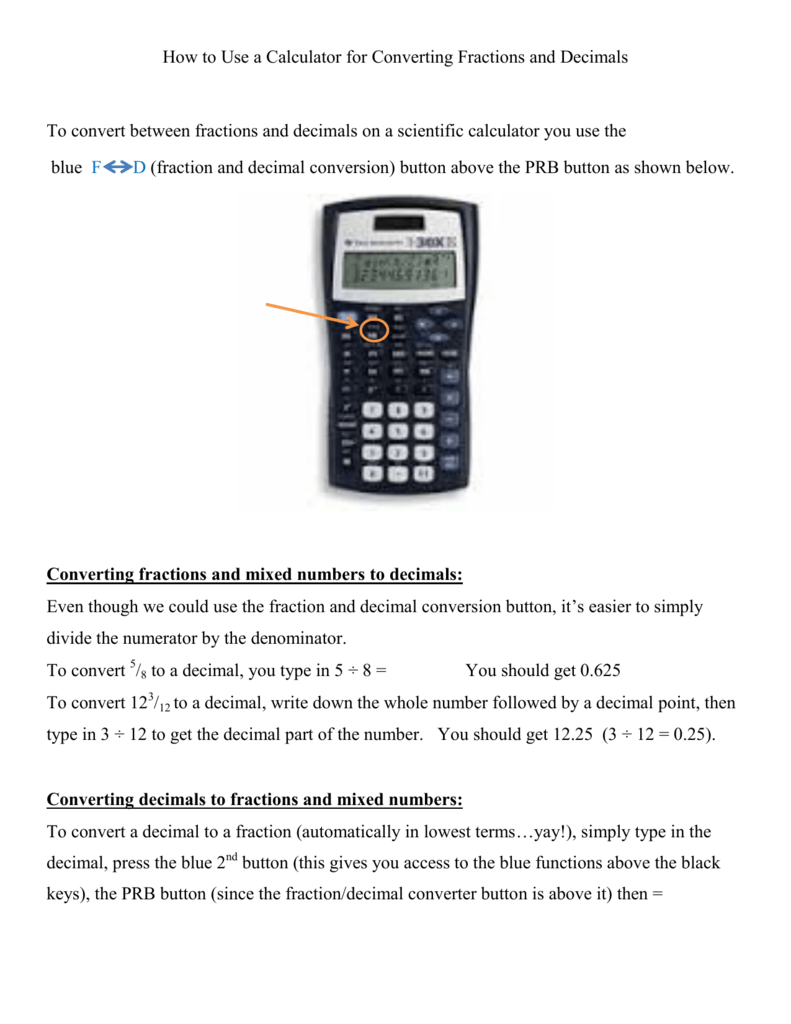
Most scientific calculators feature a dedicated “fraction” button, often denoted as a/b or x/y, sometimes combined with an “S↔D” or “F↔D” (Standard to Decimal / Fraction to Decimal) toggle button.
- Fraction Input Button (a/b, x/y, or similar): This button allows you to input fractions directly. You typically enter the numerator, press this button, then enter the denominator.
- Conversion Toggle Button (S↔D, F↔D, ↓d/c): This is the magic button. After you’ve performed a calculation or input a fraction that the calculator displays as a fraction, pressing this button will convert the displayed fraction into its decimal equivalent, and often back again with a subsequent press.
Step-by-Step Guide: Inputting Fractions and Converting to Decimal
The process is generally straightforward, though specific button layouts may vary slightly between brands (e.g., Casio, Texas Instruments, HP, Sharp).
Example 1: Simple Proper Fractions (e.g., 3/4)
- Turn on your calculator.
- Input the numerator: Press
3. - Press the fraction button: Look for
a/b,x/y, or÷followed by specific fraction input mode. On many calculators, you might press3then the fraction button, then4. On others, you might simply input3 ÷ 4. - Input the denominator: Press
4. - Press the equals button: Press
=. The calculator might display3/4or0.75. - Convert if necessary: If the calculator displays
3/4, press theS↔DorF↔Dtoggle button. The display should change to0.75.
Example 2: Improper Fractions and Mixed Numbers (e.g., 7/2, 2 1/3)
- For Improper Fractions (e.g., 7/2): Follow the same steps as for simple proper fractions:
7a/b2=S↔D. The result will be3.5. - For Mixed Numbers (e.g., 2 1/3): Many scientific calculators have a dedicated mixed number input (often
shift+a/borshift+ a separated/cbutton).- Input the whole number: Press
2. - Access the mixed number input: This often involves a
Shiftor2ndfunction key combined with the fraction button. For instance,Shift+a/b. - Input the numerator of the fraction part: Press
1. - Press the fraction button again (or move cursor if on a multi-line display):
a/b. - Input the denominator of the fraction part: Press
3. - Press
=. The calculator might display2 1/3or its improper fraction equivalent (7/3). - Press
S↔DorF↔Dto convert to decimal. The display should show approximately2.33333333.
- Input the whole number: Press
Troubleshooting Common Calculator Conversion Issues
- “Syntax Error” or “Math Error”: This usually means incorrect input. Check if you’ve pressed the correct fraction button or entered numbers in the wrong order.
- Calculator Stuck in Fraction Mode: Some calculators default to displaying results as fractions. Ensure you know where the
S↔DorF↔Dbutton is and use it after each calculation if you need decimal output. - Limited Display Precision: Older or simpler calculators might round decimals aggressively. Understand that
1/3might display as0.333rather than0.3333333333. For higher precision, use more advanced calculators or software. - Battery Issues: A low battery can cause erratic behavior. If your calculator isn’t responding as expected, try replacing the batteries.
Leveraging Smartphone Calculator Apps and Online Tools
In an era where smartphones are miniature supercomputers, dedicated physical calculators are often supplemented or replaced by powerful apps and web-based tools that offer even greater flexibility and features.

Exploring Built-in Smartphone Calculators (iOS and Android)
Both iOS and Android operating systems come with built-in calculator apps. While their basic view often limits functionality to arithmetic, rotating your phone to landscape mode usually reveals a scientific calculator interface.
- iOS Calculator: In landscape mode, the fraction input isn’t as direct as a dedicated button. You’ll typically perform the division (e.g.,
3 ÷ 4 =). The result will be in decimal form. If you need to convert an existing decimal back to a fraction, third-party apps are generally required. - Android Calculator: Similar to iOS, the scientific view handles division directly, providing decimal results. Some advanced Android calculators, or specific models like those from Samsung, might offer more explicit fraction features within their extended layouts.
Advanced Calculator Apps with Enhanced Fraction Features
The app stores (Apple App Store, Google Play Store) are brimming with powerful calculator apps that often surpass the capabilities of physical scientific calculators. Apps like “MyScript Calculator,” “Photomath,” “Desmos,” or “PCalc” offer:
- Natural Input: Write fractions as you would on paper (e.g.,
3/4) and see them rendered beautifully. - Dedicated Fraction Buttons: Similar to physical scientific calculators, they often have
a/borx/ybuttons. - Step-by-Step Solutions: Some apps can not only convert but also show the steps involved in the conversion, a boon for learning.
- Graphing and Unit Conversions: Many integrate fraction/decimal conversion with a broader suite of mathematical tools.
The Convenience of Online Fraction-to-Decimal Converters
For quick, hassle-free conversions without the need for an app or physical device, online tools are exceptionally useful. Websites like Google’s built-in calculator (just type “3/4 to decimal” into the search bar), WolframAlpha, or dedicated math converter sites provide instant results. These are particularly handy when you’re working on a computer and need a fast conversion without interrupting your workflow to grab a physical calculator or open a separate app.
Beyond Basic Conversions: Advanced Calculator Features and Best Practices
Understanding how to convert fractions to decimals is just the beginning. Maximizing calculator efficiency involves appreciating precision, handling recurring decimals, and integrating conversions into more complex operations.
Precision and Rounding: Understanding Calculator Limitations
Every digital device has limits to its precision. Calculators typically display a fixed number of decimal places. When a fraction results in a non-terminating decimal (like 1/3 = 0.333…), the calculator will round it at its display limit.
- Impact on Accuracy: Be aware that rounding introduces a tiny error. For most practical applications, this is negligible, but in highly sensitive scientific or engineering calculations, understanding the impact of rounding is critical.
- Setting Display Modes: Some advanced calculators allow you to set the number of decimal places displayed or switch between “FIX” (fixed decimal places), “SCI” (scientific notation), and “NORM” (normal) modes. This can help manage rounding visually.
Working with Recurring Decimals
Recurring decimals, like 1/3 (0.333…), 1/6 (0.1666…), or 1/7 (0.142857142857…), are a common outcome of fraction-to-decimal conversions.
- Fraction Display Preference: Many scientific calculators will keep the result as a fraction if it’s a recurring decimal, recognizing that the fractional form is more precise. You’ll need to explicitly use the
S↔Dbutton to see the rounded decimal approximation. - Understanding Notation: Be familiar with how recurring decimals are written (e.g., 0.3 with a bar over the 3). While calculators can’t display the bar, they will show the repeating sequence to their precision limit.
Integrating Conversions into Complex Calculations
The true power of a calculator lies in its ability to handle multi-step problems. You can perform operations involving both fractions and decimals within a single calculation.
- Order of Operations: The calculator follows the standard order of operations (PEMDAS/BODMAS). You can input fractions directly into an expression. For example, to calculate
(1/2) + 0.75, you might type(1 a/b 2) + 0.75 =. - Memory Functions: Utilize the calculator’s memory functions (M+, M-, MR, MC) to store intermediate fractional or decimal results, especially in complex engineering or financial calculations, ensuring precision throughout.
Tips for Efficient Calculator Usage
- Read Your Manual: Every calculator is slightly different. The manual is your best friend for understanding specific button functions and hidden features.
- Practice Regularly: The more you use your calculator for various conversions and calculations, the more intuitive it becomes.
- Keep Batteries Fresh: A dying battery can lead to unexpected errors or a dim display.
- Understand the ‘Why’: While the calculator does the ‘how’, understanding the mathematical reasoning behind fraction-to-decimal conversion (division of numerator by denominator) deepens your numerical fluency.
The Future of Calculation: AI and Smart Tools in Conversion
The evolution of calculators isn’t slowing down. Artificial intelligence and advanced computing are continually reshaping how we interact with numerical data, making conversions even more seamless and intelligent.
AI-Powered Math Solvers and Their Capabilities
AI tools and apps like PhotoMath or dedicated AI math tutors are emerging that can not only convert fractions to decimals but also “read” handwritten math problems, interpret complex equations, and provide step-by-step explanations. These tools often integrate natural language processing, allowing users to simply speak a fraction and receive its decimal equivalent.
Voice-Activated Assistants for Quick Conversions
Smart assistants like Siri, Google Assistant, and Amazon Alexa are becoming increasingly adept at handling basic numerical conversions. You can simply say, “Hey Google, what is three-quarters as a decimal?” and receive an immediate verbal answer. This hands-free convenience is perfect for quick lookups in busy environments or when multitasking.

Educational Technology and Interactive Learning
The integration of fraction-to-decimal conversion into educational technology platforms is transforming learning. Interactive whiteboards, gamified math apps, and virtual reality simulations allow students to visualize and manipulate fractions and decimals dynamically. These tools provide instant feedback, helping users grasp the relationship between these numerical forms in an engaging and intuitive way.
In conclusion, the calculator, in its many forms—from physical scientific devices to powerful smartphone apps and AI-driven tools—is an essential piece of technology for converting fractions to decimals. Mastering its usage not only streamlines mathematical tasks but also enhances digital literacy, preparing individuals to navigate a world increasingly reliant on precise numerical understanding and efficient data manipulation. As technology continues to advance, so too will our ability to effortlessly bridge the gap between different numerical representations, making complex calculations more accessible than ever before.
aViewFromTheCave is a participant in the Amazon Services LLC Associates Program, an affiliate advertising program designed to provide a means for sites to earn advertising fees by advertising and linking to Amazon.com. Amazon, the Amazon logo, AmazonSupply, and the AmazonSupply logo are trademarks of Amazon.com, Inc. or its affiliates. As an Amazon Associate we earn affiliate commissions from qualifying purchases.