
In today’s increasingly digital economy, managing your finances effectively means staying on top of every avenue where your money resides. PayPal, as one of the world’s most ubiquitous online payment platforms, often serves as a central hub for transactions, whether you’re selling goods, receiving payments, or making purchases. Knowing how to quickly and accurately check your PayPal balance is not merely a convenience; it’s a fundamental aspect of sound personal finance management. This guide will walk you through the practical steps to view your balance and delve deeper into why this simple act is crucial for financial well-being, all while offering insights to optimize your use of PayPal as a financial tool.
The Importance of Monitoring Your PayPal Balance for Financial Health
Regularly checking your PayPal balance might seem like a minor task, but it underpins several critical aspects of robust personal finance management. In an era where money can flow in and out of various digital accounts with unprecedented speed, oversight is paramount.
Preventing Overspending and Fraud
One of the most immediate benefits of monitoring your PayPal balance is the ability to prevent accidental overspending. If your PayPal account is linked to a bank account or credit card for automatic top-ups or backup payments, a low balance could trigger these linked methods without you realizing it. Keeping an eye on your available funds ensures you’re always aware of what you can spend directly from your PayPal balance, helping you stick to a budget.
Furthermore, diligent balance checks are a crucial line of defense against financial fraud. Unauthorized transactions, even small ones, can quickly go unnoticed if you’re not reviewing your account regularly. By checking your balance and transaction history, you can swiftly identify suspicious activity, report it to PayPal, and mitigate potential losses, protecting your financial assets.
Tracking Income and Expenses
For freelancers, small business owners, or anyone receiving income through PayPal, the balance acts as a real-time ledger of earnings. Regularly checking it helps you track incoming payments, verify receipt from clients, and understand your immediate cash flow. Similarly, every purchase made via PayPal is an expense. By reviewing your balance and the associated transaction history, you gain a clearer picture of where your money is going, facilitating better expense tracking and enabling more informed financial decisions. This insight is invaluable for budgeting, tax preparation, and overall financial planning.
Facilitating Timely Transactions
Whether you’re sending money to family, paying for an online service, or making a retail purchase, an accurate understanding of your PayPal balance is essential for timely and successful transactions. A sufficient balance means smooth, uninterrupted payments. Conversely, an insufficient balance can lead to declined transactions, delayed services, and potential embarrassment or inconvenience. By staying informed about your available funds, you can proactively top up your account if needed, ensuring that your financial interactions proceed without a hitch. This is particularly important for recurring payments or time-sensitive financial obligations.
Accessing Your PayPal Balance: Step-by-Step Methods
PayPal offers multiple convenient ways to check your balance, catering to different preferences and situations. Whether you’re at your desk or on the go, accessing your financial information is straightforward.
Via the PayPal Website
The most comprehensive way to manage and view your PayPal balance is through their official website, accessible via any web browser on a computer or tablet.
- Navigate to PayPal.com: Open your preferred web browser and go to www.paypal.com.
- Log In: Enter your email address or phone number and password associated with your PayPal account. If you have two-factor authentication enabled (which is highly recommended for security), you’ll need to complete that step as well.
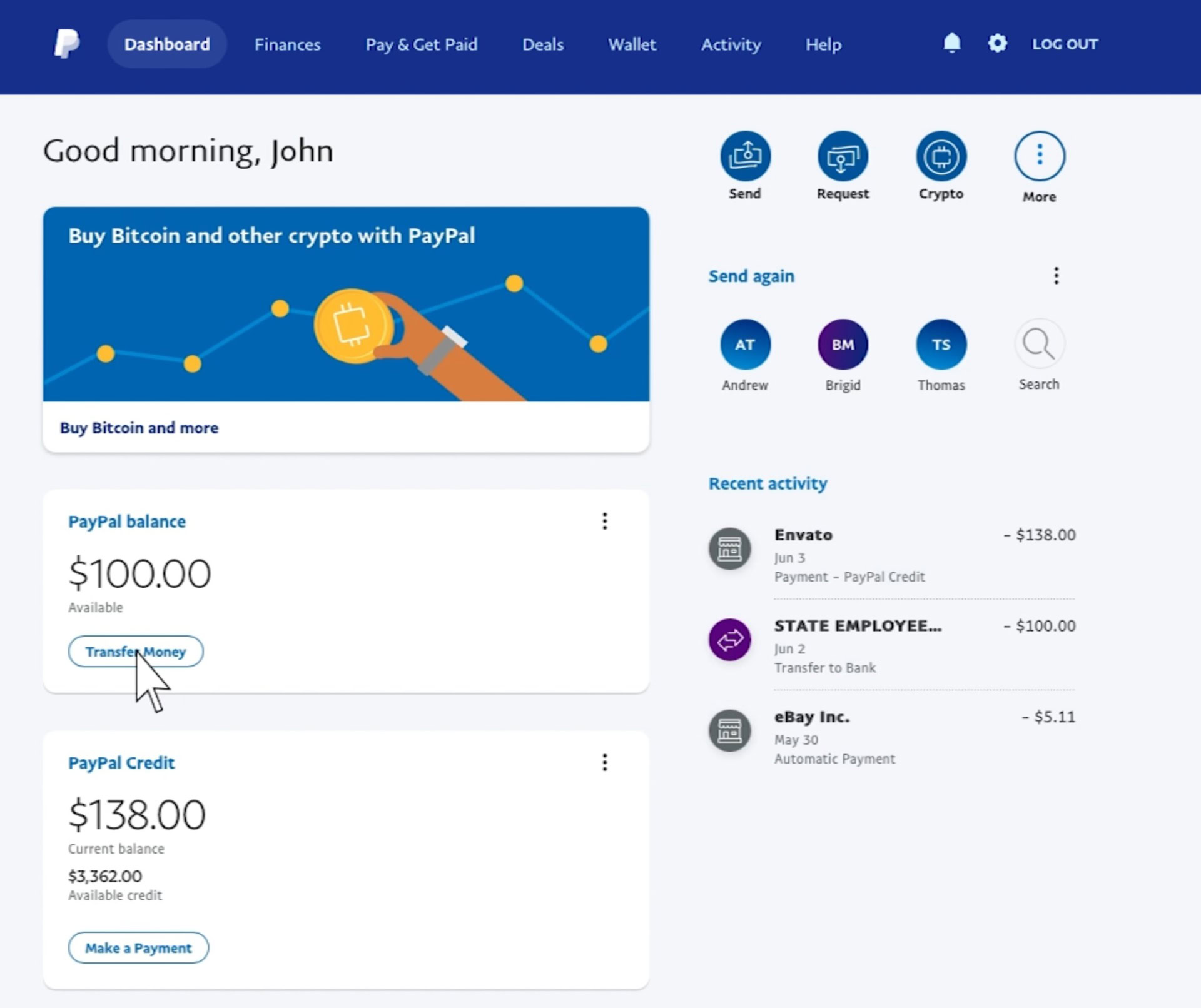
- View Your Summary: Once logged in, you will typically land on your “Summary” page (also sometimes called “Home” or “Dashboard”). Your current PayPal balance will be prominently displayed on this page. It’s usually a large number or highlighted section, often showing your primary currency balance.
- Multiple Currencies: If you hold balances in multiple currencies, you might see an option to “View all balances” or a dropdown menu to select different currencies. Clicking on this will show you a breakdown of your funds in each currency.
- Detailed Activity: Below your balance, you’ll usually find a summary of recent transactions. For a more detailed financial overview, click on “Activity” or “History” in the navigation menu. This section allows you to filter transactions by date, type, and status, providing a granular look at your financial movements.
Using the PayPal Mobile App
For convenience on the go, the PayPal mobile app is an indispensable tool. It offers a streamlined experience tailored for smartphone and tablet users.
- Download and Install: If you haven’t already, download the PayPal app from the Apple App Store (for iOS devices) or Google Play Store (for Android devices).
- Log In: Open the app and enter your PayPal credentials. Face ID, Touch ID, or fingerprint authentication can often be enabled for quicker and more secure logins after the initial setup.
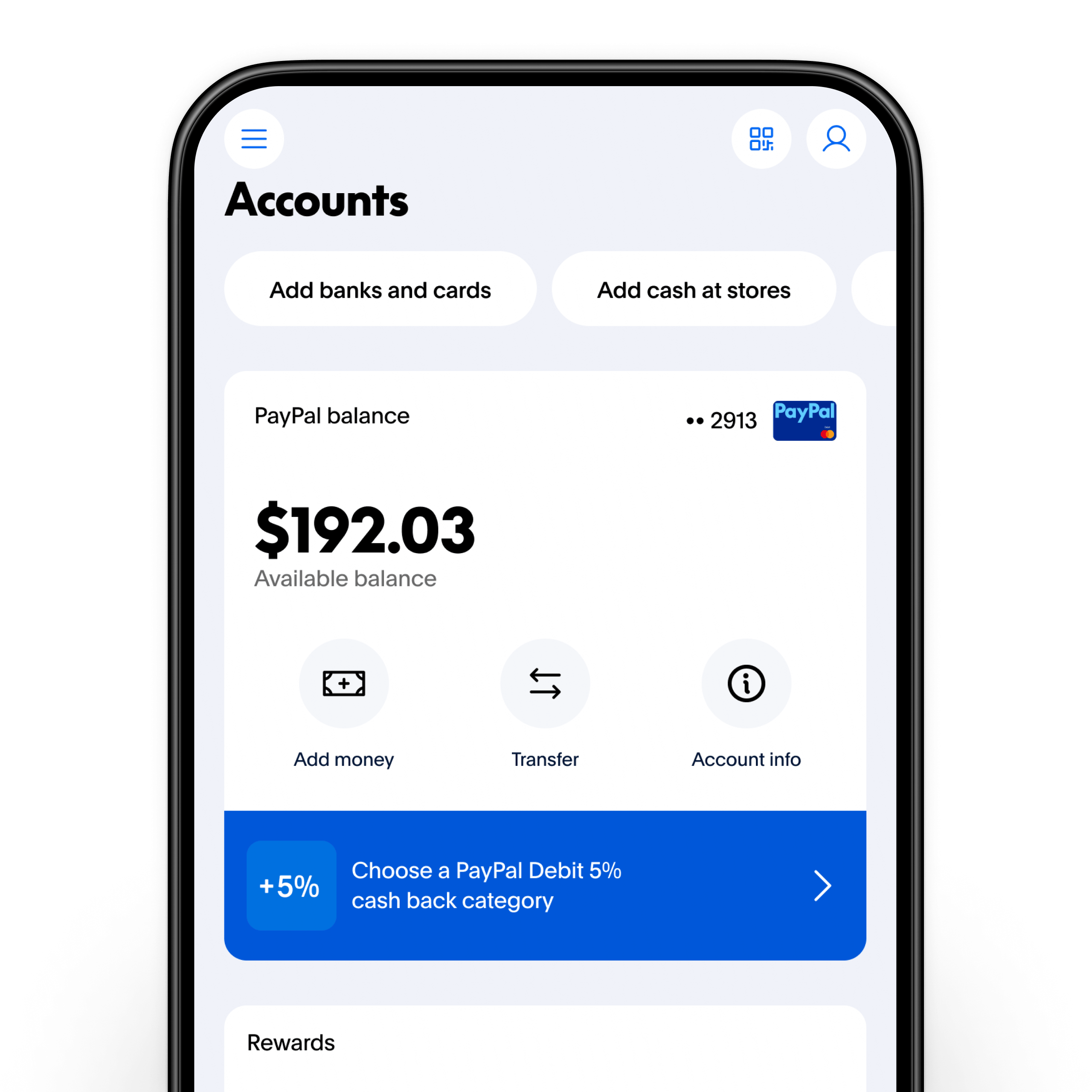
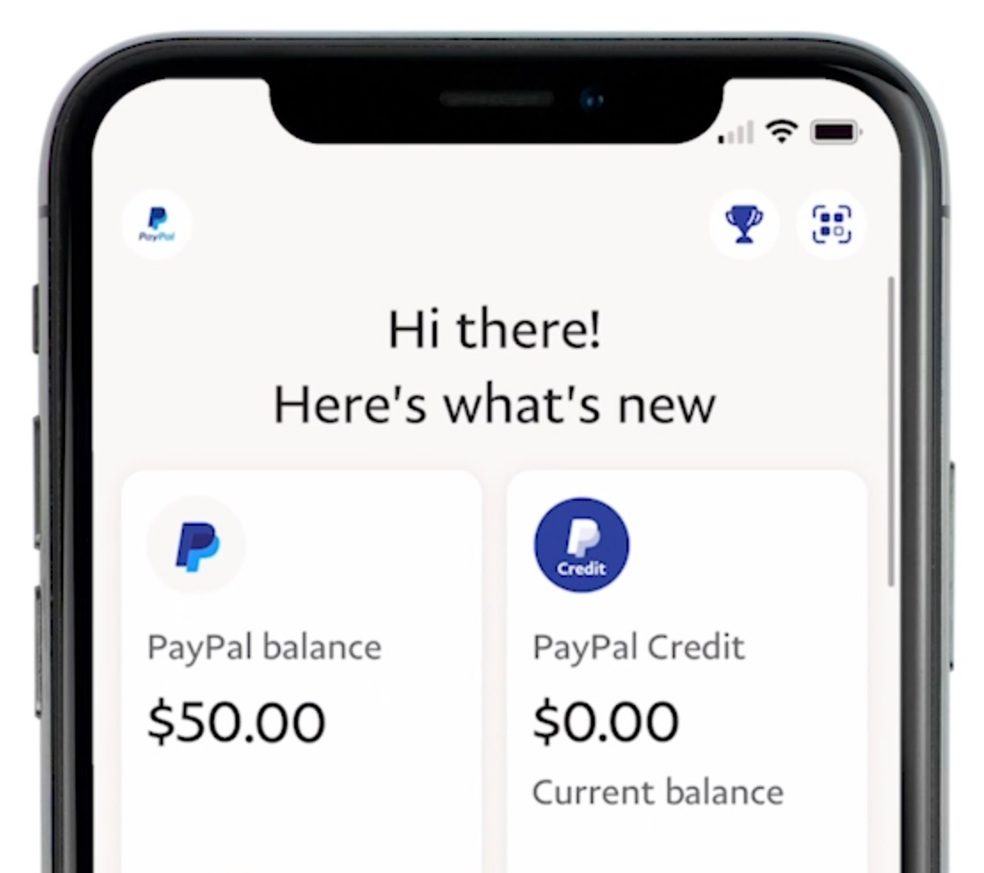
- Instant Balance View: Upon logging in, your main PayPal balance will almost always be displayed prominently on the app’s home screen or dashboard. It’s usually one of the first things you see.
- Transaction History: Similar to the website, you can tap on “Activity” or a similar icon to view your recent transactions, filter them, and get detailed information about each one. This makes it easy to reconcile your balance with your spending and income.
- Multi-Currency Access: If you manage multiple currencies, the app will typically allow you to view these balances either directly on the home screen or through a dedicated “Wallet” or “Balances” section.
Checking Your PayPal Debit Card Balance
If you have a PayPal Debit Mastercard, you have an additional way to access your funds, though it doesn’t directly show your “balance” in the same way as the online platforms. Your PayPal Debit Mastercard draws directly from your PayPal balance.
- ATM Inquiry: You can typically check your balance at most ATMs that support Mastercard. Be aware that some ATMs may charge a fee for balance inquiries, especially if they are not part of PayPal’s network or your specific bank’s network (if linked).
- Point of Sale (POS) Inquiry: Some merchants at the point of sale may allow you to do a balance inquiry, though this is less common and depends on their system capabilities.
- Online/App Verification: The most reliable way to know the exact funds available to your PayPal Debit Mastercard is to check your PayPal balance through the website or mobile app, as these platforms reflect the real-time funds linked to the card.
Understanding Your PayPal Balance: Beyond the Number
While seeing a number on your screen is a good start, truly managing your PayPal funds requires understanding what that number represents and recognizing other related financial statuses.
Available vs. Pending Balance
It’s critical to differentiate between your “available balance” and “pending balance.”
- Available Balance: This is the money you can immediately use for spending, sending, or withdrawing. It represents funds that have cleared and are fully accessible.
- Pending Balance: This refers to funds that have been initiated but are not yet cleared or released for use. This can happen for several reasons:
- ECheck Payments: If someone sends you money via an eCheck, it can take several business days to clear, similar to a traditional paper check.
- Held Payments: PayPal may hold payments for security reasons, especially for new sellers, high-value transactions, or if there’s a dispute. These funds will be released once certain conditions are met or after a specified period.
- Payment Processing: Sometimes, new payments might take a few moments to fully process and move from a pending status to your available balance.
Always ensure you’re looking at your available balance when planning to make a purchase or withdrawal to avoid issues.
Different Currencies and Conversions
If you conduct international transactions or receive payments in various currencies, your PayPal account can hold balances in multiple denominations. PayPal will usually display your primary currency balance prominently. To see other currency balances, you’ll typically navigate to a “Wallet” or “Balances” section.
When spending or sending money in a currency different from your primary balance, PayPal will often perform an automatic currency conversion. It’s important to be aware of the exchange rates PayPal uses, as they may include a conversion fee. For significant international transactions, comparing PayPal’s rates with other services can be a financially savvy move.
Transaction History and Detailed Reports
Your PayPal balance is a snapshot, but your transaction history is the full financial story. Both the website and app provide robust tools to review past transactions. You can:
- Filter by Date: Look at activity over specific weeks, months, or custom date ranges.
- Filter by Type: Differentiate between payments sent, payments received, refunds, withdrawals, and more.
- Generate Reports: For business users or those needing detailed financial records, PayPal allows you to generate downloadable reports (e.g., CSV files) of your transaction history. These reports are invaluable for reconciliation, tax preparation, and in-depth financial analysis. Regularly reviewing your transaction history helps you verify expenses, track income, and ensure all activity aligns with your expectations.
Optimizing Your PayPal Balance Management
Beyond simply checking your balance, there are several strategies to make PayPal a more effective part of your overall financial toolkit.
Setting Up Balance Notifications
Stay informed without constantly logging in by setting up balance notifications. PayPal allows you to customize alerts for various account activities. You can often set up email or push notifications for:
- Low Balance Alerts: Be notified when your balance drops below a certain threshold, prompting you to top up funds or adjust spending.
- Payment Received Alerts: Get immediate confirmation when new funds land in your account.
- Transaction Confirmation: Receive notifications after every purchase or money transfer, aiding in real-time expense tracking and fraud detection.
These alerts are a passive yet powerful way to maintain continuous oversight of your funds, enhancing your financial security and management efficiency.
Linking Bank Accounts and Cards
For seamless fund management, ensure your PayPal account is securely linked to your primary bank account and relevant credit or debit cards.
- Easy Funding: Linking a bank account allows you to easily transfer funds from your bank to PayPal when your balance is low, preventing transaction delays.
- Withdrawal Options: Conversely, it provides a direct pathway to withdraw your PayPal balance to your bank account, making your digital funds accessible in physical form if needed.
- Backup Payment: Linked cards act as backup payment methods, ensuring transactions complete even if your PayPal balance is insufficient. This integration makes PayPal a more flexible and reliable financial tool, bridging the gap between your online and traditional banking.
Utilizing PayPal for Budgeting and Savings
While not a dedicated budgeting app, PayPal can play a role in your personal budgeting strategy. By regularly reviewing your transaction history, you can categorize your PayPal-related spending, helping you identify areas where you might be overspending. For some, dedicating a portion of their PayPal balance specifically for certain online expenses or savings goals (e.g., setting aside funds for a specific online purchase) can act as a mini-envelope system within their digital wallet. While more advanced budgeting tools exist, leveraging PayPal’s activity reports provides a good foundation for understanding your digital expenditure habits.
Troubleshooting Common Balance-Related Issues
Occasionally, you might encounter situations where your PayPal balance isn’t what you expect. Understanding common issues can help you resolve them quickly.
Why Your Balance Might Be Incorrect
If your displayed balance seems off, consider these possibilities:
- Pending Transactions: As discussed, recent payments received or refunds might still be pending. Check your “Activity” for items marked as “Pending.”
- Holds: PayPal might have placed a hold on a portion of your funds due to security reviews, buyer disputes, or seller performance issues. Check your “Resolution Center” for any open cases.
- Currency Conversion: If you’ve been dealing with multiple currencies, ensure you’re viewing the correct currency balance or accounting for conversion rates.
- Recent Activity Not Reflected: Sometimes, due to system delays, the most recent transaction might take a few moments to update the main balance. A quick refresh or re-login often resolves this.
Dealing with Account Holds and Limitations
PayPal may place holds on funds or limitations on accounts for various reasons, including:
- New Account Activity: New users or those who suddenly receive large sums might have funds held temporarily.
- Seller Protection: To ensure goods are delivered and buyers are satisfied, funds from sales might be held until delivery is confirmed.
- Suspicious Activity: If PayPal detects unusual login patterns or transactions, they might limit account functionality or hold funds for security.
If your account has limitations or funds are on hold, PayPal will usually send you an email or display a notification in your account’s “Summary” or “Resolution Center” explaining the reason and what steps you need to take to resolve it (e.g., provide additional verification, track an item). Addressing these promptly is key to regaining full access to your funds.
Contacting PayPal Support
If you’ve reviewed your account thoroughly and still can’t understand your balance or resolve a financial discrepancy, don’t hesitate to contact PayPal’s customer support. They can provide specific details about your account, investigate unusual activity, and guide you through the process of resolving holds or disputes. You can typically find options to contact support (via phone, email, or live chat) within the “Help” or “Contact Us” section of the PayPal website or app.
Conclusion
Mastering how to see and understand your PayPal balance is more than just a technical skill; it’s an essential component of modern personal finance. By consistently monitoring your funds, understanding the nuances of available versus pending balances, and leveraging PayPal’s features for better financial oversight, you empower yourself to make informed decisions about your money. PayPal, when used thoughtfully, transforms from a mere payment processor into a valuable tool for budgeting, tracking income, and safeguarding your digital financial health in an increasingly connected world.
aViewFromTheCave is a participant in the Amazon Services LLC Associates Program, an affiliate advertising program designed to provide a means for sites to earn advertising fees by advertising and linking to Amazon.com. Amazon, the Amazon logo, AmazonSupply, and the AmazonSupply logo are trademarks of Amazon.com, Inc. or its affiliates. As an Amazon Associate we earn affiliate commissions from qualifying purchases.