
In the contemporary digital landscape, managing one’s online presence is as much about curation and deletion as it is about creation. YouTube, as a subsidiary of Google, operates within a complex ecosystem of interconnected services. While the platform makes it remarkably easy to upload content, the process of decommissioning a channel requires a nuanced understanding of account architecture, data redundancy, and digital security. Whether you are streamlining your professional portfolio, addressing privacy concerns, or migrating to a new platform, understanding the technical mechanics of how to delete a YouTube channel is essential.
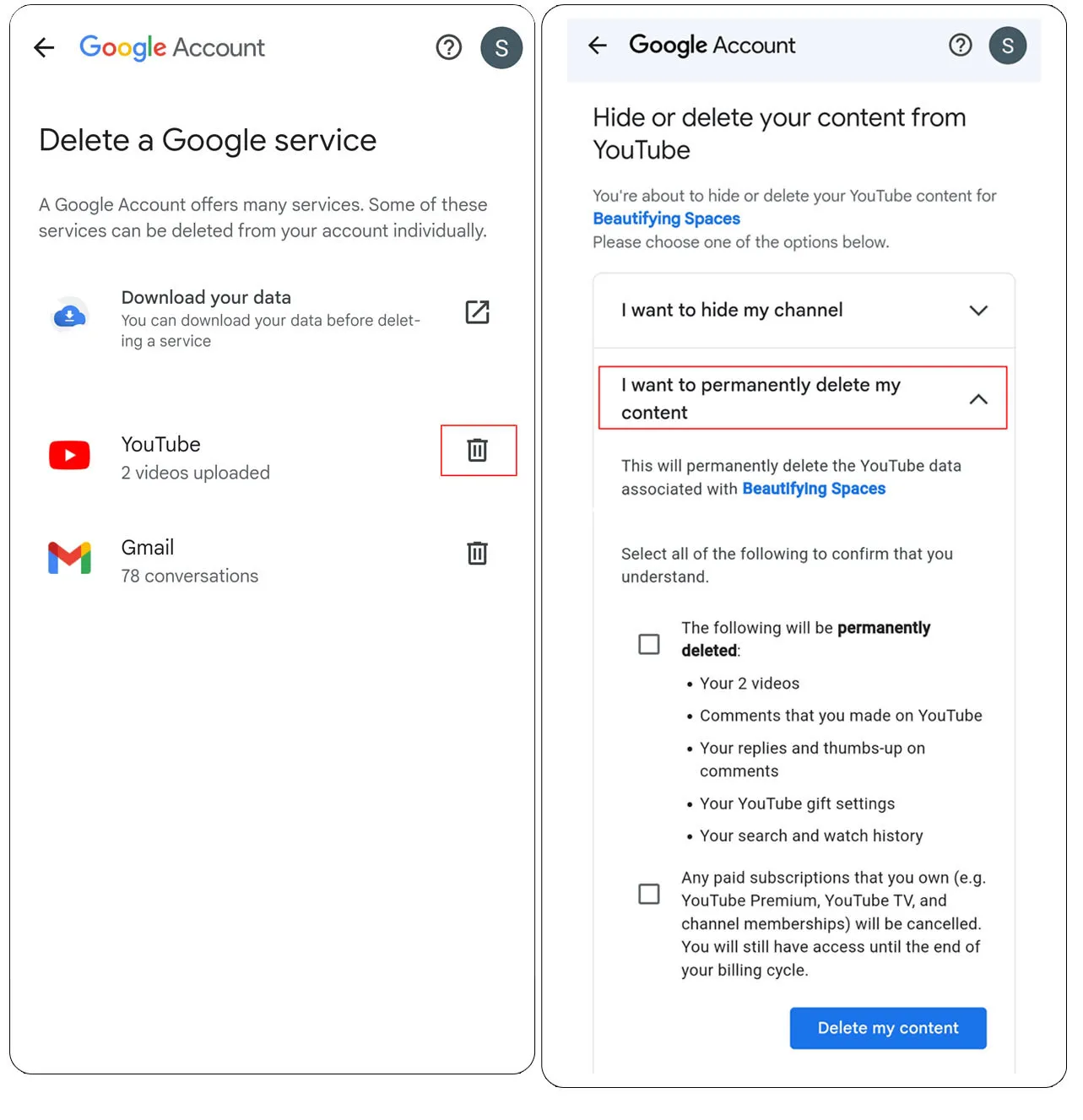
This guide provides a comprehensive technical breakdown of the deletion process, the distinction between various account types, and the security protocols necessary to ensure your data is handled according to your preferences.
Understanding the YouTube Architecture: Personal vs. Brand Accounts
Before initiating a deletion, it is critical to identify the technical structure of the account you are managing. Google differentiates between “Personal Accounts” and “Brand Accounts,” and the deletion workflow differs significantly between the two.
The Technical Distinction Between Account Types
A Personal Account is tied directly to your primary Google identity. It uses the name and email address associated with your Google Account across all services (Gmail, Drive, etc.). If you delete the YouTube channel associated with a Personal Account, you are essentially removing the YouTube service layer from your Google identity while retaining your email and cloud storage.
Conversely, a Brand Account is a separate entity that can be managed by multiple Google Accounts. It allows for a custom name and does not expose the owner’s personal email to the public. From a technical standpoint, Brand Accounts live in a “Identity Manager” layer. Deleting a Brand Account channel can often be done without affecting the underlying Google Account, but it requires navigating through different permission sets.
Identifying Your Permissions and Access Levels
To delete a channel, you must possess “Owner” or “Primary Owner” status. If you are an “Editor” or “Manager” within the YouTube Studio permissions framework, the technical ability to delete the channel will be restricted (grayed out). Before proceeding, navigate to your YouTube Studio settings and verify your role under the “Permissions” tab to ensure you have the necessary administrative privileges to execute a permanent deletion.
The Step-by-Step Deletion Process: A Technical Walkthrough
The process of deleting a channel is a multi-stage protocol designed to prevent accidental data loss. Because this action is permanent, Google’s UI (User Interface) includes several confirmation checkpoints.
Navigating the YouTube Studio Dashboard
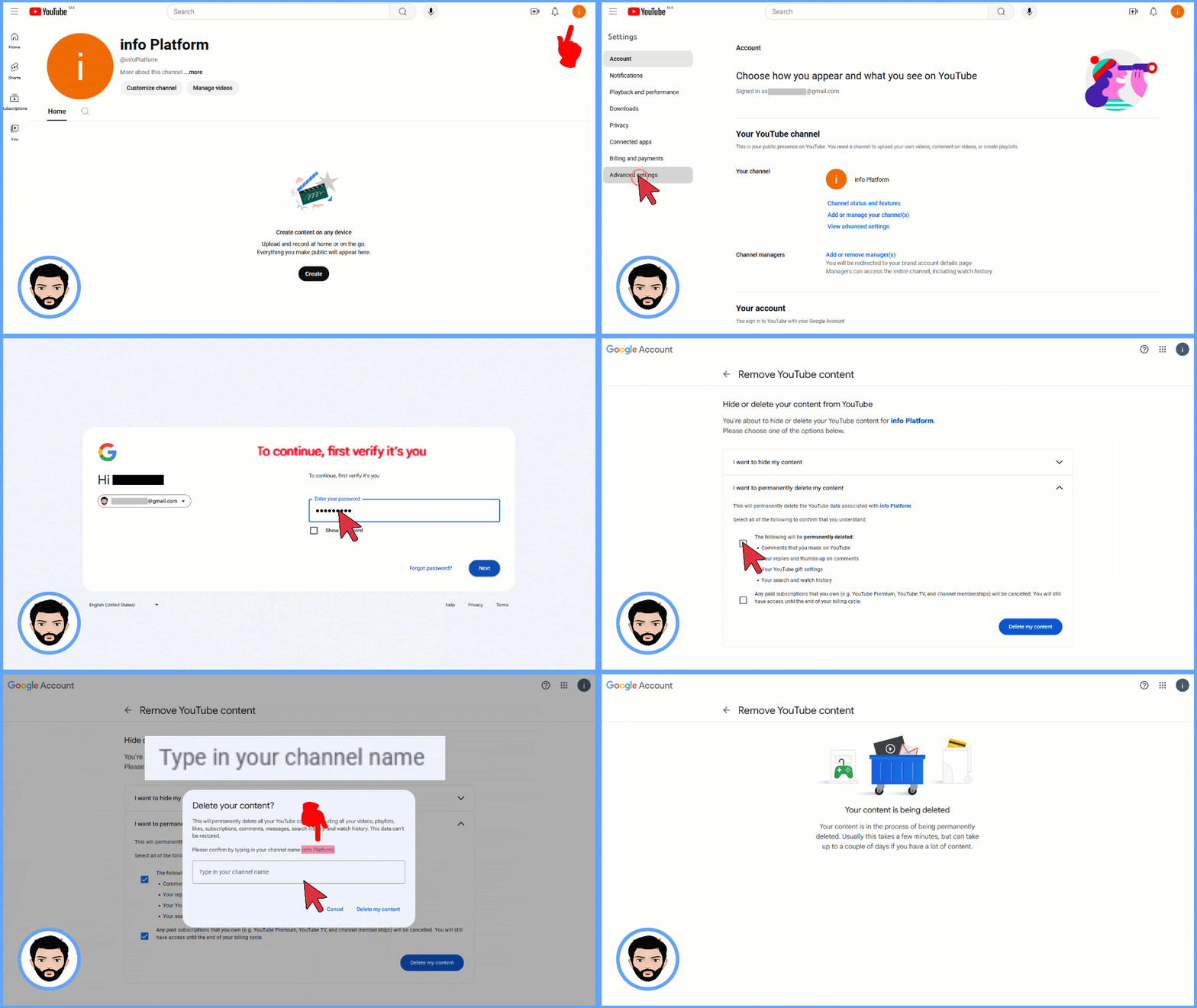
The primary interface for channel management is the YouTube Studio. To begin the deletion process:
- Log in to the YouTube Studio via a desktop web browser.
- Select the “Settings” gear icon located in the lower-left sidebar.
- In the pop-up menu, navigate to the “Channel” tab and then click on “Advanced Settings.”
- Scroll to the bottom of this interface until you find the section titled “Other Settings.”
- Click on “Remove YouTube Content.”
At this stage, Google will require a re-authentication. This is a security “speed bump” designed to ensure that the person requesting the deletion is the verified account holder. You will be prompted to enter your password or complete a Two-Factor Authentication (2FA) challenge.
Permanent Deletion vs. Temporary Hiding
Once authenticated, you will be presented with two distinct technical paths:
- I want to hide my content: This action sets your videos and playlists to “Private.” It essentially de-indexes your channel from YouTube’s search engine and hides your public profile while preserving the underlying data on Google’s servers. This is a reversible state.
- I want to permanently delete my content: This is the terminal action. Selecting this will trigger a checklist of what will be erased: all uploaded videos, your subscriber list, comments made on other channels, your search and watch history, and any paid subscriptions associated with the channel.
To finalize the deletion, you must check the boxes acknowledging the loss of data and then click “Delete My Content.” As a final verification, the system will ask you to type in your email address or channel name exactly as it appears to confirm that the action is intentional.
Data Management and Pre-Deletion Protocols
From a technical perspective, once you click “Delete,” the pointers to your data in Google’s active databases are removed. However, the actual binary data may persist in backup systems for a short period. Therefore, it is vital to manage your data before hitting the final button.
Utilizing Google Takeout for Data Redundancy
If you have years of content, metadata, and analytics, you should not rely on the YouTube interface alone. Google Takeout is a specialized tool designed for data portability. Before deleting your channel, you can use Takeout to export:
- Video Files: Original uploads in their highest available resolution.
- JSON Metadata: Records of descriptions, tags, and titles.
- Chat Logs: History from live streams.
- Subscription Lists: A CSV or XML file of the channels you follow.
By generating a “Takeout” archive, you move your data from Google’s cloud infrastructure to your local hardware or a secondary cloud provider (like AWS or Azure), ensuring that the deletion of the channel does not result in a total loss of intellectual property.
Managing Third-Party API Access and OAuth
Many creators use third-party tools for analytics, scheduling, or cross-platform posting (e.g., TubeBuddy, VidIQ, or Hootsuite). These tools interact with your channel via OAuth tokens. When you delete a channel, these tokens may become “orphaned.” It is a best practice to go into your Google Account Security settings and manually revoke access for any third-party apps associated with the YouTube channel prior to deletion. This prevents technical errors or security vulnerabilities in those third-party environments.
Troubleshooting Technical Hurdles and Recovery Limitations
Even with a streamlined UI, technical issues can arise during the decommissioning of a digital asset. Understanding how to navigate these hurdles is key to successful account management.
Handling Suspended or Locked Accounts
A common technical challenge occurs when a user attempts to delete a channel that has been suspended for policy violations. If a channel is suspended, the standard YouTube Studio dashboard may be inaccessible. In these instances, the deletion must be managed through the “Google Account” level under “Data & Privacy.” However, it is important to note that deleting a suspended channel does not remove the “strike” from your Google identity; the association remains in Google’s internal trust and safety logs to prevent bad actors from simply “refreshing” their accounts.
The “Ghosting” Effect: Caching and Search Indexing
After a channel is successfully deleted, it may still appear in Google or Bing search results for several days or even weeks. This is not a failure of the deletion process, but rather a function of web crawling and caching.
- Server-Side vs. Client-Side: The channel is gone from YouTube’s active servers immediately.
- Search Engine Result Pages (SERPs): These are static snapshots. Until the search engine’s “spider” recrawls the URL and receives a “404 Not Found” or “410 Gone” HTTP status code, the old link will remain in the index. You can technically accelerate this process by using the Google Search Console’s “Removals” tool if you own the domain or have verified the identity.
Security and Long-Term Digital Footprint Management
Deleting a YouTube channel is often the final step in a security audit or a brand pivot. Once the technical steps are completed, there are long-term considerations regarding your digital footprint.
URL Reclamation and Slugs
For channels that reached a certain level of popularity, a “Custom URL” (e.g., youtube.com/c/YourName) may have been assigned. Once a channel is deleted, that specific URL slug enters a “cooldown” period. Technically, this prevents “squatting,” where another user immediately claims your old identity to redirect traffic. If you plan to start a new channel under a similar brand, be aware that the technical availability of your previous URL is not instantaneous.
Final Verification of Account Integrity
After the deletion is confirmed, perform a final audit of your Google Account. Check the “Brand Accounts” page (found within the Google Account settings) to ensure no residual data containers exist. If the channel was a Brand Account, you might still see the “Account Name” in your list of managed identities even if the YouTube service is removed. To fully clean the footprint, you must delete the Brand Account itself, which removes the identity from all Google services, not just YouTube.

Conclusion
Deleting a YouTube channel is a significant technical undertaking that requires more than just a few clicks. By understanding the underlying architecture—from the permissions in YouTube Studio to the data portability offered by Google Takeout—you can ensure that your transition is handled professionally and securely. Whether you are clearing out old data to improve your digital security or restructuring your online presence, following these technical protocols ensures that your data is managed with precision and that your digital footprint remains under your absolute control.
aViewFromTheCave is a participant in the Amazon Services LLC Associates Program, an affiliate advertising program designed to provide a means for sites to earn advertising fees by advertising and linking to Amazon.com. Amazon, the Amazon logo, AmazonSupply, and the AmazonSupply logo are trademarks of Amazon.com, Inc. or its affiliates. As an Amazon Associate we earn affiliate commissions from qualifying purchases.