
The .xlsx file extension is perhaps one of the most recognized suffixes in the digital world. Whether you are a data analyst, a student, or a corporate executive, encountering these files is an inevitable part of modern professional life. Introduced by Microsoft as part of the Office 2007 release, the .xlsx format replaced the older, binary-based .xls format. It is based on the Open XML standard, which uses ZIP compression to keep file sizes small and data integrity high.
While Microsoft Excel is the namesake and primary architect of this format, it is far from the only tool available. In today’s diverse technological ecosystem, users have access to a wide array of desktop software, cloud-based platforms, and mobile applications designed to view, edit, and analyze spreadsheet data. Choosing the right program depends on your specific needs, such as collaborative capabilities, advanced mathematical processing, or budget constraints.
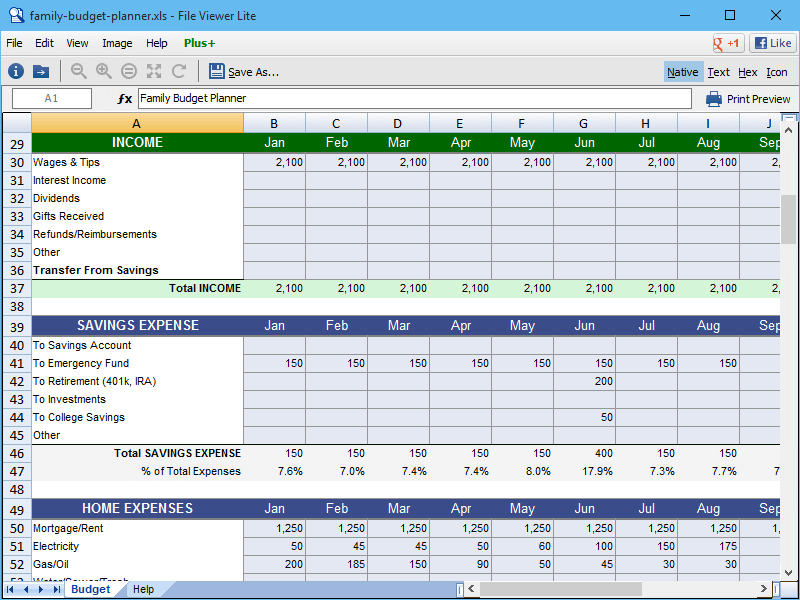
Desktop Software: The Powerhouses of Data Processing
For heavy-duty data crunching, desktop applications remain the preferred choice. These programs utilize the local processing power of your hardware, offering a level of speed and feature depth that web-based alternatives often struggle to match.
Microsoft Excel
Microsoft Excel is the industry standard for a reason. As the native home of the .xlsx format, it offers the most comprehensive support for complex formulas, pivot tables, and VBA (Visual Basic for Applications) scripting. The modern iteration of Excel, available through Microsoft 365, includes advanced features like Power Query for data transformation and Power Pivot for modeling. If your work involves massive datasets or requires high-level financial modeling, Excel is the definitive program to use.
LibreOffice Calc
For users seeking a free, open-source alternative that rivals the capabilities of paid software, LibreOffice Calc is the premier choice. Part of the LibreOffice productivity suite, Calc handles .xlsx files with remarkable compatibility. While the user interface may feel slightly more traditional compared to Excel’s “Ribbon” design, it offers professional-grade tools, including “DataPilot” (similar to Pivot Tables) and a wide array of mathematical functions. It is an excellent choice for individuals and organizations looking to reduce software licensing costs without sacrificing functionality.
Apple Numbers
For users within the macOS ecosystem, Apple Numbers provides a unique approach to spreadsheets. Unlike the grid-centric design of Excel, Numbers treats the spreadsheet as a canvas where users can place multiple tables, images, and charts freely. While it opens .xlsx files easily, it is important to note that very complex Excel macros may not translate perfectly. However, for visual data presentation and sleek design, Numbers is a favorite among creative professionals using Mac hardware.
Cloud-Based Solutions: Collaboration and Accessibility
The shift toward remote work and real-time collaboration has propelled cloud-based spreadsheet tools into the mainstream. These platforms allow users to open .xlsx files directly in a web browser, eliminating the need for local installations and allowing multiple users to edit a single document simultaneously.
Google Sheets
Google Sheets is arguably the most popular cloud-based alternative for opening .xlsx files. By importing an Excel file into Google Drive, users can convert it into a Sheets format or edit the .xlsx file directly using “Office Editing” mode. Its greatest strength lies in its collaboration features; seeing collaborators’ cursors move in real-time and using the “Comments” and “Action Items” features makes it indispensable for team projects. Furthermore, its integration with Google Apps Script allows for powerful automation within the Google ecosystem.
Microsoft Excel for the Web
Microsoft offers a free, web-based version of Excel as part of its Office Online suite. While it lacks some of the advanced features of the desktop version—such as certain “What-If” analysis tools and extensive macro support—it provides the highest level of formatting fidelity for .xlsx files. If you need to ensure that a complex document looks exactly as it was intended without installing software, the web version of Excel is the most reliable tool available.
Zoho Sheet
Zoho Sheet is a sophisticated online spreadsheet application that often flies under the radar. It offers impressive compatibility with .xlsx files and includes an AI-powered data assistant named “Zia.” Zia can automatically generate charts and provide insights into your data, making it a strong contender for business users who want a cloud-native experience with advanced analytical capabilities.
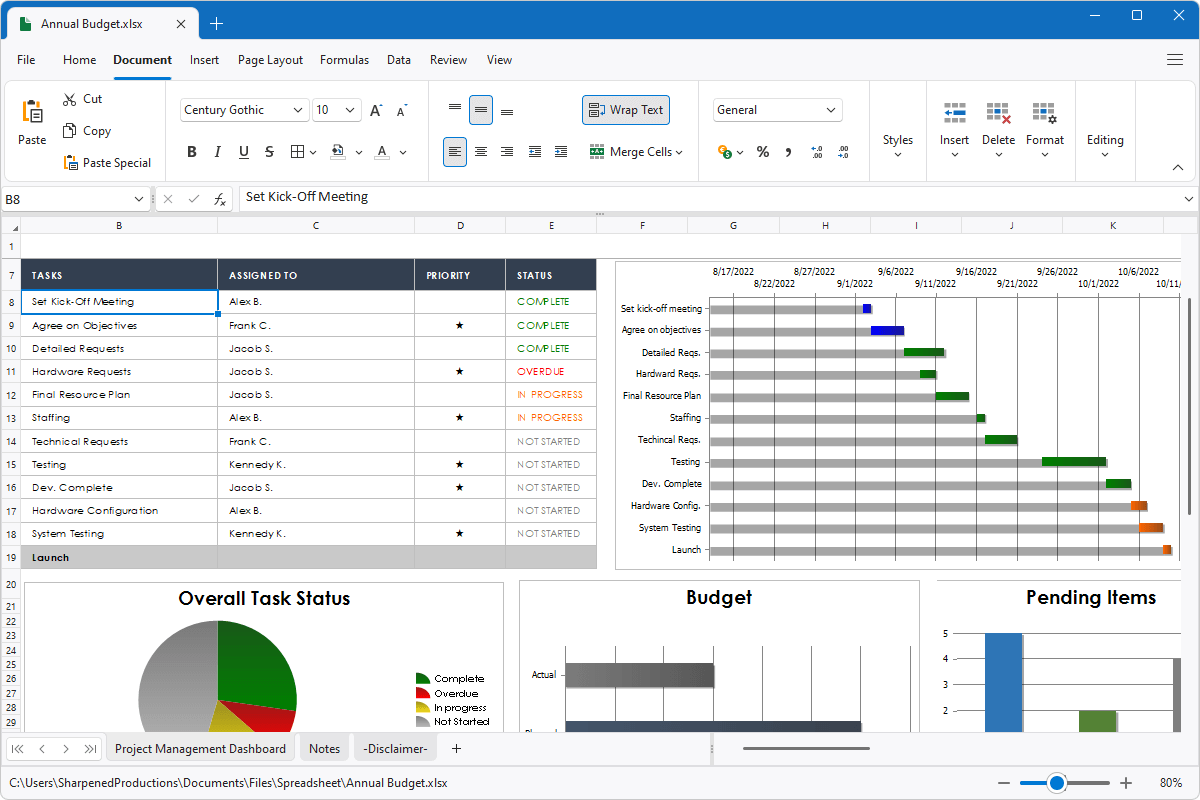
Mobile and Tablet Applications: Productivity on the Go
In an increasingly mobile world, the ability to review or make quick edits to a spreadsheet from a smartphone or tablet is crucial. Most major software providers have optimized their offerings for touch interfaces.
The Microsoft Office Mobile App
Microsoft has consolidated Excel, Word, and PowerPoint into a single “Office” app for iOS and Android, though standalone Excel apps remain available. These apps are highly optimized for mobile viewing. One standout feature is the “Insert Data from Picture” tool, which uses AI to scan a printed table and convert it into an editable .xlsx grid. This bridge between the physical and digital worlds is a significant advantage for field researchers and logistics professionals.
WPS Office
WPS Office is a popular third-party suite that is particularly well-regarded on Android and iOS devices. It is lightweight and provides a “Reading Mode” that makes viewing large .xlsx files on small screens much more comfortable. It supports almost all Excel functions and maintains high formatting accuracy, making it a reliable backup or primary mobile spreadsheet tool.
Specialized Tools for Developers and Power Users
Sometimes, “opening” a file doesn’t mean looking at a grid of cells. For developers and data scientists, opening a .xlsx file often involves programmatically extracting data for use in other applications or for large-scale analysis.
Python Libraries: Pandas and Openpyxl
In the world of data science, Python is the language of choice. Libraries like pandas and openpyxl allow users to open and manipulate .xlsx files via code. This is particularly useful for automating repetitive tasks, such as merging hundreds of spreadsheets or performing complex statistical analyses that would be cumbersome in a traditional GUI. By using the command pd.read_excel('file.xlsx'), a developer can load an entire spreadsheet into a DataFrame in seconds.
Browser Extensions and Viewers
For users who only need to view the contents of a .xlsx file without editing, several browser extensions (such as the “Office Editing for Docs, Sheets & Slides” extension for Chrome) allow for instant viewing. Additionally, online file converters can transform .xlsx files into PDFs or CSVs if the user does not have a dedicated spreadsheet program available.
Security and Best Practices for .xlsx Files
As with any common file format, handling .xlsx files requires an awareness of digital security and data integrity. Because these files are often used to store sensitive financial or personal information, understanding how to manage them safely is a critical technical skill.
Managing Macros and Malware
While .xlsx files themselves do not support macros (the macro-enabled version uses the .xlsm extension), they are part of a family of files that can be used in phishing attacks. Always ensure that your spreadsheet software is set to “Disable all macros with notification” as a baseline security measure. When opening .xlsx files from unknown sources, use the “Protected View” feature found in Microsoft Excel to inspect the content without giving the file full system permissions.
Handling File Corruption
Because .xlsx files are essentially zipped XML structures, they can occasionally become corrupted if a download is interrupted or a drive fails. Most modern programs, particularly Microsoft Excel and LibreOffice Calc, have built-in “Open and Repair” features. If a file refuses to open, changing the extension to .zip and exploring the internal XML components can sometimes allow a tech-savvy user to recover the raw text and data stored within the sheets.

Version Control and Data Integrity
One common pitfall when using various programs to open .xlsx files is the loss of specific formatting or advanced features. For instance, if you open a file containing Excel’s “XLOOKUP” function in an older version of a third-party program that hasn’t updated its function library, you may encounter errors. To maintain data integrity, it is a best practice to standardize the software used within a team or to export final versions to a universal format like PDF for viewing purposes.
In conclusion, the question of which program to use to open .xlsx files has many answers depending on your device, your budget, and your technical requirements. From the robust, feature-rich environment of Microsoft Excel to the collaborative freedom of Google Sheets and the automated power of Python, the modern tech landscape ensures that your data is always accessible, no matter where you are or what tools you have at your disposal.
aViewFromTheCave is a participant in the Amazon Services LLC Associates Program, an affiliate advertising program designed to provide a means for sites to earn advertising fees by advertising and linking to Amazon.com. Amazon, the Amazon logo, AmazonSupply, and the AmazonSupply logo are trademarks of Amazon.com, Inc. or its affiliates. As an Amazon Associate we earn affiliate commissions from qualifying purchases.