
In the current landscape of the “streaming wars,” the proliferation of Over-The-Top (OTT) media services has led to an era of trial-based consumption. Paramount Plus, the flagship streaming service from Paramount Global, offers a robust library of content ranging from live sports to cinematic blockbusters. However, many users find themselves navigating complex software interfaces when they decide to terminate a free trial before it converts into a paid subscription.
Successfully canceling a Paramount Plus free trial requires an understanding of the technical architecture of subscription management. Because the service can be accessed via direct web portals, mobile application stores, and third-party aggregators, the cancellation path is not universal. This guide provides a technical breakdown of how to navigate these various ecosystems to ensure your subscription is terminated effectively.
Navigating the Fragmentation of Streaming Subscriptions
The primary challenge in managing digital subscriptions today is fragmentation. When you sign up for a service like Paramount Plus, your billing relationship is determined by the “gatekeeper” or the platform used during the initial API handshake.
The Distinction Between Direct and Indirect Billing
From a technical perspective, Paramount Plus operates on two primary billing frameworks: Direct and Indirect. Direct billing occurs when a user signs up via the ParamountPlus.com website. In this scenario, Paramount’s internal database manages your payment credentials and subscription state.
Indirect billing, conversely, involves a third-party intermediary such as Apple (App Store), Google (Play Store), Amazon, or Roku. In these cases, Paramount Plus acts as the content provider, while the third party acts as the merchant of record. To cancel a trial, you must interact with the specific API of the merchant that holds your billing data. Attempting to cancel an Apple-billed subscription via the Paramount Plus website will result in a redirect, as the website does not have the authorization to modify Apple’s proprietary billing records.
How Device Synchronization Affects Your Subscription Status
A common technical hurdle is the lag in synchronization between the billing server and the application interface. When a cancellation request is processed, a “cancel” flag is sent to the user profile in the cloud database. However, due to local caching on devices (like smart TVs or mobile apps), the UI might still display an “Active” status for several minutes or hours. Understanding that the server-side status is the “single source of truth” is vital for users who are concerned about impending charges.
Step-by-Step Technical Instructions for Web Browsers
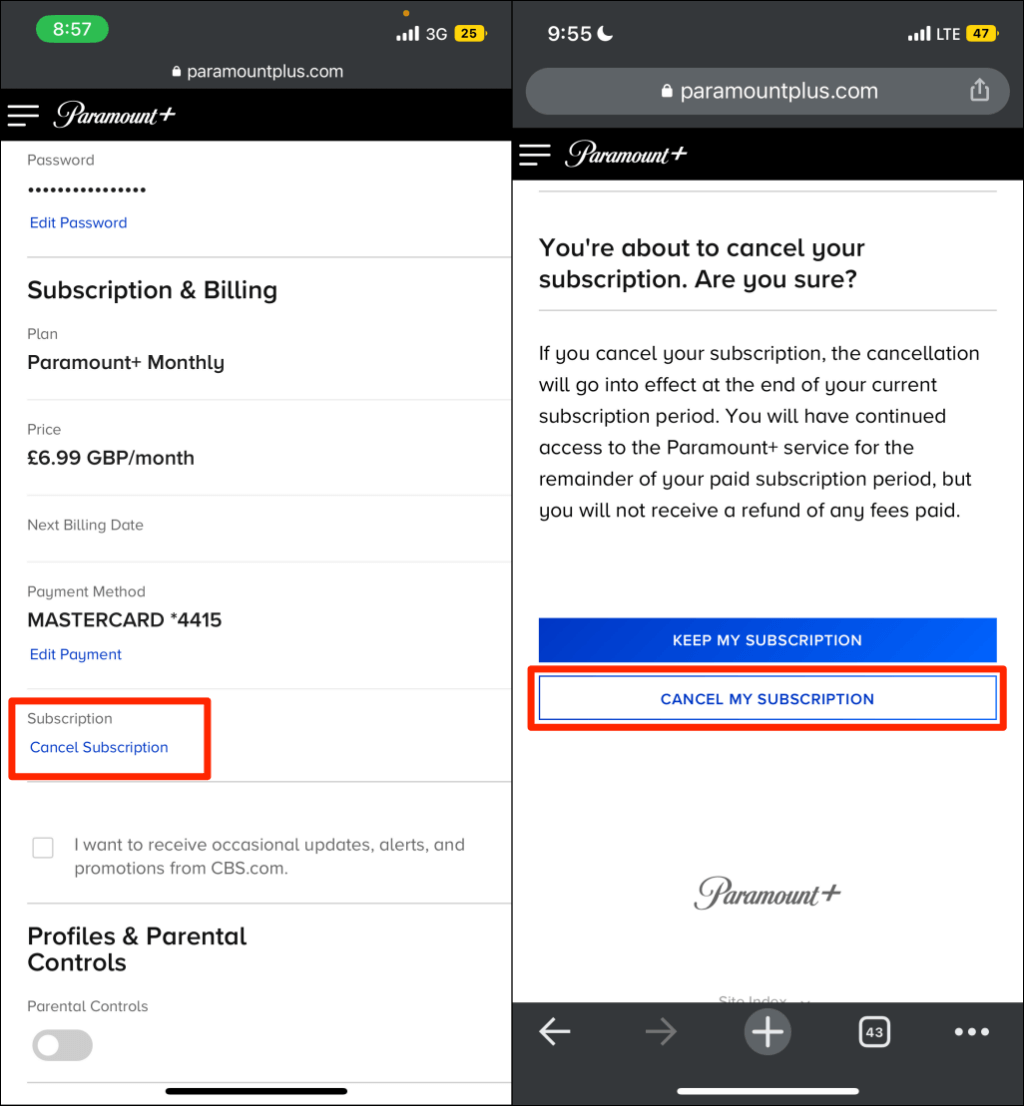
For users who registered directly through the Paramount Plus website, the cancellation process is managed through their web-based account dashboard. This is often the most straightforward method, as it bypasses third-party software layers.
Accessing Account Management via Desktop
To begin the process, navigate to the official website and authenticate your session using your credentials. Once logged in, the system initiates a session token that allows you to access secure areas of your profile.
- Navigate to the Account Overlay: Hover over your profile name in the top right corner and select “Account.” This loads the account management page, which retrieves your subscription data from the Paramount backend.
- Locate the Subscription Section: Under the “Subscription & Billing” header, you will find details regarding your current plan, the next billing date, and the “Cancel Subscription” hyperlink.
- The Retention Loop: Software designers often implement “retention loops”—a series of prompts or offers (such as an extended trial or a discounted rate) designed to prevent churn. From a technical standpoint, these are conditional logic gates. To finalize the cancellation, you must bypass these offers by clicking “Continue to Cancel.”
Verifying the Cancellation via Confirmation Metadata
Once the cancellation is confirmed, the web application updates your user status in the database from active to pending_cancel. It is critical to verify this change.
- Email Confirmation: The system should automatically trigger an SMTP (Simple Mail Transfer Protocol) request to send a confirmation email. If this is not received within ten minutes, check your spam filters or verify the email address associated with the account.
- Visual Confirmation: The account dashboard should now reflect a “Subscription Ends On” date rather than a “Next Billing Date.” This change in terminology signifies that the auto-renewal toggle has been successfully switched to the
offposition in the database.
Managing Trials Through Mobile Ecosystems
If you initiated your free trial via a mobile application, your subscription is likely tied to the operating system’s integrated payment gateway (IAP – In-App Purchase). This adds a layer of security but also changes the cancellation workflow.
Terminating Subscriptions on iOS and iPadOS
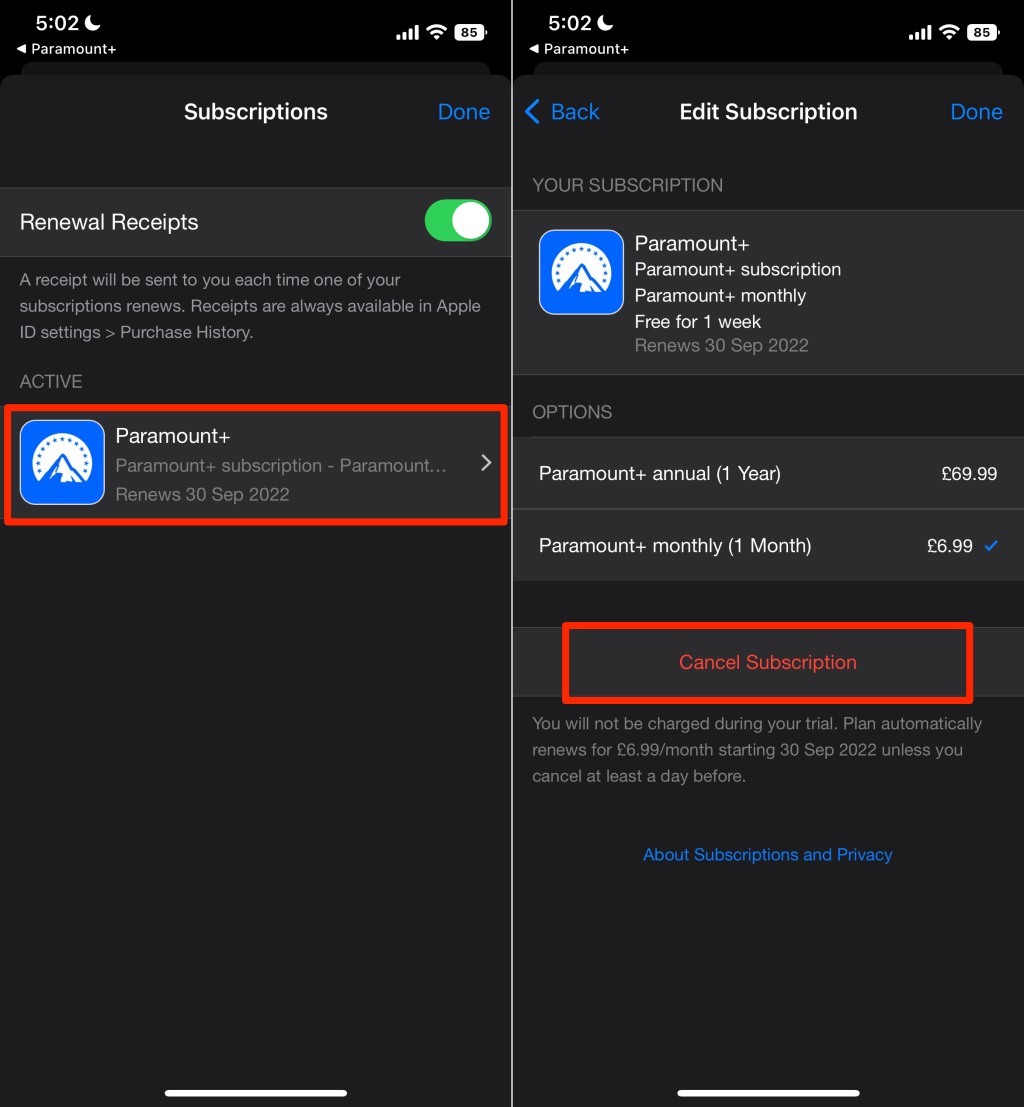
Apple’s ecosystem centralizes all subscriptions within the “Subscriptions” menu of the Apple ID settings. This is a security feature that prevents third-party apps from accessing your credit card data directly.
- Open Settings: Launch the Settings app on your iPhone or iPad.
- Access Apple ID Profile: Tap on your name at the top of the menu to access the global account settings.
- Navigate to Subscriptions: Select “Subscriptions.” This sends a request to Apple’s servers to list all active recurring payments associated with your Apple ID.
- Execute Cancellation: Locate “Paramount+” in the list and select “Cancel Free Trial.” Apple requires biometric authentication (FaceID/TouchID) or a passcode to confirm the modification of the billing state.
Utilizing the Google Play Store for Android Cancellations
Android users manage their subscriptions through the Google Play Store’s billing API.
- Launch Google Play Store: Open the app and tap your profile icon.
- Payments & Subscriptions: Navigate to the “Subscriptions” section.
- Management Interface: Select the Paramount Plus icon. Here, Google provides an interface to “Cancel subscription.” After following the prompts, the status is updated across all Android devices synced to that Google account.
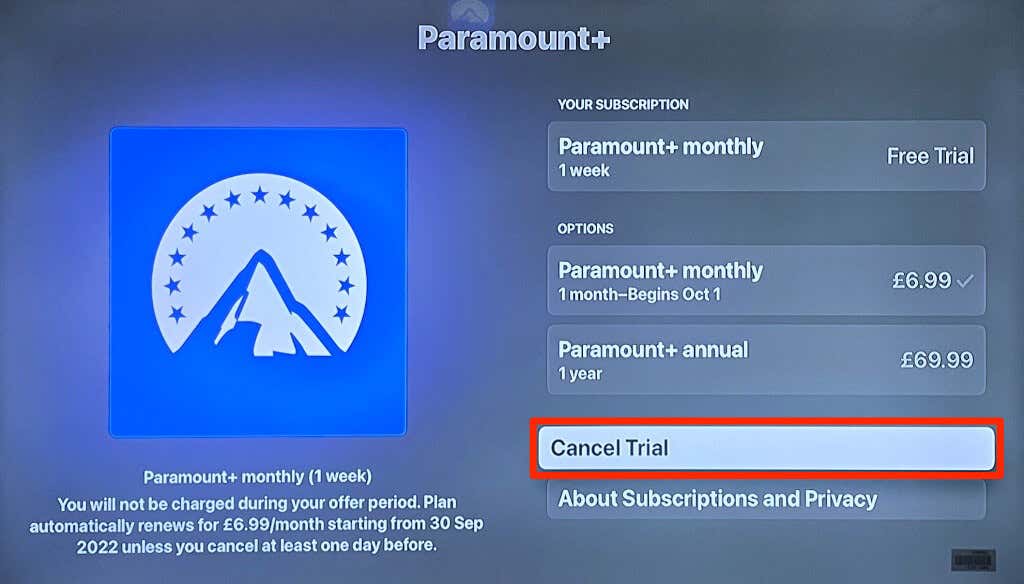
Disconnecting Third-Party App Integrations (Amazon, Roku, Apple TV)
Many consumers prefer to consolidate their streaming services through “Channels” or “Add-ons” provided by hardware manufacturers or large retailers like Amazon.
The Amazon Prime Video Channel Interface
If you signed up for Paramount Plus as a “Channel” within Amazon Prime Video, the cancellation must occur within the Amazon Digital Services environment.
- Account & Lists: Log in to Amazon via a web browser and navigate to “Account & Lists.”
- Memberships & Subscriptions: Select this option to view all third-party integrations.
- Prime Video Channels: Click on “Prime Video Channels” and find Paramount Plus. Select “Cancel Channel” to terminate the trial. Note that canceling the Paramount Plus channel does not affect your base Amazon Prime membership.
Managing Subscriptions on Roku OS
Roku utilizes its own proprietary billing system for apps downloaded through its Channel Store.
- The Options Button: On the Roku home screen, highlight the Paramount Plus channel and press the
*(Options) button on the remote. - Manage Subscription: Select “Manage subscription.”
- Cancel: Choose “Cancel subscription.” Roku will typically ask if you want to remove the channel immediately or keep it until the trial period expires. To ensure no charges occur, confirming the cancellation here is the final step required.
Optimizing Your Digital Footprint Post-Cancellation
The technical process of canceling a trial is primarily about stopping a financial transaction. However, sophisticated users should also consider the data and security implications of leaving an inactive account in a service provider’s database.
Data Retention and Account Deletion
Canceling a subscription does not delete your Paramount Plus account; it merely changes the subscription status. Paramount will retain your viewing history, preferences, and personal information for marketing and analytical purposes.
If you wish to remove your data entirely—a practice encouraged for digital security and minimizing your attack surface—you may need to submit a formal “Data Deletion Request.” Depending on your jurisdiction (such as GDPR in Europe or CCPA in California), there are specific technical pathways provided by the company’s privacy portal to ensure all personally identifiable information (PII) is purged from their servers.
Troubleshooting Synchronization Lags and Billing Errors
Occasionally, technical glitches occur where a user is billed despite a cancellation. This is often due to an “orphan” subscription where the cancellation request fails to reach the billing server due to a timeout or a broken API connection.
- Keep Documentation: Always take a screenshot of the “Cancellation Confirmed” screen. This serves as digital evidence in the event of a billing dispute.
- Check Third-Party Permissions: If you used a “Sign in with…” (OAuth) service like Facebook or Google to create your account, ensure that the permissions granted to Paramount Plus do not inadvertently allow for re-enrollment through automated scripts or linked accounts.
- Virtual Credit Cards: A proactive technical strategy for managing free trials is the use of virtual credit card services. These allow you to set a maximum spend limit of $0.00 on a specific card number, ensuring that even if a cancellation fails to process, the transaction will be declined by the bank’s authorization engine.
By understanding the underlying technical frameworks—from Direct API calls to third-party subscription gateways—users can maintain total control over their digital subscriptions. Canceling a Paramount Plus free trial is a straightforward process when you identify the correct “merchant of record” and follow the platform-specific protocols outlined in this guide.
aViewFromTheCave is a participant in the Amazon Services LLC Associates Program, an affiliate advertising program designed to provide a means for sites to earn advertising fees by advertising and linking to Amazon.com. Amazon, the Amazon logo, AmazonSupply, and the AmazonSupply logo are trademarks of Amazon.com, Inc. or its affiliates. As an Amazon Associate we earn affiliate commissions from qualifying purchases.