
YouTube, the undisputed titan of online video, has fundamentally reshaped how we consume media, learn, and connect. From educational tutorials and breaking news to entertainment and personal vlogs, its vast repository of content caters to virtually every interest imaginable. Yet, to truly unlock the platform’s full potential, moving beyond passive viewing to an interactive, personalized experience, the crucial first step is to sign in. Signing in isn’t just a formality; it’s the gateway to a tailored YouTube journey, granting access to features that transform a casual visit into a deeply engaging and customized digital space.

This guide delves into the technicalities and practicalities of signing into YouTube across various devices, explores the underlying Google account ecosystem, troubleshoot common hurdles, and offers insights into enhancing your security and overall experience. Whether you’re a new user or a seasoned viewer looking to optimize your access, understanding the mechanics of YouTube sign-in is foundational to navigating this dynamic platform effectively.
Understanding the YouTube Sign-In Ecosystem
At its core, YouTube’s sign-in mechanism is seamlessly integrated with the broader Google account infrastructure. This fundamental connection is key to understanding why signing into YouTube often feels familiar to logging into other Google services like Gmail, Drive, or Photos. Google’s unified account system offers convenience and consistency, but also necessitates a certain level of technical familiarity for optimal management.
The Google Account Connection
Every YouTube account is, by design, linked to a Google account. This means if you have an active Gmail address, you already possess the primary credentials needed to access YouTube. This integration simplifies the user experience significantly, as there’s no need to create a separate YouTube-specific username and password. Instead, your Google account serves as your digital identity across a multitude of Google’s offerings. This synergy extends beyond mere login; it underpins many personalized features, as Google leverages your activity across its services to refine recommendations and deliver a cohesive user experience. When you sign in to YouTube, you are effectively signing into your Google account within the YouTube application or website, granting it permission to access your profile, preferences, and data relevant to the video platform.
Why Sign In? Unlocking YouTube’s Full Potential
The distinction between viewing YouTube content as a guest versus a signed-in user is vast. While guest access allows for basic video playback, signing in transforms the platform into a powerful, personalized hub tailored to your tastes and activities. The benefits are extensive and directly impact the quality and utility of your YouTube experience:
- Personalized Recommendations: The algorithm learns from your watch history, likes, and subscriptions to suggest videos highly relevant to your interests, saving you time and introducing you to new content.
- Subscriptions: Follow your favorite channels, creators, and publishers, receiving notifications for new uploads and easily accessing their content from a centralized feed.
- Watch History and Playlists: Keep track of videos you’ve watched, easily re-watch content, and curate your own playlists for different moods or purposes. This is invaluable for educational content or revisiting entertainment.
- Engagement Features: Comment on videos, like or dislike content, share with friends, and participate in live chats, becoming an active member of the YouTube community.
- Content Creation: For aspiring creators, signing in is essential for uploading videos, managing your channel, tracking analytics, and engaging with your audience.
- Settings Synchronization: Your preferences, such as restricted mode settings, playback quality defaults, and notification preferences, are saved and synchronized across all devices where you are signed in, ensuring a consistent experience.
- YouTube Premium Features: Access ad-free viewing, background playback, downloads, and exclusive content if you subscribe to YouTube Premium, all tied to your signed-in account.
Without signing in, YouTube remains a robust video library, but it lacks the bespoke experience that makes it an indispensable tool for so many. The technical act of logging in is therefore not just about authentication, but about enabling a richer, more interactive digital life.
Different Devices, Same Core Process
One of the great strengths of Google’s account system is its ubiquitous design. While the user interface might slightly vary, the fundamental process of signing into YouTube remains remarkably consistent across a diverse array of devices. Whether you’re accessing YouTube from a desktop web browser, a mobile smartphone or tablet app, or even a smart TV or streaming device, the core requirement is always your Google account credentials. The system is designed to provide a unified experience, allowing your preferences, watch history, and subscriptions to follow you seamlessly from one screen to the next, emphasizing user convenience and technological adaptability.
Step-by-Step Guide to Signing In
The process of signing into YouTube is designed to be straightforward, leveraging Google’s robust authentication system. While the visual steps might vary slightly between platforms and app versions, the underlying technical flow remains consistent.
On Desktop Browsers
Accessing YouTube via a web browser on a computer is perhaps the most common method, offering a full-featured interface.
- Navigate to YouTube.com: Open your preferred web browser (Chrome, Firefox, Edge, Safari, etc.) and type
www.youtube.cominto the address bar. - Locate the “Sign In” Button: In the top-right corner of the YouTube homepage, you will typically find a prominent “Sign In” button. Click on it.
- Enter Google Account Credentials: You will be redirected to a Google sign-in page. Here, enter the email address or phone number associated with your Google account. This is usually your Gmail address. Click “Next.”
- Enter Password: On the subsequent screen, enter your Google account password. Be mindful of capitalization and ensure your keyboard is set correctly. Click “Next.”
- Two-Factor Authentication (2FA) (If Enabled): If you have two-factor authentication enabled (which is highly recommended for security), you will be prompted for an additional verification step. This could involve:
- Google Prompt: A notification on a trusted mobile device, asking you to confirm it’s you.
- Verification Code: Entering a code sent via SMS to your registered phone number or generated by an authenticator app (like Google Authenticator).
- Security Key: Tapping a physical security key connected to your computer.
Follow the on-screen instructions to complete this step.
- Access Granted: Once successfully authenticated, you will be redirected back to YouTube, now signed in. Your profile picture will appear in the top-right corner, indicating your personalized access.
On Mobile Devices (YouTube App)
The YouTube app on smartphones and tablets provides an optimized mobile experience. The sign-in process is equally streamlined.
- Open the YouTube App: Tap the YouTube icon on your device’s home screen or app drawer to launch the application.
- Tap the Profile Icon: In the top-right corner of the app interface, you’ll see a small profile icon (it might be a silhouette if you’re not signed in, or your profile picture if you’ve previously signed in with a different account). Tap this icon.
- Choose “Sign In” or “Add account”: From the menu that appears, select “Sign In” or, if you already have accounts on your device, “Add account.”
- Select Existing Google Account or Add New: If you have Google accounts already configured on your device (e.g., for Gmail or Play Store), they will be listed. You can tap to select one. If your desired account is not listed, or if you don’t have any configured, tap “Add account” and follow the prompts to enter your Google email/phone and password, along with any 2FA steps.
- Enter Credentials/2FA: As with the desktop version, you’ll enter your Google email/phone and password, followed by any two-factor authentication steps if enabled.
- Signed In: The app will then log you in, and your profile picture will appear in the top-right corner, confirming your access.
On Smart TVs and Streaming Devices
Signing into YouTube on a smart TV (e.g., Samsung, LG, Android TV) or a streaming device (e.g., Roku, Apple TV, Fire TV) often employs a slightly different, more convenient method due to the difficulty of typing credentials with a remote control.
- Open the YouTube App: Launch the YouTube application on your smart TV or streaming device.
- Initiate Sign-In: The app will typically prompt you to sign in. Select the “Sign In” or “Settings” option, which usually leads to a sign-in prompt.
- Obtain a Verification Code: Instead of asking for your email and password directly on the TV, the app will display a unique, alphanumeric verification code (e.g., “ABCD-EFGH-IJKL”) and instruct you to visit a specific URL on another device.
- Use a Separate Device: On your computer, smartphone, or tablet, open a web browser and navigate to the URL provided on your TV screen, which is usually
youtube.com/activate. - Enter the Code: On the
youtube.com/activatepage, you will be prompted to enter the verification code displayed on your TV screen. - Sign In via Browser: After entering the code, you will be asked to sign in to your Google account on that separate device. Enter your Google email/phone and password, and complete any 2FA steps.
- Confirm Activation: Once you successfully sign in on the separate device, the YouTube app on your TV or streaming device will automatically refresh and sign you in.
This “activate” method is a secure and user-friendly way to bridge the authentication gap between devices, avoiding the cumbersome process of typing complex passwords with a remote control.
Troubleshooting Common Sign-In Issues
Even with a straightforward process, technical glitches or forgotten details can occasionally impede a smooth sign-in. Addressing these issues systematically can save significant frustration.
Forgotten Password or Username
This is perhaps the most common sign-in challenge. Fortunately, Google provides robust recovery options:
- Password Recovery: On the Google sign-in page, after entering your email/phone, click “Forgot password?”. Google will guide you through verification steps, which might involve sending a code to a recovery phone or email, or asking security questions.
- Username (Email) Recovery: If you’ve forgotten the email address associated with your Google account, click “Forgot email?” on the Google sign-in page. You’ll typically be asked to enter a recovery phone number or recovery email address, and your name, to help Google identify your account.
Always ensure your recovery information (phone number, alternative email) is up-to-date in your Google Account settings to facilitate a quick recovery.
Two-Factor Authentication (2FA) Problems
While 2FA significantly enhances security, issues can arise if you lose your phone, change numbers, or your authenticator app isn’t working.
- Backup Codes: Google provides a set of one-time backup codes when you set up 2FA. Download and store these safely. If you can’t access your primary 2FA method, these codes are a lifeline.
- Authenticator App Issues: Ensure your authenticator app (e.g., Google Authenticator, Authy) is synchronized correctly. Time drift can cause codes to be invalid.
- Alternative Verification Methods: If your primary method isn’t working, look for options like “Try another way to sign in” on the 2FA prompt. This might offer alternatives like using a different recovery device or email.
It’s crucial to proactively manage your 2FA settings and understand your recovery options before an emergency occurs.
Browser or App Glitches
Sometimes the issue isn’t with your credentials but with the software itself.
- Clear Cache and Cookies (Browser): Accumulated browser data can sometimes interfere with sign-in processes. Clearing your browser’s cache and cookies often resolves these conflicts.
- Update App/Browser: Ensure your YouTube app and web browser are updated to their latest versions. Developers frequently release updates to fix bugs and improve performance.
- Try a Different Browser/Device: If you’re encountering persistent issues on one browser or device, attempt to sign in using another browser or device to isolate whether the problem is account-specific or client-specific.
- Restart Device: A simple restart of your computer, phone, or streaming device can often resolve temporary software hiccups.
Account Suspensions or Restrictions
In rare cases, you might be unable to sign in because your Google account or YouTube channel has been suspended or restricted due to policy violations.
- Check Email: Google typically sends an email notification explaining the reason for the suspension and providing instructions on how to appeal the decision.
- Follow Appeal Process: If you believe the suspension is an error, follow Google’s official appeal process diligently, providing any requested information.
Network Connectivity Issues
A stable internet connection is fundamental to any online service.
- Check Internet Connection: Ensure your device is connected to a stable Wi-Fi or cellular network. Try loading other websites or apps to confirm internet functionality.
- Router/Modem Reset: If other devices also experience connectivity issues, try restarting your router and modem.
Systematic troubleshooting, starting with the most common issues, will usually lead to a swift resolution and restore your access to YouTube.
Enhancing Your YouTube Security and Experience
Beyond merely signing in, understanding how to manage your Google account in relation to YouTube is paramount for maintaining security and optimizing your overall user experience. The interconnectedness of Google services means that securing your Google account is tantamount to securing your YouTube access.
Strengthening Your Google Account Security
Your Google account is the linchpin for your YouTube activities. Robust security practices are non-negotiable:
- Strong, Unique Passwords: Use a complex password that combines uppercase and lowercase letters, numbers, and symbols. Avoid using the same password for multiple accounts. Consider a reputable password manager to generate and store these securely.
- Enable Two-Factor Authentication (2FA): As discussed, 2FA adds a critical layer of security, making it exponentially harder for unauthorized users to access your account even if they somehow obtain your password.
- Regular Security Checkup: Periodically visit Google’s Security Checkup page (
myaccount.google.com/security-checkup). This tool helps you review your security settings, connected devices, third-party app access, and recovery information, providing personalized recommendations for improvement. - Review Account Activity: Regularly check your Google account activity log for any suspicious logins or actions.
- Keep Recovery Information Updated: Ensure your recovery phone number and email address are current, as they are vital for account recovery.
Managing Multiple Accounts
Many users have multiple Google accounts – perhaps a personal one, a work one, or one for a specific hobby channel. YouTube facilitates easy switching between these logged-in accounts:
- On Desktop: Click your profile picture in the top-right corner, then select “Switch account” from the dropdown menu. You can then choose from any Google accounts already logged in, or add another.
- On Mobile App: Tap your profile picture, then tap the down arrow next to your account name. A list of logged-in accounts will appear, allowing you to select another or add a new one.
This seamless switching allows you to compartmentalize your YouTube experience, keeping personal subscriptions separate from professional content or niche interests.
Signing Out Safely
While signing in is crucial, knowing when and how to sign out is equally important for security, especially on shared or public devices.
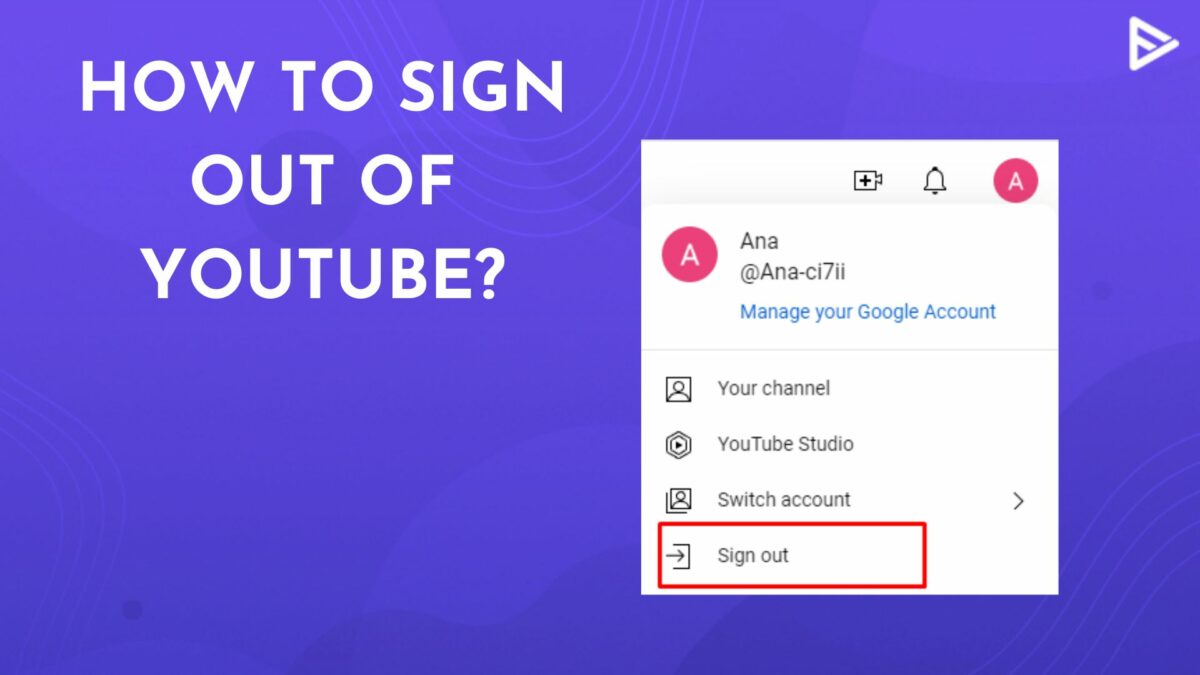
- On Desktop: Click your profile picture, then select “Sign out” from the menu.
- On Mobile App: Tap your profile picture, then the down arrow next to your account name, and select “Manage accounts on this device” (on Android) or “Sign out” (on iOS). You can then choose to remove specific accounts from the device.
- Remote Sign-Out: If you forget to sign out on a public computer or a shared device, you can remotely sign out from your Google Account settings (
myaccount.google.com/security). Under “Your devices,” you can find and sign out of specific sessions.
Always sign out on public computers to prevent unauthorized access to your personal data and YouTube activities.
Privacy Settings and Data Management
Signing into YouTube also connects you to Google’s extensive privacy and data controls. You can manage what data YouTube collects and how it’s used:
- YouTube History Settings: Within your Google Account’s “Data & privacy” section, you can control your YouTube Watch History and Search History. You can pause these, auto-delete them after a certain period, or manually delete specific entries.
- Ad Personalization: You can adjust ad personalization settings to control the types of ads you see, or turn off personalized ads entirely.
- Third-Party App Access: Regularly review which third-party applications and websites have access to your Google account. Remove any that you no longer use or trust.
Understanding and actively managing these settings empowers you to control your digital footprint on YouTube and across Google’s ecosystem.

Conclusion
Signing in to YouTube is far more than a simple login; it’s the fundamental step toward transforming a generic video platform into a powerful, personalized, and interactive hub tailored precisely to your preferences. From unlocking custom recommendations and managing subscriptions to engaging with creators and potentially even becoming one, a signed-in experience vastly enhances utility and enjoyment.
By leveraging your Google account, understanding the multi-device sign-in procedures, and proactively troubleshooting common issues, users can ensure seamless and consistent access. Moreover, by implementing robust security measures and diligently managing privacy settings, you can safeguard your digital identity while maximizing the rich array of features YouTube has to offer. In an increasingly digital world, mastering the nuances of platform access like YouTube sign-in is not just a technicality, but a core component of a secure, efficient, and personalized online experience.
aViewFromTheCave is a participant in the Amazon Services LLC Associates Program, an affiliate advertising program designed to provide a means for sites to earn advertising fees by advertising and linking to Amazon.com. Amazon, the Amazon logo, AmazonSupply, and the AmazonSupply logo are trademarks of Amazon.com, Inc. or its affiliates. As an Amazon Associate we earn affiliate commissions from qualifying purchases.