
In the modern era of mobile computing, the quest for the “one-port-to-rule-them-all” has been a driving force behind hardware innovation. As laptops become thinner and more powerful, the physical real estate for connectors has diminished, leading to the rise of multi-functional interfaces. At the pinnacle of this evolution stands the Thunderbolt port. Developed through a collaboration between Intel and Apple, Thunderbolt has transformed from a niche professional requirement into a mainstream standard for power users, gamers, and creative professionals.
But what exactly is a Thunderbolt port, and why does it look identical to a standard USB-C port while offering vastly different capabilities? Understanding this technology is essential for anyone looking to maximize their laptop’s potential, whether for high-speed data transfer, multi-monitor setups, or external hardware expansion.
The Evolution and Technical Architecture of Thunderbolt
To understand what a Thunderbolt port is, one must first look at its internal architecture. Unlike standard USB ports, which primarily handle data and power, Thunderbolt is a high-bandwidth hardware interface that combines several protocols into a single connection.
From Mini DisplayPort to the USB-C Connector
The history of Thunderbolt is marked by a significant shift in physical design. Thunderbolt 1 and 2 utilized the Mini DisplayPort connector. While revolutionary at the time, it was limited by its proprietary nature and specific use cases. The true breakthrough occurred with the release of Thunderbolt 3, which adopted the USB-C (USB Type-C) physical connector.
This move was both a blessing and a source of confusion for consumers. While the physical plug became universal, the capabilities behind the port remained distinct. Every Thunderbolt 3, 4, and 5 port uses the USB-C shape, but not every USB-C port supports Thunderbolt technology. The distinguishing mark is usually a small lightning bolt icon next to the port on the laptop chassis.
The Integration of PCIe and DisplayPort
What makes Thunderbolt “faster” isn’t just raw speed; it is how it handles data. Thunderbolt maps PCI Express (PCIe) and DisplayPort protocols onto a single transport layer.
By utilizing PCIe, the Thunderbolt port essentially acts as an external extension of the laptop’s internal motherboard bus. This allows users to connect high-performance peripherals—such as external Graphics Processing Units (eGPUs) or NVMe SSD arrays—that require direct communication with the CPU. Simultaneously, the DisplayPort integration ensures that the port can carry high-resolution video signals with zero latency, making it the premier choice for high-end displays.
Thunderbolt 4 vs. Thunderbolt 5: Navigating the Generations
As of today, most premium laptops come equipped with Thunderbolt 4, while the industry is beginning to transition toward the groundbreaking Thunderbolt 5. Understanding the nuances between these generations is critical for future-proofing your tech investments.
Thunderbolt 4: The Gold Standard of Reliability
Thunderbolt 4 was introduced not to significantly increase the maximum speed of Thunderbolt 3 (which was already 40Gbps), but to standardize the experience and increase minimum requirements. In the world of tech, “minimums” matter more than “maximums” for reliability.
A Thunderbolt 4 port guarantees:
- 40Gbps Bandwidth: Consistent high-speed data transfer.
- Dual 4K Support: The ability to drive two 4K monitors or one 8K monitor via a single port.
- Universal Charging: At least one port on the laptop must support laptop charging (Power Delivery).
- Wake from Sleep: The ability to wake a laptop from sleep using a keyboard or mouse connected through a Thunderbolt dock.
- DMA Protection: Enhanced security via Intel VT-d-based direct memory access (DMA) protection to prevent physical security exploits.
Thunderbolt 5: The Future of Bandwidth
Announced as the next giant leap, Thunderbolt 5 is designed for the next generation of 8K displays and extreme gaming setups. It doubles the bi-directional bandwidth to 80Gbps. However, its most impressive feature is “Bandwidth Boost,” which allows the port to provide up to 120Gbps for video-intensive tasks while maintaining 40Gbps for upstream data. This is particularly relevant for professional video editors and gamers using ultra-high-refresh-rate monitors.

Practical Applications: Why Your Laptop Needs a Thunderbolt Port
For many casual users, a standard USB port suffices for a mouse or a thumb drive. However, for those using their laptop as a primary workstation, a Thunderbolt port unlocks a level of versatility that standard ports cannot match.
External GPUs (eGPUs) and Gaming
One of the most exciting “tech-heavy” applications of Thunderbolt is the External GPU. Because Thunderbolt exposes PCIe lanes, a user can plug their thin-and-light ultrabook into an external enclosure containing a desktop-class graphics card (like an NVIDIA RTX series). This allows a portable laptop to transform into a high-end gaming rig or a 3D rendering workstation when docked at home, bridging the gap between portability and raw power.
Professional Docking and Daisy-Chaining
Thunderbolt is the king of cable management. Through a process called “daisy-chaining,” you can connect multiple Thunderbolt devices in a row. For example, a single cable can run from your laptop to a Thunderbolt hard drive, which then connects to a second hard drive, and finally to a monitor.
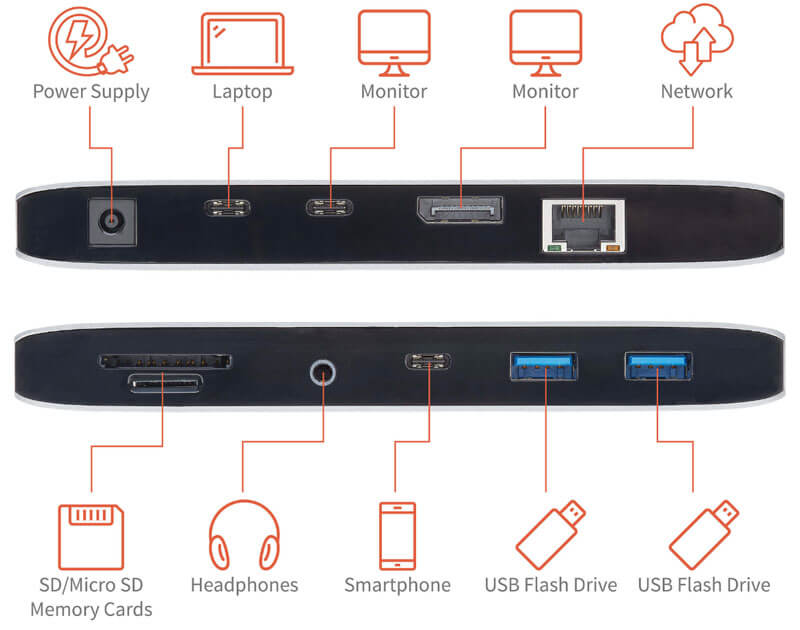
Furthermore, a Thunderbolt docking station can serve as the “brain” of a desk setup. With one single cable, you can provide power to the laptop, connect to a wired 10GbE Ethernet network, link multiple high-resolution monitors, and connect high-fidelity audio interfaces.
High-Speed Data Storage for Content Creators
For videographers working with 4K or 8K RAW footage, transfer speeds are a bottleneck. A standard USB 3.0 port (5Gbps) would take hours to move terabytes of data. A Thunderbolt 4 port (40Gbps) reduces that time to minutes. When paired with Thunderbolt-certified external NVMe SSDs, the read/write speeds are often indistinguishable from the laptop’s internal storage, allowing editors to work directly off external drives without lag.
Thunderbolt vs. Standard USB-C: Clearing the Confusion
The most common question in digital forums is: “My laptop has a USB-C port; is it the same as Thunderbolt?” The short answer is no. While they share the same physical “house,” the “occupants” are different.
Bandwidth and Power Delivery Discrepancies
A standard USB-C port might only support USB 3.2 Gen 1 (5Gbps) or Gen 2 (10Gbps). Thunderbolt 4 is four to eight times faster. Furthermore, while many USB-C ports support Power Delivery (PD), Thunderbolt ports are required to meet stricter power standards, ensuring they can charge the laptop and power high-drain peripherals (like bus-powered audio interfaces) simultaneously.
The “Alt Mode” Limitation
Many standard USB-C ports use “DisplayPort Alt Mode” to output video. While this works for a single monitor, it often lacks the bandwidth to handle the uncompressed, high-bit-depth video signals that Thunderbolt manages with ease. Additionally, standard USB-C ports do not support PCIe tunneling, which means they are fundamentally incompatible with eGPUs.
Identifying the Port
When inspecting a laptop, look for the logo. A Thunderbolt port is almost always marked with the lightning bolt. If the port has a “D” shape icon, it is likely just a USB-C port with DisplayPort capabilities. If it has no icon at all, it is likely a basic data and power port.

Choosing the Right Hardware for Your Workflow
As we look toward the future of digital security and high-speed computing, the Thunderbolt port remains the gold standard for connectivity. When shopping for a new laptop, the inclusion of Thunderbolt should be a high priority if you identify with any of the following:
- The Hybrid Professional: You need a portable laptop for travel but a multi-monitor, full-desktop experience at the office.
- The Creative Pro: You handle large files and require external SSDs that don’t slow down your workflow.
- The Enthusiast Gamer: You want the longevity of an eGPU setup to keep your laptop relevant as games become more demanding.
While the hardware adds a slight premium to the cost of a laptop, the utility it provides is unparalleled. Thunderbolt isn’t just a port; it’s a high-speed data highway that ensures your laptop remains a versatile tool in an increasingly connected tech ecosystem. By consolidating power, data, and video into a single, secure, and incredibly fast interface, Thunderbolt has effectively set the pace for what we expect from modern computing.
aViewFromTheCave is a participant in the Amazon Services LLC Associates Program, an affiliate advertising program designed to provide a means for sites to earn advertising fees by advertising and linking to Amazon.com. Amazon, the Amazon logo, AmazonSupply, and the AmazonSupply logo are trademarks of Amazon.com, Inc. or its affiliates. As an Amazon Associate we earn affiliate commissions from qualifying purchases.